

Configure SAML v2 for OKTA
This documentation will guide you in configuring SAML v2 IdP for OKTA. In this case, TrueFoundry will act as Service Provider (SP) to OKTA (IdP).Create an Application in OKTA
- Log in into your Okta Admin Console navigate to
Applications. - At the top of the screen click on
Create App Integration. - In sign-in Method choose
SAML 2.0.
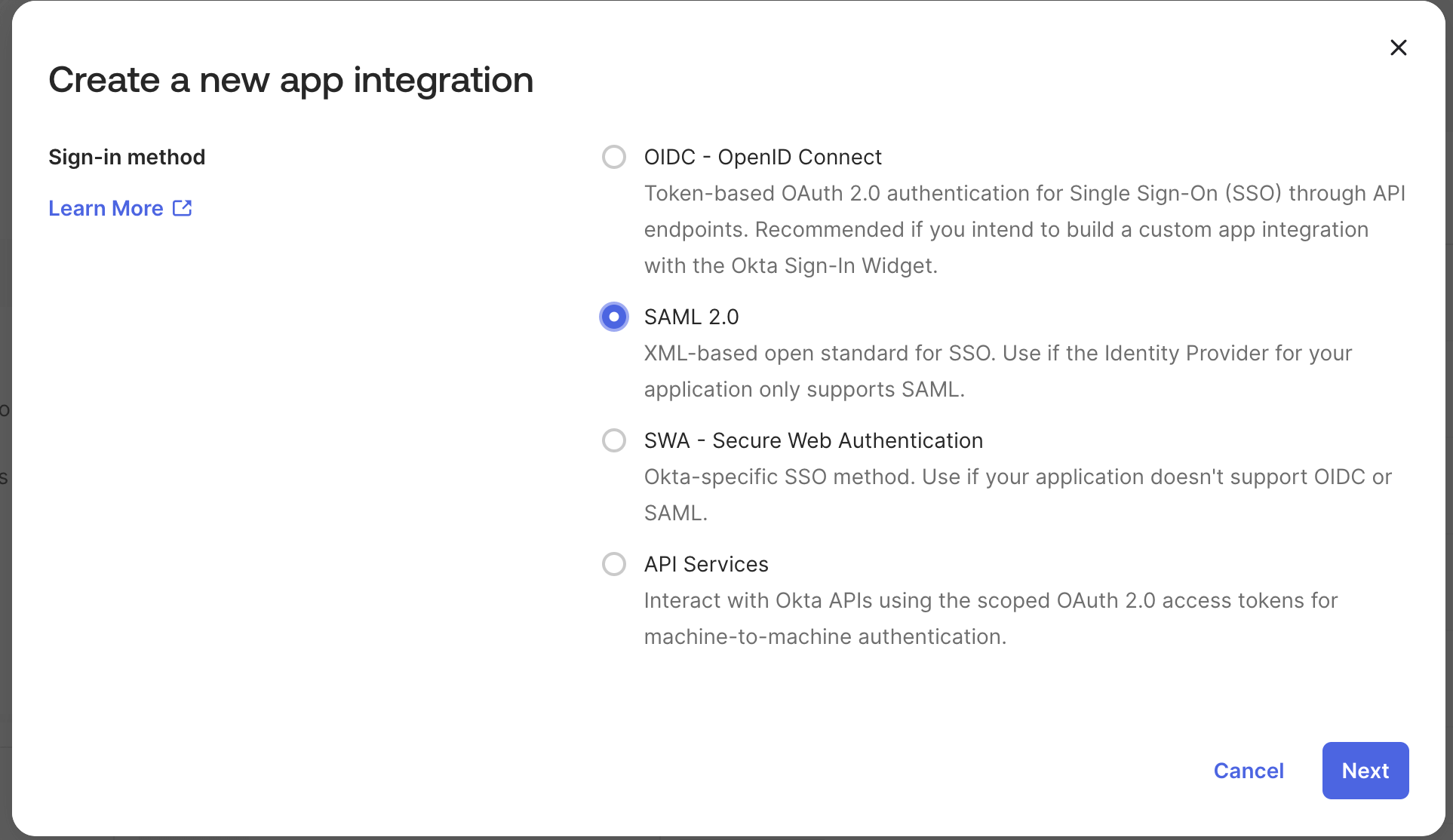
- Click
Next - Name the application
- Choose App Logo (Optional).
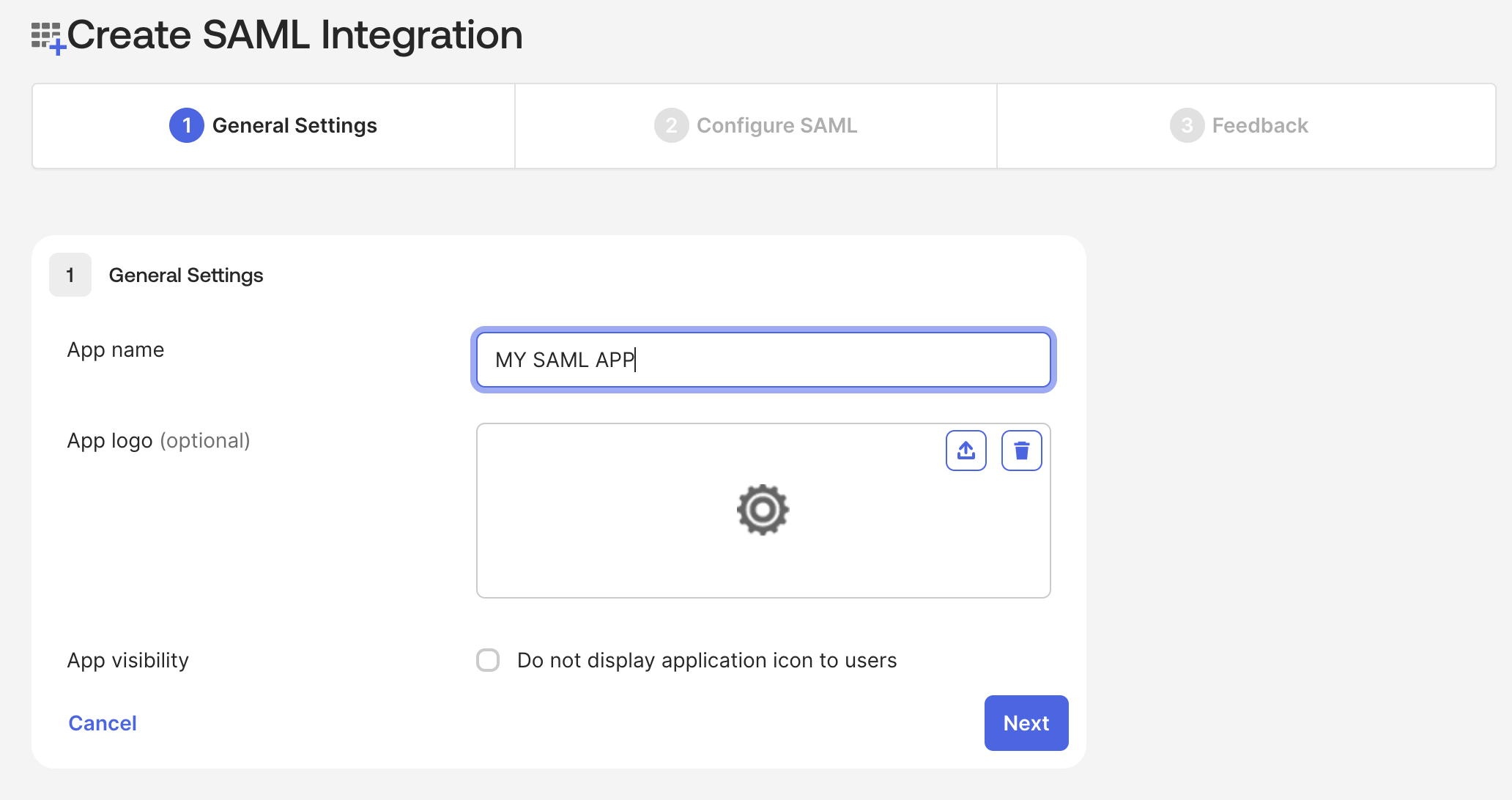
- Click
Next
Configure Your OKTA Application
- Single Sign-on URL: This is ACS endpoint which can be obtained from truefoundry.
- Default RelayState: This is endpoint where user will be redirected after being authenticated. This is generally control plane URL.
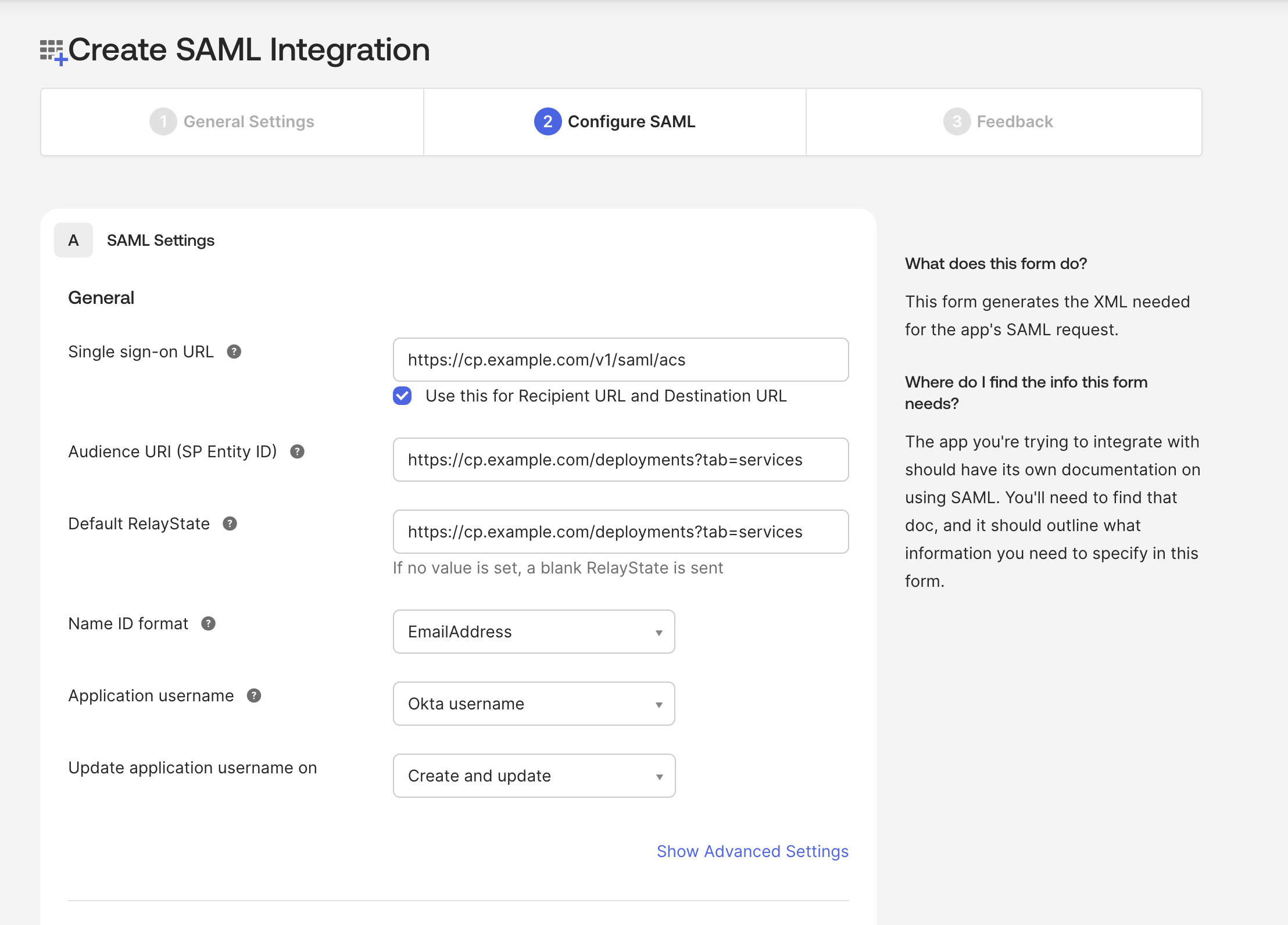
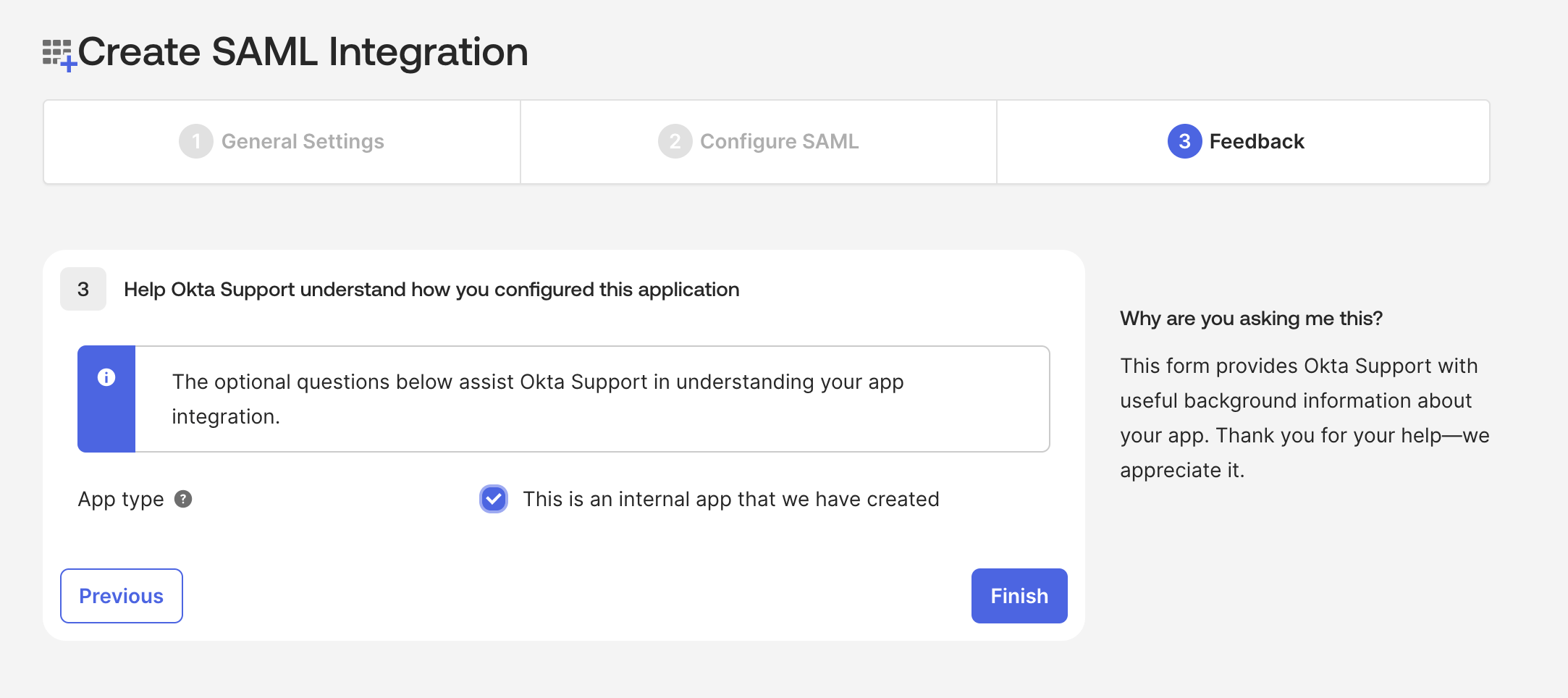
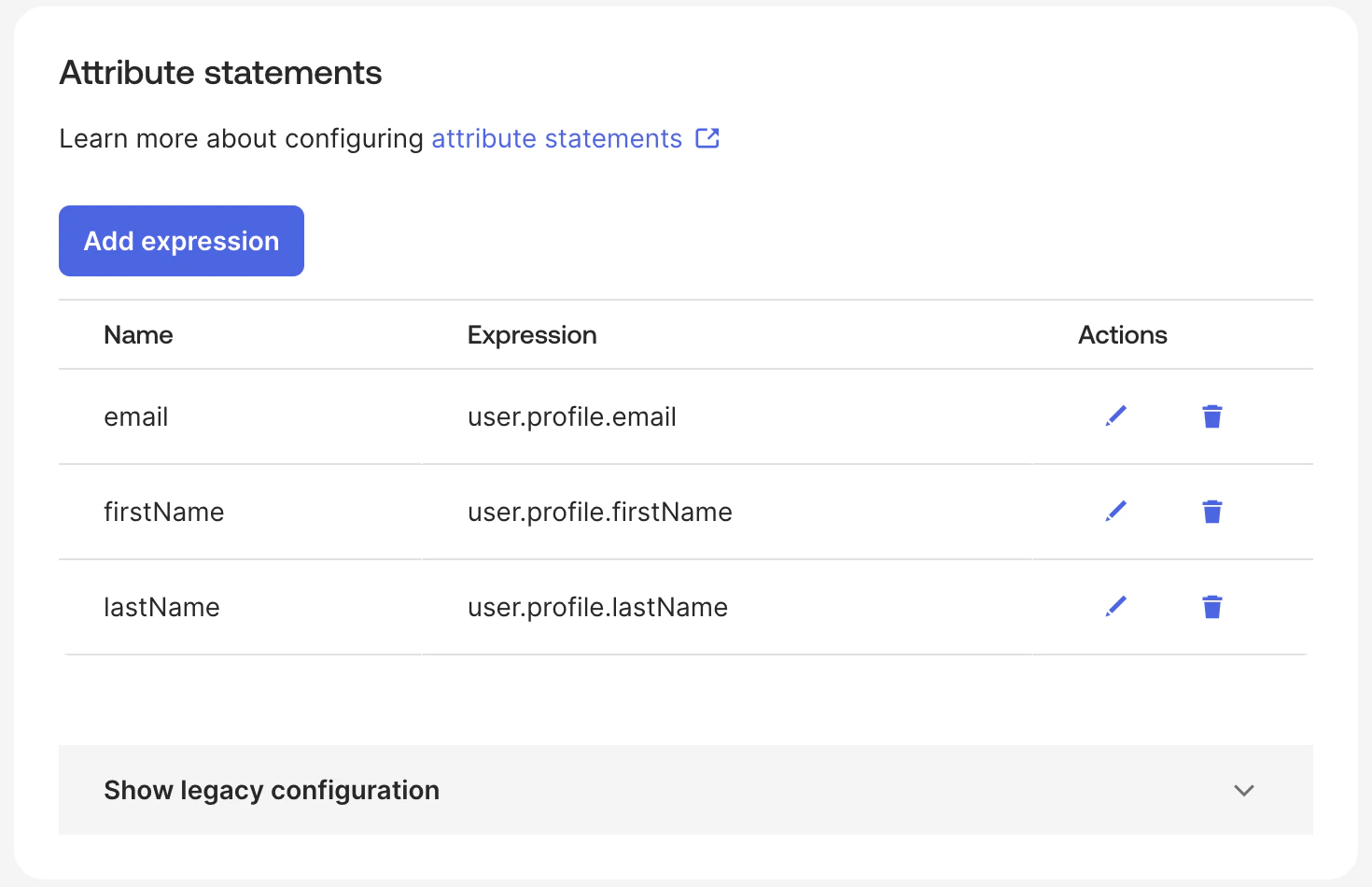
- Attributes Mapping: Go to Sign on tab of your application and navigate to Attributes statements Section to add Attributes Mapping as shown below.
Integrate with TrueFoundry
To integrate Okta with TrueFoundry, Add the following configuration to env Variables In Okta Application navigate to Sign on tab and click onview SAML setup instructions
-
OAUTH_PROVIDER_TYPE :
EXTERNAL_SAML - EXTERNAL_SAML_IDP_ENDPOINT: This value can be obtained from your Okta Application as demonstrated below. You will want to copy the Identity Provider Single Sign-On URL value from Okta into this field.
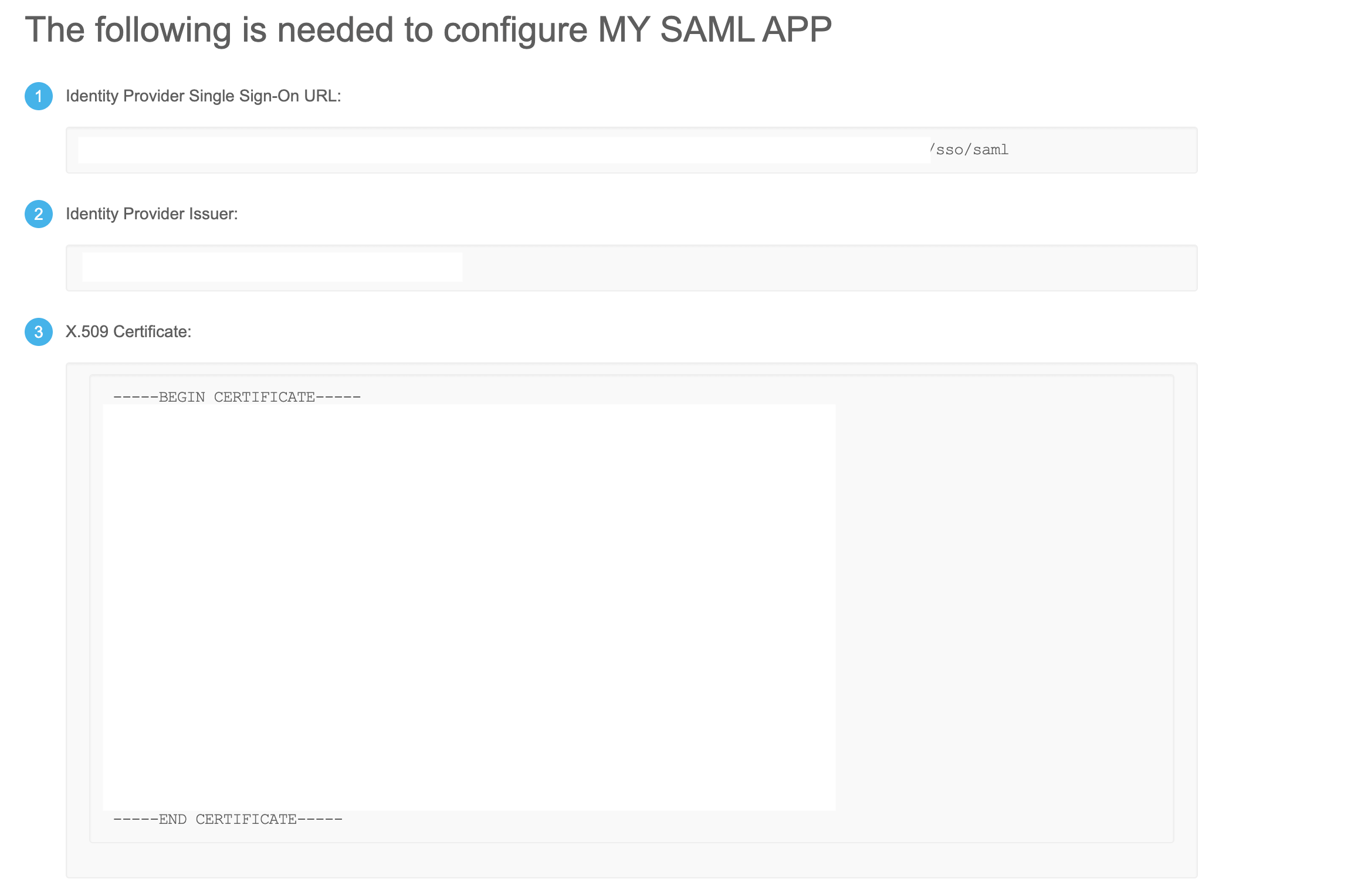
- EXTERNAL_SAML_CERTIFICATE: From the overview of your SAML setup instruction in Okta, you should find a Certificate. Encode the the Certificate by Base64 Encoder and set it here.
- EXTERNAL_SAML_ACCESS_TOKEN_EXPIRY_SECONDS: This is duration of access token that will be asigned to user, so keep it as required.