

What is Braintrust?
Braintrust is an LLM engineering platform that helps teams trace LLM calls, evaluate model performance, run experiments, and debug issues in AI applications.Key Features of Braintrust
- Comprehensive LLM Tracing: Captures detailed traces of all LLM interactions including input prompts, outputs, token usage, latency, and costs, providing complete visibility into your AI application’s behavior
- Evaluation and Experiments: Run systematic evaluations with custom scorers and automated experiments to measure and improve model performance
- Real-time Analytics: Built-in analytics dashboard provides real-time insights into model performance, usage patterns, and costs across your entire LLM stack
- Prompt Management: Version control your prompts and test them in the playground before deployment
Prerequisites
Before integrating Braintrust with TrueFoundry, ensure you have:- TrueFoundry Account: Create a TrueFoundry account and follow the instructions in our Gateway Quick Start Guide
- Braintrust Account: Sign up for a Braintrust account
- Braintrust API Key: Generate an API key from your Braintrust account settings
- Braintrust Project ID: Create a project in Braintrust and note the Project ID
Integration Guide
TrueFoundry AI Gateway supports exporting OpenTelemetry (OTEL) traces to external platforms like Braintrust. This allows you to leverage Braintrust’s powerful evaluation and observability features while using TrueFoundry for unified LLM access.Step 1: Get Braintrust Credentials
- Log in to your Braintrust dashboard
- Navigate to your project’s configuration page
- Copy your API Key from the account settings
- Copy your Project ID from the project configuration page (look for the “Copy Project ID” button)
Step 2: Configure OTEL Export in TrueFoundry
Navigate to the TrueFoundry AI Gateway OTEL configuration:- Go to AI Gateway → Controls → Settings in the TrueFoundry dashboard
- Scroll down to the OTEL Config section and click the edit button
- Enable the OTEL Traces Exporter Configuration toggle
- Select HTTP Configuration tab
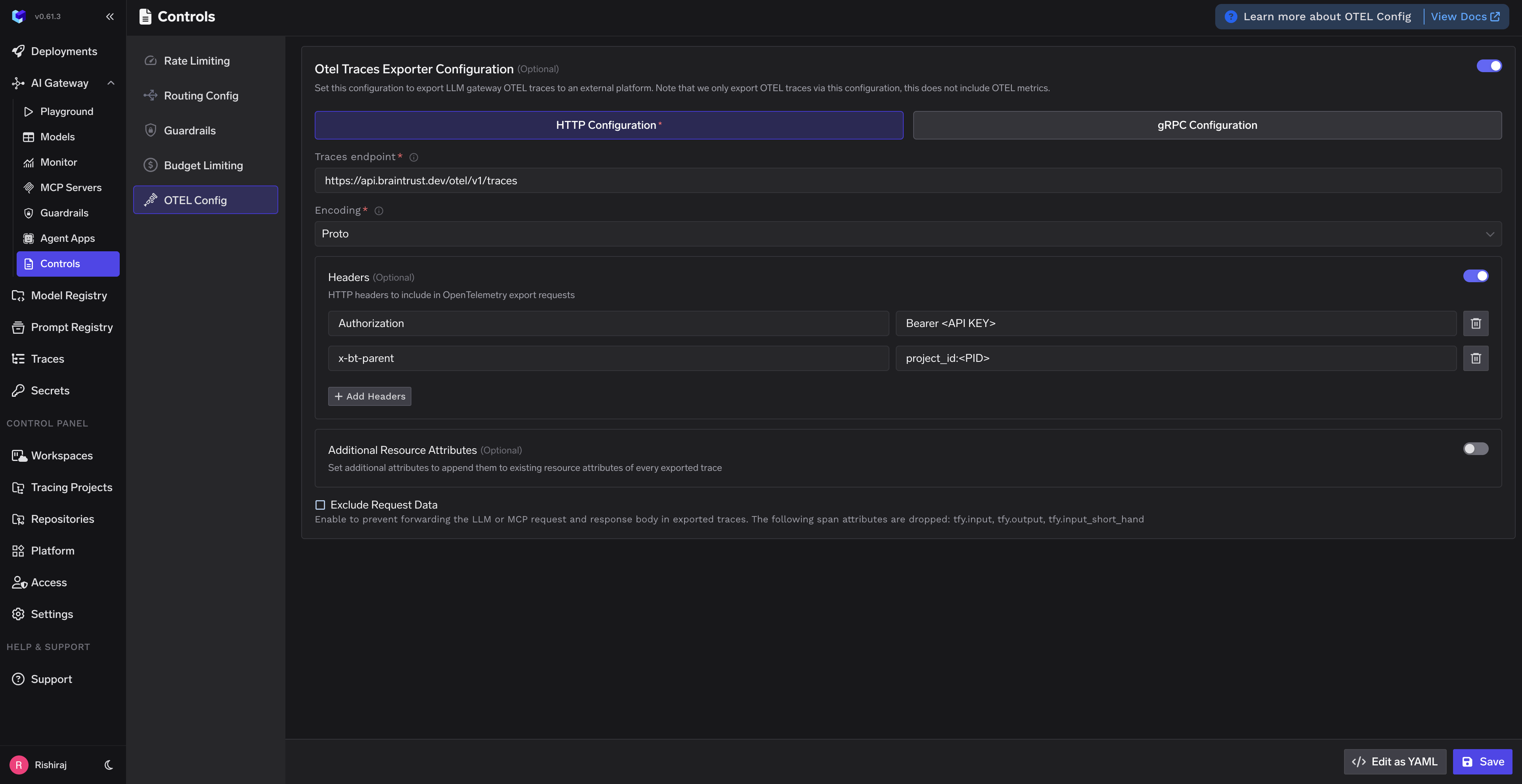
TrueFoundry OTEL Config for Braintrust Integration
Step 3: Configure Braintrust Endpoint
Fill in the following configuration:Step 4: Add Required Headers
Click + Add Headers and configure the following HTTP headers:
Replace
<YOUR_BRAINTRUST_API_KEY> with your actual Braintrust API key and <YOUR_PROJECT_ID> with your Braintrust project ID.
The
x-bt-parent header sets the trace’s parent project. You can use prefixes like project_id:, project_name:, or experiment_id: depending on how you want to organize your traces.Step 5: Save Configuration
Click Save to apply the OTEL export configuration. All LLM traces from the TrueFoundry AI Gateway will now be automatically exported to Braintrust.Step 6: View Traces in Braintrust
After making LLM requests through TrueFoundry AI Gateway, log in to your Braintrust dashboard to view the traces:- Navigate to your project in Braintrust
- Go to the Logs section
- View detailed traces including:
- LLM Calls: ChatCompletion, AgentResponse, and other LLM operations
- Metrics: Duration, token usage, and performance data
- Metadata: Request details, model information, and custom attributes
- Trace Tree: Hierarchical view of nested spans and operations
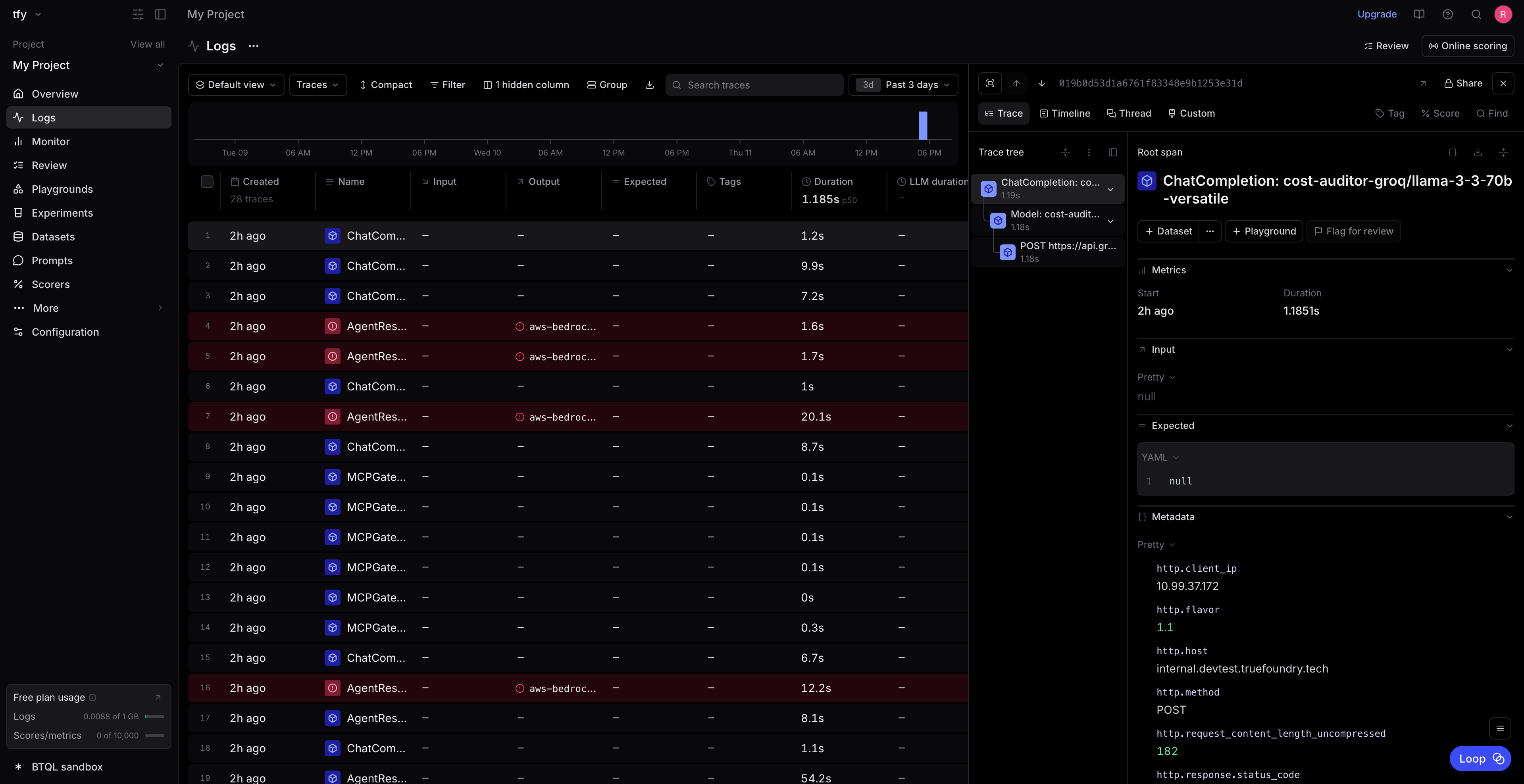
Braintrust Logs Dashboard showing TrueFoundry traces
Self-Hosted Braintrust
If you’re self-hosting Braintrust, use your custom API URL instead ofhttps://api.braintrust.dev. For example: