

Overview
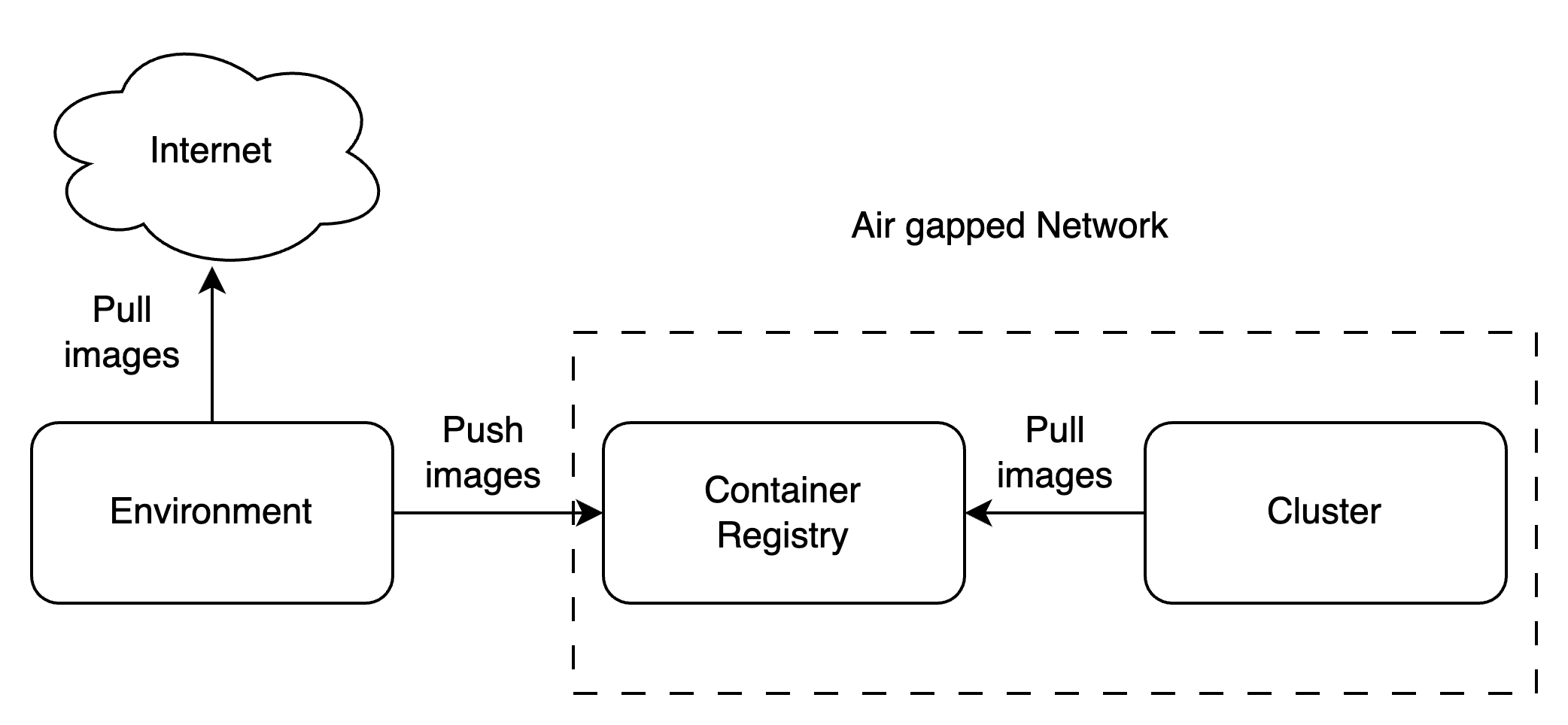
An air-gapped environment is isolated from the internet. This means all artifacts (helm charts, container images) needed for the platform must be made available locally or in an internal network without internet access. This guide covers the air-gapped-specific setup that must be completed before you follow the standard control plane or compute plane installation:- Push all images and helm charts to a private OCI-compatible registry (or configure a mirror of TrueFoundry’s registry)
- Deploy a policy engine (JSPolicy or Kyverno) to intercept and rewrite image/helm references at runtime so they resolve to your private registry
- Continue with standard installation — once the above is done, follow the normal control plane or compute plane installation guides
Requirements
Private OCI-compatible registry
Private OCI-compatible registry
You need an OCI-compatible registry accessible from within the cluster that can serve:
- OCI-compatible container images with username/password or another auth mechanism
- OCI-compatible helm charts without authentication
tfy.jfrog.io/tfy-images for images, tfy.jfrog.io/tfy-helm for helm charts) if it is reachable from your environment, rather than replicating everything locally.Internet-connected staging environment
Internet-connected staging environment
You need a secure environment with internet access and push access to the target registry. This is used only for the initial upload and subsequent upgrades. If you are using a registry mirror, this environment is not required.
Tooling prerequisites
Tooling prerequisites
NPM registry (for JSPolicy only)
NPM registry (for JSPolicy only)
If you choose JSPolicy as your policy engine, it requires access to an
npm registry with the js-yaml package. You must host this from within the cluster or point to TrueFoundry’s npm mirror (https://tfy.jfrog.io/artifactory/api/npm/tfy-npm-registry). This requirement does not apply if you use Kyverno.AWS-specific: private VPC endpoints
AWS-specific: private VPC endpoints
If running on AWS, Karpenter needs access to certain APIs via private VPC endpoints. See the Karpenter private cluster guide for details.
Step 1 — Upload Artifacts to Your Private Registry
A list of all images and helm charts required by a TrueFoundry installation is maintained in the infra-charts repository as anartifacts-manifest.json per helm chart. Choose the manifest that matches your environment:
| Environment | Manifest |
|---|---|
| AWS EKS | tfy-k8s-aws-eks-inframold |
| Azure AKS | tfy-k8s-azure-aks-inframold |
| GCP GKE Standard | tfy-k8s-gcp-gke-standard-inframold |
| Civo Talos | tfy-k8s-civo-talos-inframold |
| Generic Kubernetes | tfy-k8s-generic-inframold |
Step 2 — Configure Policy Engine
A policy engine sits between the Kubernetes API server and the scheduler, intercepting admission requests to mutate image and helm repository references at runtime — transparently redirecting them to your private registry without modifying your deployment manifests. TrueFoundry provides pre-built configuration charts for two policy engines. Choose one:- JSPolicy — a lightweight Kubernetes policy engine that uses JavaScript (V8) to write admission policies as code. Well-suited for environments already using the Loft ecosystem.
- Kyverno — a CNCF policy engine for Kubernetes that uses declarative YAML-based policies. A good choice if you prefer a CNCF-graduated project or already run Kyverno.
- JSPolicy
- Kyverno
Create namespace and registry secret
Shell
Shell
Install ArgoCD CRDs
These must be installed before the JSPolicy config chart because JSPolicy resources reference ArgoCD CRDs:
Shell
Step 3 — Proceed with Standard Installation
Your cluster is now configured to pull all images and helm charts from your private registry. Continue with the appropriate installation guide:- Control Plane — Follow the control plane installation guide. All image and helm references will be transparently redirected to your private registry by the policy engine.
- Compute Plane — Follow the compute plane installation guide. Same redirection applies.
If you are doing a combined control plane + compute plane installation on the same cluster using a custom registry, refer to the control plane & compute plane installation with custom registry guide for the exact helm values to use.