

What is AnythingLLM?
AnythingLLM is an all-in-one Desktop & Docker AI application with built-in RAG, AI agents, and more. It provides a comprehensive platform for running AI applications locally or in the cloud with complete control over your data and models.Key Features of AnythingLLM
- Custom Model Support: Stay fully local with built-in LLM provider running any model you want, or leverage enterprise models from OpenAI, Azure, AWS, and more with flexible model switching capabilities
- Universal Document Support: Use every type of document including PDFs, Word documents, CSV files, codebases, and much more. Import documents from online locations and make all your business data accessible
- Complete Privacy Control: AnythingLLM comes with sensible and locally running defaults for your LLM, embedder, vector database, and storage. Nothing is shared unless you explicitly allow it
Prerequisites
Before integrating AnythingLLM with TrueFoundry, ensure you have:- TrueFoundry Account: Create a Truefoundry account and follow the instructions in our Gateway Quick Start Guide
- AnythingLLM Installation: Set up AnythingLLM using either the Desktop application or Docker deployment
Integration Steps
This guide assumes you have AnythingLLM installed and running, and have obtained your TrueFoundry AI Gateway base URL.Step 1: Access AnythingLLM LLM Settings
- Launch your AnythingLLM application (Desktop or Docker).
- Navigate to Settings and go to LLM Preference:
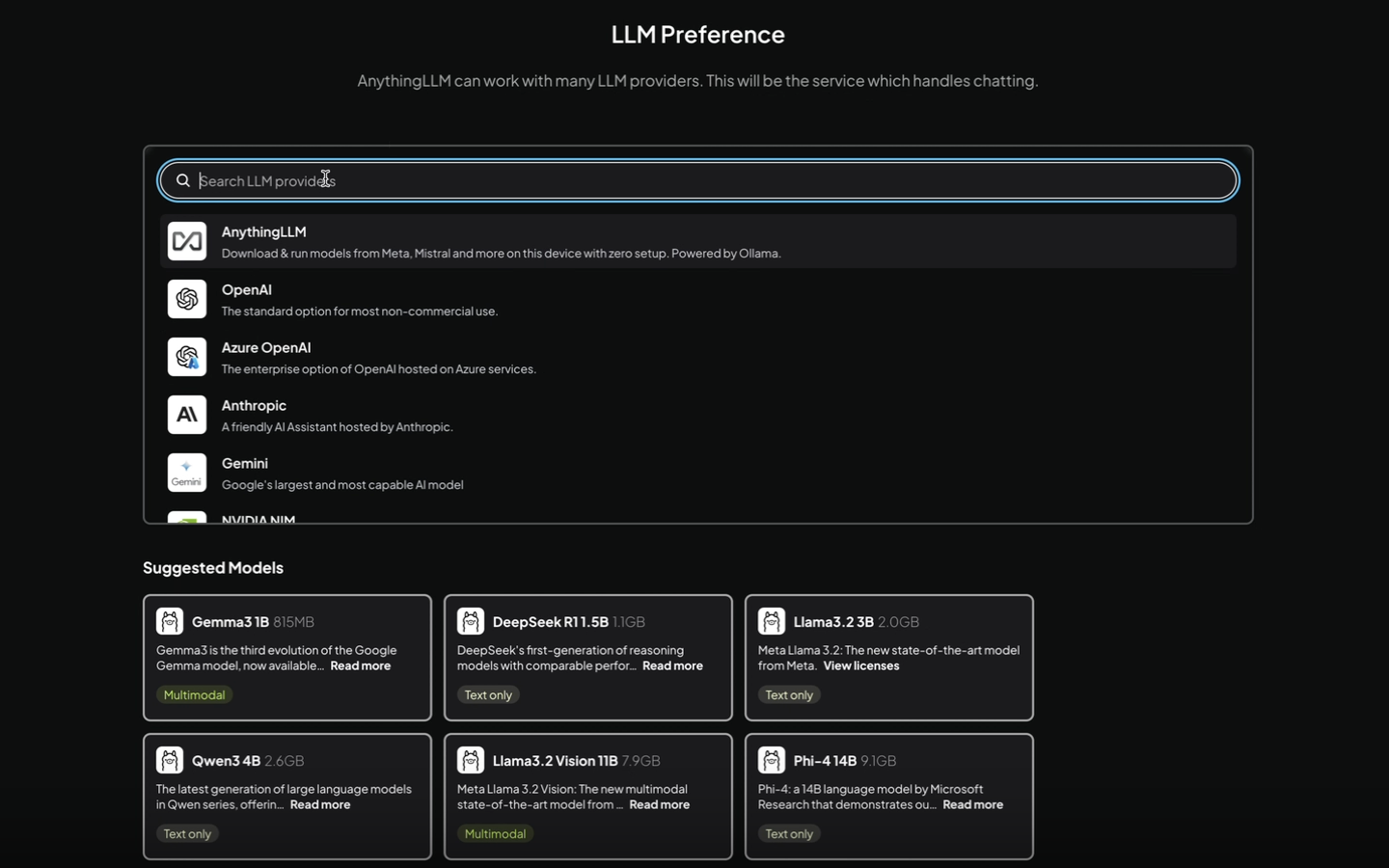
Step 2: Configure Generic OpenAI Provider
- In the LLM provider search box, type “Generic OpenAI” and select it from the available options.
-
Configure the TrueFoundry connection with the following settings:
- Base URL: Enter your TrueFoundry Gateway base URL
- Chat Model Name: Enter the model name from the unified code snippet (e.g.,
openai-main/gpt-4o) - Token Context Window: Set based on your model’s limits (e.g., 16000, 128000)
- Max Tokens: Configure according to your needs (e.g., 1024, 2048)
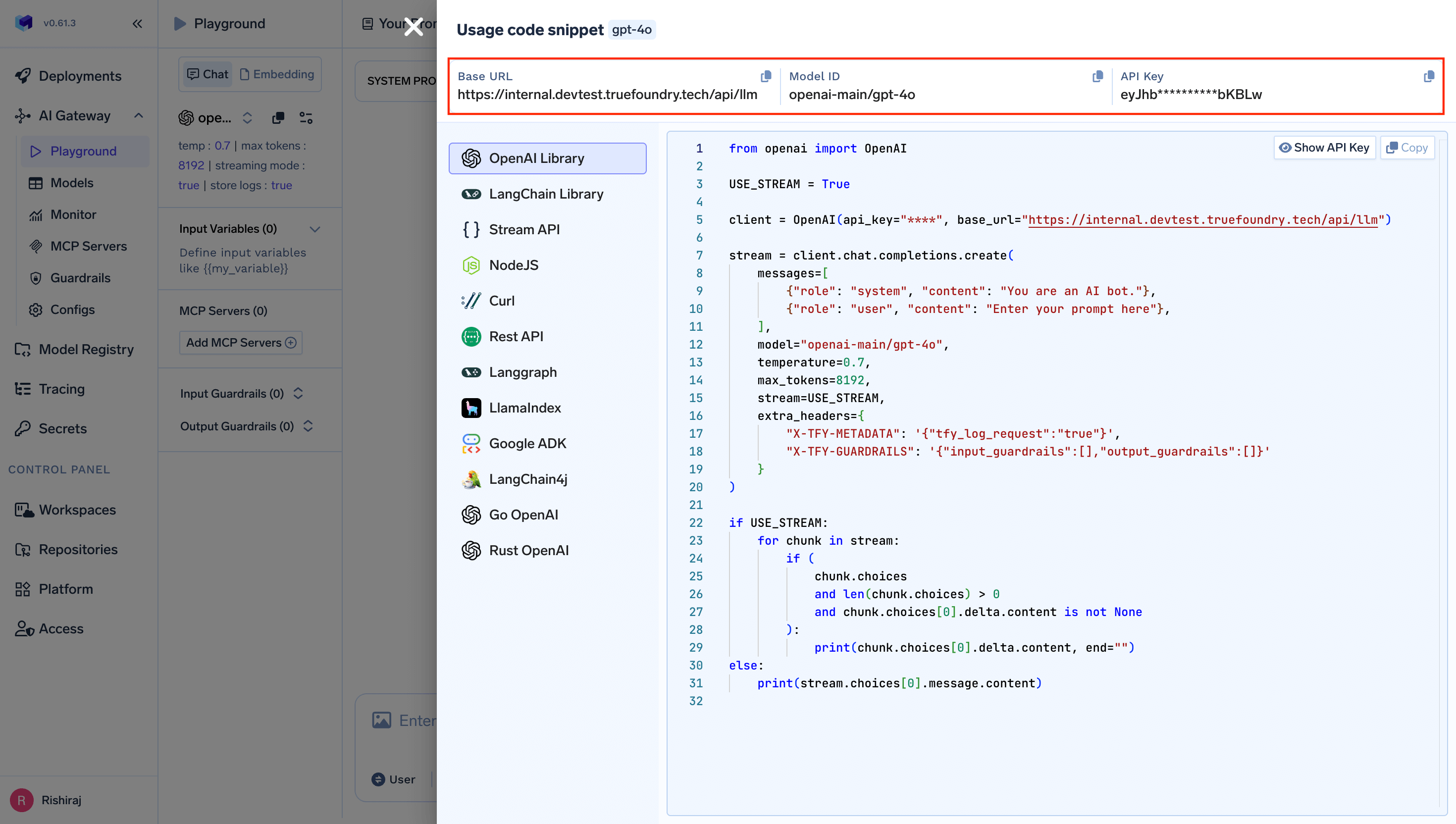
Step 3: Test Your Integration
- Save your configuration in AnythingLLM.
- Create a new workspace or open an existing one to test the integration:
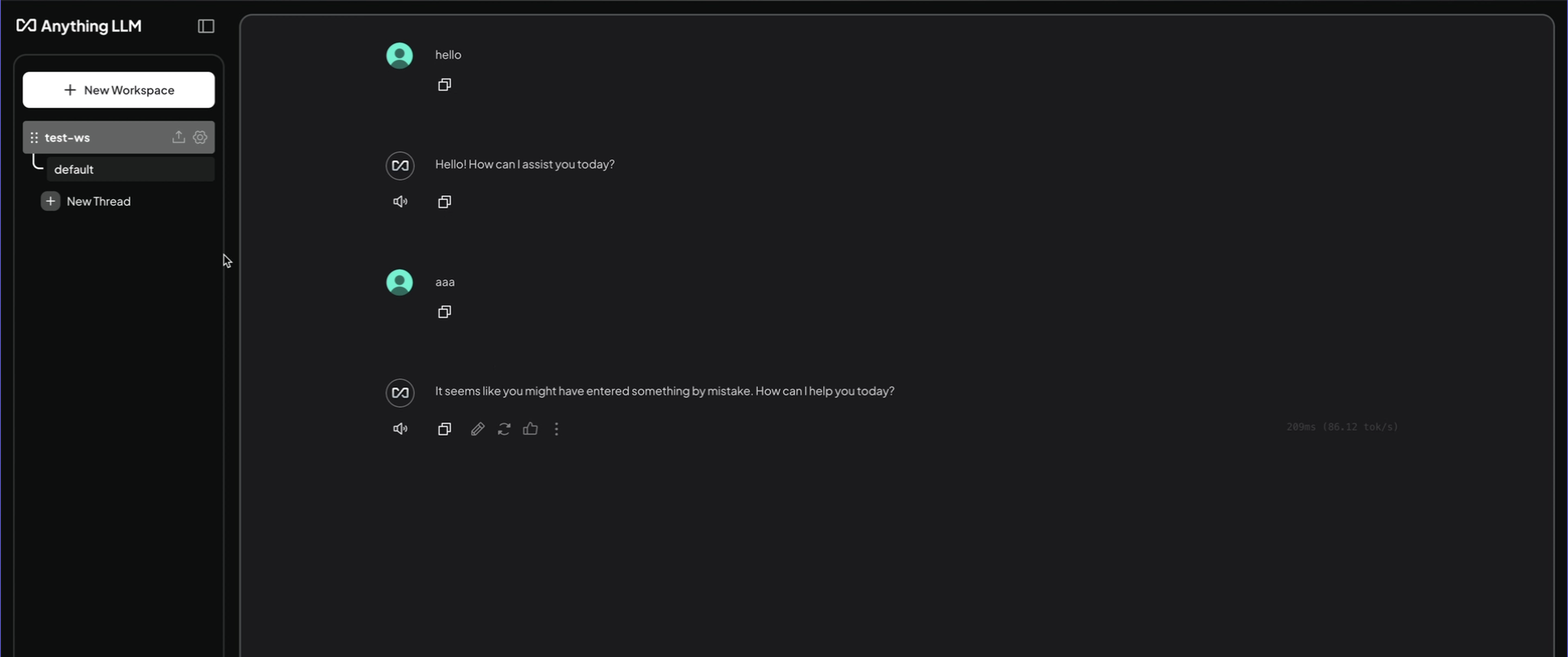
- Send a test message to verify that AnythingLLM is successfully communicating with TrueFoundry’s AI Gateway.