

What is Flowise?
Flowise is an open-source LLM application builder that enables users to create sophisticated LLM applications using an intuitive drag-and-drop visual interface. It simplifies the process of building complex AI workflows, chatbots, and applications without requiring extensive coding knowledge.Key Features of Flowise
- Visual Flow Builder: Create complex AI applications using drag-and-drop nodes and visual connections, making LLM application development accessible to both technical and non-technical users
- Chatflow Templates: Pre-built templates and components for common use cases like RAG, conversational AI, and document processing to accelerate development
- Node-Based Architecture: Modular system with specialized nodes for different functions including LLMs, vector databases, document loaders, and memory management
- API Integration: Seamless integration capabilities with REST APIs, webhooks, and various data sources for building production-ready applications
Prerequisites
Before integrating Flowise with TrueFoundry, ensure you have:- TrueFoundry Account: Create a Truefoundry account and follow the instructions in our Gateway Quick Start Guide
- Flowise Account: Set up a Flowise account using either the open-source version for local deployment or the SaaS version
Integration Guide
This guide will walk you through connecting Flowise with TrueFoundry’s AI Gateway step by step.Step 1: Configure Flowise Credentials
First, you need to set up credentials in Flowise to connect to TrueFoundry’s Gateway:- Navigate to Credentials: In your Flowise dashboard, look for the “Credentials” section in the left sidebar or main menu
- Add New Credential: Click on “Add Credential” or the ”+” button to create a new credential
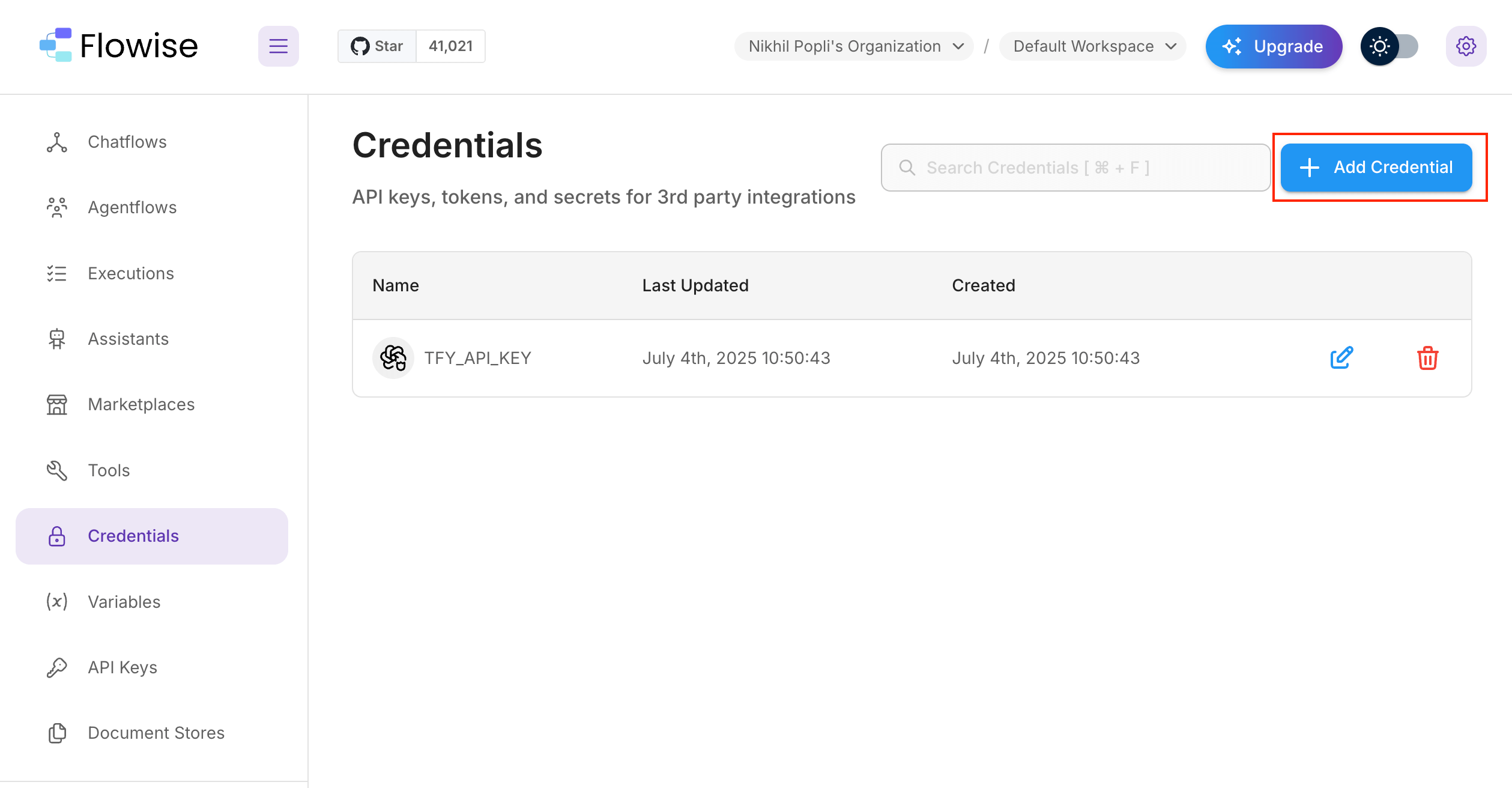
Step 2: Configure OpenAI Custom Credential
Since TrueFoundry’s Gateway is OpenAI-compatible, you’ll use the OpenAI Custom credential type:- Select Credential Type: From the dropdown menu, choose “OpenAI API”
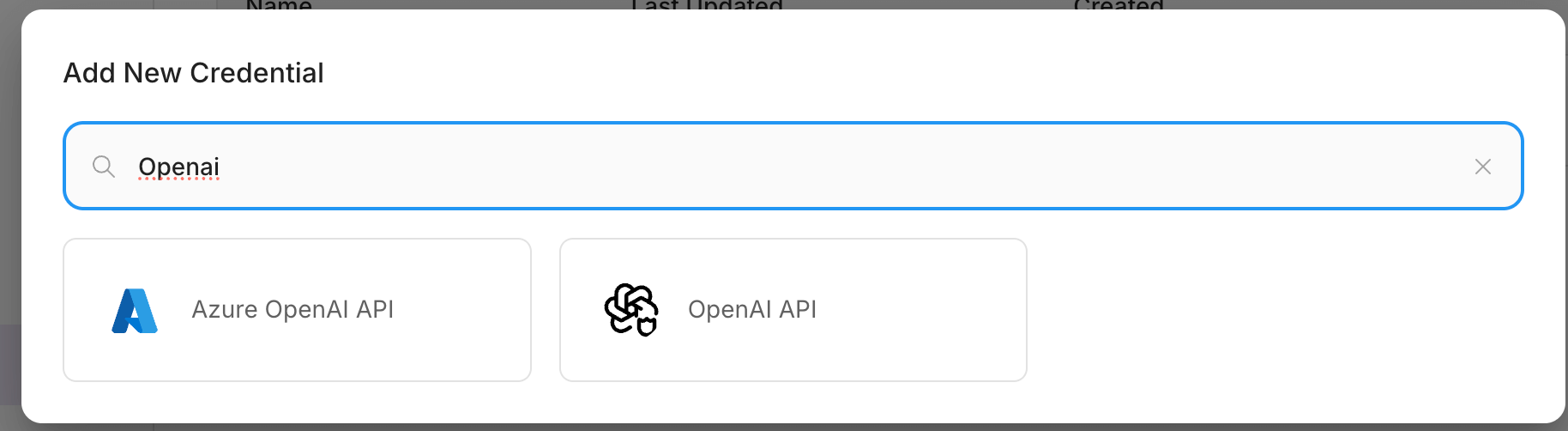
-
Enter Credential Details:
- Name: Give your credential a descriptive name (e.g., “TrueFoundry Gateway”)
- Save the Credential: Click “Save” to store your TrueFoundry Gateway credentials
Step 3: Create Your First Agent Workflow
Now you’ll create an agent that uses TrueFoundry’s Gateway for LLM calls:- Navigate to AgentFlow: In the left sidebar, click on “AgentFlow” to access the workflow builder
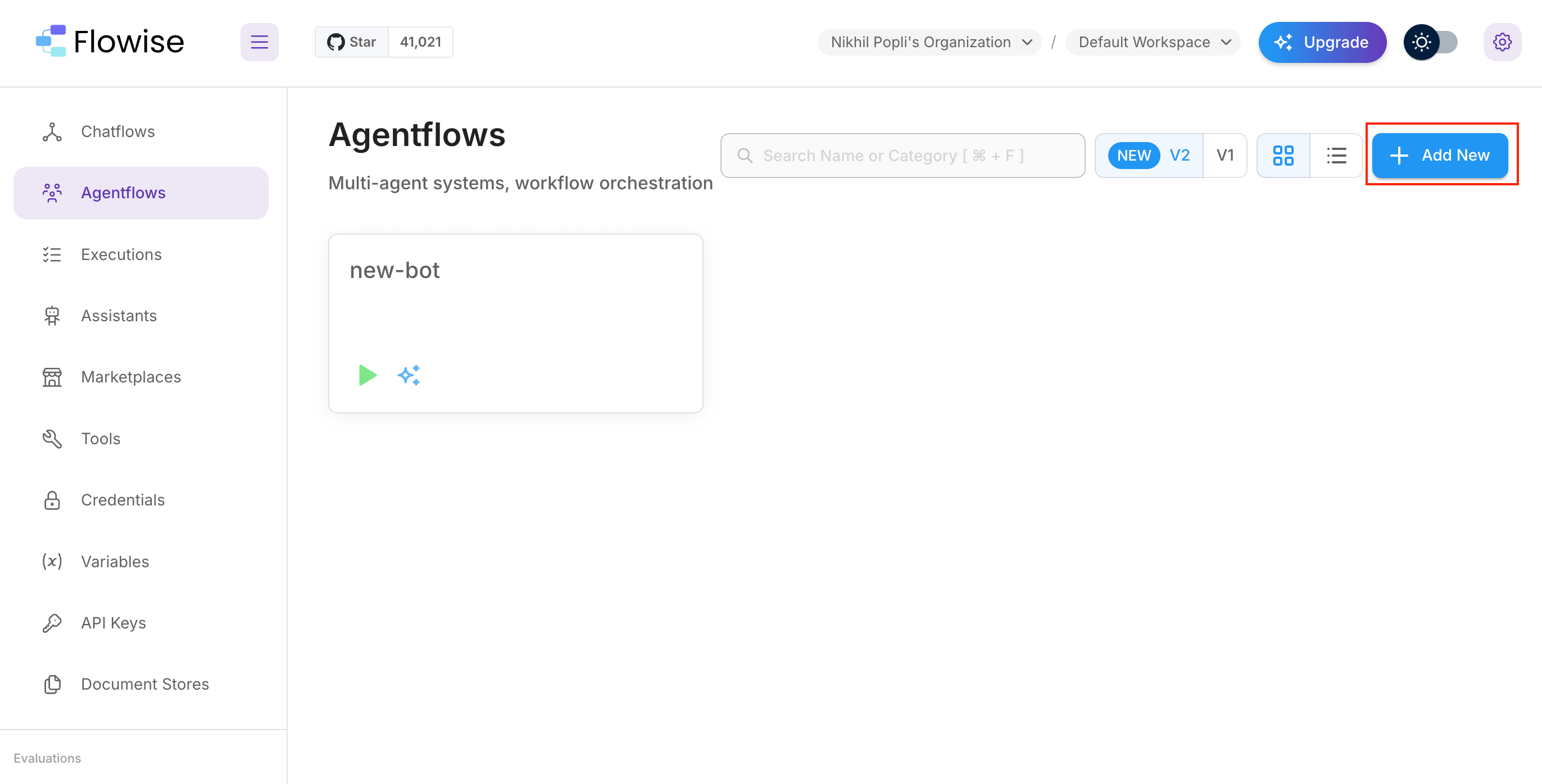
- Add a New Node: Click the “Add Node” button to start building your workflow
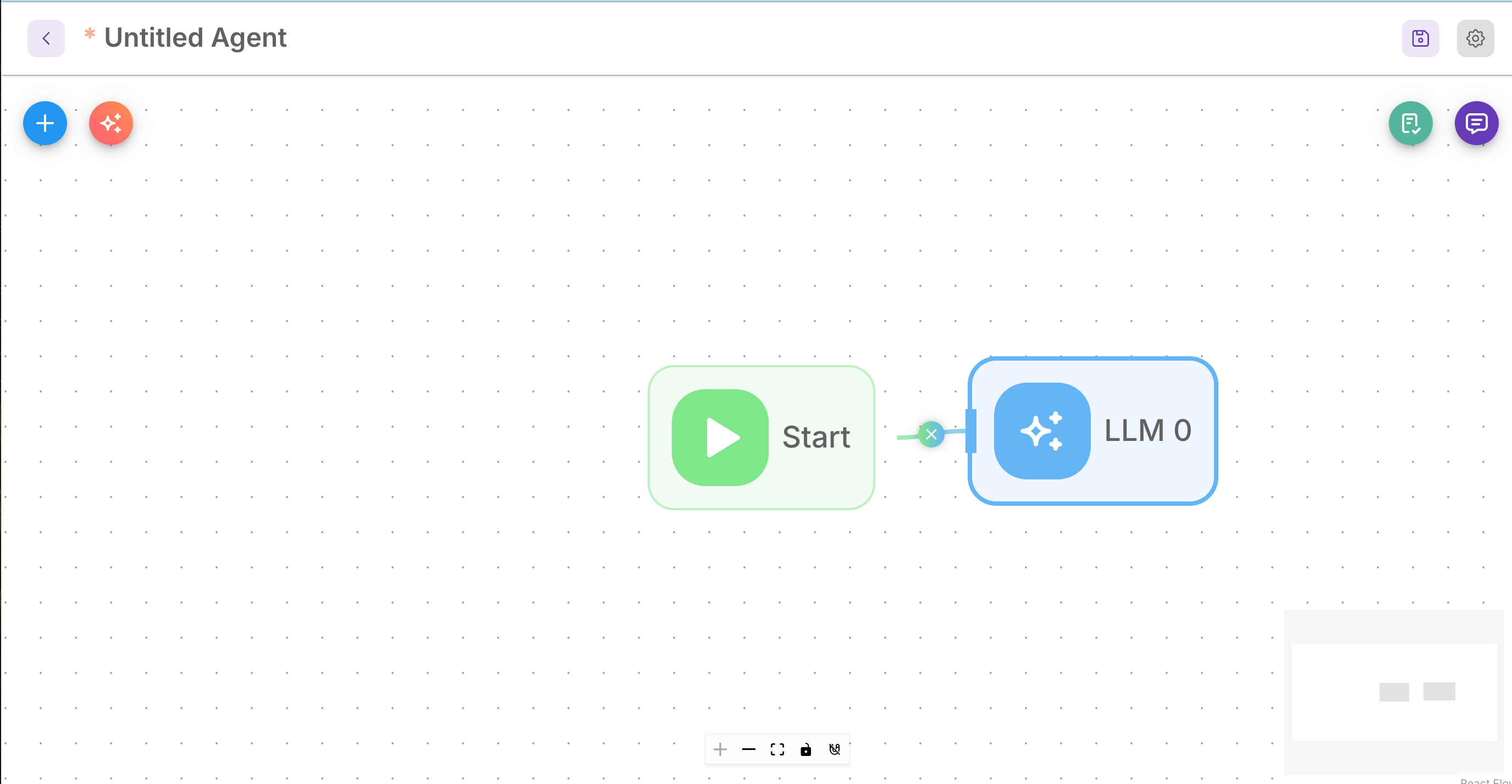
- Connect Start Node: Make sure to create a connection from the Start node to your AgentFlow node. This is crucial for the workflow to function properly.
Step 4: Configure the LLM Model
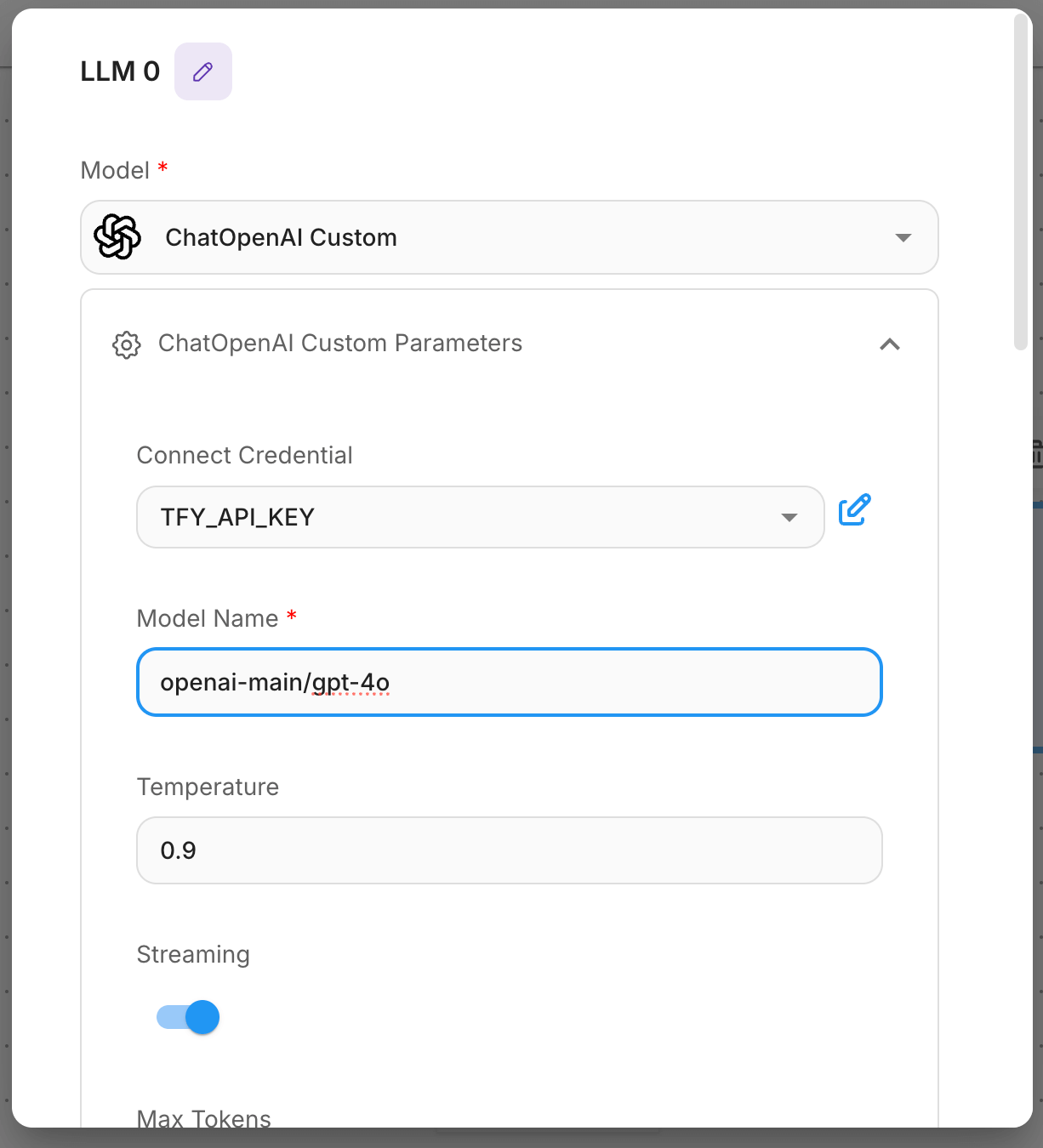
This is the most important step where you connect your agent to TrueFoundry’s models:- Configure the Agent Node:
- Click on your agent node to open the configuration panel
- Select Credential: Choose the TrueFoundry credential you created in Step 2
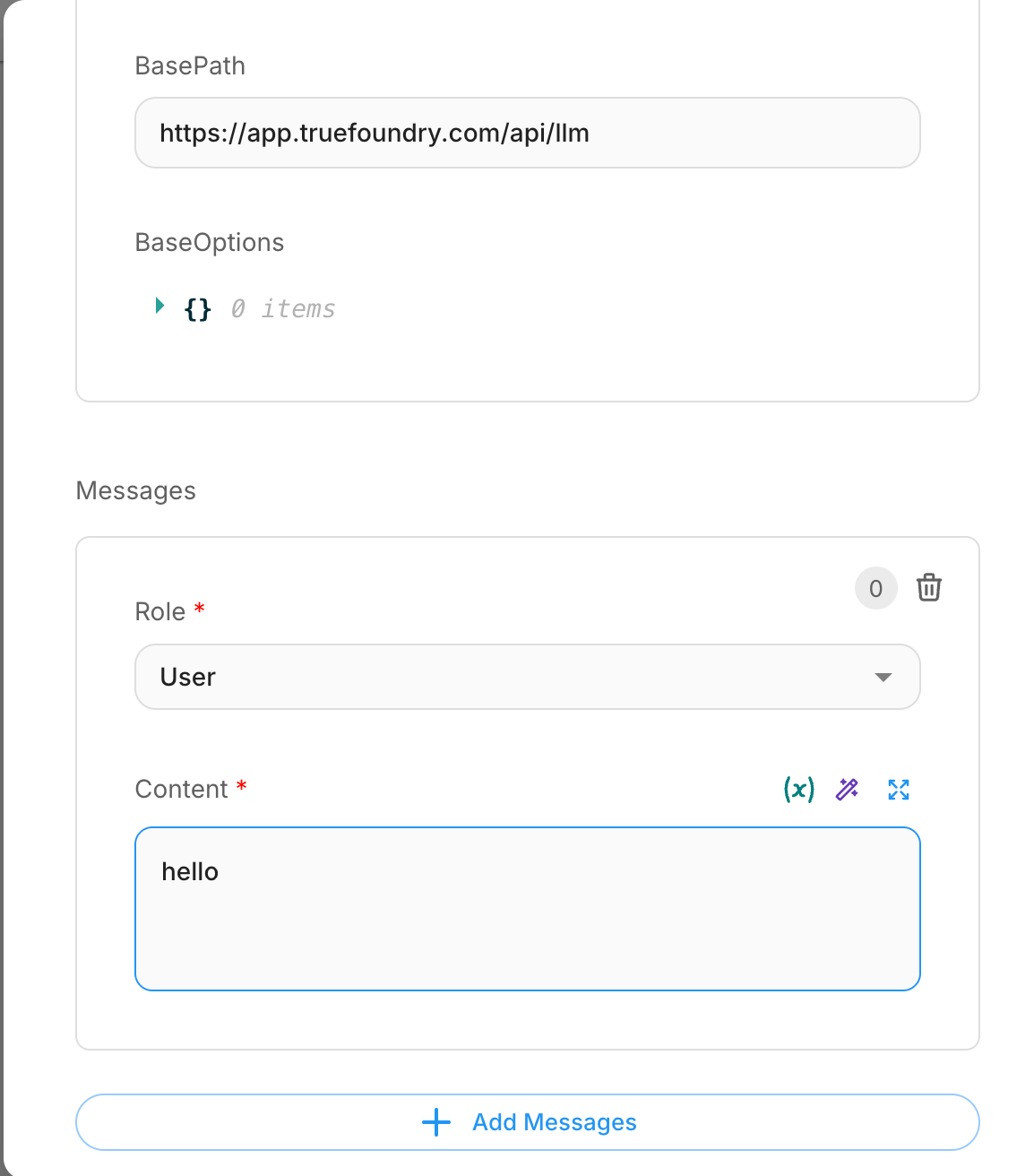
- Base URL and Model Name: You will get both the base URL and model name from the unified code snippet
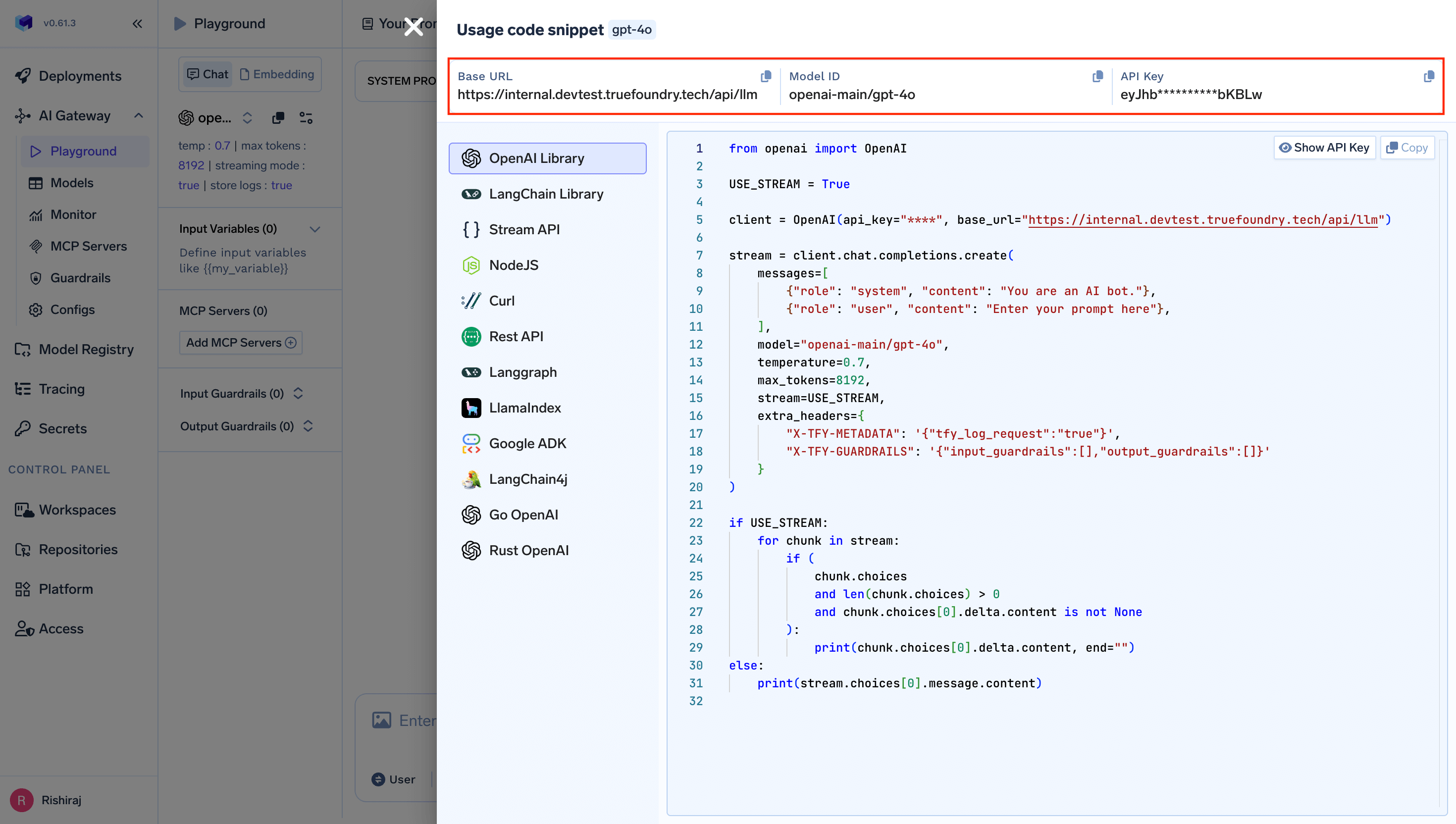
- Additional Settings: Configure any other parameters like temperature, max tokens, etc., as needed
Step 5: Save and Test Your Integration
- Save Your Workflow: Click the “Save” button in the top-right corner of the Flowise interface
-
Test the Connection:
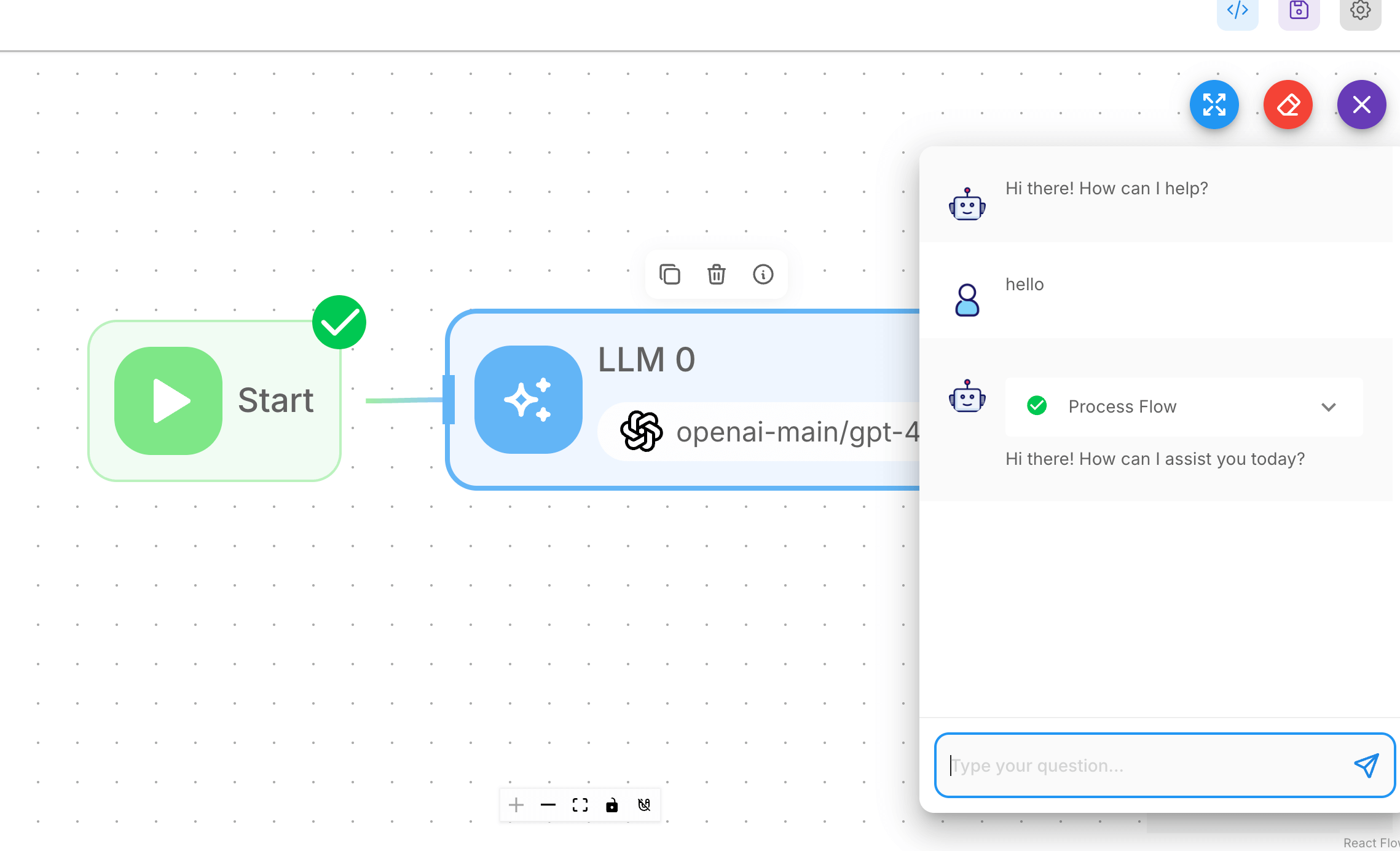
- Open the chat interface by clicking the chat icon
- Send a test message to verify that your agent is working correctly
- The messages should now be processed through TrueFoundry’s Gateway
Troubleshooting Tips
- Authentication Errors: Double click on the LLM node you will see the settings ensure base url, model name are correctly configured
- Model Not Found: Ensure the model name from the unified code snippet is exact and the model is deployed
- Connection Issues: Verify your Gateway base URL format is correct:
{GATEWAY_BASE_URL} - Workflow Not Responding: Check that all nodes are properly connected, especially the connection from the Start node