

What is n8n?
n8n is a powerful workflow automation platform that connects systems and automates tasks through a visual, node-based interface. It enables users to create complex automation workflows that integrate hundreds of different services and tools, including AI capabilities.Key Features of n8n
- Visual Workflow Editor: Create automation workflows using a drag-and-drop interface with visual connections between nodes, making complex integrations accessible without coding
- 500+ Integrations: Connect to hundreds of popular services including databases, APIs, cloud platforms, and productivity tools through pre-built nodes
- Conditional Logic: Build sophisticated workflows with IF/ELSE conditions, switches, and loops to handle complex business logic and decision-making
- Webhook Support: Trigger workflows instantly through webhooks and HTTP requests, enabling real-time automation and seamless integration with external systems
Prerequisites
Before integrating n8n with TrueFoundry, ensure you have:- TrueFoundry Account: Create a TrueFoundry account with atleast one model provider configured
- n8n Account: Set up an n8n account using either the open-source version for self-hosting or the cloud version
Integration Steps
This guide assumes you have an active n8n account and have obtained your TrueFoundry AI Gateway base URL.Choosing Between TrueFoundry Chat Node and OpenAI Chat Node
You have two options for integrating n8n with TrueFoundry AI Gateway:Option 1: TrueFoundry Chat Node (Recommended)
The TrueFoundry Chat Node is a dedicated community node that provides enhanced features for enterprise-grade monitoring and tracking: Automatic Metadata Tracking:- userId: Automatically tracks the user executing the workflow
- workflowId: Unique identifier for each workflow
- workflowName: Name of the workflow for easy identification
- executionId: Unique identifier for each workflow execution
- execution mode: Tracks whether the workflow is in production or test mode
- projectId: Associates workflows with specific projects
- environment: Tracks the deployment environment (dev, staging, prod)
- instanceId: Identifies the n8n instance
- application name: Tags requests with application/feature names
- Detailed Monitoring: Comprehensive observability with automatic metadata enrichment
- Cost Attribution: Track costs by workflow, team, department, or application
- Custom Attributes: Configure additional metadata like cost centers, departments, and fallback emails
- Better Analytics: Enhanced reporting and analytics with rich metadata context
- Audit Trail: Complete tracking of all workflow executions with full context
n8n-nodes-truefoundry community node.
Option 2: OpenAI Chat Node
The OpenAI Chat Node provides integration with TrueFoundry AI Gateway but with limited features: Limitations:- No automatic metadata tracking
- No workflow-level attribution
- Limited monitoring capabilities
Step 1: Install the truefoundry community node
- Navigate to Settings > Community nodes.
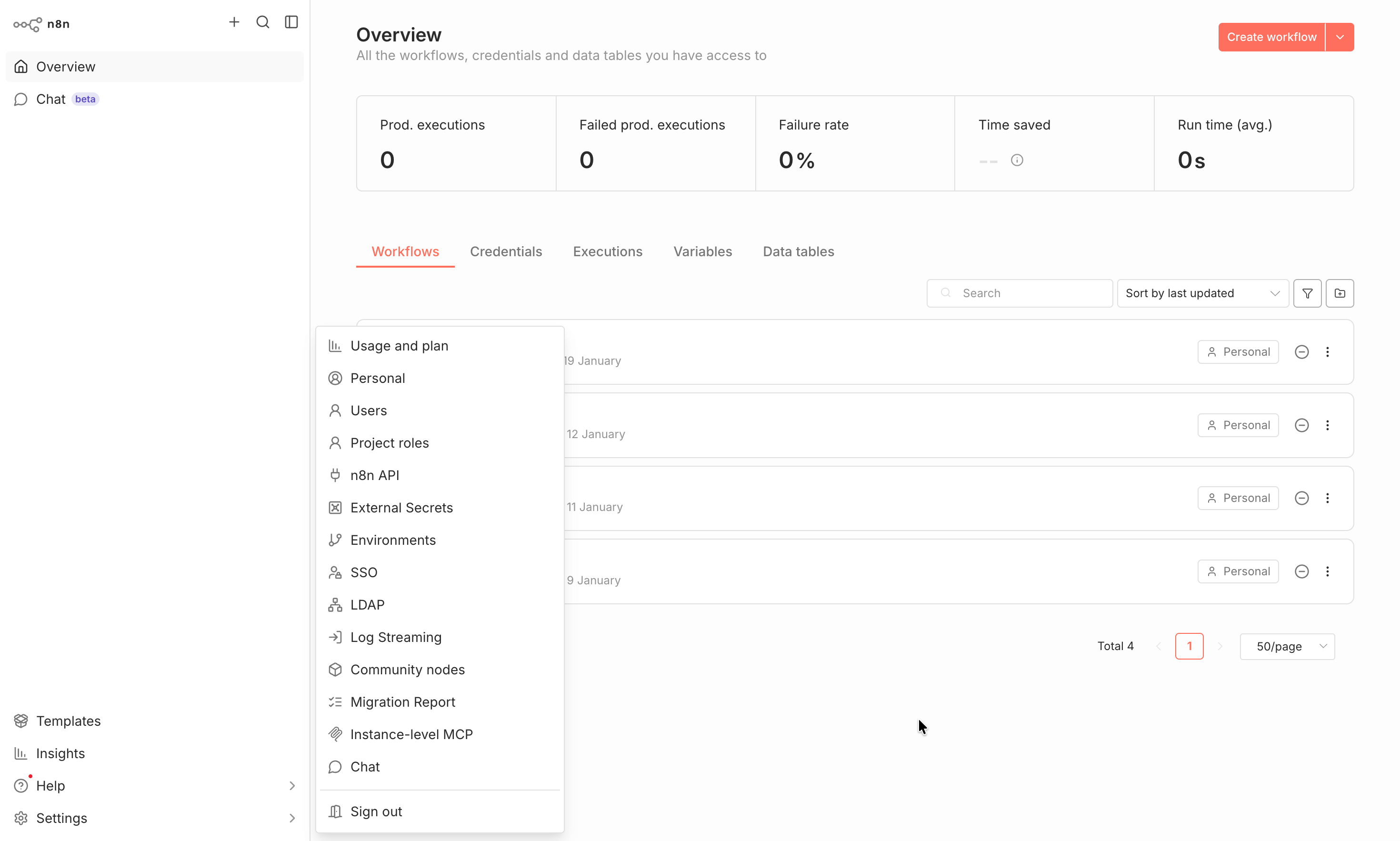
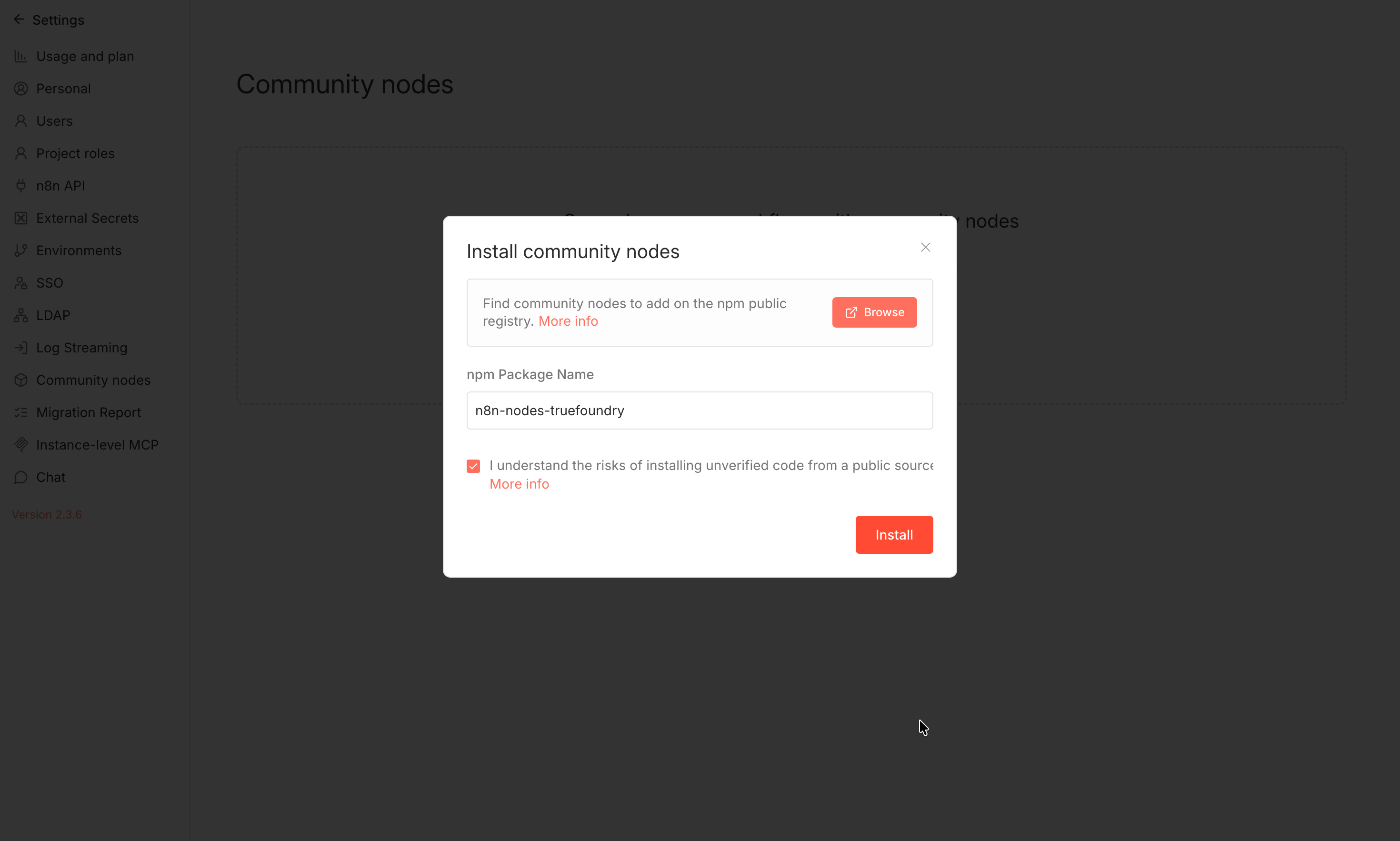
- Click install and search for n8n-nodes-truefoundry. Check the checkbox and hit install. You can also find it from the npm registry: https://www.npmjs.com/package/n8n-nodes-truefoundry
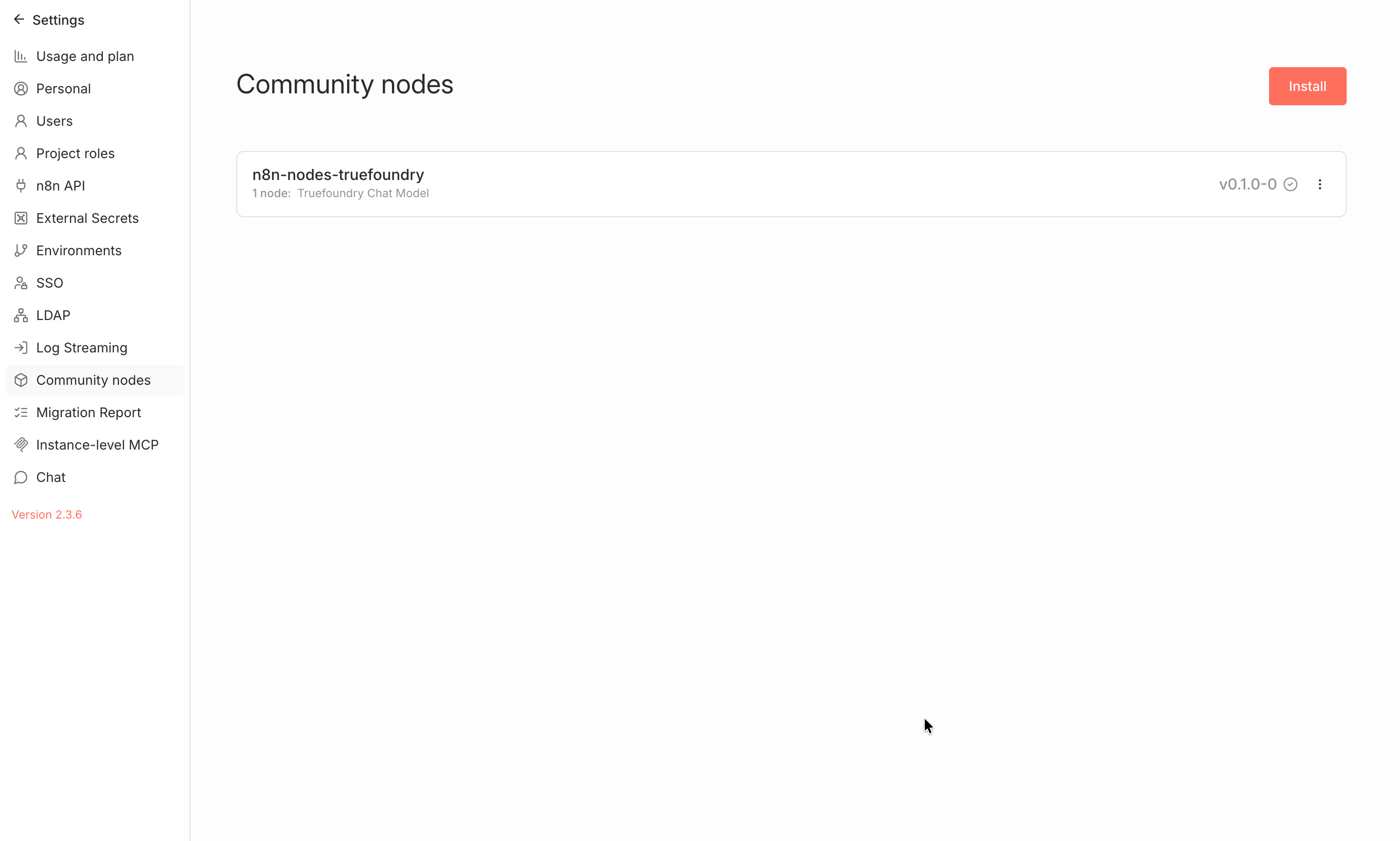
- You should now see the truefoundry node in your installed nodes.
Step 2: Configure n8n Credentials
- Navigate to your n8n dashboard and go to Create Workflow > Create Credential:
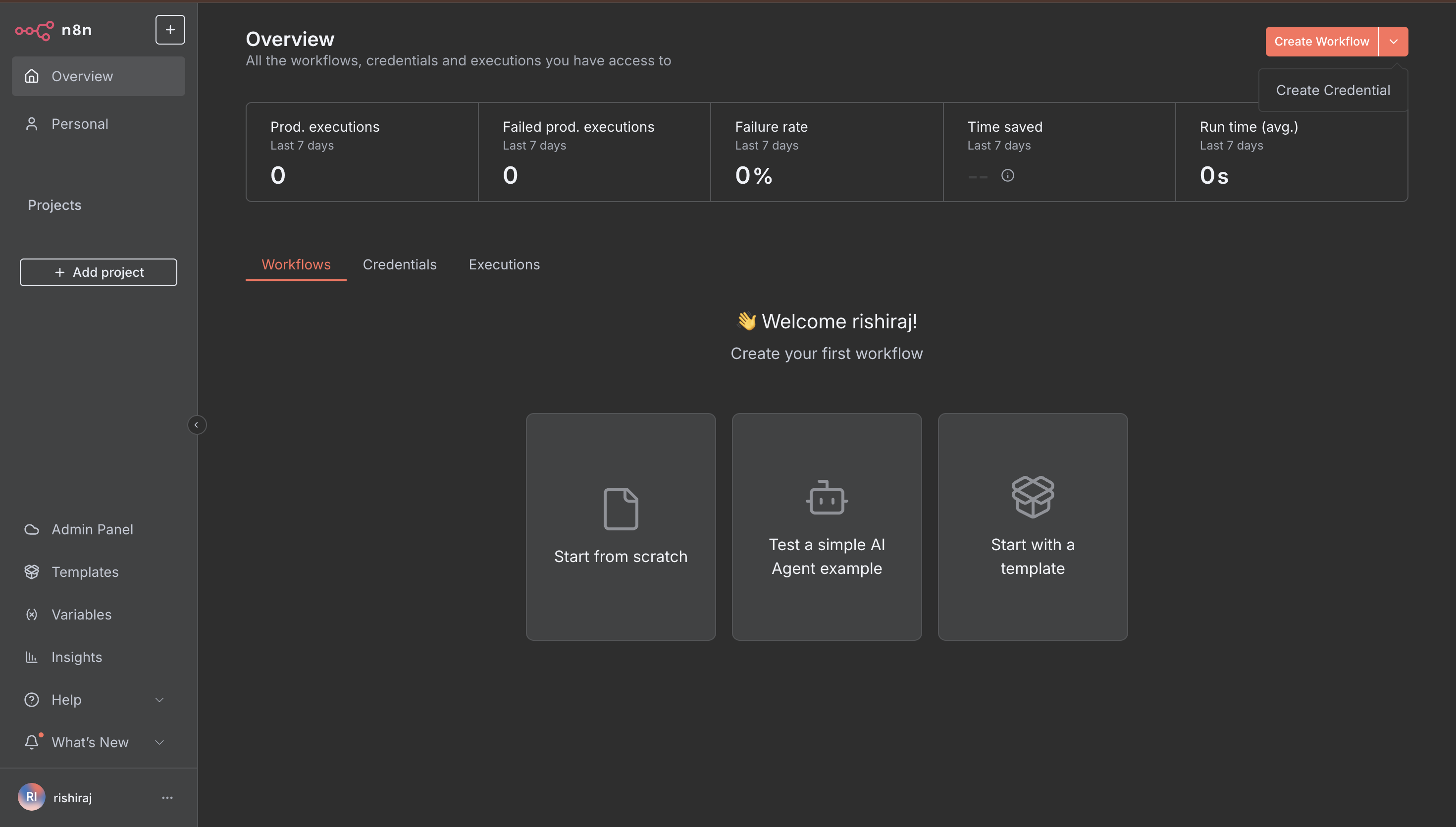
- Click Create Credential, search for TrueFoundry API or OpenAI API and hit continue.
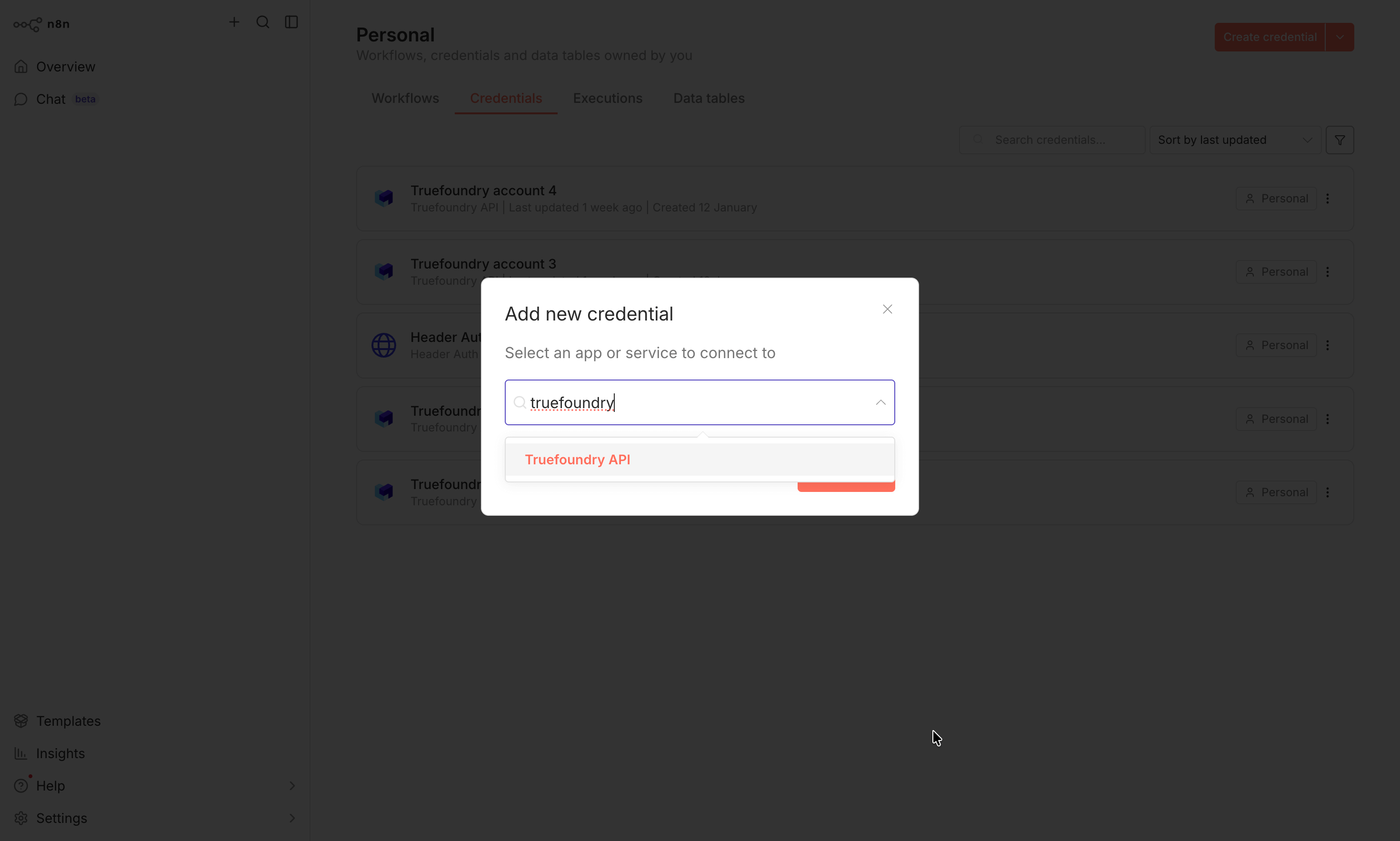
Step 3: Configure Credentials with TrueFoundry
Configure the credentials with your TrueFoundry details: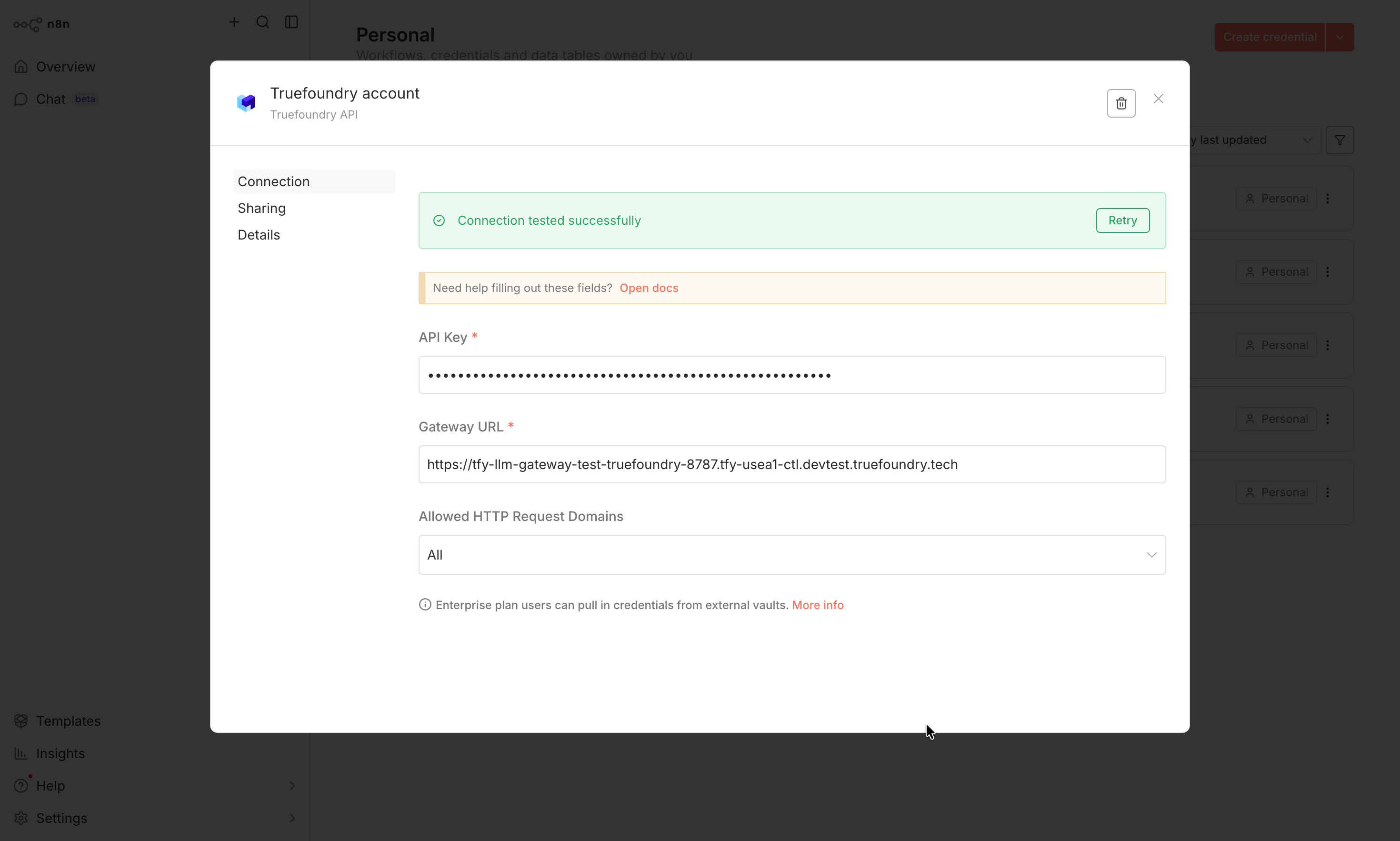
- Base URL: You will get the base URL from the unified code snippet in our playground
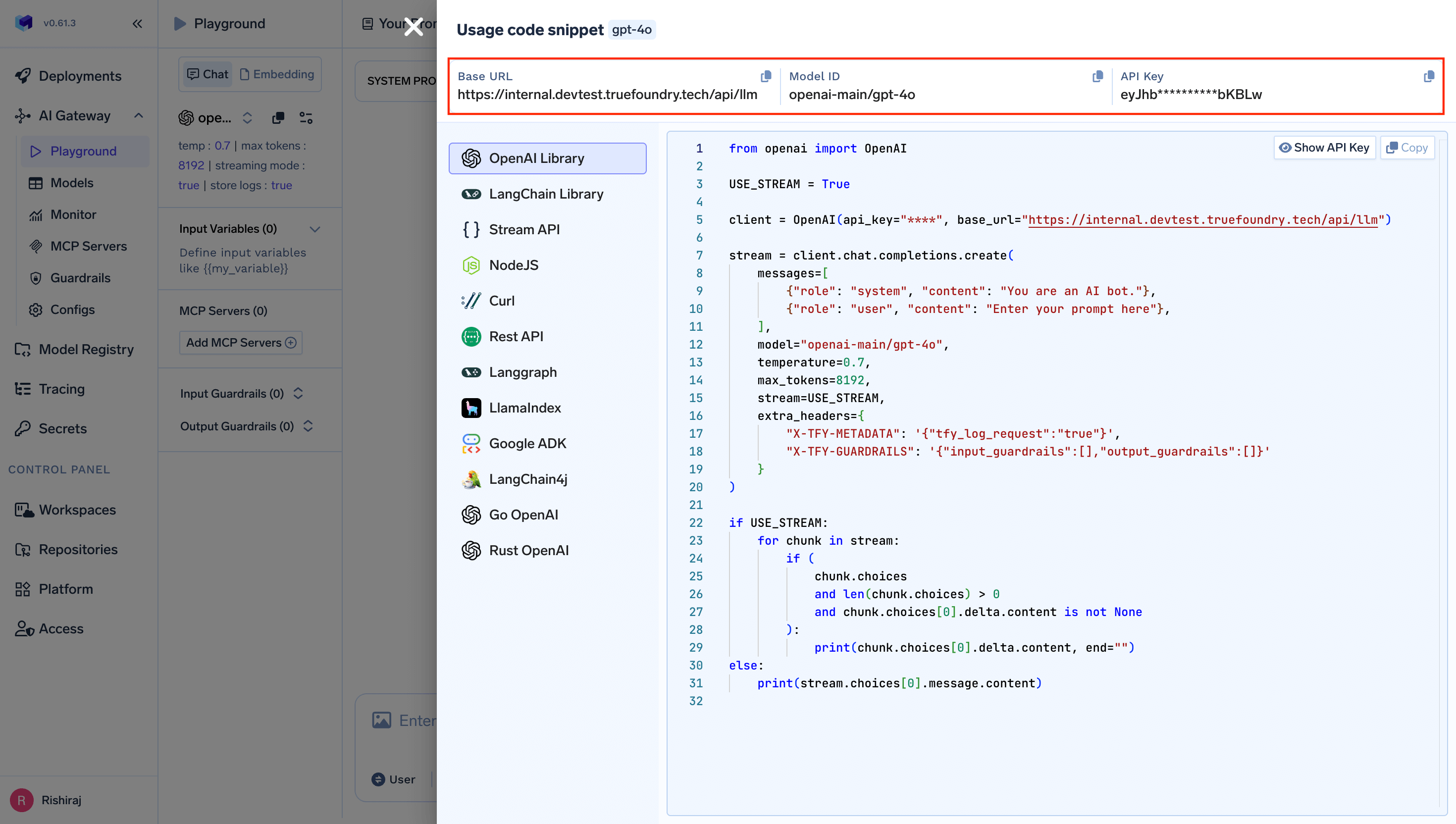
Get Base URL from Unified Code Snippet
Step 4: Create Your First AI Workflow
- Navigate to Overview and click Create Workflow:
- Choose Test a simple AI Agent example or Start from scratch to begin building your workflow.
Step 5: Build Your Workflow with AI Components
- In the workflow editor, add nodes to create your automation. Start with a trigger and add an LLM chain node:
-
Configure your chat model node:
- Select your TrueFoundry credentials from the dropdown
- Choose your model from the dropdown list - all available models from your TrueFoundry account will be automatically listed here
- If you are using the TrueFoundry Chat Node, you can configure custom attribution settings from the provided dropdown:
- Application/Feature Name: Tag requests with your application or feature name
- Environment: Set the deployment environment (dev, staging, prod)
- Cost Center: Associate costs with specific cost centers
- Department/Team: Track usage by department or team
- Fallback User Email: Set a fallback email for notifications
- Automatic Metadata: The node automatically captures workflowId, executionId, workflowName, and other metadata for enhanced tracking
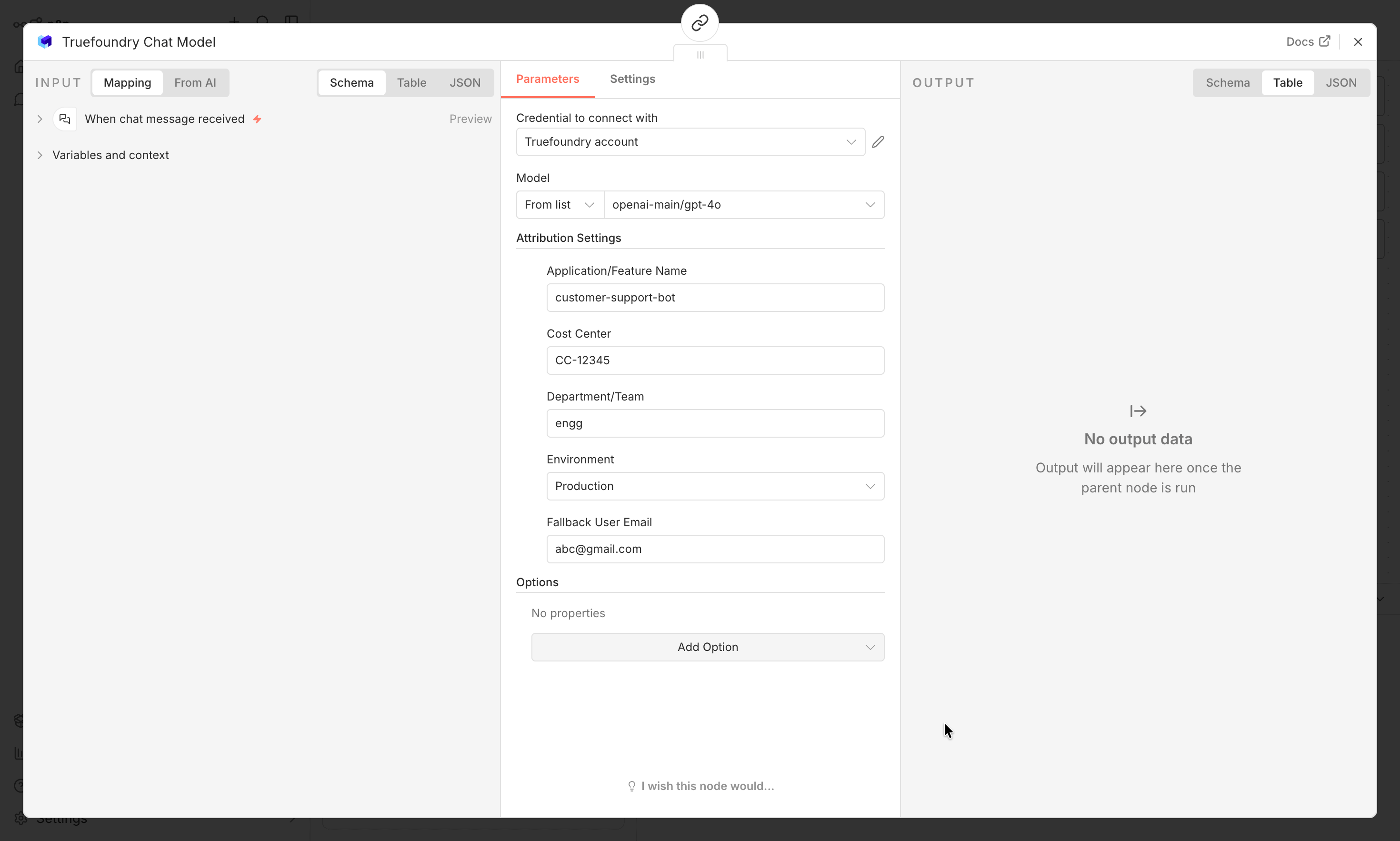
/models endpoint support, you no longer need to manually enter model IDs. All models configured in your TrueFoundry account will be automatically available in the dropdown.
Step 6: Test Your Integration
- Save your workflow and execute it to test the integration:
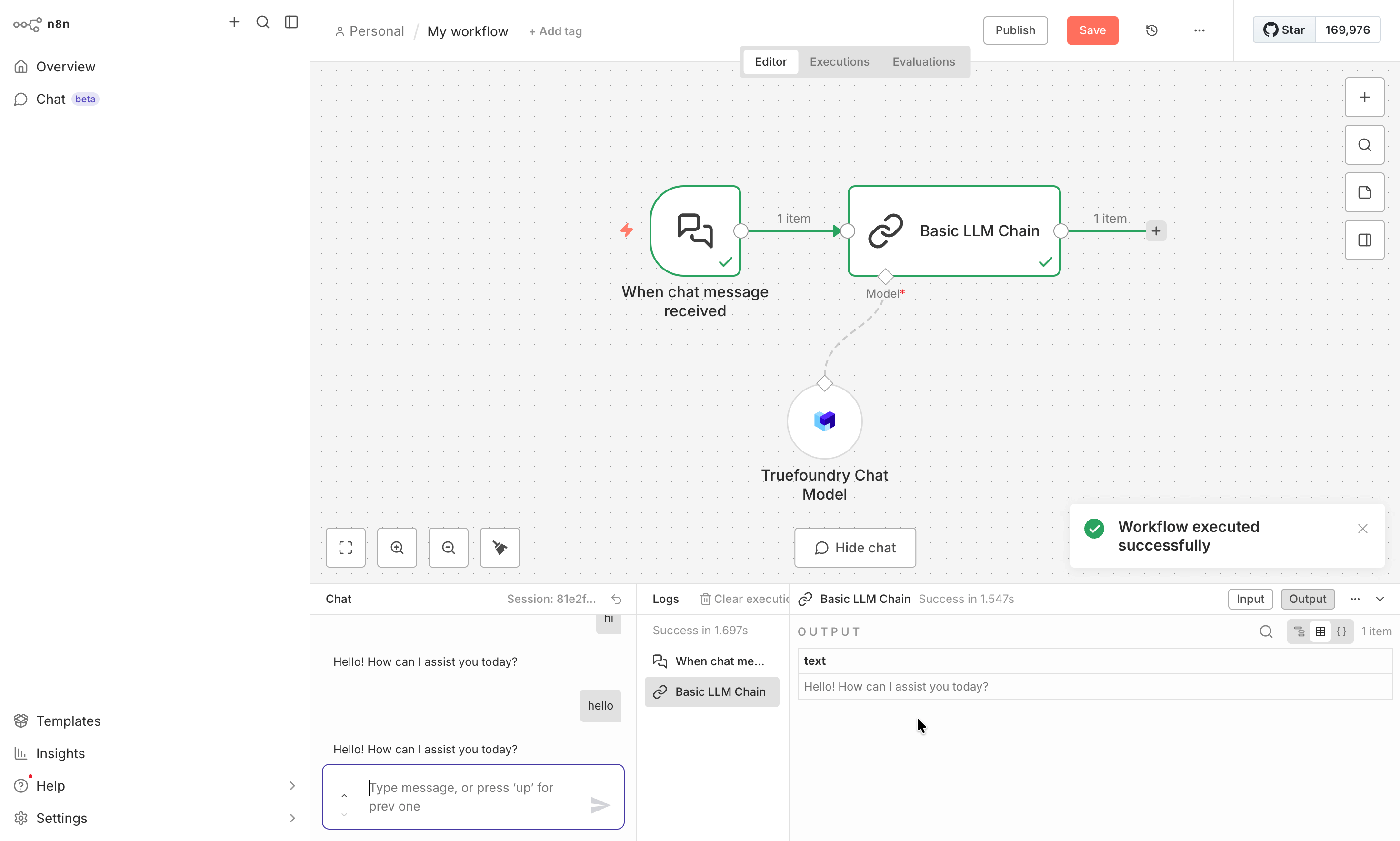
- Monitor the execution logs to ensure your AI calls are working correctly through TrueFoundry’s gateway.
Enterprise Features
When using n8n with TrueFoundry, you automatically gain access to enterprise-grade features:Cost Management & Tracking
- Budget Controls: Set spending limits for different teams or projects
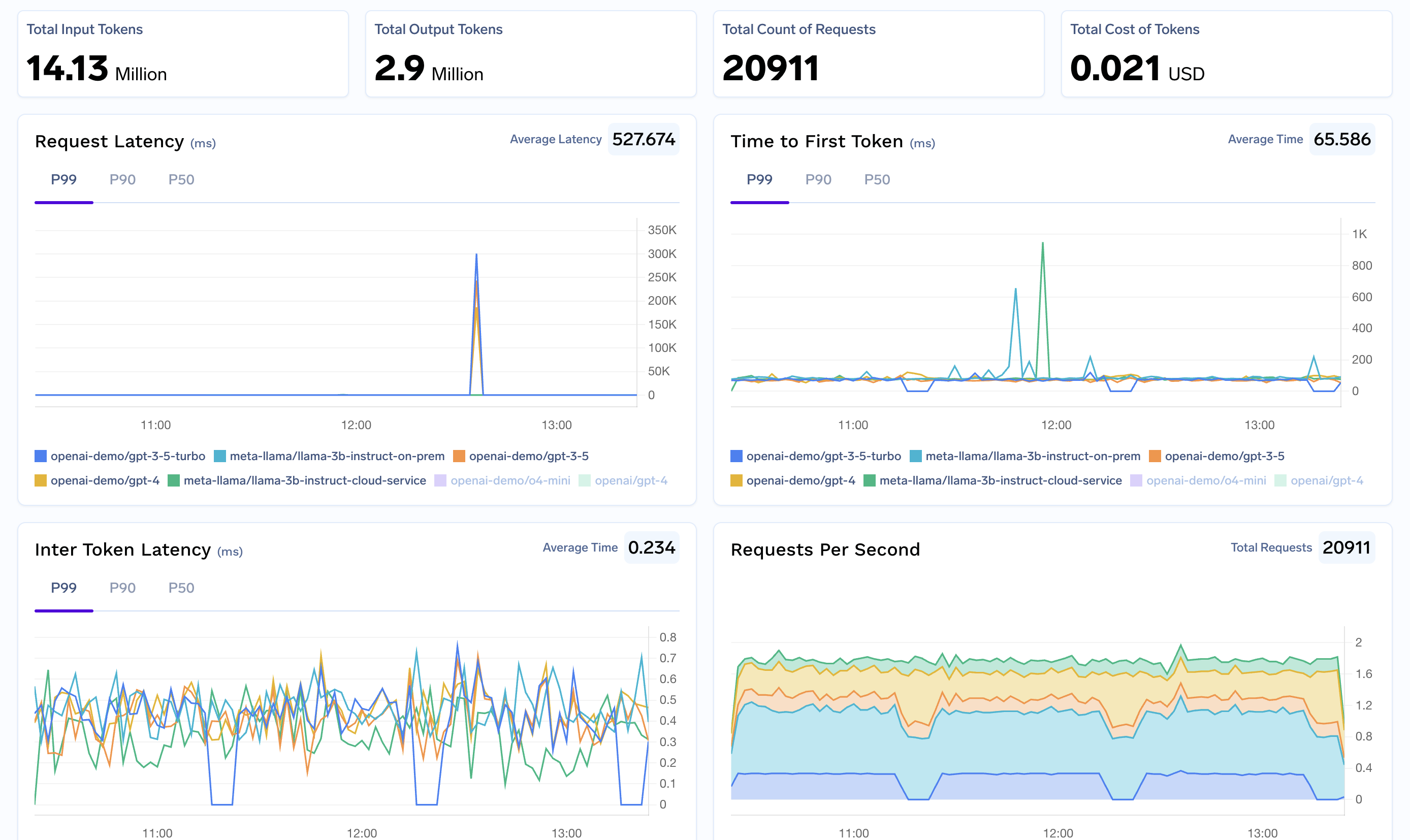
- Usage Analytics: Track AI costs across all your n8n workflows
- Cost Attribution: Monitor expenses by workflow, team, or department
- Real-time Metrics: Monitor performance, costs, and usage patterns
- Custom Metadata: Tag workflows for detailed analytics
Security & Compliance
- Access Controls and Rate Limit: Manage who can use which AI models in workflows
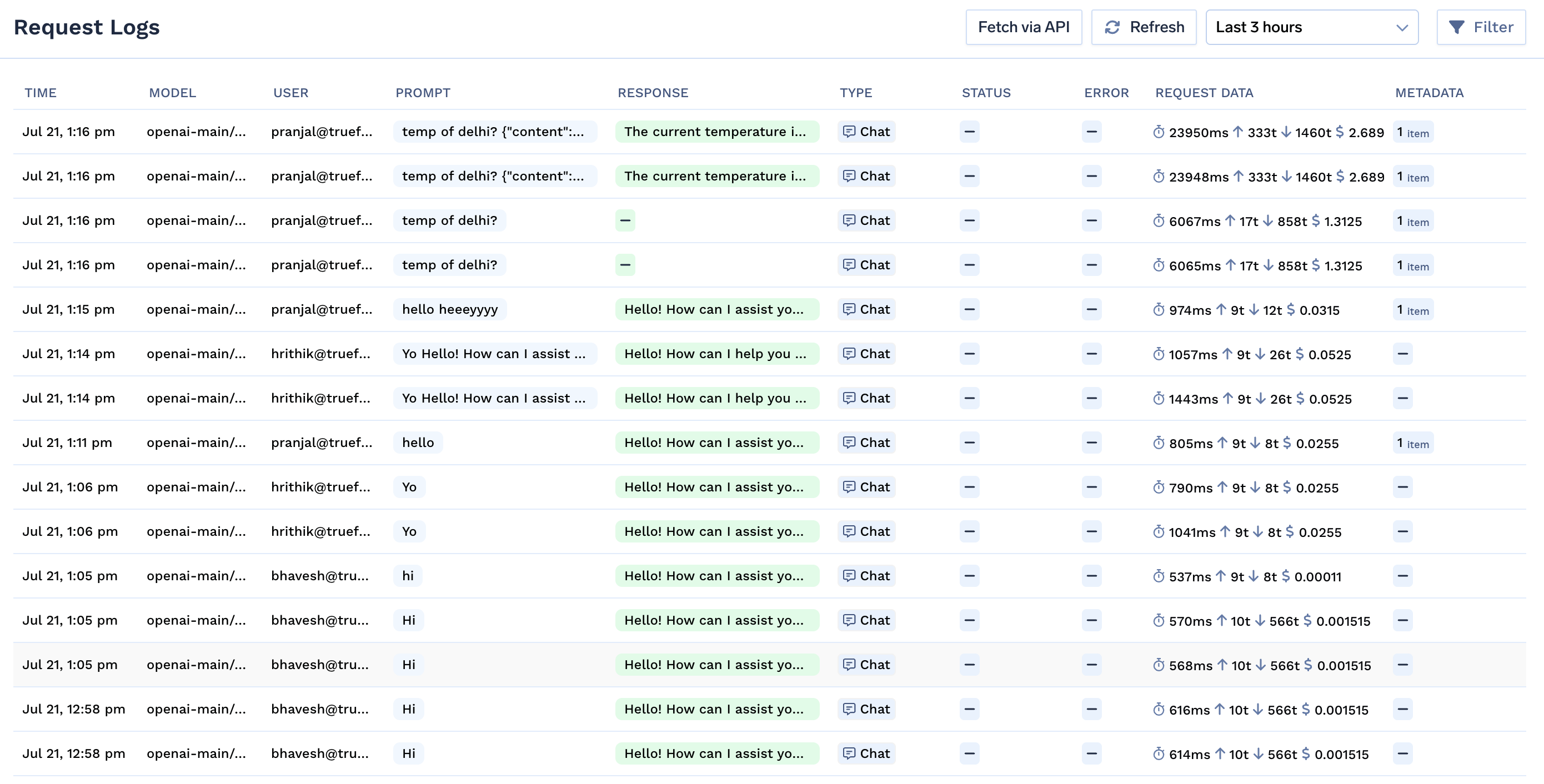
- Audit Logging: Complete logs of all AI interactions for compliance
- Data Protection: Built-in guardrails to prevent sensitive data exposure
Reliability Features
- Fallback Models: Automatically switch to backup models if primary fails
- Virtual Models: Route requests intelligently across multiple model providers
Advanced Configuration
Multi-Model Workflows
- Configure different models for different workflow steps
- Use conditional routing based on input complexity
- Implement model selection logic based on cost and performance requirements
Team Collaboration
- Set up shared credentials for team access
- Implement workflow versioning and change management
- Use environment-specific configurations for development vs. production
Enterprise Integration
- Integrate with your organization’s SSO system through TrueFoundry
- Set up department-specific cost centers and budgets
- Implement compliance monitoring for regulated industries