

What is GitHub Copilot?
GitHub Copilot is an AI-powered coding assistant that integrates directly into your editor. It provides intelligent code completions, chat-based coding help, and agent-driven workflows across VS Code, JetBrains IDEs, Visual Studio, Eclipse, and Xcode.Key Features
- Inline Code Suggestions: Context-aware code completions and multi-line suggestions as you type
- Copilot Chat: Conversational AI assistant for code explanation, generation, debugging, and refactoring
- Agent Mode: Agentic workflows that can autonomously plan, edit files, and run terminal commands to complete complex tasks
- Bring Your Own Key (BYOK): Use custom models from any OpenAI-compatible provider — including TrueFoundry AI Gateway
Prerequisites
Before integrating GitHub Copilot with TrueFoundry, ensure you have:- TrueFoundry Account: Create a TrueFoundry account with at least one model provider configured and generate a Personal Access Token by following the instructions in Generating Tokens. For a quick setup guide, see our Gateway Quick Start
- GitHub Copilot Subscription: An active GitHub Copilot plan (Free, Pro, Business, or Enterprise)
- VS Code: Visual Studio Code with the GitHub Copilot extension installed
The BYOK feature for custom OpenAI-compatible models is currently available natively in VS Code Insiders. For stable VS Code, you can use the community extension OAI Compatible Provider for Copilot. See the Alternative: Stable VS Code section below.
Integration Guide (VS Code Insiders)
1. Get Configuration Details
Get thebase URL and model name from your TrueFoundry AI Gateway playground using the unified code snippet:
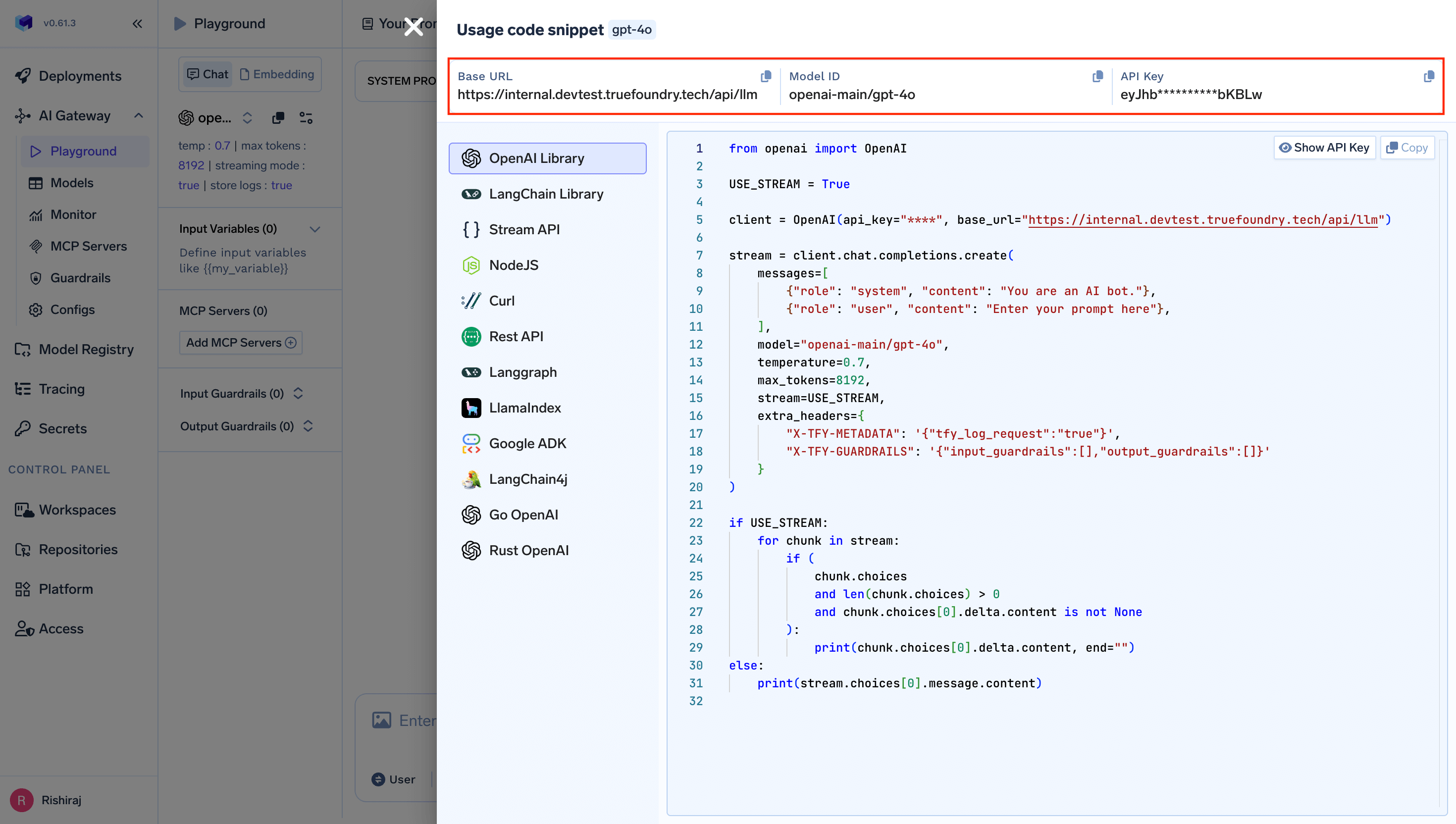
2. Add TrueFoundry as a Model Provider
Open Manage Models
Open the Copilot Chat panel (
Ctrl+Alt+I on Windows/Linux, Ctrl+Cmd+I on macOS), click the model dropdown at the top, and select Manage Models….Add OpenAI Compatible Provider
In the Language Models editor, click Add Models and select OpenAI Compatible from the list of providers.
Enter TrueFoundry Gateway Details
When prompted, enter the following details:
- Base URL: Your TrueFoundry Gateway URL (e.g.,
{GATEWAY_BASE_URL}) - API Key: Your TrueFoundry Personal Access Token
provider-name/model-name format (e.g., openai-main/gpt-4o).3. Use TrueFoundry Models in Copilot Chat
Your TrueFoundry models now appear in the model dropdown in Copilot Chat. Select any of them to route requests through the TrueFoundry AI Gateway.For a model to work in Agent Mode, it must support tool calling. Most large models (GPT-4o, Claude Sonnet, etc.) support this. If a model doesn’t support tool calling, it will only be available in Ask and Edit modes.
Alternative: Settings JSON Configuration
You can also configure custom OpenAI-compatible models directly in your VS Codesettings.json using the experimental github.copilot.chat.customOAIModels setting:
{GATEWAY_BASE_URL}→ Your TrueFoundry AI Gateway Base URL (how to find it)openai-main/gpt-4o→ Your desired model inprovider-name/model-nameformat
Alternative: Stable VS Code with Community Extension
If you’re using stable VS Code (not Insiders), you can use the community extension OAI Compatible Provider for Copilot to connect to TrueFoundry:Install the Extension
Search for “OAI Compatible Provider for Copilot” (by johnny-zhao) in the VS Code Extensions marketplace (
Ctrl+Shift+X) and install it.Configure the Extension
Add the following to your Replace
settings.json:{GATEWAY_BASE_URL} with your TrueFoundry AI Gateway Base URL and update the model id to match your TrueFoundry model.Enterprise / Organization BYOK
For GitHub Copilot Business and Enterprise users, organization and enterprise admins can add TrueFoundry as an OpenAI-compatible provider at the org or enterprise level. This makes TrueFoundry-routed models available to all team members through the Copilot Chat model picker.Navigate to Copilot Settings
Go to your GitHub organization or enterprise settings, then navigate to Copilot → AI controls → Configure allowed models → Custom models tab.
Add TrueFoundry API Key
Click Add API key and configure:
- Provider: Select OpenAI-compatible providers
- Name: Enter a descriptive name (e.g., “TrueFoundry AI Gateway”)
- API Key: Enter your TrueFoundry Personal Access Token
- Available models: Add your desired models using the fully qualified
provider-name/model-nameformat
With Enterprise BYOK, usage is billed directly through your TrueFoundry account and does not count against GitHub Copilot’s built-in request quotas. This lets teams leverage existing contracts and credits.
Virtual Model Configuration (Optional)
If your models or Copilot setup requires standard model names (e.g.,gpt-4o instead of openai-main/gpt-4o), create a Virtual Model in TrueFoundry to map standard names to fully qualified model names:
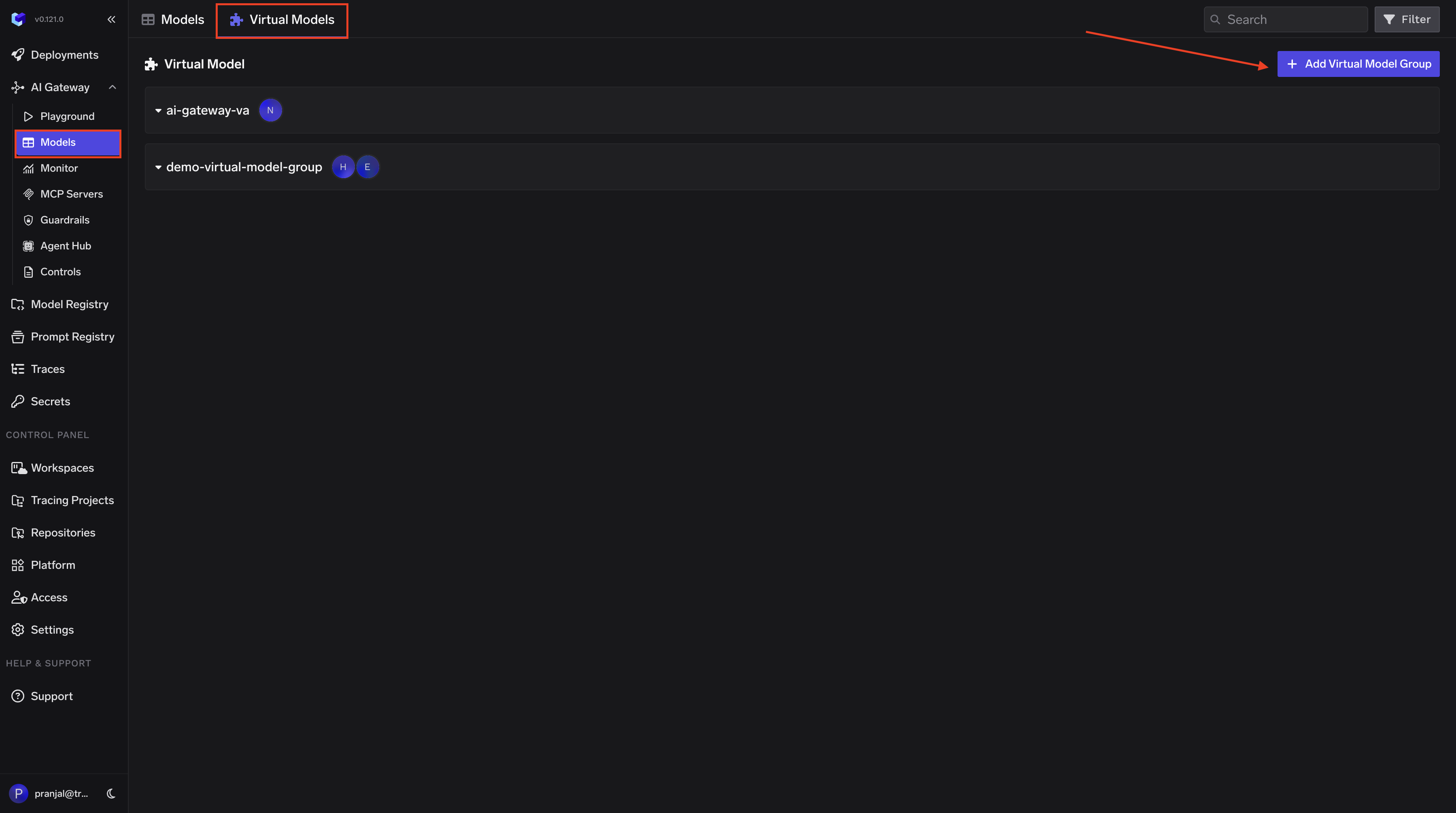
- Navigate to AI Gateway → Models → Virtual Model in the TrueFoundry dashboard.
-
Create a new Virtual Model Provider Group with a name (e.g.,
copilot-vm) and configure collaborators for access control. -
Add your target model (e.g.,
openai-main/gpt-4o) under the provider group. Set the Virtual Model name to the standard model name (e.g.,gpt-4o), so requests forgpt-4oare automatically routed toopenai-main/gpt-4othrough the TrueFoundry Gateway.