

What is Gemini CLI?
The Gemini command line interface (CLI) is Google’s official AI coding assistant that runs directly in your terminal. It understands your codebase and helps you code faster through natural language commands.Rate and budget limits: TrueFoundry AI Gateway now supports Rate and Budget Limits for Gemini CLI. You can set configurations to cap usage and costs and avoid unexpected overuse.
Learn More
Prerequisites
Before integrating Gemini CLI with TrueFoundry, ensure you have:- TrueFoundry Account: A TrueFoundry account with at least one Google Gemini or Vertex AI Provider Account configured and a Personal Access Token (Generate here)
-
Gemini CLI Installation: Install Gemini CLI by running:
Setup Configuration
1. Create Provider Account
Create a provider account for either Google Gemini or Vertex AI:- Google Gemini: Follow the Google Gemini setup guide
- Vertex AI: Follow the Vertex AI setup guide
Provider Support: Both Google Gemini and Vertex AI providers are supported. The gateway automatically handles the necessary transformations for Vertex AI when using the Gemini CLI.
2. Get Configuration Details
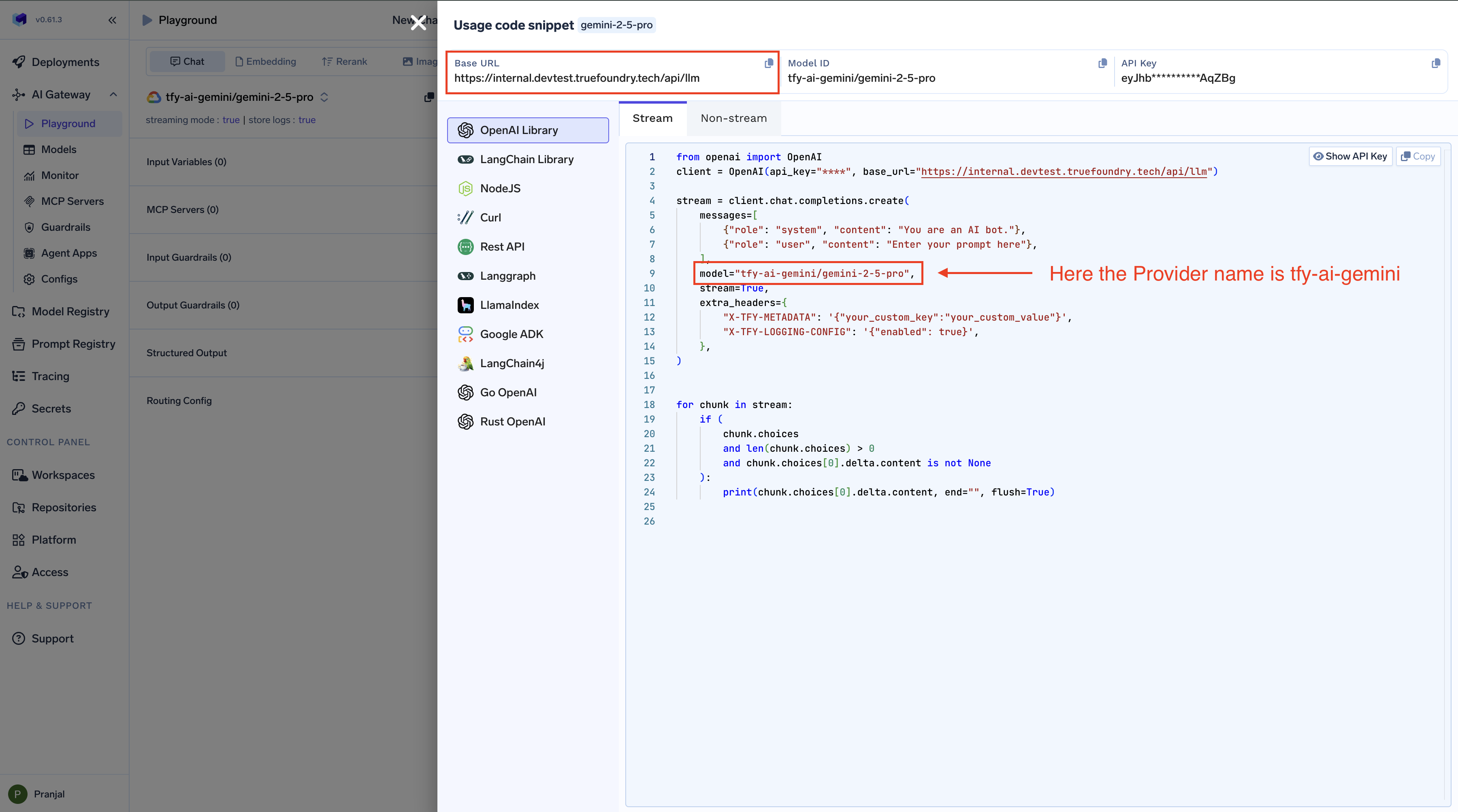
Get thebase URL and Provider Name from your TrueFoundry AI Gateway playground using the unified code snippet:
3. Configure Environment Variables
Choose the configuration that matches your provider. Google Gemini and Vertex AI use different environment variables and auth mechanisms.Google Gemini
Google Gemini
Vertex AI
Vertex AI
| Placeholder | Description |
|---|---|
GATEWAY_BASE_URL | Your TrueFoundry AI Gateway Base URL (how to find it) |
providerAccountName | Your Provider Account name (either Google Gemini or Vertex AI) |
your-truefoundry-api-key | Your TrueFoundry Personal Access Token |
Vertex AI users: You must use the Vertex AI configuration above (with
GOOGLE_VERTEX_BASE_URL, GOOGLE_API_KEY, and GEMINI_API_KEY_AUTH_MECHANISM="bearer"). The older Gemini-style config is no longer supported for Vertex AI with Gemini CLI due to upstream changes affecting models such as gemini-3.1-pro. If you were previously using Vertex AI with the Gemini config, see Migrating from Gemini config to Vertex AI config below.Migrating from Gemini config to Vertex AI config
If you were using Vertex AI with the previous Gemini-style configuration (GOOGLE_GEMINI_BASE_URL + GEMINI_API_KEY), you need to switch to the Vertex AI–specific configuration. Gemini CLI has made changes that make Vertex AI Gemini models (when used via Gemini CLI in gemini mode) unusable for gemini-3.1-pro unless you use the new Vertex AI config and auth type.
Follow one of the migration options below.
Option 1: Reset auth via CLI (/auth and logout)
- Set the Vertex AI environment variables (see the Vertex AI accordion above) in your shell profile or environment.
- Start the CLI with
gemini, then run the/authcommand. - Use the logout option in the auth flow to clear the current auth type.
- When prompted, select Vertex AI as the auth type.
Option 2: Reset auth via settings file
- Open the Gemini CLI settings file (e.g.
~/.gemini/settings.json. - Delete the
selectedTypefield from the auth object so that the CLI no longer uses the old auth selection. - Set the Vertex AI environment variables (see the Vertex AI accordion above) in your shell profile or environment.
- Start the CLI with
gemini. When prompted for authentication, choose Vertex AI.
After removing
selectedType, the next time you run gemini you will be asked to pick an auth type again. Select Vertex AI to use the new configuration.Using Gemini CLI
-
Start the CLI:
-
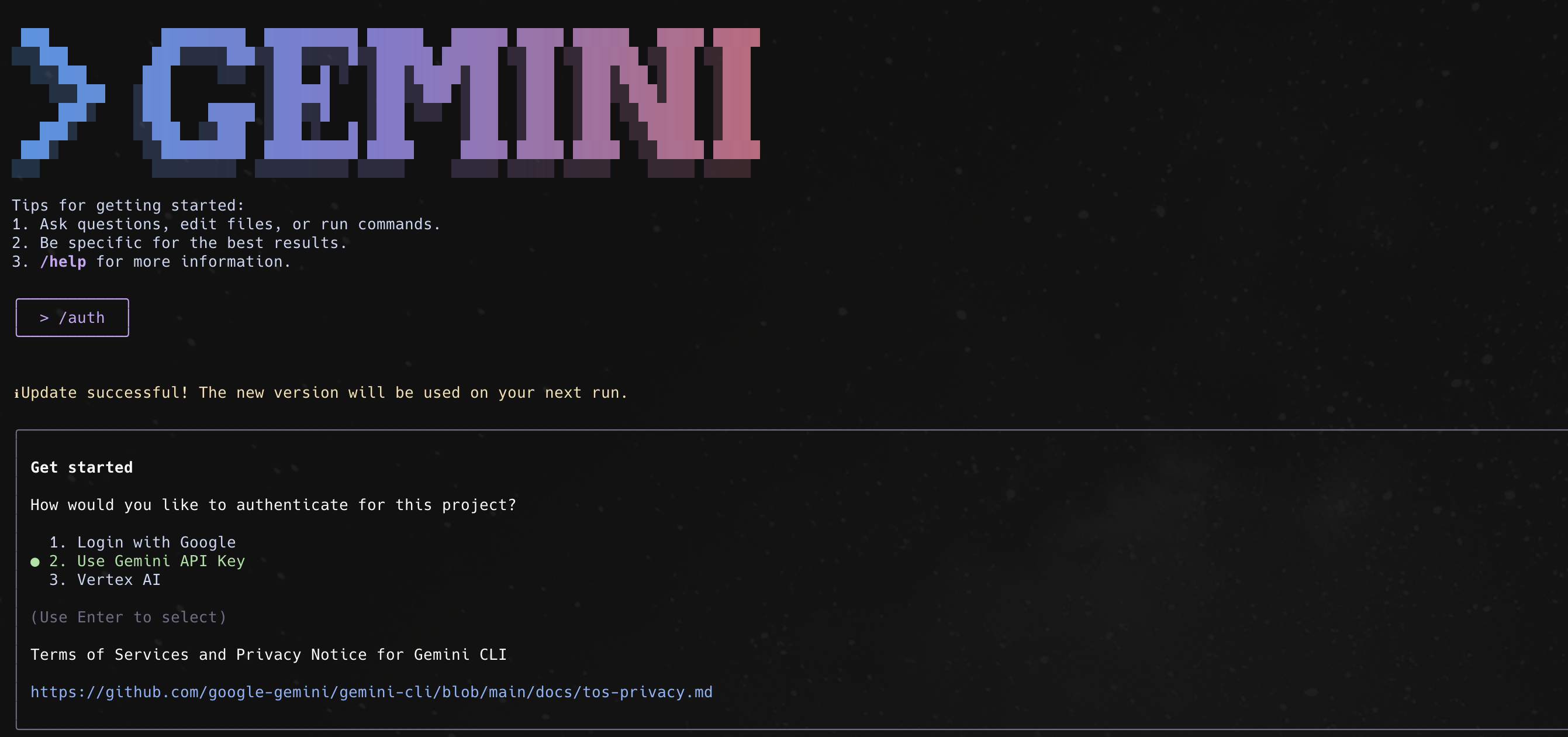
Setup Authentication:
- Google Gemini users: If you see authentication options, choose Use Gemini API Key. If not prompted, type
/authand select Use Gemini API Key. - Vertex AI users: Choose Vertex AI (or the Vertex AI auth type). If not prompted, type
/authand select Vertex AI. Ensure you have set the Vertex AI environment variables (see the Vertex AI accordion above) before starting.
- Google Gemini users: If you see authentication options, choose Use Gemini API Key. If not prompted, type
-
Start using Gemini: