

What is Goose?
Goose is an open-source, extensible AI agent developed by Block that goes beyond code suggestions. It can install, execute, edit, and test code with any LLM provider, making it a powerful autonomous coding assistant for developers.Key Features of Goose
- Autonomous Task Execution: Capable of automating complex development tasks from start to finish, including building entire projects from scratch, writing and executing code, debugging failures, and orchestrating workflows
- Multi-LLM Support: Works with any LLM provider and supports multi-model configuration to optimize performance and cost
- MCP Integration: Seamlessly integrates with MCP (Model Context Protocol) servers for extended functionality and tool access
- Desktop and CLI: Available as both a desktop application and command-line interface, adapting to your preferred workflow
Prerequisites
Before integrating Goose with TrueFoundry, ensure you have:- TrueFoundry Account: Create a TrueFoundry account and follow the instructions in our Gateway Quick Start Guide
- Goose Installation: Download and install Goose
- TrueFoundry API Key: Generate an API key from your TrueFoundry account
Integration Guide
Step 1: Get TrueFoundry AI Gateway Configuration
Before configuring Goose, gather your TrueFoundry AI Gateway details:- Navigate to AI Gateway Playground: Go to your TrueFoundry AI Gateway playground
- Access Unified Code Snippet: Use the unified code snippet
- Copy Base URL, API Key, and Model Name: You will get the base URL, API key, and model name from the unified code snippet
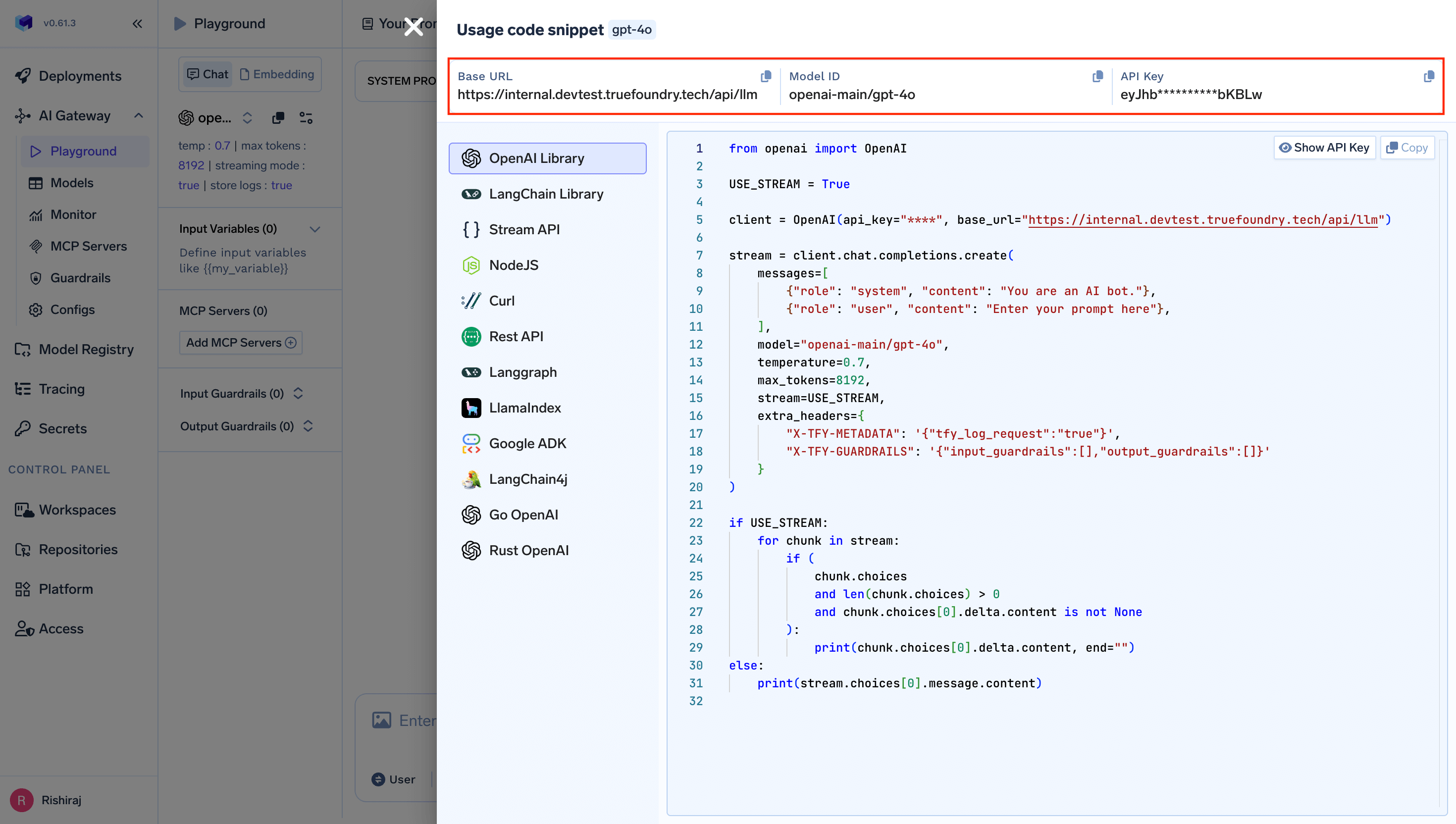
Step 2: Open Goose Provider Settings
- Launch Goose: Open the Goose desktop application
- Navigate to Settings: Click on Settings in the left sidebar
- Add Custom Provider: Click on the Add Custom Provider option to configure a new provider
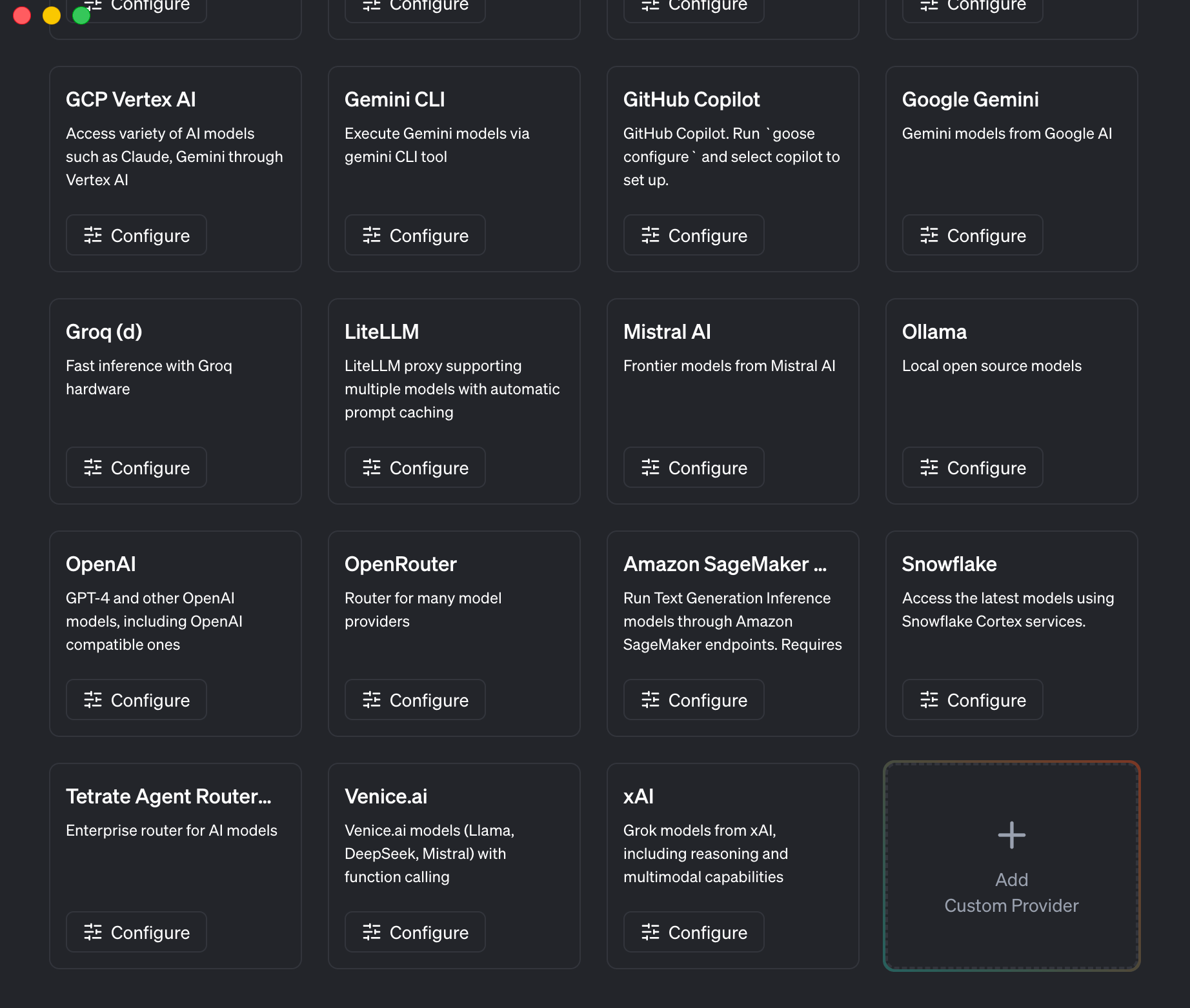
Goose Provider Settings showing available LLM providers
Step 3: Configure TrueFoundry as Provider
In the Add Provider dialog, configure the following settings:- Provider Type: Select
OpenAI Compatiblefrom the dropdown - Display Name: Enter
TrueFoundry(or any name you prefer) - API URL: Enter your TrueFoundry AI Gateway URL (e.g.,
https://your-gateway-url.truefoundry.tech) - API Key: Enter your TrueFoundry API key
- Available Models: Enter the model names you want to use, comma-separated (e.g.,
openai-main/gpt-4o) - Click Create Provider to save the configuration
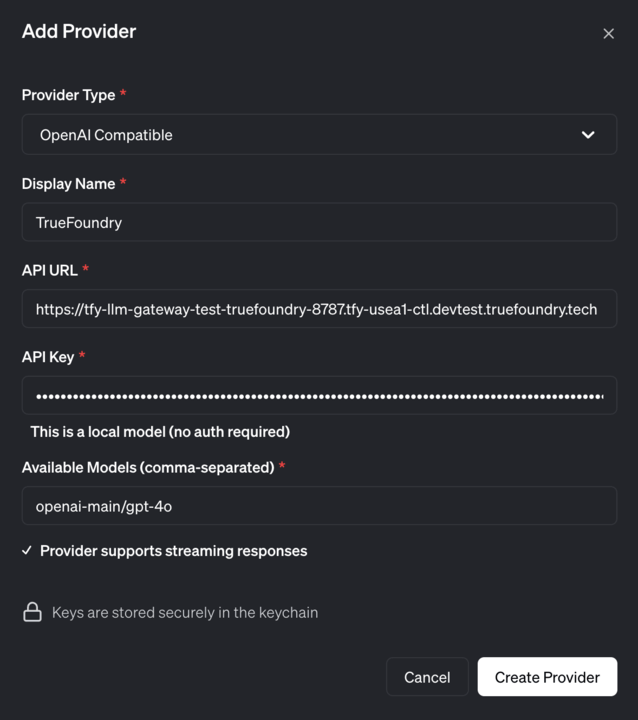
Add Provider configuration for TrueFoundry
Keys are stored securely in your system’s keychain, ensuring your API credentials remain protected.
Step 4: Start Using Goose with TrueFoundry
Once configured, you can start using Goose with TrueFoundry AI Gateway:- Open Chat: Navigate to the Chat section in the left sidebar
- Select Model: The model selector at the bottom of the chat window will show your configured TrueFoundry models
- Start Chatting: Begin interacting with the AI assistant
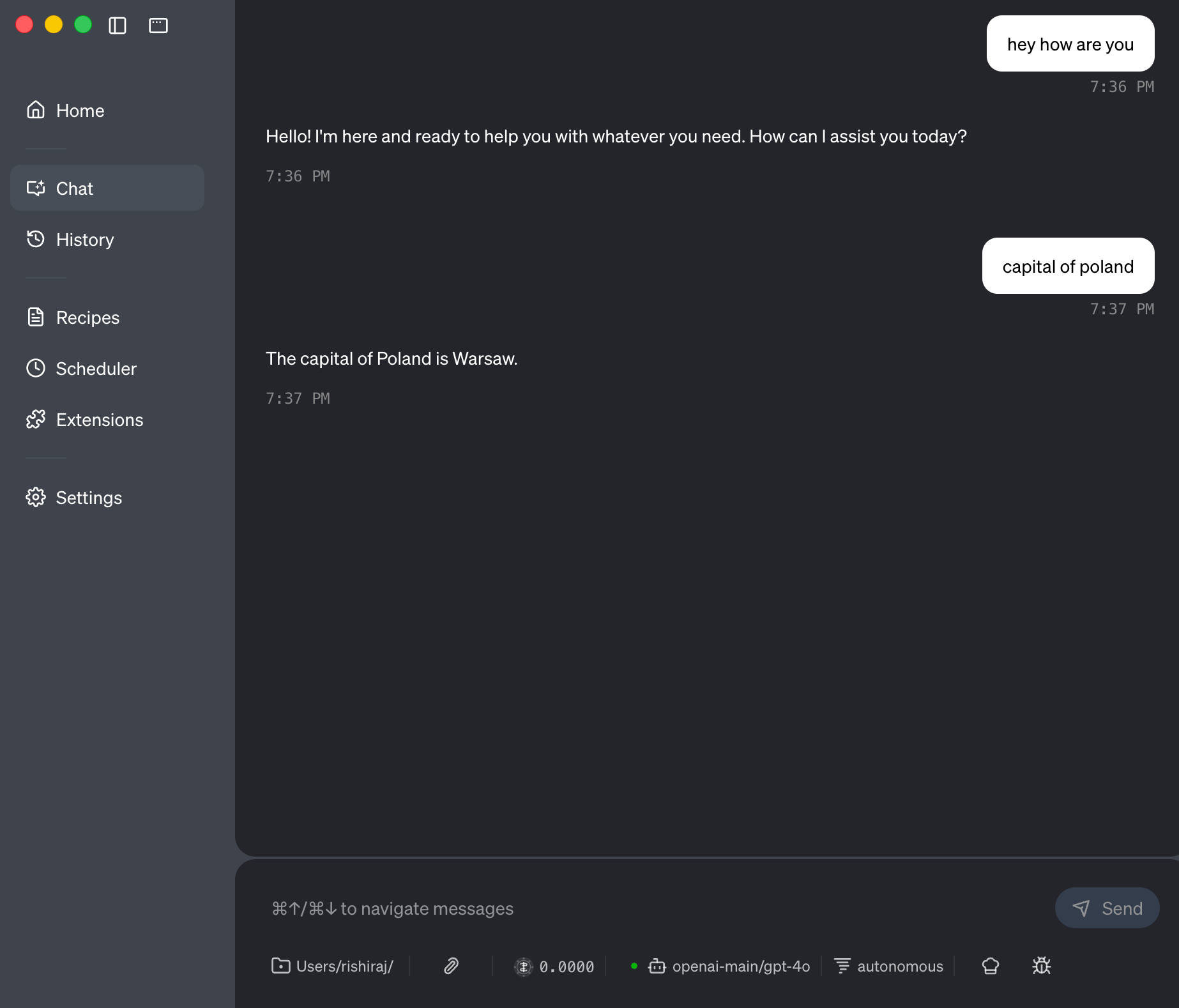
Goose chat interface using TrueFoundry AI Gateway
Fleet-wide enforcement
Gateway config: per user. Goose takes the provider host and key from environment variables (GOOSE_PROVIDER, GOOSE_PROVIDER__HOST, OPENAI_HOST, and so on) or ~/.config/goose/config.yaml, with env vars winning; there is no managed or system-level config. Push the values through MDM and rely on network policy for enforcement.
MCP servers: weakly enforceable. Remote servers are extensions of type: streamable_http in config.yaml with uri and headers (SSE is not supported); point uri at the MCP Gateway. The only admin control is GOOSE_ALLOWLIST, an environment variable pointing at a YAML list of permitted extensions; Goose refuses to install anything not on it, but a user can unset the variable, and there is no denylist. See Goose’s allowlist and config files docs.