

Setting up Infrastructure
Requirements
All the compute plane requirements must be met in order to install the control plane. Below are the additional requirements for the control plane:| Requirements | Description | Reason for Requirement |
|---|---|---|
| CloudSQL Postgres | Postgres >= 13 | The database is used by TrueFoundry control plane to store all its metadata, Ensure SSL is disabled (default is disabled), |
| GCS bucket | Any GCS bucket reachable from control-plane | This is used by control-plane to store the intermediate code while building the docker image |
| Egress Access for TrueFoundryAuth | Egress access to https://auth.truefoundry.com and analytics.truefoundry.com | This is needed to verify the users logging into the TrueFoundry platform for licensing purposes |
| Additional TrueFoundry information | Additional information for control plane deployment which will be provided by TrueFoundry team | This includes tenant name, licence key, and image pull secret |
| DNS | Domain for control plane and service endpoints | One endpoint to point to the control plane service (e.g., platform.example.com) The control-plane URL must be reachable from the compute-plane. The developers will need to access the TrueFoundry UI at the provided domain |
| User/ServiceAccount to provision the infrastructure | Permissions to run OpenTofu/Terraform | Permissions to run OpenTofu/Terraform code to bring up GKE and cloud SQL given below |
Permissions Required
For the control plane, we will be using the following permissions:- Compute plane permissions
- Cloud SQL Admin
Setting up control plane
TrueFoundry control plane infrastructure is provisioned using OpenTofu/Terraform. You can download the OpenTofu/Terraform code for your exact account by filling up your account details and downloading a script that can be executed on your local machine. To perform the below steps, you need to register an account on TrueFoundry and login to the platform.Enable Deployment Feature in the Platform (Optional)
To enable the deployment feature which allows you to deploy services through the platform, you need to enable it;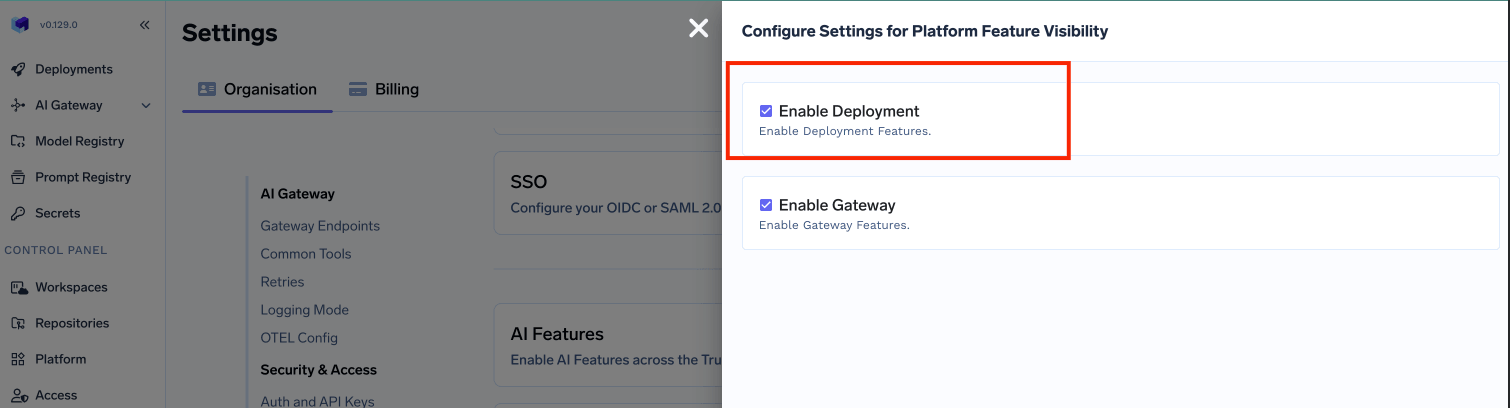
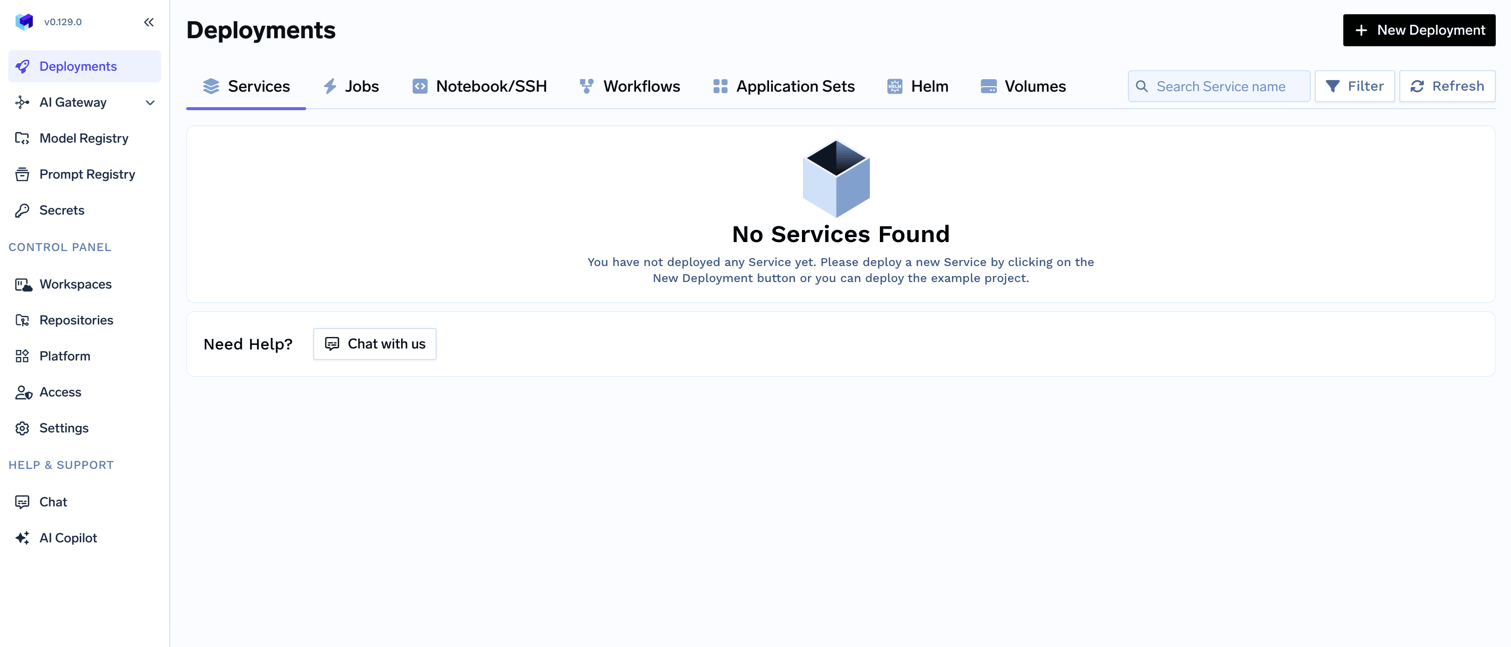
- In the left hand navigation, go to
SettingsthenPlatform Feature VisibilityunderPreferences - Click on
Editbutton. Then enable the toggle forEnable Deployment
- Click on
Savebutton.
Choose to create a new cluster or attach an existing cluster
Go to the platform section in the left panel and click on 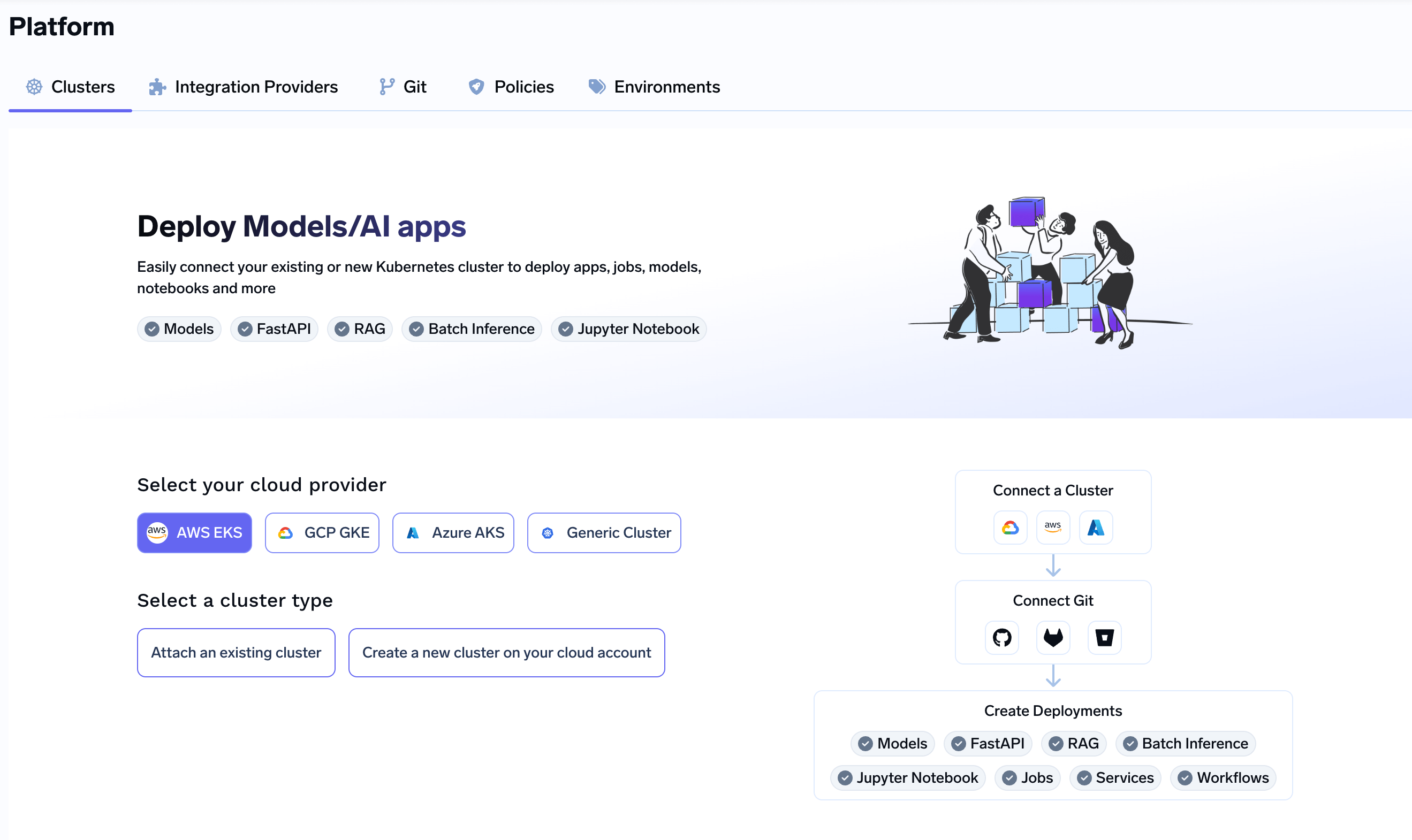
Clusters. Add the following value at the end of your URL &controlPlaneSetupEnabled=true. This will enable the control plane installation for you. You can click on Create New Cluster or Attach Existing Cluster depending on your use case. Read the requirements and if everything is satisfied, click on Continue.Fill up the form to generate the OpenTofu/Terraform code
A form will be presented with the details for the new cluster to be created. Fill in with your cluster details. Click
Submit when done- Create New Cluster
- Attach Existing Cluster
The key fields to fill up here are:
Region- The region where you want to create the cluster.Project ID- The project ID where you want to create the cluster.Cluster Name- A name for your cluster.Cluster VersionandMaster node IPv4 block- The version of the cluster and the IPv4 block for the master nodes.Availability Zones- The availability zones where you want to create the cluster nodes.Resource Tags- Tags to be added to the resources created by TrueFoundry on your behalf if any.Network Configuration- Choose betweenNew networkorExisting networkdepending on your use case.DNS Configuration- Configure the DNS zone and domains that will point to the cluster’s load balancer. This also provisions a TLS certificate for those domains. Select New DNS Zone or Existing DNS Zone if you want TrueFoundry to provision DNS in GCP. If you use an external DNS provider (e.g., Route53, Cloudflare), you can skip this section.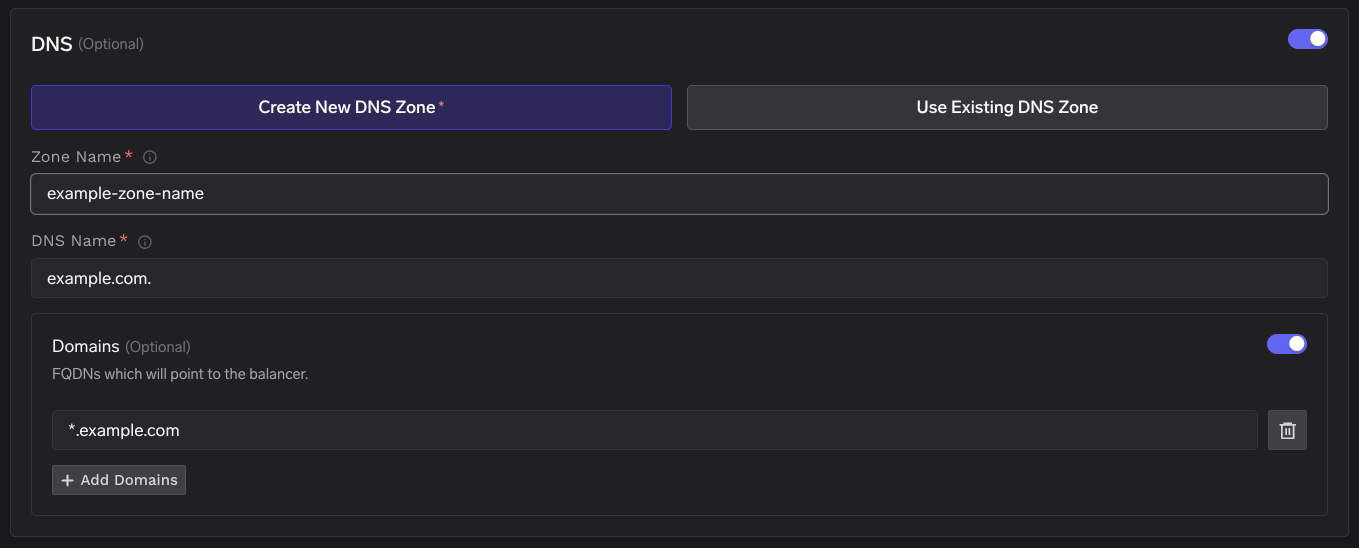
GCS Bucket for OpenTofu/Terraform State- OpenTofu/Terraform state will be stored in this bucket. It can be a preexisting bucket or a new bucket name. The new bucket will automatically be created by our script.Control Plane Configuration- Control plane URL and the database details. You can chose betweenPostgreSQL on kubernetesorManaged PostgreSQL (RDS)orExisting PostgreSQL configurationdepending on your use case.
Copy the curl command and execute it on your local machine
You will be presented with a 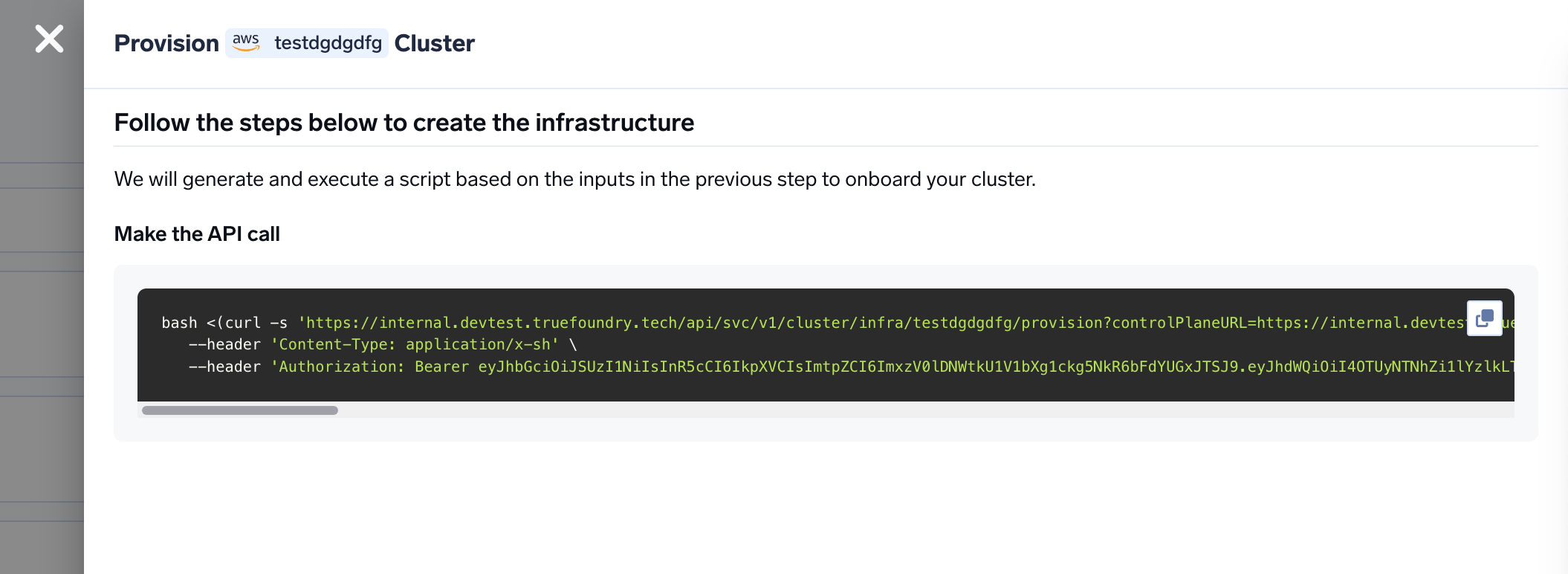
curl command to download and execute the script. The script will take care of installing the pre-requisites, downloading OpenTofu/Terraform code and running it on your local machine to create the cluster. This will take around 40-50 minutes to complete.Create DNS Record
Once the script is executed, create the DNS record for the control plane url. To get the load balancer IP address, you can check the kubernetes service of type This will give you the login screen to the control plane through which you can login via the same credentials used to register the tenant.
Create a DNS record in your route 53 or your DNS provider with the following details
LoadBalancer in the istio-system namespace. You can run the following command to get the IP address.| Record Type | Record Name | Record Value |
|---|---|---|
| A | CONTROL_PLANE_DOMAIN | LOADBALANCER_IP_ADDRESS |
Attach the compute plane to the control plane
We will need to attach the same cluster as compute plane so that we can manage it from the platform. For this, you need to go to the platform section in the left panel and click on 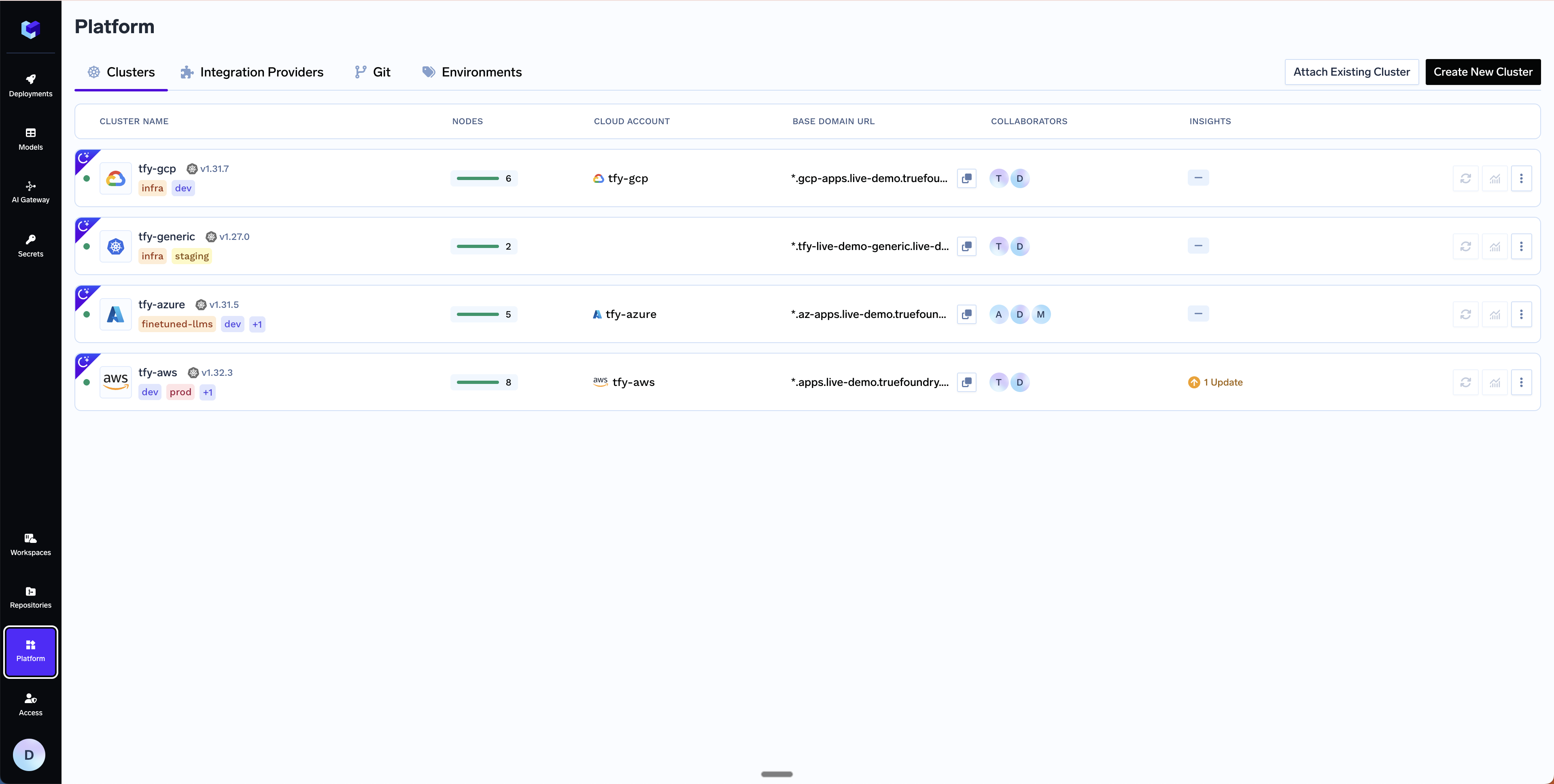
Clusters. Click on Attach Existing Cluster and fill in the details of the control plane cluster. The key fields to fill up here are:Cluster Name- The name of the cluster.Cluster Addons- Unselect all the addons as we have installed them while bringing up the control plane.Network Configuration- Networking configuration of the control plane cluster.GCS Bucket for OpenTofu/Terraform State- OpenTofu/Terraform state will be stored in this bucket. It can be a preexisting bucket or a new bucket name. You can use the same bucket that we used for the control plane and change the bucket key to be used for OpenTofu/Terraform state file.Platform Features- This is to decide which features like BlobStorage, ClusterIntegration, ParameterStore, DockerRegistry and SecretsManager will be enabled for your cluster. To read more on how these integrations are used in the platform, please refer to the platform features page.
Copy the curl command and execute it on your local machine
You will be presented with a
curl command to download and execute the script. The script will take care of installing the pre-requisites, downloading OpenTofu/Terraform code and running it on your local machine to create the cluster. This will take around 40-50 minutes to complete.Verify the cluster is showing as connected in the platform
Once the script is executed, the cluster will be shown as connected in the platform.
Start deploying workloads to your cluster
You can start by going here
FAQ
Can I use my own certificate and key files to add TLS to the load balancer?
Can I use my own certificate and key files to add TLS to the load balancer?
Yes, please consult this guide to add your own certificate and key files to the load balancer.