

This guide explains how to wire up TrueFoundry SSO against any SAML 2.0 Identity Provider (IdP) — useful when there isn’t a dedicated guide for your IdP yet. If your IdP is Microsoft Entra ID, Okta, Google, or another provider that already has a TrueFoundry guide, prefer that guide instead. After you finish, members of your IdP can sign in to TrueFoundry through a customisable Login with SSO button.Documentation Index
Fetch the complete documentation index at: https://www.truefoundry.com/llms.txt
Use this file to discover all available pages before exploring further.
Prerequisites
- A TrueFoundry tenant with Admin access to Settings → Security & Access → SSO.
- Administrator access to your Identity Provider, with permission to create SAML applications / Service Provider entries.
- An IdP that implements SAML 2.0 with SP-initiated login.
Configuration overview
Create the SSO configuration in TrueFoundry
Create a SAML service provider in your IdP
Configure SAML signing and attributes
Paste the IdP details back into TrueFoundry
Step 1 — Create the SSO configuration in TrueFoundry
Open SSO settings
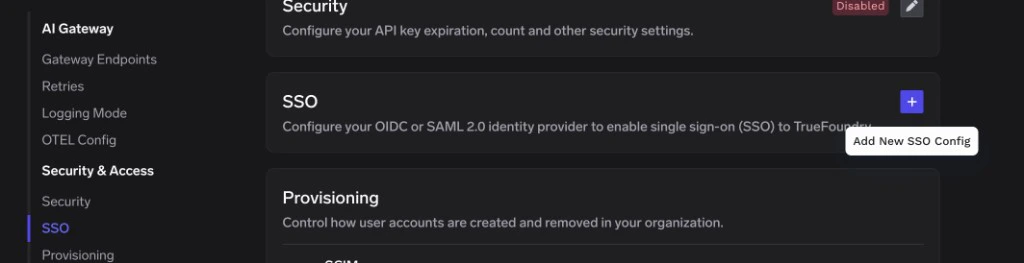
Fill in the basic fields
- Enabled: turn this on.
- Name: a lowercase alphanumeric label — for example,
companysso. - SSO Provider: choose Custom.
- Authentication Configuration: select SAML v2.
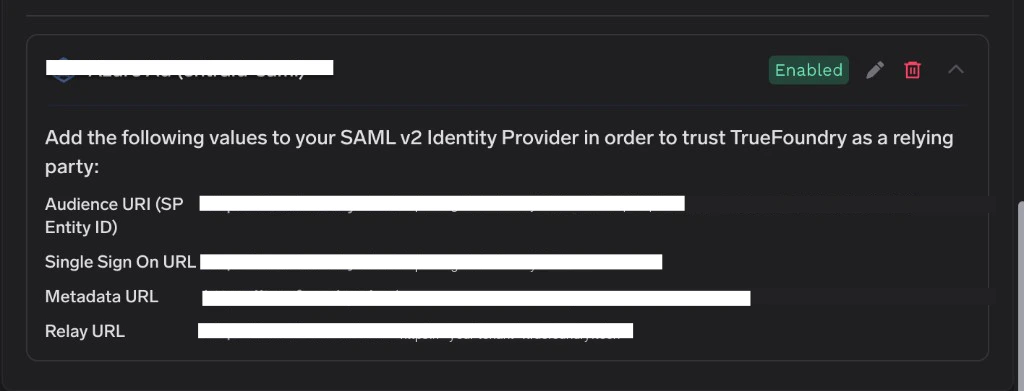
Save to reveal the Single sign-on URL, Audience URI (SP Entity ID), and Relay URL
| IdP field (common names) | Value from TrueFoundry |
|---|---|
| ACS URL / Reply URL / Single Sign-On URL | Single Sign On URL |
| Audience / SP Entity ID / Identifier | Audience URI (SP Entity ID) |
| Relay State (if used) | Relay URL |
Step 2 — Create a SAML service provider in your IdP
The exact wording varies by IdP, but every SAML 2.0 Identity Provider asks for the same set of inputs.Create a new SAML application
Provide the SP endpoints
| IdP field (common names) | Paste this value from TrueFoundry |
|---|---|
| ACS URL / Single Sign-On URL / Reply URL | TrueFoundry Single Sign On URL |
| Audience / SP Entity ID / Identifier | TrueFoundry Audience URI (SP Entity ID) |
Step 3 — Configure SAML signing and attributes
Signing options
TrueFoundry validates the signature on every SAML response, so the IdP-side signing options must be enabled.| Setting | Recommended value |
|---|---|
| Sign SAML Response | Enabled |
| Sign Assertion | Enabled |
| Signature Algorithm | RSA-SHA256 |
| Assertion Encryption | Not required |
Attribute mapping
Configure your IdP to emit at least the following attributes. Standard, simple names map to TrueFoundry’s defaults without any extra configuration.| TrueFoundry expects | Maps from |
|---|---|
email | The user’s primary email address |
sub | A stable, unique identifier for the user (directory ID, user ID, etc.) |
Step 4 — Paste the IdP details back into TrueFoundry
Once the IdP application is created, the IdP will publish two values that TrueFoundry needs.Get the signing certificate (PEM)
Get the SAML SSO URL
Step 5 — Assign users and test sign-in
Assign users in your IdP
Test sign-in
- Open a private/incognito window and visit your TrueFoundry login page.
- Click Login with SSO (or whichever button label you chose under Show advanced fields → Button Text).
- Authenticate as an assigned user.
Optional: mapping legacy attribute names
Some IdPs only emit attributes under long URI names likehttp://schemas.xmlsoap.org/ws/2005/05/identity/claims/emailaddress. You have two options:
-
Recommended: add short aliases (
email,sub) on the IdP side so TrueFoundry’s defaults work. -
Alternative: keep the long names on the IdP and override TrueFoundry’s claim configuration. On the TrueFoundry SSO form, expand Show advanced fields and set:
TrueFoundry field Set to Email Claim http://schemas.xmlsoap.org/ws/2005/05/identity/claims/emailaddressUnique ID Claim http://schemas.xmlsoap.org/ws/2005/05/identity/claims/nameidentifier
Optional customizations
The fields below live under Show advanced fields on the SSO form and apply to both OIDC and SAML.| Field | What it does | Default |
|---|---|---|
| Button Text | Label shown on the SSO login button. | Login with SSO |
| Button Image URL | Icon shown next to the button label. | None |
| Email Claim | SAML attribute carrying the user’s email. | email |
| Unique ID Claim | SAML attribute used as the stable user identifier. | sub |
Troubleshooting
'Invalid Signature' or 'Could not validate SAML response'
'Invalid Signature' or 'Could not validate SAML response'
BEGIN/END lines) into the X.509 Certificate field.If your IdP rotated its signing key recently, TrueFoundry needs the new certificate — old keys are rejected.'InvalidNameIDPolicy' or 'NameID format not supported'
'InvalidNameIDPolicy' or 'NameID format not supported'
urn:oasis:names:tc:SAML:1.1:nameid-format:emailAddress) and map it to the user’s primary email.Sign-in works but the user's email is empty
Sign-in works but the user's email is empty
email attribute (or it has a non-standard name).- Add an
emailattribute on the IdP side, mapped to the user’s primary email. - Or expand Show advanced fields on the TrueFoundry SSO form and set Email Claim to the exact attribute name your IdP emits (for example
http://schemas.xmlsoap.org/ws/2005/05/identity/claims/emailaddress).
'Audience mismatch' or 'AudienceRestriction did not match'
'Audience mismatch' or 'AudienceRestriction did not match'
'Destination mismatch' or 'ACS URL did not match'
'Destination mismatch' or 'ACS URL did not match'
Users sign in but email or unique ID is empty
Users sign in but email or unique ID is empty
email and sub as described in Step 3. If you renamed attributes, expand Show advanced fields in TrueFoundry and set Email Claim and Unique ID Claim accordingly.'Response is too old' or clock-skew errors
'Response is too old' or clock-skew errors
NotBefore / NotOnOrAfter conditions in the SAML response. If the IdP host clock drifts more than a few seconds from real time, assertions are rejected. Sync the IdP host’s clock with an authoritative NTP source.The login button works but the user gets 'no matching user found'
The login button works but the user gets 'no matching user found'
Optional next steps
- Use OIDC instead — see OIDC with a Custom Identity Provider.
- Automate user provisioning — see Manage Users for SCIM, JIT, and Invite-only options.