

Users can be added manually to a tenant or in an automated way by setting up Single Sign-On (SSO) with your Identity Provider (IdP). This page explains how users are provisioned, invited, assigned roles, deactivated, and deleted.Documentation Index
Fetch the complete documentation index at: https://www.truefoundry.com/llms.txt
Use this file to discover all available pages before exploring further.
We recommend setting up SSO since its more secure and also makes it easier to
manage users. You can setup SSO with your Identity Provider (IdP) by reading
SSO Overview.
User provisioning
The dedicated Provisioning settings page and the SCIM, JIT, and Invite-only provisioning modes described below are available starting from v0.143. On earlier versions, SCIM is configured inline in the SSO form. See the Identity and Access Revamp announcement for migration details.
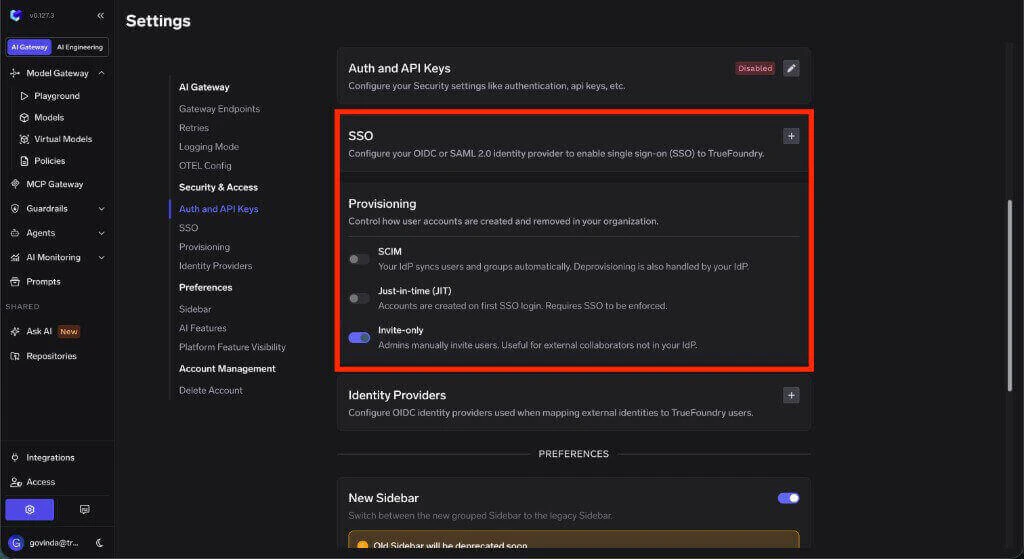
| Mode | What it does | Best for |
|---|---|---|
| SCIM | Your IdP syncs users and groups into TrueFoundry automatically. Deprovisioning is also handled by your IdP. | Organizations that want the IdP to be the source of truth for user and group lifecycle. |
| Just-in-time (JIT) | TrueFoundry creates a user dynamically the first time a valid token is received from your IdP. | Organizations that use SSO but do not want to configure SCIM sync. |
| Invite-only | Admins manually invite users to the tenant. | External collaborators, early rollouts, or tenants where every user should be approved manually. |
Provisioning creates or controls TrueFoundry user accounts. It is separate from Identity Providers, which validate externally issued JWTs for API and gateway access.
Capability matrix
| Capability | SCIM | JIT | Invite-only |
|---|---|---|---|
| Create users automatically | Yes, from IdP sync | Yes, on first SSO login | No |
| Deactivate or remove users automatically | Yes, from IdP sync | No | No |
| Sync groups or teams automatically | Yes | No | No |
| Requires SSO | Recommended | Yes | No |
| Requires admin invite | No | No | Yes |
| Best suited for external collaborators | No | No | Yes |
Configure a provisioning mode
Each tenant uses exactly one provisioning mode at a time. Pick the tab below that matches the mode you’ve selected on the Provisioning page.- SCIM
- Just-in-time (JIT)
- Invite-only
TrueFoundry supports SCIM (System for Cross-domain Identity Management) to automatically create, update, and deactivate users and groups from your identity provider. SCIM is available for both OIDC and SAML v2 SSO configurations.
SCIM enables automatic lifecycle management for both users and teams. Adding or removing a user in your IdP adds or removes the corresponding user in TrueFoundry, and IdP groups are synced as TrueFoundry teams. For team-specific behavior and the group name convention, see Provision teams via SCIM.
Get the SCIM URL
After saving your SSO configuration, expand the SSO configuration to view the SCIM URL along with other metadata. Copy this URL for your identity provider’s SCIM settings.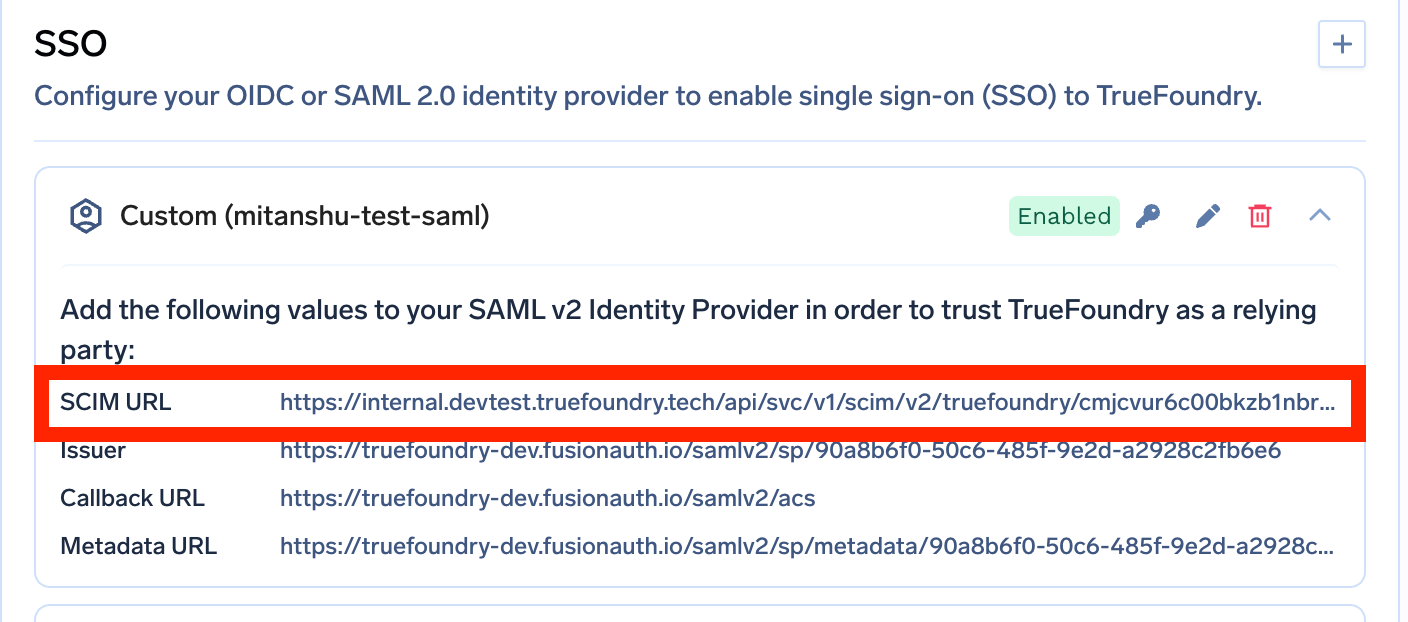
Get the SCIM token
Click the key icon next to your SSO configuration to generate and copy the SCIM authentication token.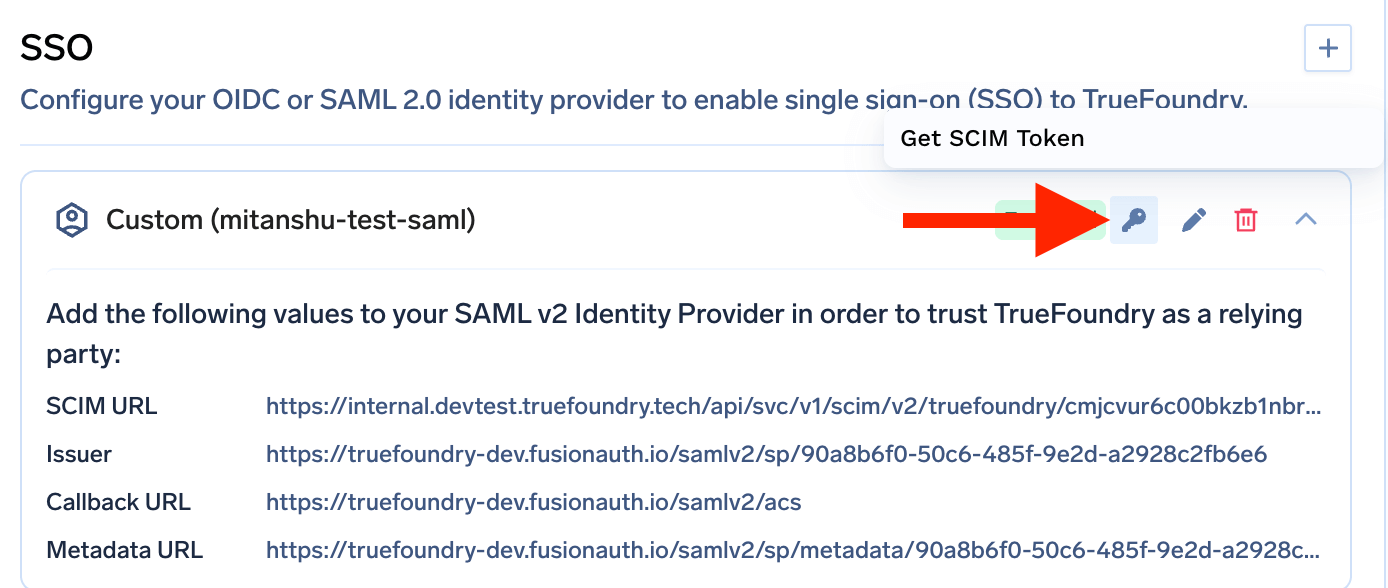
Configure your identity provider
In your identity provider’s SCIM provisioning settings:
- Set the SCIM Base URL to the SCIM URL from TrueFoundry.
- Set the Authentication method to Bearer Token.
- Use the SCIM token as the Bearer token value.
Manage users
Invite a user
Invite a user
If you use Invite-only provisioning, or you want to invite users who are not part of your IdP, use the Invite User button on the Access > Users page. You need to enter the email of the user you want to add.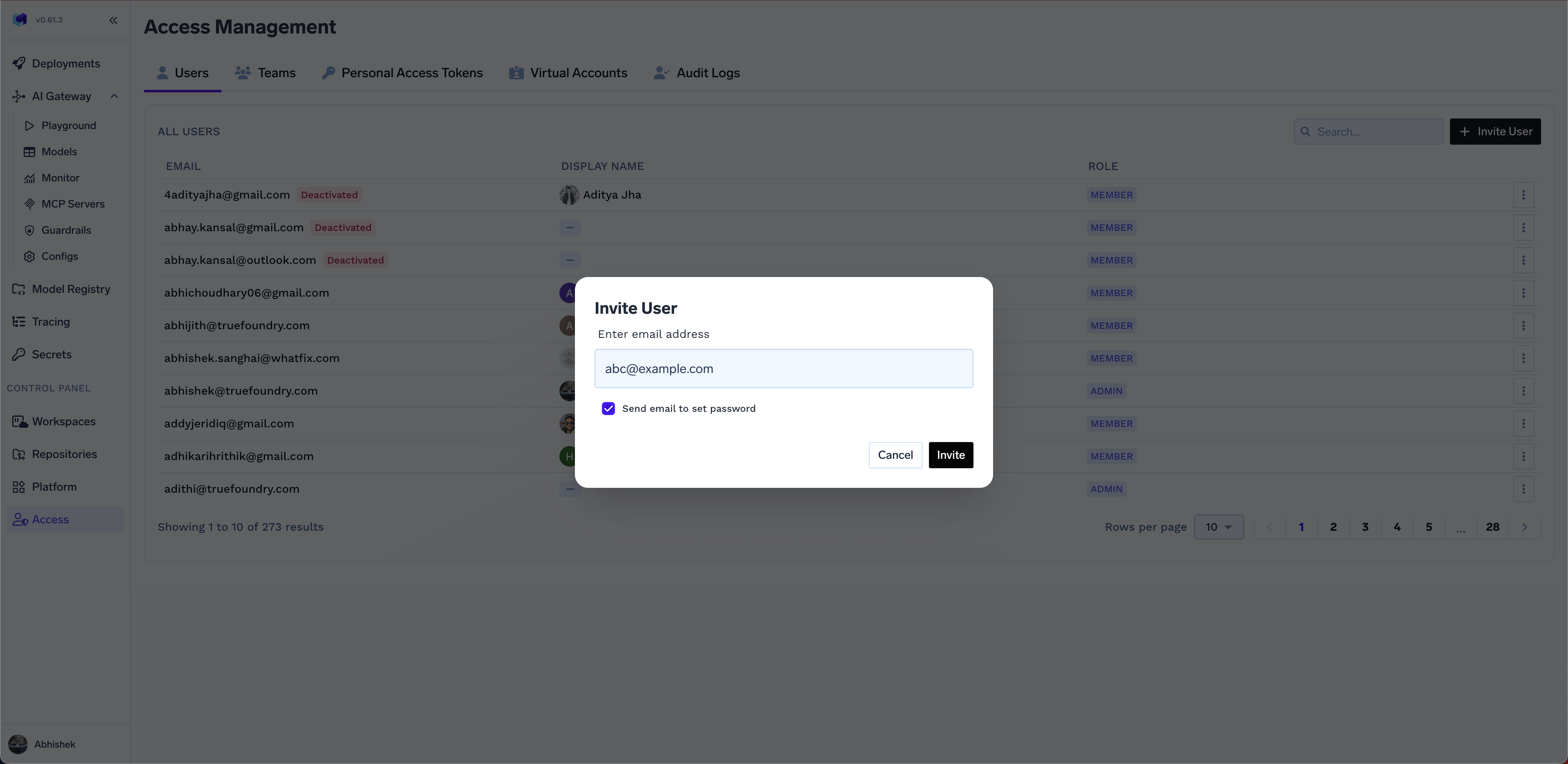
Deactivate a user
Deactivate a user
Admins can deactivate a user’s account. This will prevent the user from logging in to the platform. This can be useful if you do not want to delete the user’s account, but just want to deactivate them temporarily.
Delete a user
Delete a user
Admins can delete a user’s account that are no longer part of your organization. This will remove the user account from the list of users and will not affect any resources created by the user.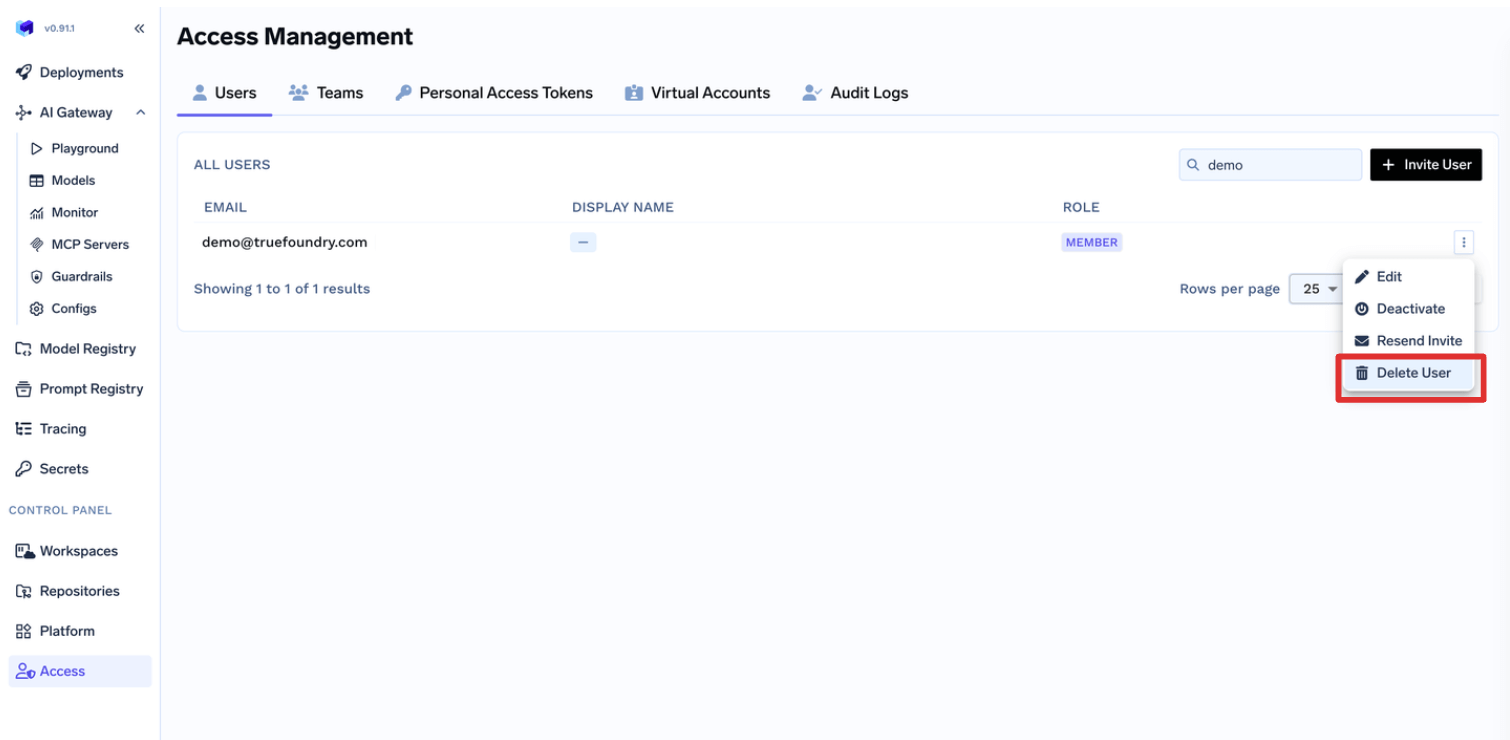
Before deleting the user, you MUST remove the user explicitly from all
resources and teams, otherwise the system will not allow the deletion.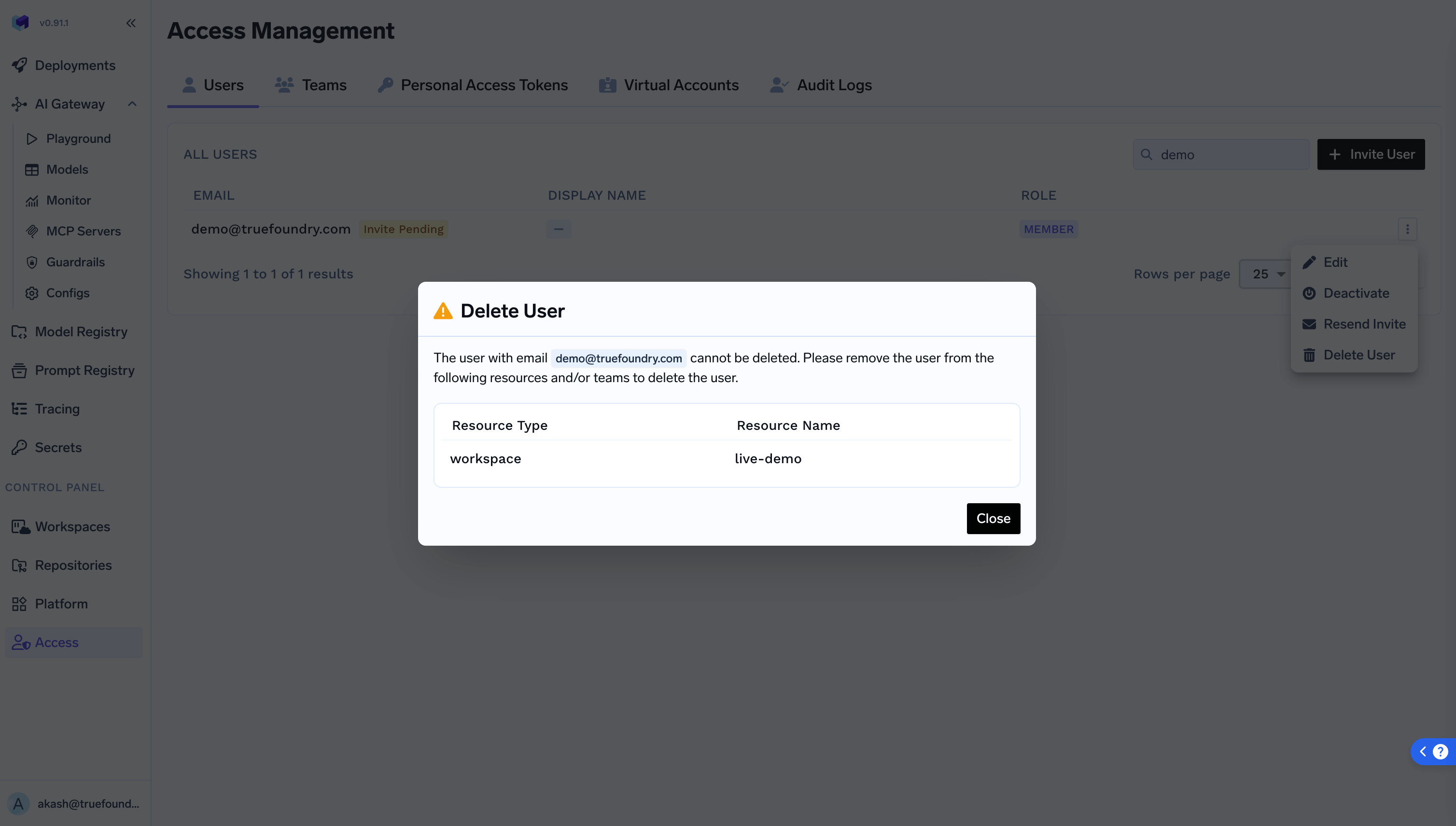
Reset password for a user
Reset password for a user
This is needed only if you are managing users manually and have not set up SSO.Admins can initiate a password reset process for a user. This will send an email to the user with a link to reset their password.