Create an account and verify your email. You will be redirected to the landing page.
2
Add Your Models
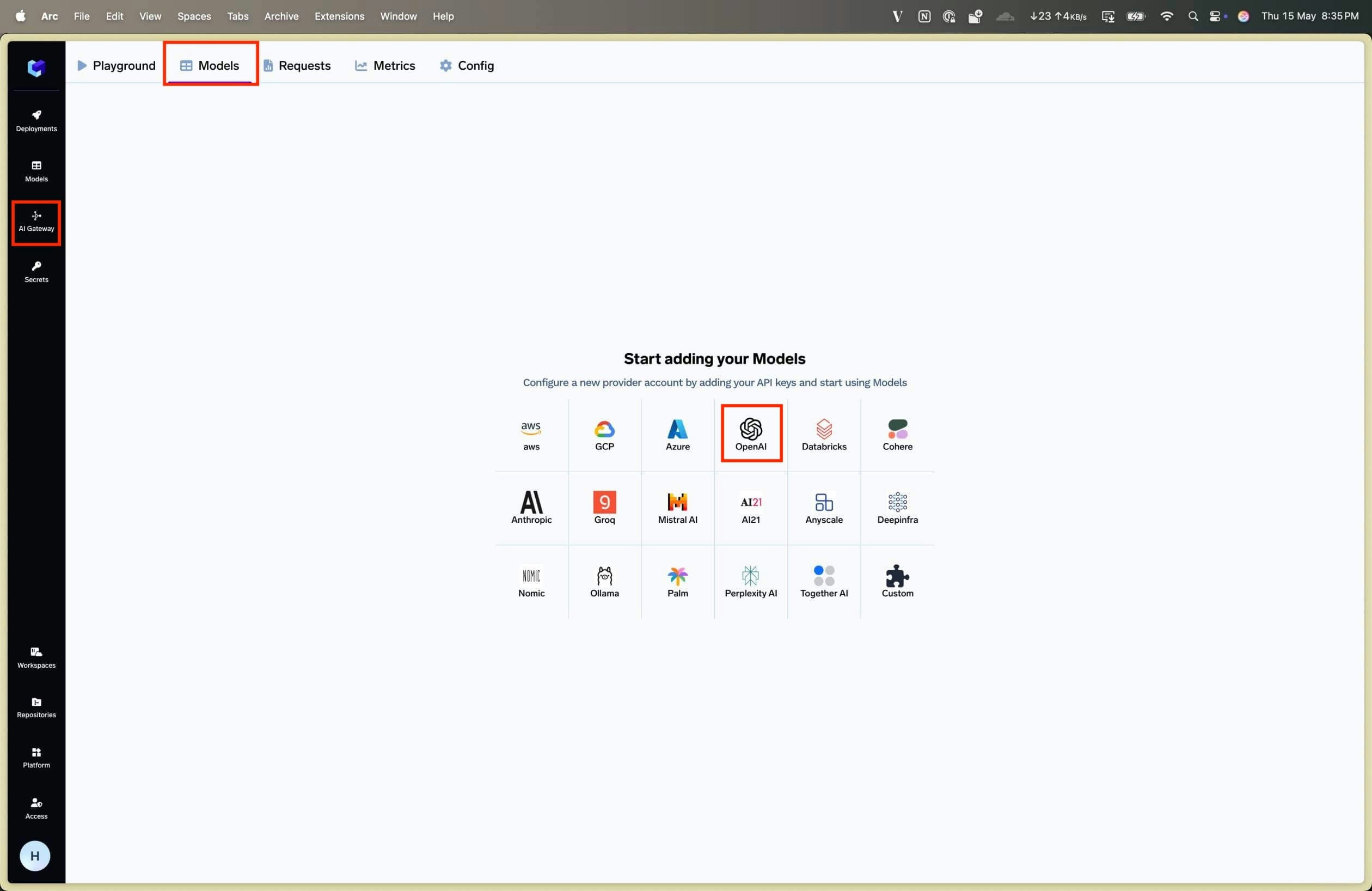
Select the provider you want to add models from, and add models after providing API key. You can add multiple API keys from the same provider by creating separate model accounts.
A Model Account represents one account of a model provider (e.g. OpenAI, Anthropic, AWS Bedrock).
You can add multiple accounts per provider, each with their own API keys. Each account can have multiple models.
Once submitted, your model accounts and models will appear under the Models tab.
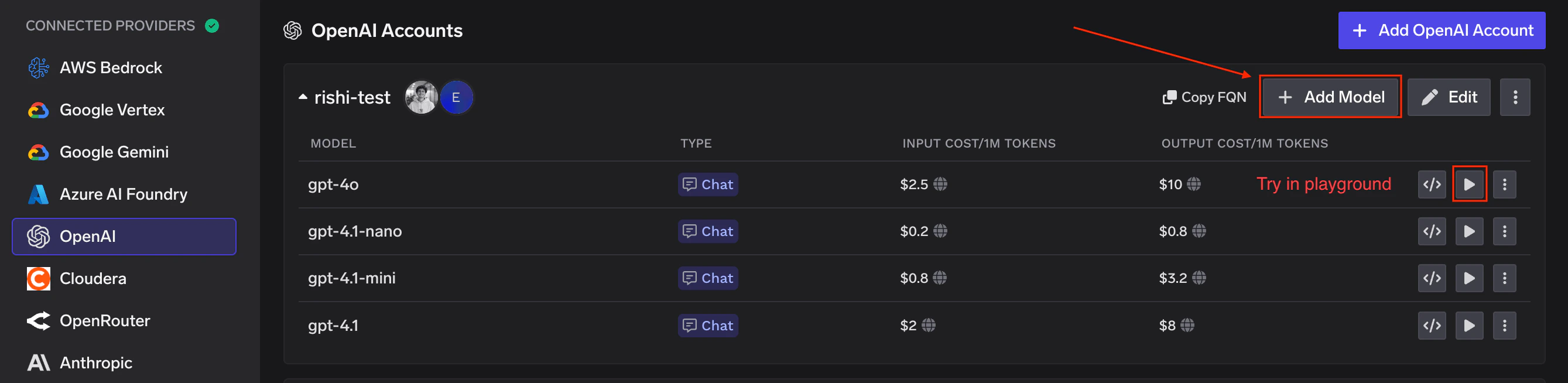
To add models later, go to AI Gateway > Models, select a model account on the left, and click Add Model in the top right. From the models listing page, click Try in playground on any model to start experimenting.
3
Try Models in the Playground
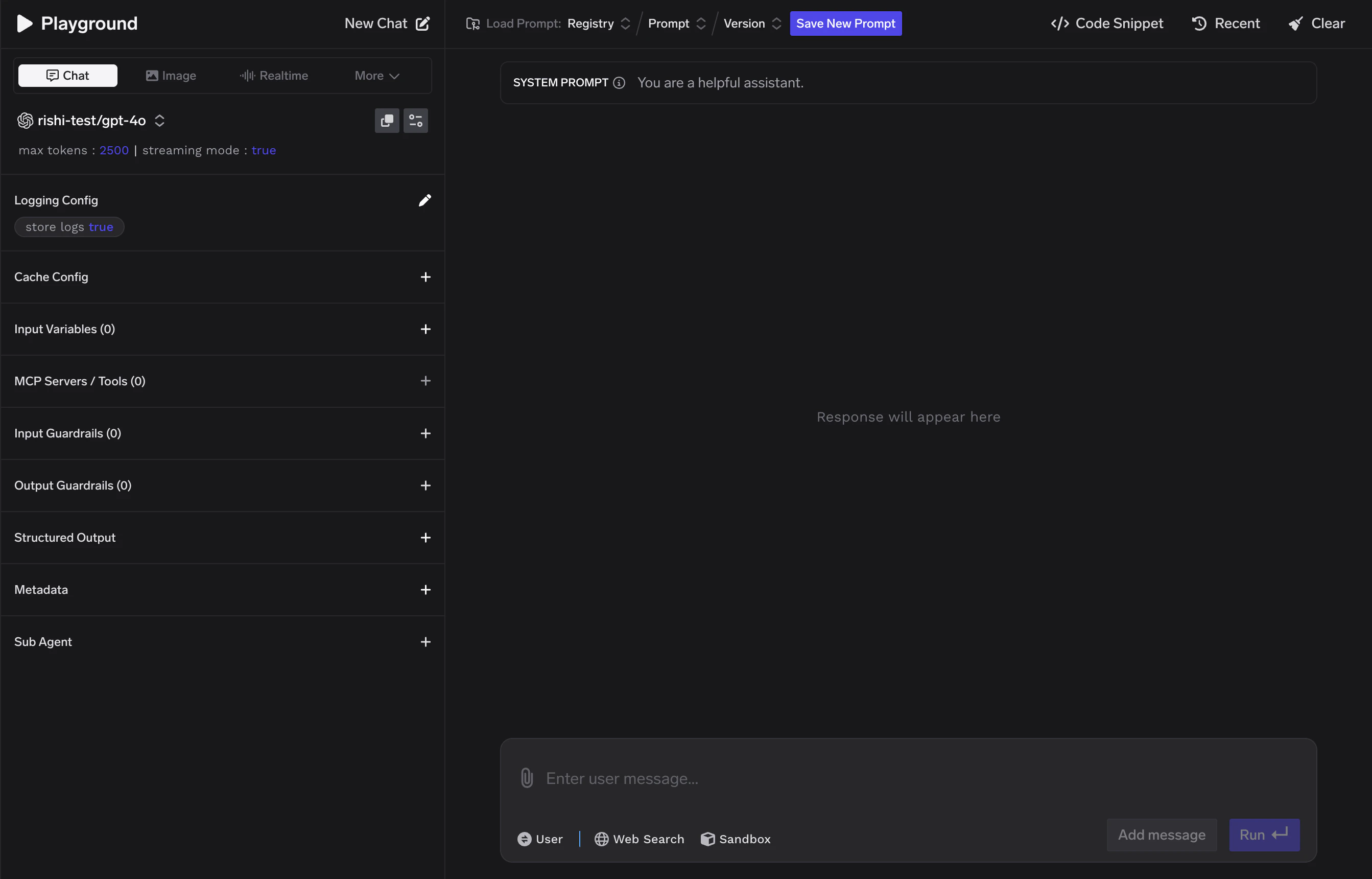
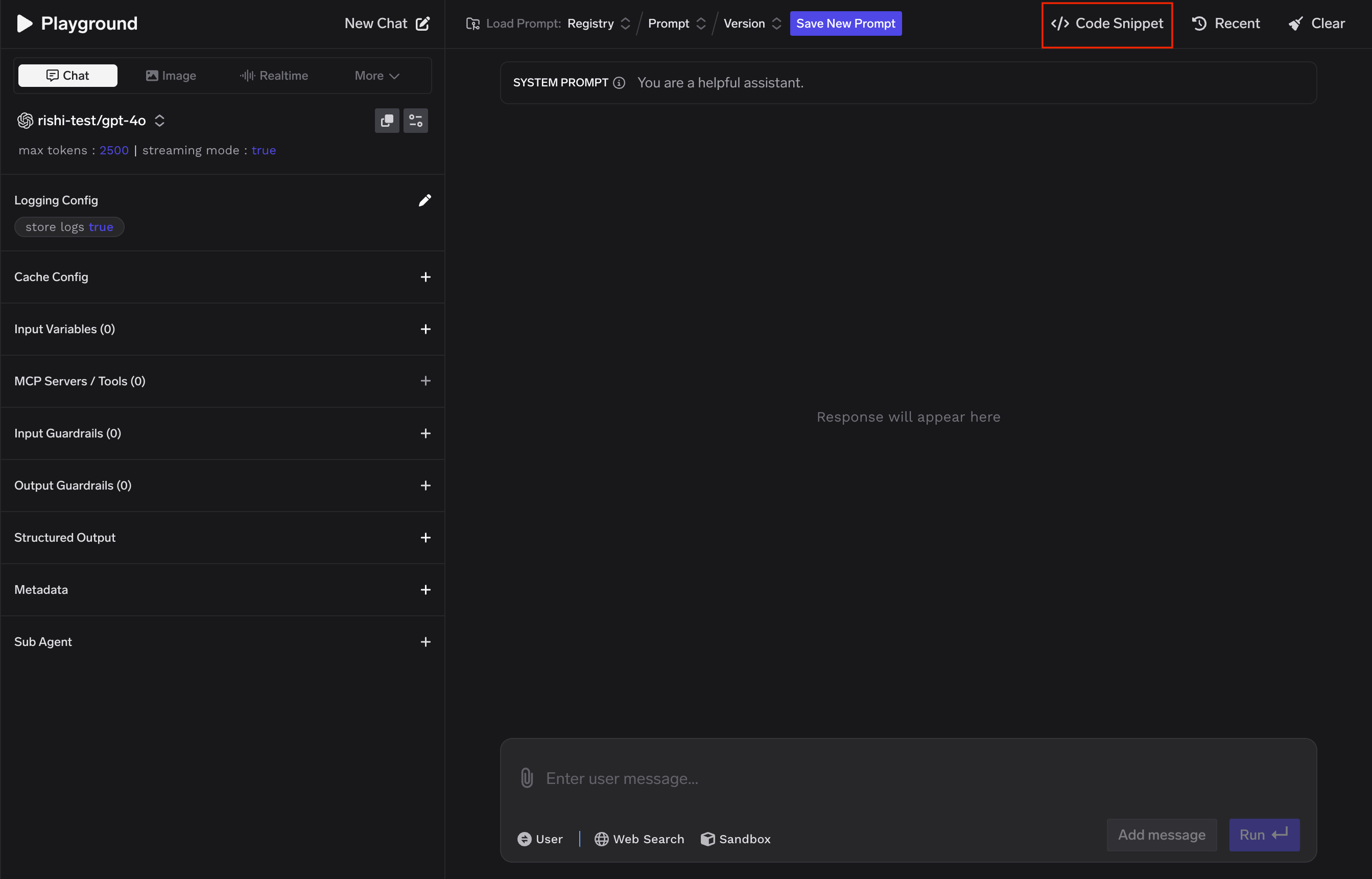
The LLM Playground lets you test models from all connected providers directly in the UI.
AI Gateway Playground Page
4
Integrate with Code
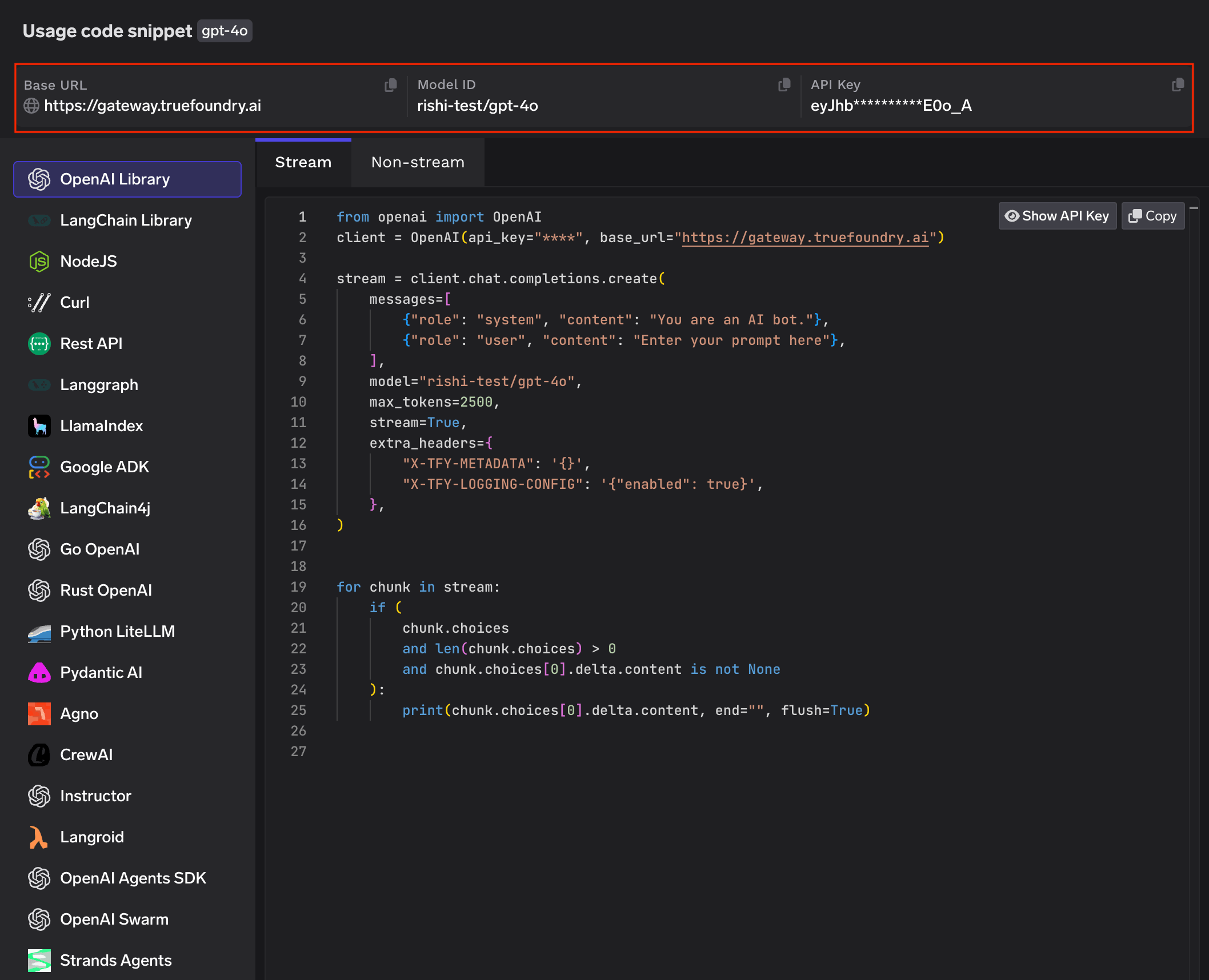
To call Gateway models from your code, you need Gateway Base URL, API Key, and Model ID.All three are available in the Code Snippet tab of the Playground.
The Playground also provides ready-to-use snippets for OpenAI SDK, Langchain, Python (Streaming/Non-Streaming), Node.js, LangGraph, LlamaIndex, Google ADK, cURL, and more.
Was this page helpful?
Assistant
Responses are generated using AI and may contain mistakes.