

When to use Identity Providers?
Use Identity Providers when an external application, service, gateway client, or end user already has a JWT from your IdP, and needs to access TrueFoundry APIs, AI Gateway, MCP Gateway, models, or MCP servers without first generating a TrueFoundry token. Common use cases include:- Service-to-service authentication where an application presents an IdP-issued JWT.
- B2B or partner access where users authenticate with their own organization’s IdP.
- Per-user gateway access where TrueFoundry should preserve the upstream user’s identity from the JWT.
How token resolution works?
- The user or application authenticates with your IdP and receives a JWT.
- The caller sends the JWT to TrueFoundry as a Bearer token.
- TrueFoundry validates the token signature using the configured JWKS URI.
- TrueFoundry validates the issuer and allowed audience values, if configured.
- TrueFoundry resolves the token to either a virtual account or a TrueFoundry user.
- RBAC is evaluated using the resolved TrueFoundry identity.
TrueFoundry never handles the user’s IdP credentials. Your IdP remains the source of truth for authentication.
What Identity Providers can and can’t do?
Identity Providers are used for validating externally issued JWTs, and resolving them to TrueFoundry identities for API and AI Gateway access. They are not a replacement for SSO or user provisioning.Configure an Identity Provider
Go to Settings > Security & Access > Identity Providers, and click + (Add Identity Provider).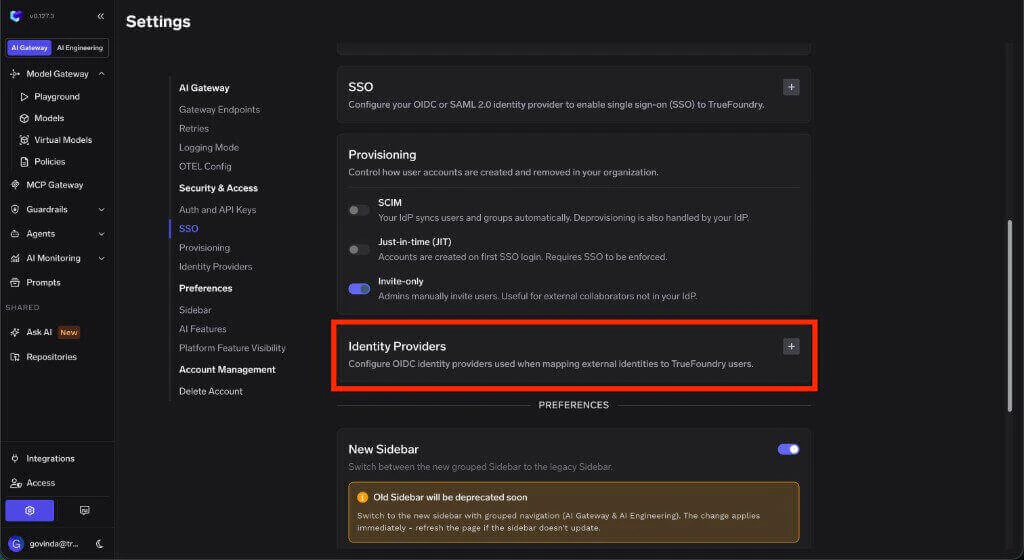
Identity Providers section in Security & Access settings
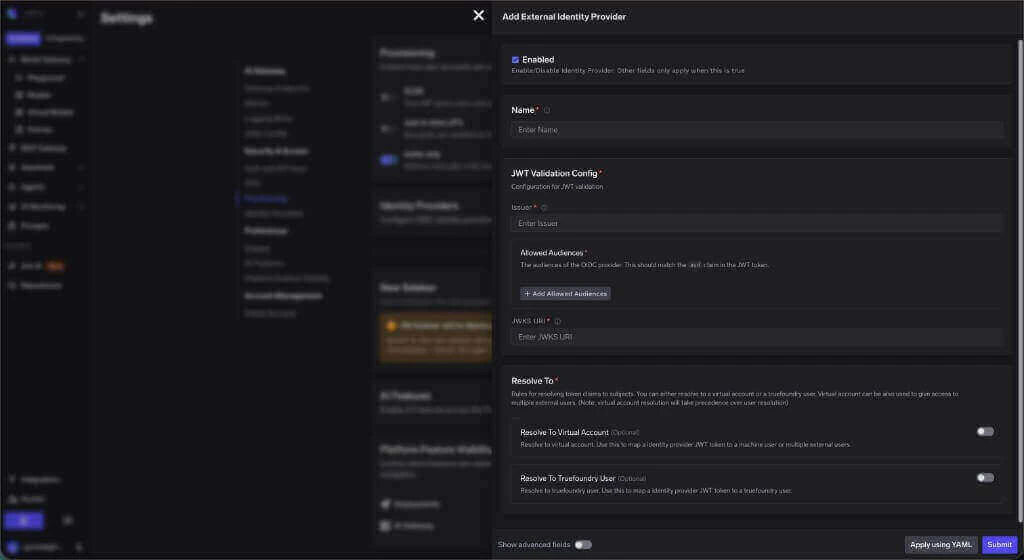
Add Identity Provider form
Identity Provider fields
boolean
required
Enable or disable this Identity Provider. Other settings on the form only take effect when this is enabled.
string
required
A unique identifier for this Identity Provider configuration. Use lowercase letters, numbers, and hyphens only. The name must be 3-32 characters, start with a lowercase letter, and end with a lowercase letter or number.Example:
my-okta-providerstring
required
The OIDC issuer URL. This must exactly match the
iss claim in JWT tokens issued by your provider.Example: https://accounts.example.comstring[]
required
One or more audience values that must be present in the JWT
aud claim. Tokens with an audience that is not listed here are rejected.string
required
The public HTTPS endpoint exposing your provider’s JSON Web Key Set (JWKS). TrueFoundry fetches public keys from this endpoint to verify JWT signatures. Make sure the endpoint is reachable from the TrueFoundry control plane.Example:
https://accounts.example.com/.well-known/jwks.jsonResolve tokens to TrueFoundry identities
The Resolve Token To section controls how validated JWTs are mapped to TrueFoundry identities.If both virtual account and user resolution are configured, virtual account resolution takes precedence.
Resolve to a virtual account
Use this when the JWT represents a machine user, application, shared external identity, or service-to-service caller.string
required
The JWT claim whose value identifies the virtual account mapping.Common examples:
sub, client_idstring
Optional claim used to distinguish individual external users within a shared virtual account. Configure this when one virtual account represents multiple external users and you want each token to resolve to a distinct user slug.
Resolve to a TrueFoundry user
Use this when the JWT represents a human user who should map to an existing TrueFoundry user account.string
required
The JWT claim containing the user’s email address. TrueFoundry uses this value to match an existing TrueFoundry user.Common example:
emailstring
required
The JWT claim containing the user’s team or group value. TrueFoundry uses this value with team-level identity provider mappings to assign the resolved user to the matching team.Common examples:
groups, teamAdvanced claim overrides
string
The JWT claim to use for email mapping. Defaults to
email if not set.string
The JWT claim to use as the unique identifier for the subject. Defaults to
sub if not set.Examples
- Okta
- Azure AD
Troubleshooting
Token authentication fails
Token authentication fails
Verify that the JWKS URI is correct and reachable from the TrueFoundry control plane. Also check that the token’s
iss claim matches the configured issuer and that the token’s aud claim matches one of the allowed audiences.Token validates but does not map to a virtual account
Token validates but does not map to a virtual account
Check that the provider is configured to resolve to a virtual account, then verify that the JWT claim configured as the name claim matches the claim value configured on the target virtual account.
Token validates but does not map to the expected team
Token validates but does not map to the expected team
Check that the provider is configured to resolve to a TrueFoundry user, then verify that the JWT team claim matches the claim value configured on the target team.
Changing the email claim has no effect on existing users
Changing the email claim has no effect on existing users
This applies when a custom Identity Provider is configured for non-browser access (for example scripts or service tokens) and shares the same JWKS as the identity provider used for SSO login.When both providers share the same JWKS, TrueFoundry resolves tokens using the login provider’s identifier claim logic, which defaults to All four variables must be set.
email. The Email Claim setting on the custom Identity Provider is ignored, so tokens still authenticate but resolve to the user matched by the old claim.To change the claim used for resolution (for example to upn), set all four environment variables in the values.yaml of the truefoundry Helm installation:EXTERNAL_OAUTH_EMAIL_CLAIM_KEY is easy to miss because it lives on the tfy-llm-gateway component rather than servicefoundryServer. See External SSO (OIDC/SAML) for the full list of claim override variables.To verify the change, test with a user whose email claim and target claim point to different accounts. Confirm the resolved subject in the AI Gateway logs matches the new claim, not email.If the
aud claim is identical between your SSO login tokens and your out-of-browser tokens, a separate custom Identity Provider may not be needed at all. Audience validation for the login identity provider is planned for an upcoming release, so confirm aud consistency now.A user token resolves as a virtual account
A user token resolves as a virtual account
If both user and virtual account resolution are configured, virtual account resolution takes precedence. Disable virtual account resolution if the same tokens should resolve directly to TrueFoundry users.