Use this file to discover all available pages before exploring further.
This guide demonstrates how to write a MCP server, add Oauth based authentication to it using Okta as the identity provider and then integrate it with the Truefoundry gateway. The setup below explains both the user authentication and machine-to-machine authentication scenarios:
User Authentication: Authenticate specific users through the AI Gateway using the Authorization Code flow with refresh tokens
Machine-to-Machine Authentication: Enable programmatic access without user interaction using the Client Credentials grant flow
Let’s start by writing a basic MCP server that provides a get_me tool.
server.py
from fastmcp import FastMCPmcp = FastMCP("Demo 🚀")@mcp.tooldef add(a: int, b: int) -> int: """Add two numbers""" return a + b@mcp.tooldef subtract(a: int, b: int) -> int: """Subtract two numbers""" return a - bif __name__ == "__main__": mcp.run(transport="streamable-http", stateless_http=True)
Run the server locally:
python server.py
Your MCP server will be available at http://localhost:8000/mcp. Test the server using this Python script:
test.py
import asynciofrom fastmcp import Clientasync def main(): async with Client("http://127.0.0.1:8000/mcp") as client: tools = await client.list_tools() print(tools) result = await client.call_tool( name="add", arguments={"a": 1, "b": 2} ) print(result)asyncio.run(main())
This MCP server is running without any authentication. We want to enable Oauth authentication on the MCP server. To enable Oauth, we will be creating an Okta App and Authorization server in the next step which will be used to authenticate users and applications.
2
Create an Okta Authorization Server
Okta authorization server is the server that issues tokens to talk to the MCP server. You can either create a new authorization server per MCP server or reuse the same authorization server for all MCP servers.
We recommend keeping the same authorization server for all MCP servers unless you need to create a different one. You can assign different scopes for each MCP server in Okta. You can also do one authorization server per MCP server in case a single MCP server is defining a lot of scopes, but this need should be rare.
You shouldn’t be making multiple authorization servers for the same MCP server corresponding to each client. Each client can just have a Okta app which will be added to the same authorization server.The authorization server is common for both user authentication and machine-to-machine authentication. You only need to create it once.
This authorization server will be used for both user authentication (via the Gateway) and machine-to-machine authentication.
Instruction to create the authorization server
Navigate to Security > API in the Okta dashboard
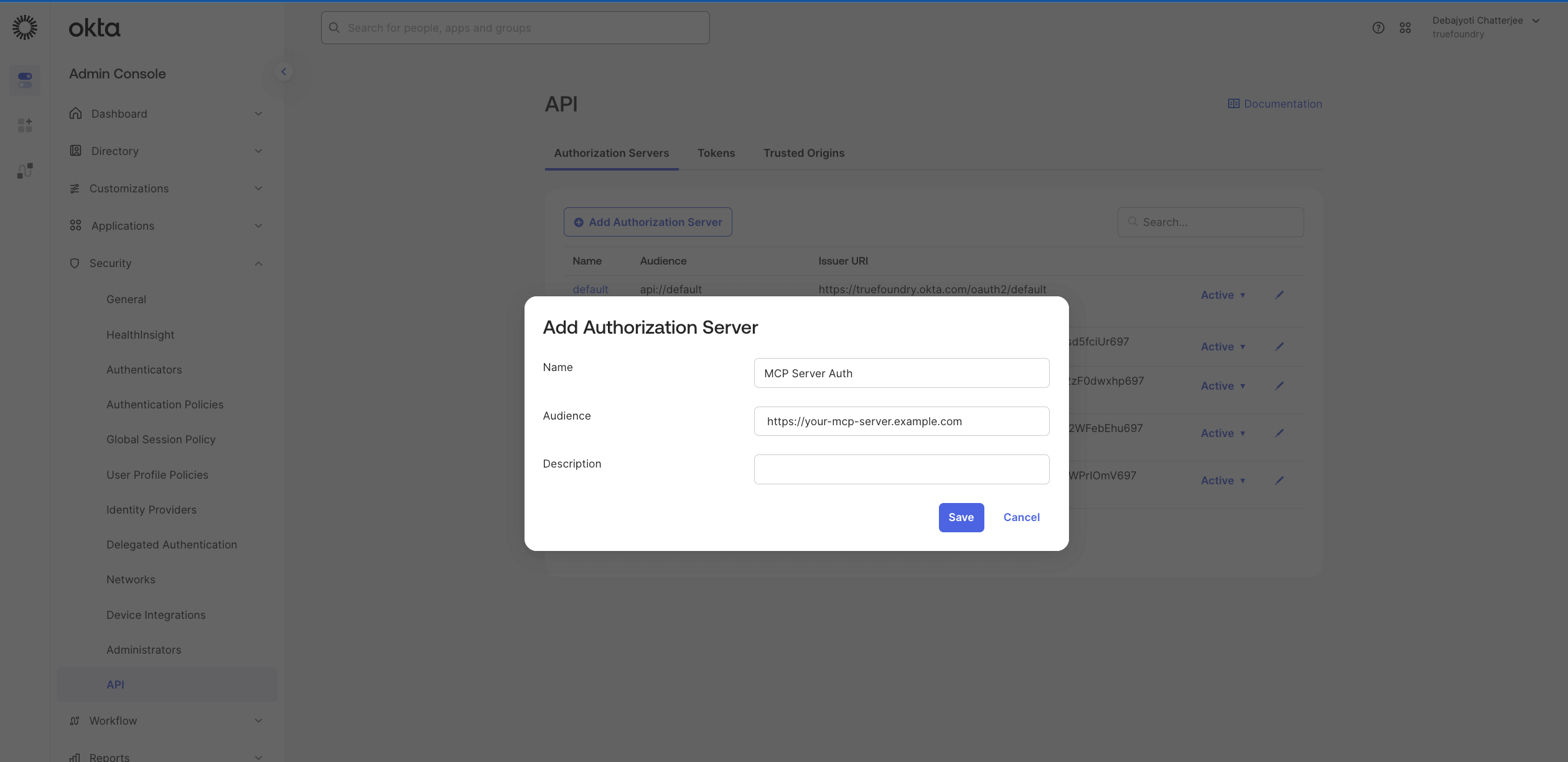
Click Add Authorization Server
Configure with the following:
Name: CalculatorMCPAuthServer (or your preferred name)
Audience: https://calculator-mcp-server.example.com (this will be your MCP server’s identifier)
Description: Authorization server for Calculator MCP servers
Click Save
Note the Issuer URI from the Settings tab (e.g., https://dev-12345678.okta.com/oauth2/aus123abc)
The audience value is an identifier for your API/resource. It doesn’t have to be an actual URL, but using a URL format is a common convention.
Configure Scopes: Define what permissions your application can request.
In your Authorization Server, go to the Scopes tab
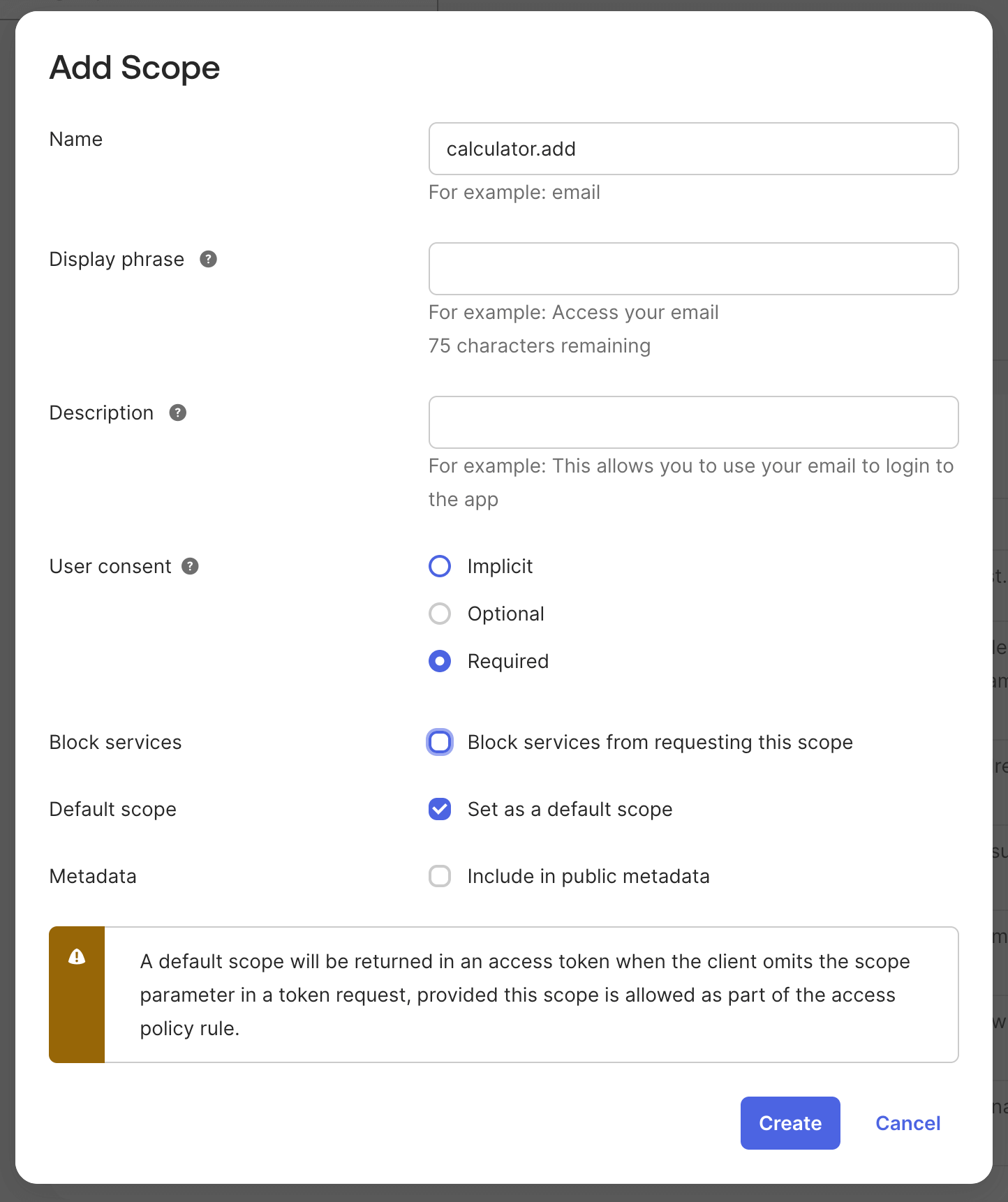
Add custom scopes if needed (e.g., read:data, write:data)
For the calculator MCP server, we will add two scopes - calculator.add and calculator.subtract
Its important to add one scope for the MCP server - else Okta refuses to generate the token. If you are unsure about what scope to put, you can create a scope called default for now.
For production systems, define granular scopes that map to specific permissions in your MCP server.
For detailed instructions on customizing authorization servers, see the Okta documentation.
3
Create an Okta App
Okta Oauth Apps are used to authenticate with the authorization server to get the tokens from the authorization server to talk to the MCP server. Different teams or applications can have different apps with different scopes to talk to the same MCP server.
Instructions to create the Okta app
Navigate to Applications > Applications in the Okta dashboard
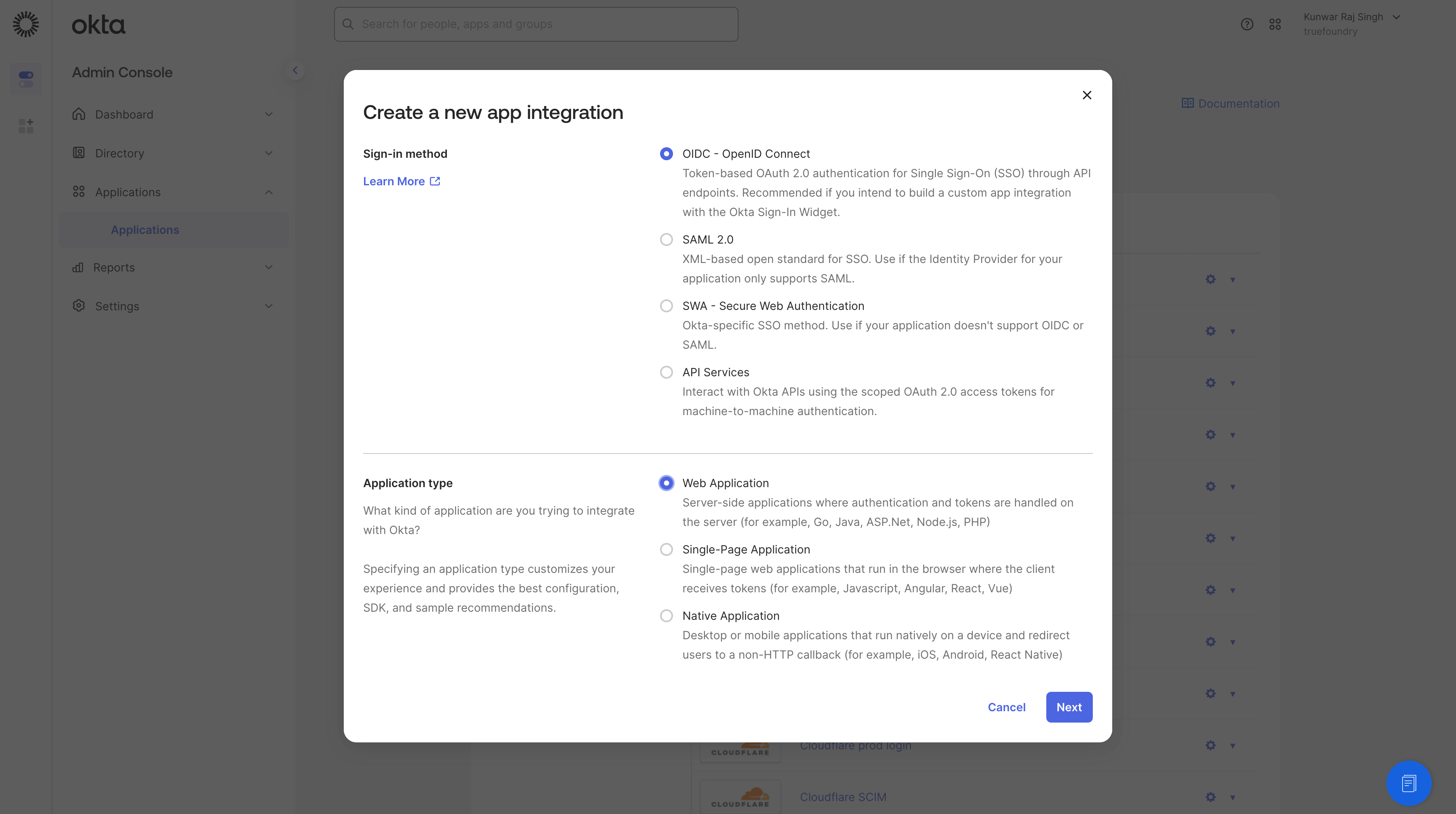
Click Create App Integration
Select OIDC - OpenID Connect
Select Web Application as the application type
If you only want Machine to Machine authentication, you can create an Okta app of type API Service Integration.
Configure the application:
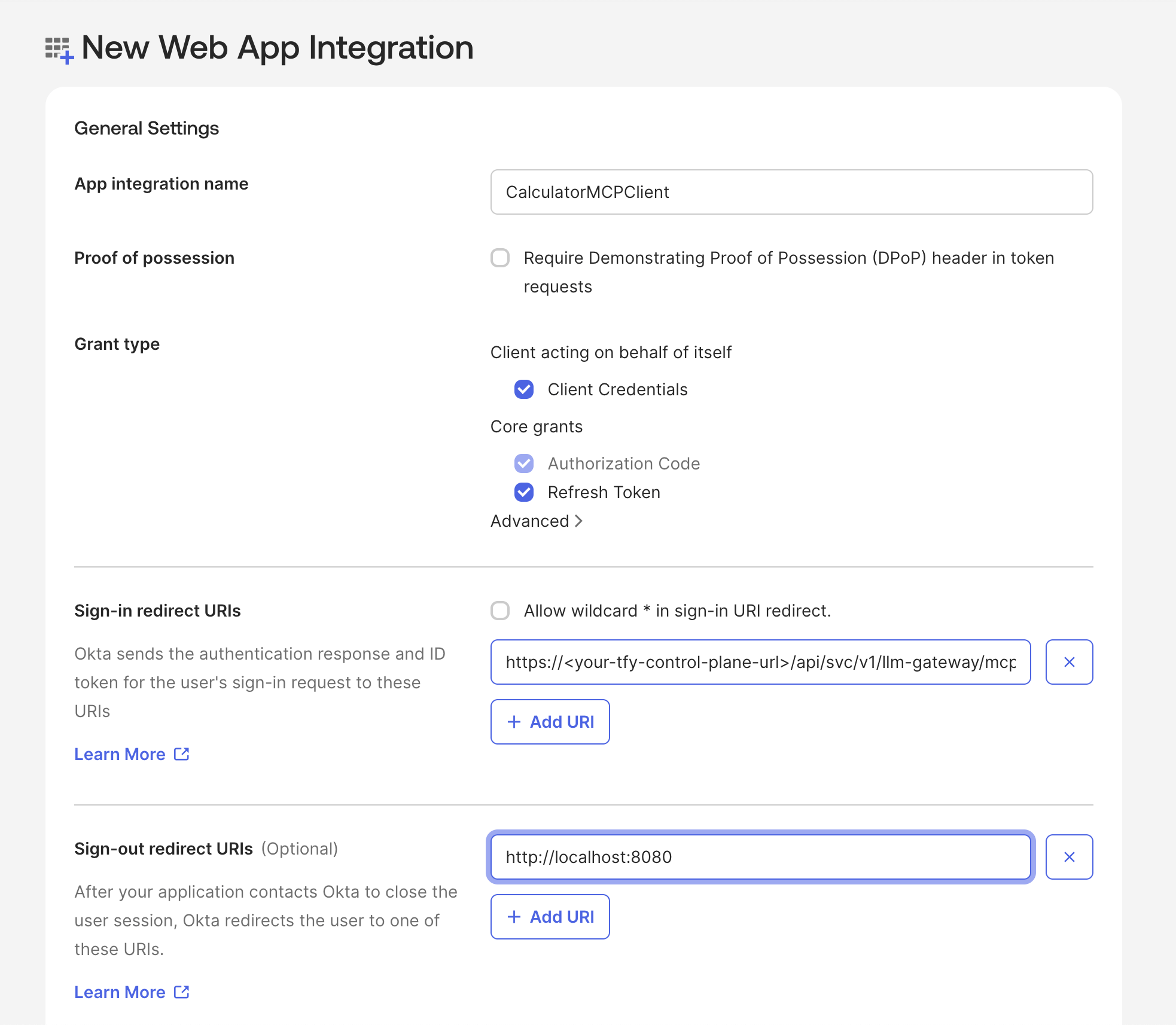
App integration name: CalculatorMCPClient
Grant type: Check:
Client Credentials (required for machine-to-machine authentication)
Authorization Code (required for user authentication via Gateway)
Refresh Token (required to enable automatic token refresh)
Authorization Code and Refresh Token are required for the Gateway OAuth integration to enable automatic token refresh.
We have also enabled Client Credentials since we will be using the same app in the steps below to allow an application to authenticate to the MCP server (machine-to-machine authentication). If you want to create a separate app for machine-to-machine authentication, you can do that by creating a new app and enabling Client Credentials in the app settings and disable the Client Credentials the app meant for user authentication.
Click Save
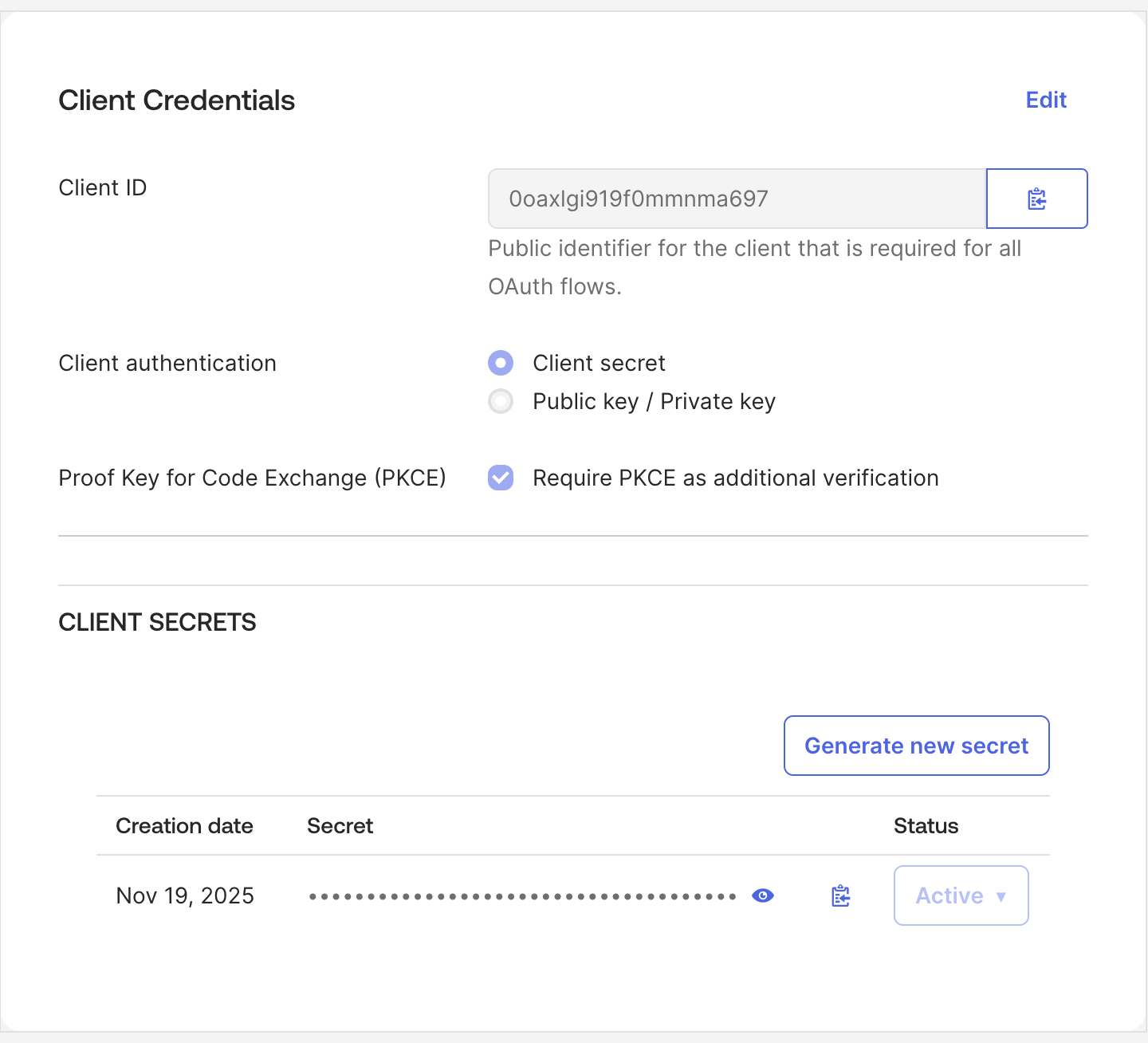
Note the Client ID and Client Secret from the application page
Keep your Client Secret secure. Never commit it to version control or expose it in client-side code.
4
Assign the Okta App to the Authorization Server
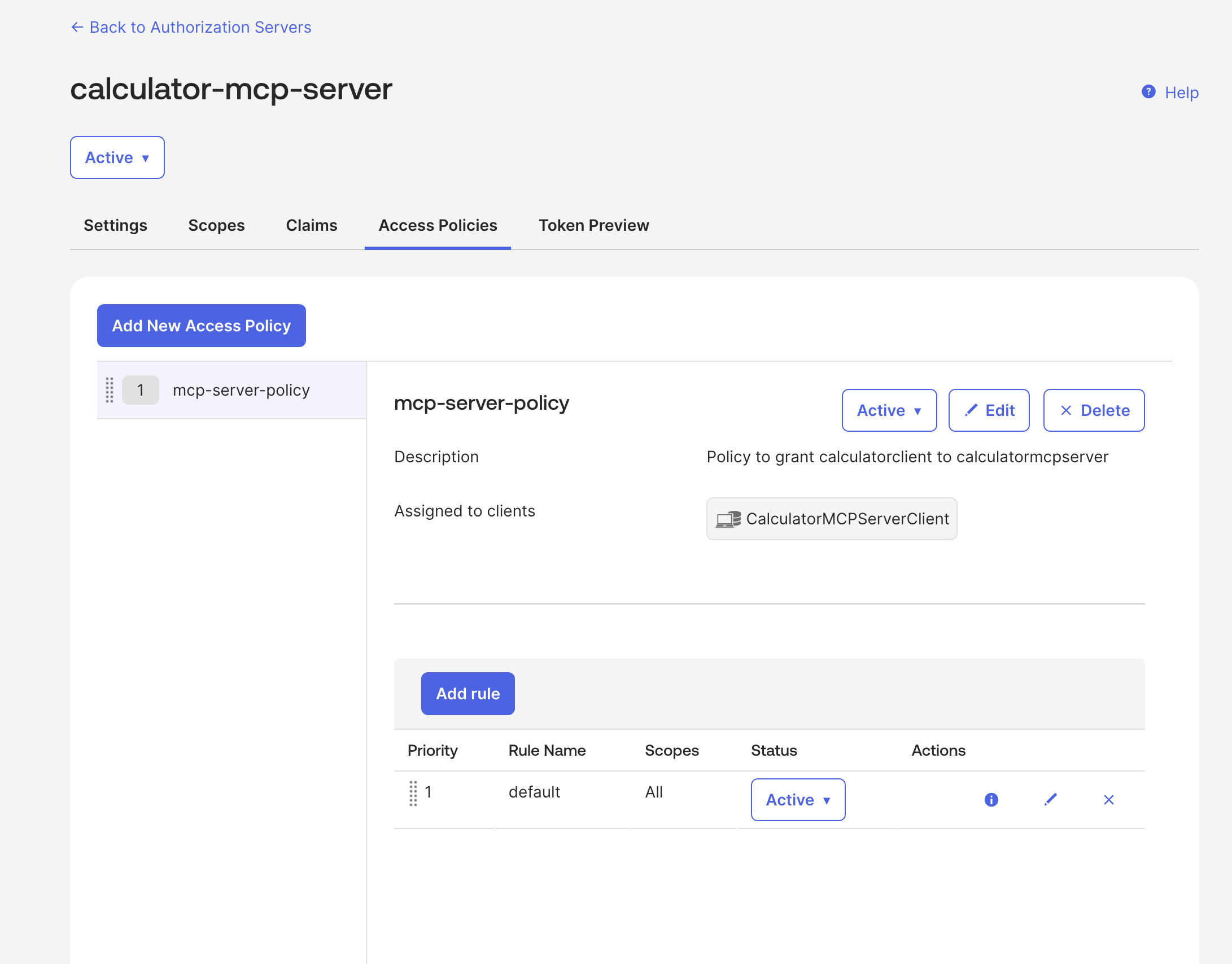
This will allows the Okta app we created in the previous step to get the tokens from the authorization server for the MCP server we created in Step 2. To enable this, we need to create an access policy and rule in the authorization server.
Instructions to create the access policy and rule
In your Authorization Server, go to the Access Policies tab.
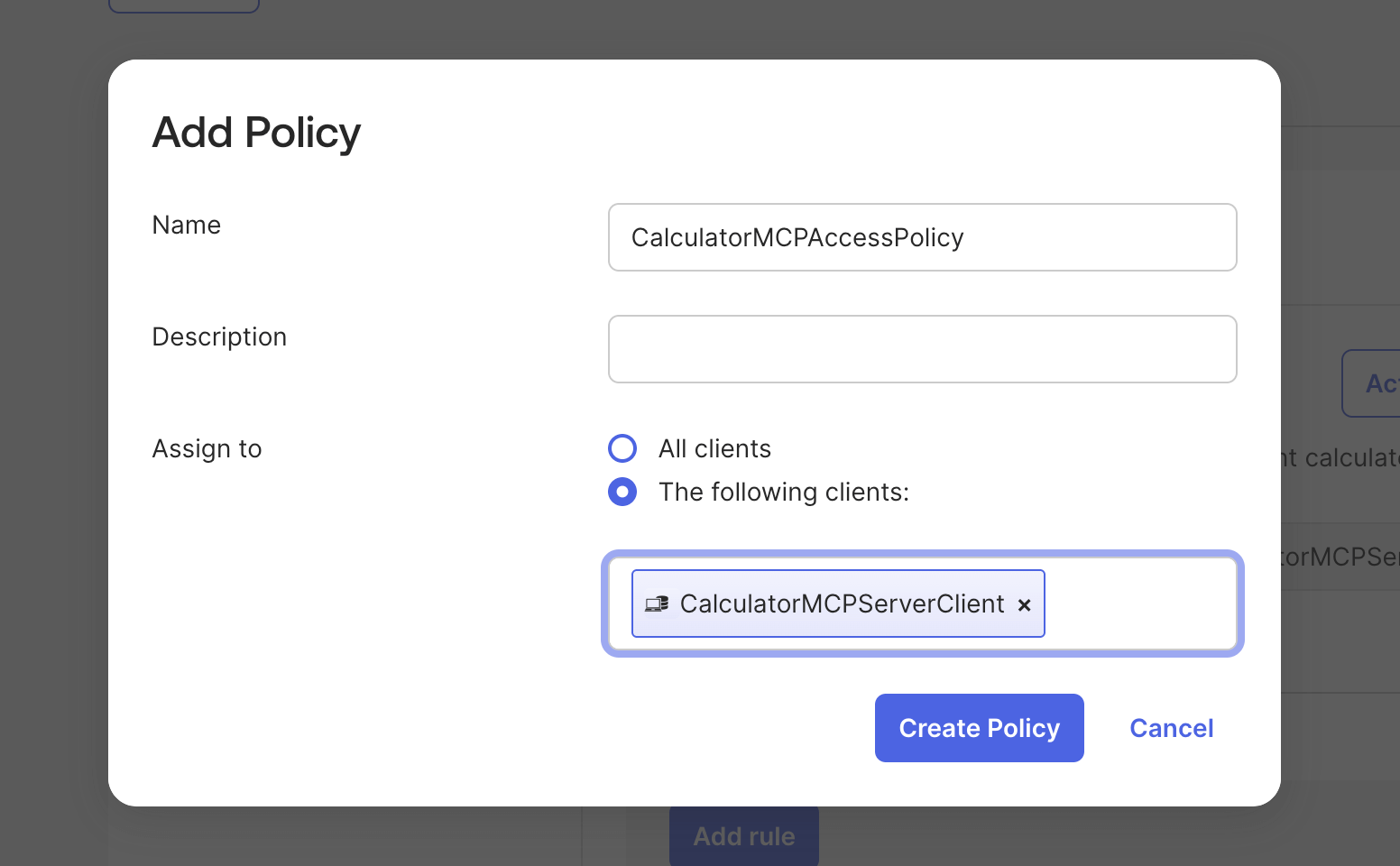
Click Add New Access Policy
Configure:
Name: CalculatorMCPAccessPolicy
Description: Policy for MCP server access
Assign to: Select your OAuth application
Important: The Assign to field is critical. You must select the OAuth application you created in the previous step. If you don’t assign the policy to your application, the application won’t be able to obtain tokens from this authorization server.
Click Create Policy
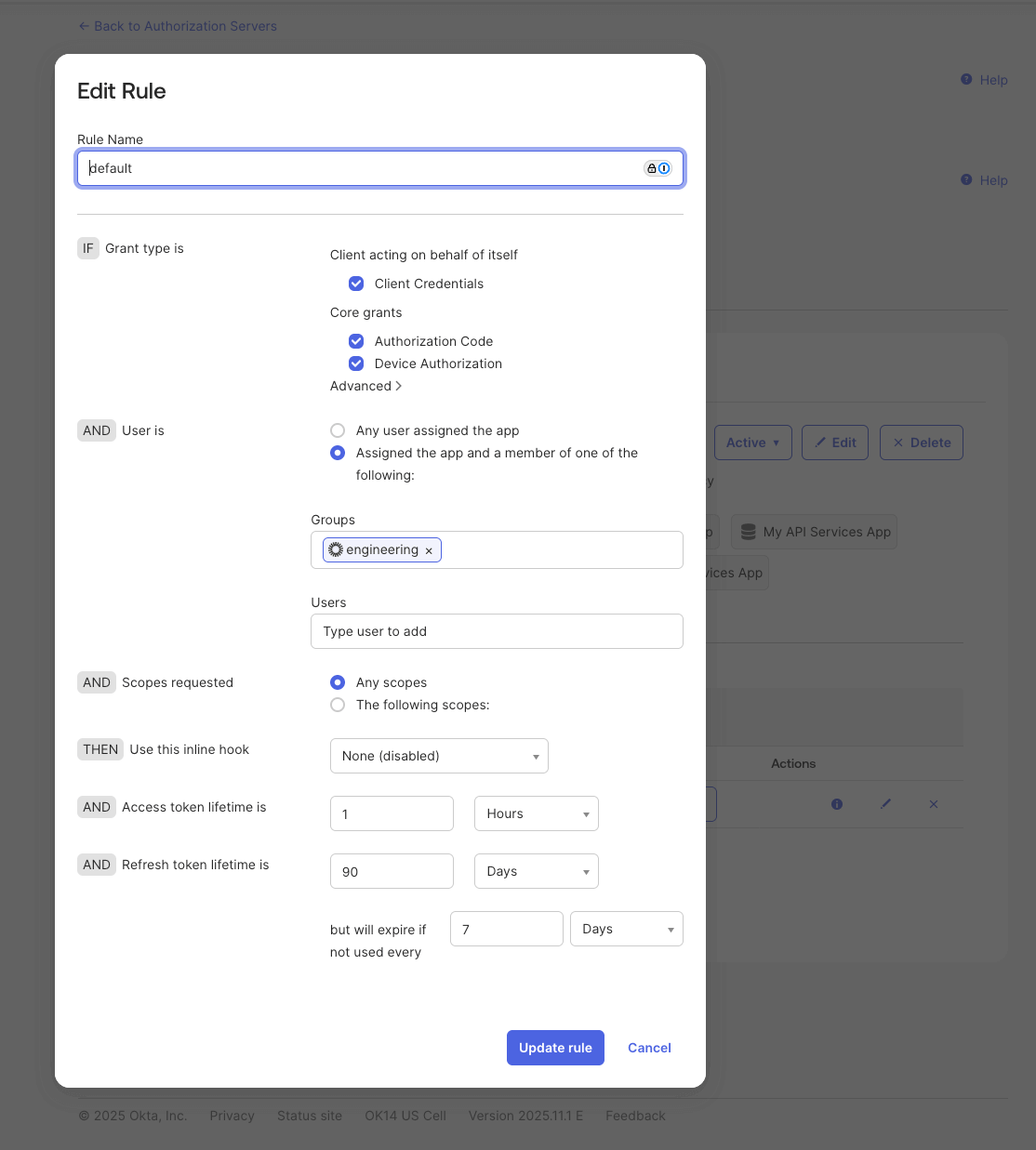
Click Add Rule to create a default rule:
Rule Name: Default Rule
Grant type is: Check Authorization Code and Device Authorization and Client Credentials
User is: Any user assigned the app
Scopes requested: Any scopes
Access token lifetime: 1 hour (or as per your requirements)
Click Create Rule
We have enabled Client Credentials grant type since we will be using the same app in the steps below to allow an application to authenticate to the MCP server (machine-to-machine authentication). If you want to create a separate app for machine-to-machine authentication, you can do that by creating a new app and enabling Client Credentials in the app settings and disable the Client Credentials the app meant for user authentication.
5
Collect Necessary Information
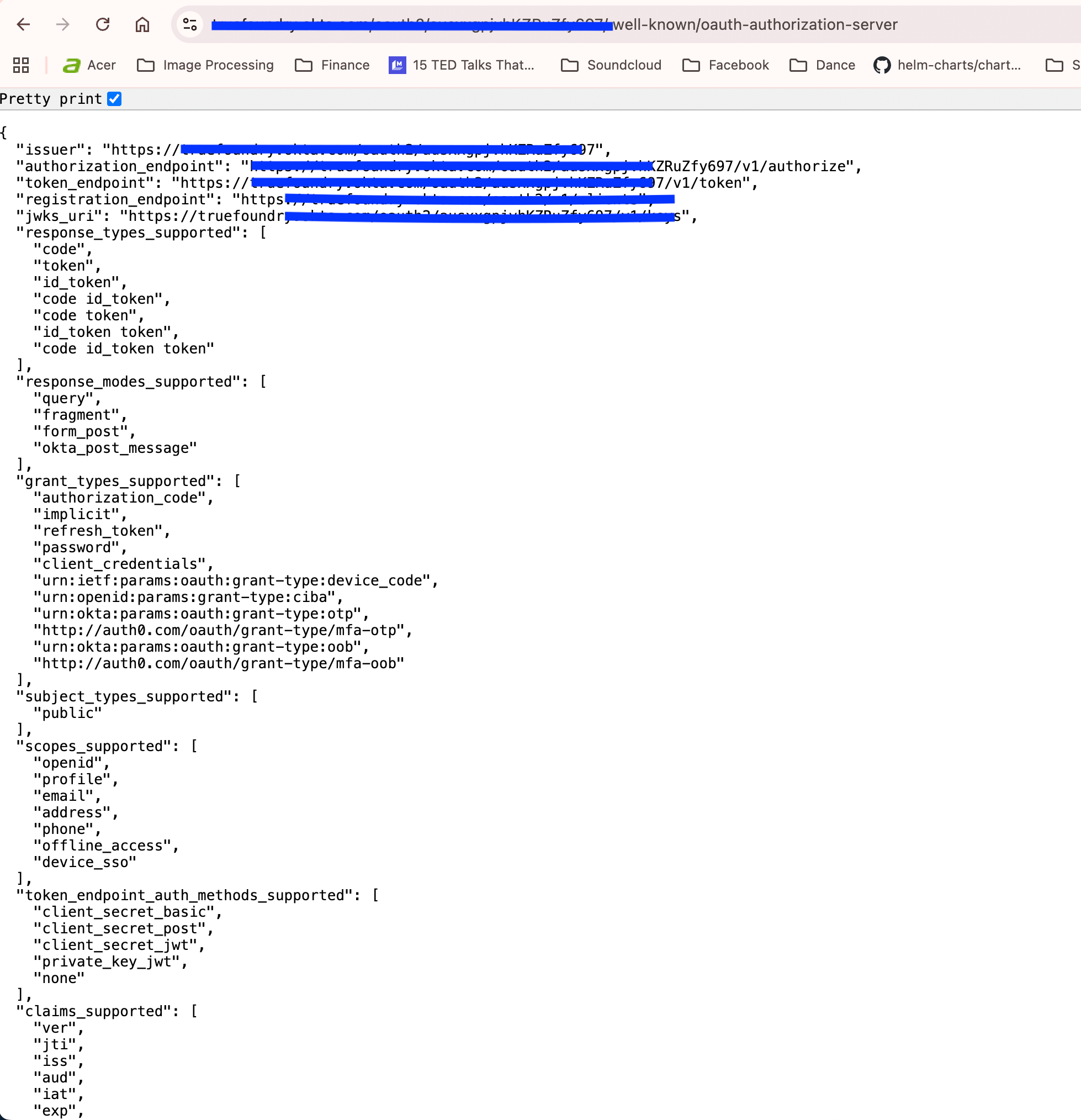
Once you have the OAUTH_ISSUER from your authorization server Settings tab (e.g., https://dev-12345678.okta.com/oauth2/aus123abc), you can access the well-known URL:OAUTH_WELL_KNOWN_URL: {OAUTH_ISSUER}/.well-known/oauth-authorization-serverThe well-known endpoint provides the JWKS URI for token verification.You’ll also need:
OAUTH_AUDIENCE: The audience value you configured in the authorization server (e.g., calculator-mcp-server.example.com)
CLIENT_ID and CLIENT_SECRET: From your user-facing OAuth application (for Truefoundry MCPGateway integration)
Store these securely - you’ll use them in subsequent steps.
6
Modify MCP server code to add Oauth Token verification
Create a .env file to add the environment variables and modify the server.py file to add the JWT verification.
from fastmcp import FastMCPimport osfrom fastmcp.server.auth.providers.jwt import JWTVerifierfrom dotenv import load_dotenvload_dotenv()# Configure JWT verification using JWKStoken_verifier = JWTVerifier( jwks_uri=os.getenv("OAUTH_JWKS_URI"), issuer=os.getenv("OAUTH_ISSUER"), audience=os.getenv("OAUTH_AUDIENCE"),)# Bearer token authenticationmcp = FastMCP("Demo 🚀", auth=token_verifier)# Forward .well-known/oauth-authorization-server to the actual OAuth server@mcp.custom_route("/.well-known/oauth-authorization-server", methods=["GET", "HEAD", "OPTIONS"], include_in_schema=False)async def oauth_well_known(request: Request): """Redirect to the upstream OAuth server's well-known endpoint.""" return RedirectResponse(os.environ.get(f"OAUTH_ISSUER") + "/.well-known/oauth-authorization-server", status_code=307)@mcp.tooldef add(a: int, b: int) -> int: """Add two numbers""" return a + b@mcp.tooldef subtract(a: int, b: int) -> int: """Subtract two numbers""" return a - bif __name__ == "__main__": mcp.run(transport="streamable-http", host="0.0.0.0", port=8000, stateless_http=True)
7
Get the token and call the MCP server in test.py (Machine-to-Machine authentication)
In Step 1, we had a script to test the MCP server locally. After adding the Oauth token verification to the MCP server in the previous step, we need to modify the script to get the token and then call the MCP server. If you call the MCP server without a token, it will return a 401 Unauthorized error.
The test.py script above contains the code to get the Okta token and then call the MCP server.
The OAUTH_WELL_KNOWN_URL enables the MCP server to expose the /.well-known/oauth-authorization-server endpoint, which allows the AI Gateway to auto-discover OAuth configuration details. This endpoint redirects to your Okta authorization server’s well-known endpoint.
This is exactly how you will be doing Machine-to-Machine authentication to the MCP server. Code snippets to get the token in different ways are outlined below:
When using a custom authorization server, you can use custom scopes defined in your authorization server. Make sure to include the audience parameter matching the audience configured in your authorization server.
Now that we have tested the MCP server locally, we will add it to the Gateway to enable user authentication and allow the MCP server to be accessed via the Gateway.
To add the MCP server to the Gateway, we need to get the endpoint URL of the MCP server. Hence, we need to host the MCP server on a public URL.
If you are using the Truefoundry AI Deployment product, this can be done by creating a service deployment, choosing your Github repository containing the MCP server code above. Otherwise, you can host it on a VM or a Kubernetes cluster or any hosting provider of your choice.
Remember to add the environment variables for the MCP server:
The MCP server only needs these environment variables to validate OAuth tokens. It doesn’t need the Client ID or Client Secret since it’s only validating tokens, not generating them.
After deployment, you will have the endpoint URL of the MCP server. Let’s consider it https://calculator-oauth-mcp-server.example.com for the rest of the steps.
After deploying, check once using the test.py script above by changing the MCP server URL to the deployed URL. You should be able to fetch the tools from the MCP server.
9
Add the MCP server to the Truefoundry AI Gateway
You will need to have a MCP server group to be able to add the MCP server to the Truefoundry AI Gateway. Please refer to the Getting Started guide to create a MCP server group.
In your MCP Server Group, click Add MCP Server
Select Remote MCP
Configure the server:
Name: oauth-mcp-server
Description: OAuth-authenticated MCP server with Okta
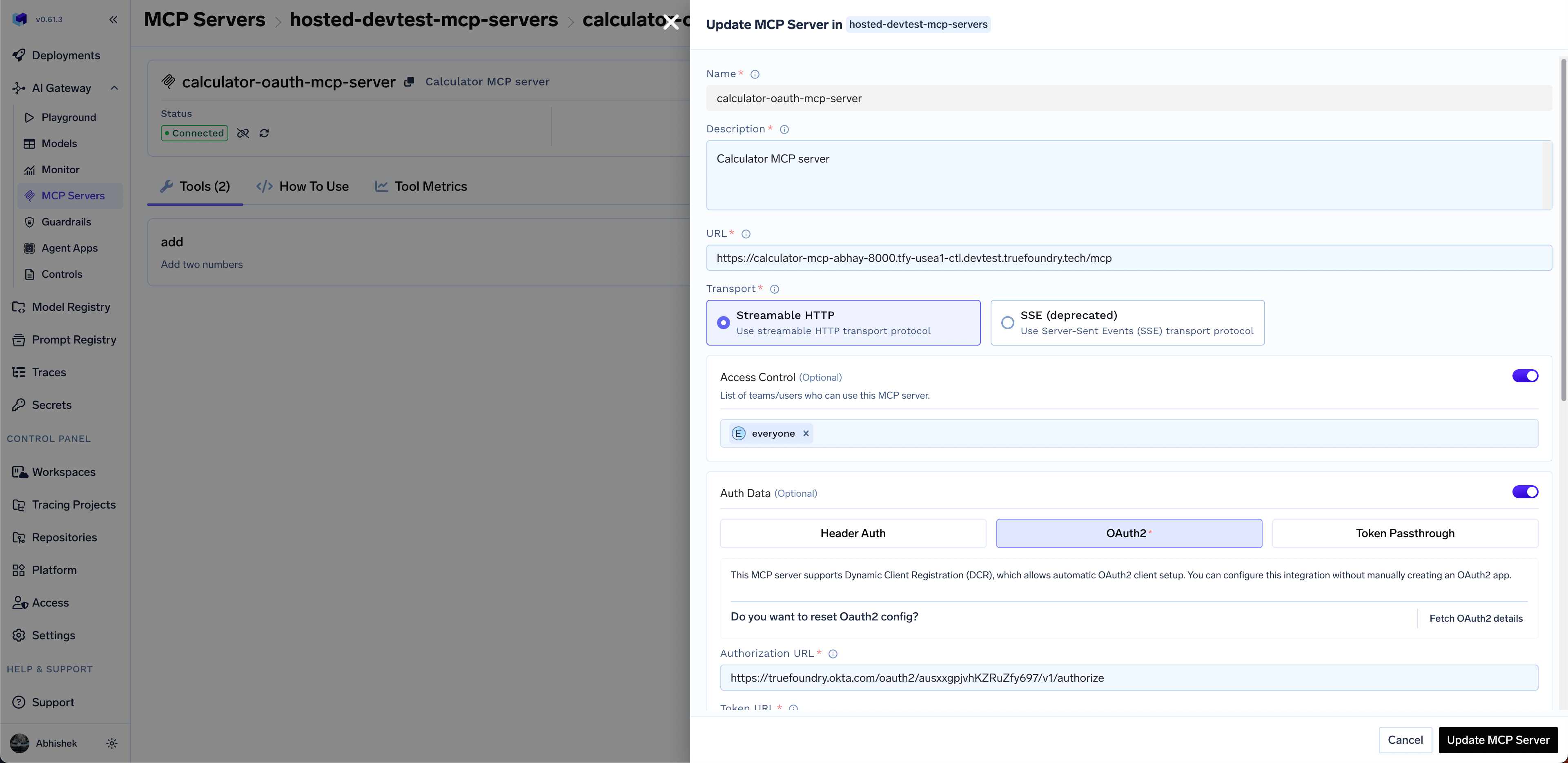
URL: Your deployed service endpoint (e.g., https://calculator-oauth-mcp-server.example.com/mcp).
Transport: streamable-http
Authentication Type: Select OAuth2
In the OAuth2 configuration section, provide the Okta credentials:
OAuth2 Client ID: Your Okta application client ID
OAuth2 Client Secret: Your Okta application client secret
The AI Gateway will automatically discover the OAuth2 Authorization URL, Token URL, and other configuration details from your MCP server’s /.well-known/oauth-authorization-server endpoint once you provide the MCP server URL.You can optionally configure:
OAuth2 Scopes: The scopes are prefilled, but you can change them if needed to use your custom scopes.
Include offline_access in the scopes to enable refresh tokens. This allows the Gateway to automatically refresh expired access tokens without requiring users to re-authenticate.
You can store the client id and secrets in truefoundry secrets and reference them by FQN in the configuration.
Set access control: Select teams or users who should have access to this MCP server.
Managers of the MCP Server Group automatically have access to all servers in the group.
Click Save to add the MCP server
The server will appear in your MCP Server Group
Users can now connect and use the server through the AI Gateway
10
Test the MCP server in the Playground
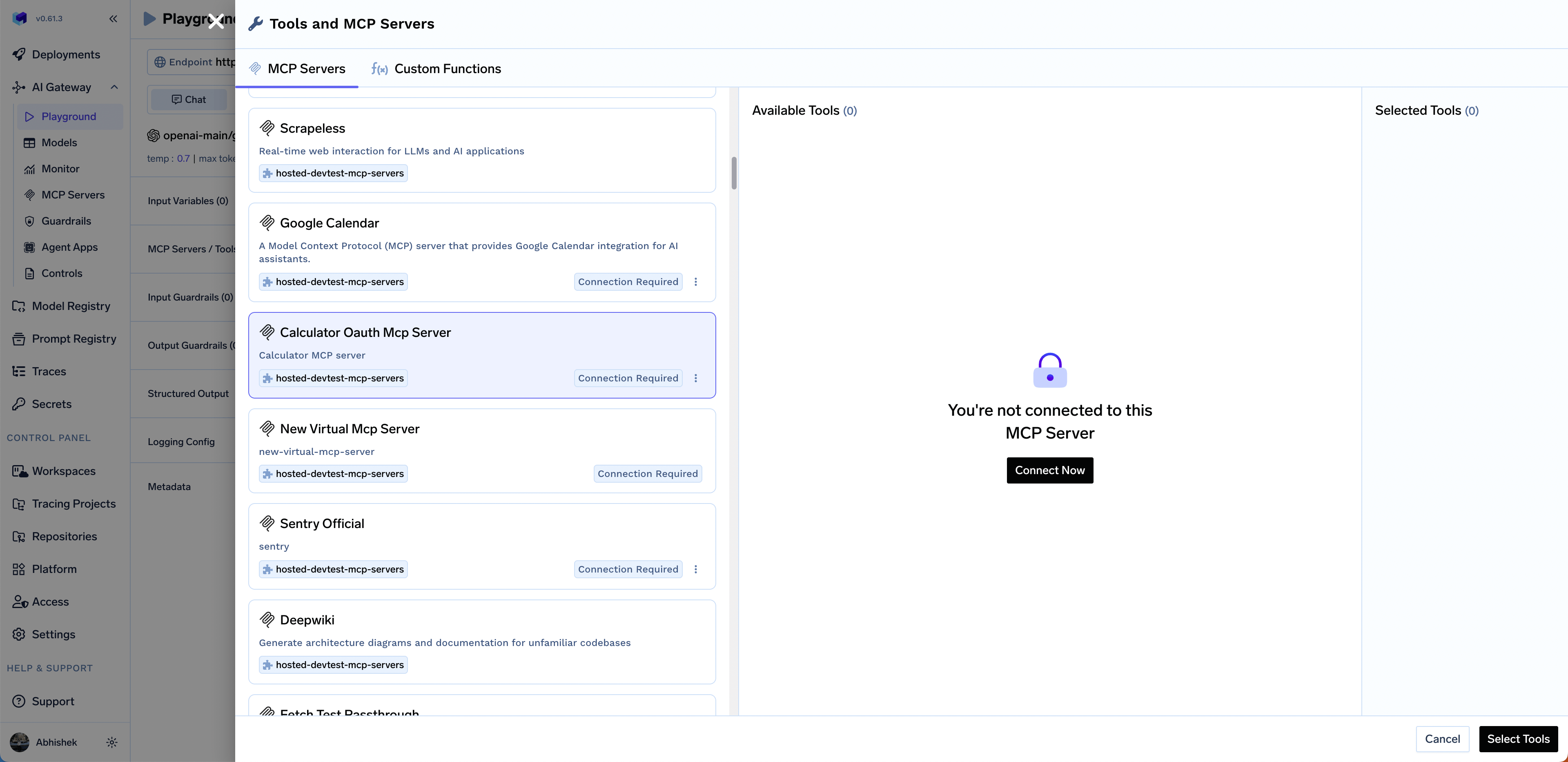
Navigate to the Playground in the AI Gateway.
Click Add Tool/MCP Servers
Find your calculator-oauth-mcp-server in the list
Click Connect Now to initiate OAuth authorization
You’ll be redirected to Okta to authorize access
Click Allow to grant access
You’ll be redirected back to the Gateway
The AI Gateway will store your OAuth tokens securely and refresh them automatically when they expire.
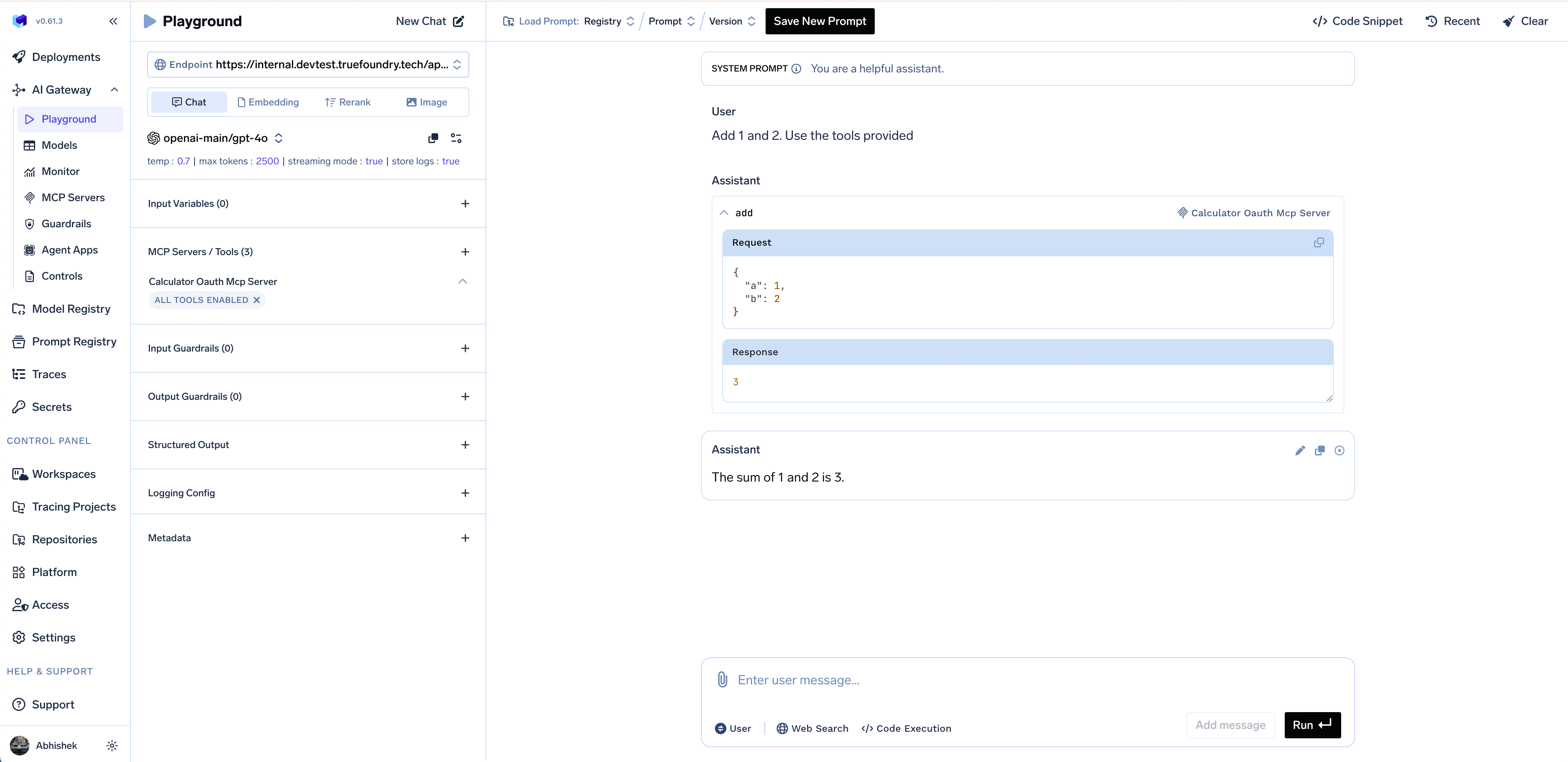
You’ll see the add and subtract tools from your MCP server
Select the tools and click Done
Try sending a prompt like Add 1 and 2. Use the tools provided
The tool will return the result from your MCP server
Machine to Machine Authentication is a type of authentication that allows a machine to authenticate to the MCP server without user interaction. For M2M authentication, you can use the Oauth2 Client Credentials grant type to obtain access tokens directly.
Which Okta app to create if I only want Machine to Machine authentication?
In the guide above, we created an Okta app of type OIDC - OpenID Connect. If you only want Machine to Machine authentication, you can create an Okta app of type API Service Integration. API Service Integrations require custom scopes. OIDC scopes like openid, profile, and email won’t work for API Service Integrations. For detailed instructions on implementing machine-to-machine authentication using the Client Credentials grant type, see the Okta documentation.
Important: You must create at least one custom scope before creating API Service Integration apps.
How can different services access the MCP server with different scopes?
The following diagram illustrates how multiple services can access the same MCP server, each with their own Okta app and different scopes for fine-grained access control:
Key Points:
One App Per Service: Each service accessing the MCP server has its own API Service Integration app, providing isolation and granular access control
Shared MCP Server: Multiple services can access the same MCP server, but each uses different Okta apps with different scopes
Custom Authorization Server: All apps use the same custom authorization server (not the Org Authorization Server, which is only for Okta APIs)
How to get an access token from Okta for Machine-to-Machine authentication?
When using a custom authorization server with your API Service Integration, use the token endpoint and custom scopes. The token endpoint can be obtained from the well-known configuration at {OAUTH_ISSUER}/.well-known/oauth-authorization-server. The response includes the token_endpoint:
Use the token_endpoint value from this response in your token requests.
How to access the the token details and user identity in the tool in MCP server?
You can use the context variable in FastMCP to access the token details and user identity in the tool.
@mcp.tool()def get_me(ctx: Context) -> dict: """ Get authenticated user information from the verified JWT token. """ claims = get_access_token().claims return { "user_id": claims.get('sub', 'N/A'), "uid": claims.get('uid'), "issuer": claims.get('iss'), "audience": claims.get('aud'), "client_id": claims.get('cid'), "scopes": claims.get('scp', claims.get('scope', [])), "issued_at": datetime.fromtimestamp(claims['iat']).isoformat() if claims.get('iat') else None, "expires_at": datetime.fromtimestamp(claims['exp']).isoformat() if claims.get('exp') else None, "token_id": claims.get('jti'), }
How to refresh tokens in client for Machine to Machine authentication?
Since Client Credentials doesn’t support refresh tokens, you’ll need to request a new access token when the current one expires. Here’s a generic TokenManager class that handles automatic token renewal (adapt the token endpoint URL and parameters to match your OAuth provider):
import timeimport requestsimport base64class TokenManager: """Manages OAuth access tokens for machine-to-machine authentication.""" def __init__(self, token_endpoint, client_id, client_secret, audience, scope=None, **kwargs): """ Initialize the TokenManager. Args: token_endpoint: Your OAuth provider's token endpoint URL client_id: Your OAuth client ID client_secret: Your OAuth client secret audience: The audience value configured in your authorization server scope: The scopes for the token (optional, provider-specific) **kwargs: Additional provider-specific parameters (e.g., auth_server_id for Okta) """ self.token_endpoint = token_endpoint self.client_id = client_id self.client_secret = client_secret self.audience = audience self.scope = scope self.extra_params = kwargs self.token = None self.token_expiry = 0 def get_token(self): """ Get a valid access token, requesting a new one if necessary. Returns: str: A valid access token """ # Return cached token if still valid (with 5 minute buffer) if self.token and time.time() < self.token_expiry: return self.token # Fetch new token credentials = base64.b64encode( f"{self.client_id}:{self.client_secret}".encode() ).decode() data = { "grant_type": "client_credentials", "audience": self.audience } if self.scope: data["scope"] = " ".join(self.scope) if isinstance(self.scope, list) else self.scope # Add provider-specific parameters data.update(self.extra_params) response = requests.post( self.token_endpoint, headers={ "Authorization": f"Basic {credentials}", "Content-Type": "application/x-www-form-urlencoded" }, data=data ) response.raise_for_status() token_data = response.json() self.token = token_data["access_token"] # Request new token 5 minutes before actual expiry expires_in = token_data.get("expires_in", 3600) self.token_expiry = time.time() + expires_in - 300 return self.token# Example usage with Oktatoken_manager = TokenManager( token_endpoint="https://dev-12345678.okta.com/oauth2/aus123abc/v1/token", client_id="0oa123abc...", client_secret="secret123...", audience="https://your-mcp-server.example.com", scope=["my_scope"])# Get a token (will be cached until near expiry)access_token = token_manager.get_token()# Use the token to make authenticated requestsimport requestsresponse = requests.post( "http://localhost:8000/mcp", headers={ "Authorization": f"Bearer {access_token}", "Content-Type": "application/json" }, json={ "jsonrpc": "2.0", "id": 1, "method": "tools/list" })