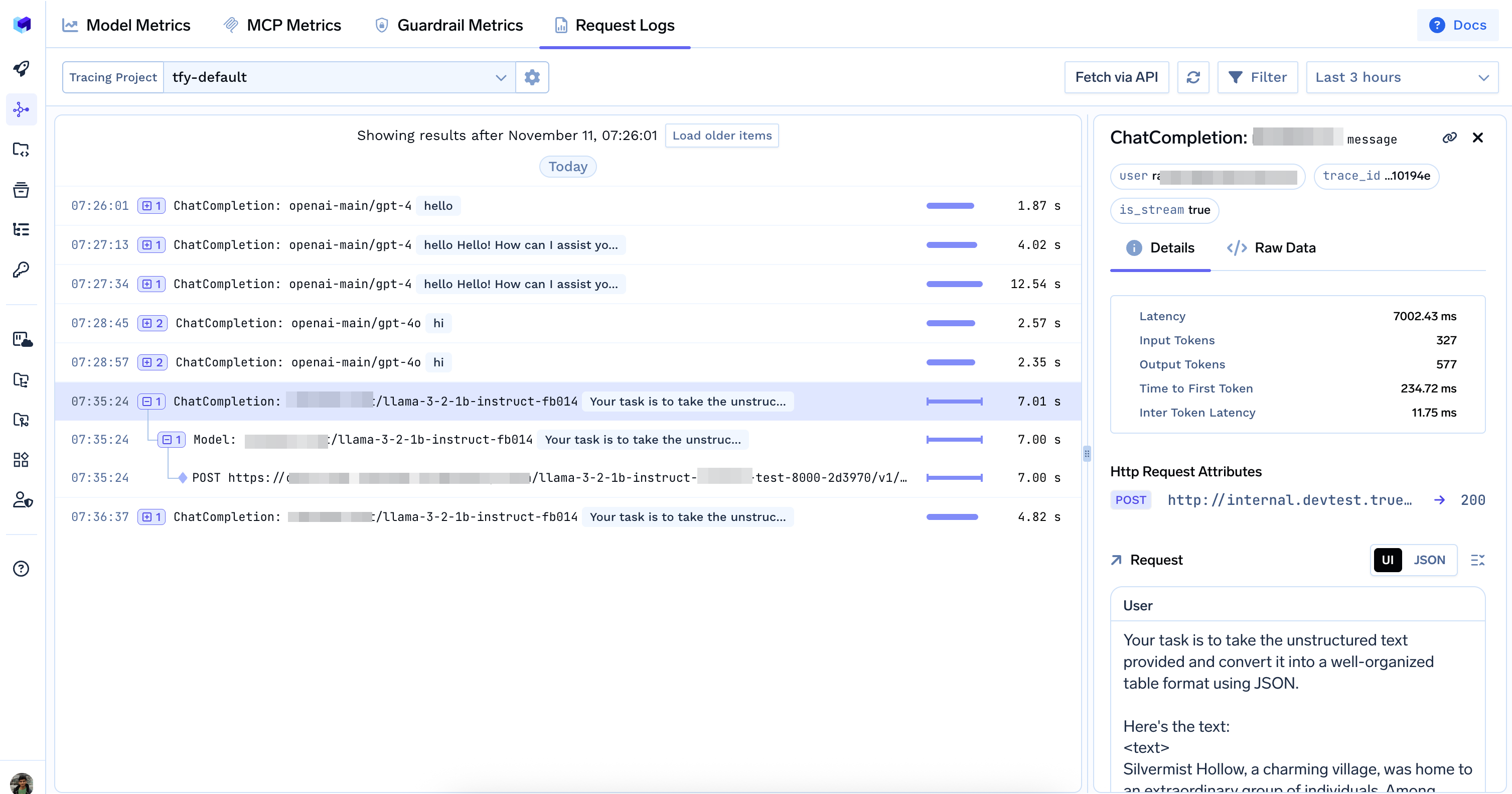
TrueFoundry AI Gateway allows you to control which requests are logged.

Controlling Request Logging

Using HTTP Headers

To enable logging for a specific request, include the X-TFY-LOGGING-CONFIG header:
{
  "enabled": true
}
To disable logging for a specific request, set:
{
  "enabled": false
}

Using Environment Variables

Environment variable configuration is only available when running a self-hosted instance of TrueFoundry AI Gateway
You can also control logging behavior globally by setting the REQUEST_LOGGING_MODE environment variable in the AI Gateway:
ModeDescription
HEADER_CONTROLLEDLogging depends on the enabled value in the X-TFY-LOGGING-CONFIG header. If the header is absent or set to true, logging will occur. If set to false, no logging will happen.
ALWAYSAll requests are logged regardless of the enabled value.
NEVERNo requests are logged regardless of the enabled value.

Viewing Request Logs

You can view all logged requests in the TrueFoundry UI. Go to AI Gateway > Monitor > Requests

Code Example

from openai import OpenAI

BASE_URL = "https://{controlPlaneUrl}/api/llm"
API_KEY = "your-truefoundry-api-key"

client = OpenAI(
    api_key=API_KEY,
    base_url=BASE_URL,
    default_headers={
        "X-TFY-LOGGING-CONFIG": '{"enabled": true}'
    }
)

Data Access Rules for Request Logs and Metrics

Data Access Rules allow you to control who can access which request logs and metrics in the AI Gateway. Gateway Datasets provide access to subsets of traces and metrics by applying filters, enabling fine-grained access control based on users, teams, roles, and data scopes.

Overview

Data Access Rules define:
  • Who can access data (subjects: users, teams, or roles)
  • What type of data the rule applies to (Traces, Metrics, or both)
  • What data they can access (scope: own data, team data, or all data)
  • Optional filters to further restrict access (for all data scope)

How It Works

  1. Each user’s access to request logs and metrics is evaluated against all enabled rules
  2. Users can access data if they match any rule’s subjects and scope
  3. Rules are evaluated independently—matching multiple rules grants access to the union of their scopes
  4. Disabled rules are ignored during access evaluation

Accessing Data Access Rules

Navigate to AI Gateway > Controls > Data Access to view and manage your data access rules.

Configuration Methods

Data Access Rules can be configured in two ways:
  1. Via UI: Use the Data Access interface to create, edit, and manage rules visually
  2. Via YAML Config: Define rules in a YAML configuration file (similar to rate limiting and budget limiting)
The YAML configuration is defined as a file with the following structure:
type: gateway-data-access-config
rules:
  - id: "rule-id"
    description: "Optional description"
    subjects:
      - "user:alice@example.com"
      - "team:engineering"
    data_types: ["traces", "metrics"]  # or ["traces"] or ["metrics"]
    scope: "own_data"  # or "team_data" or "all_data"
    enabled: true
    # filters: []  # Optional, only for all_data scope
You can configure Data Access Rules via the Config tab in the Gateway, similar to other gateway configurations.

Default Rules

TrueFoundry AI Gateway comes with three default rules:
  1. default-everyone-team-data: Team members can access their team data
    • Subjects: team:everyone
    • Scope: team_data
    • Data Types: Metrics
  2. default-everyone-own-data: Users can access their own data
    • Subjects: team:everyone
    • Scope: own_data
    • Data Types: Traces, Metrics
  3. default-tenant-admin-all-data: Tenant Admins can access all data
    • Subjects: role:tenant-admin
    • Scope: all_data
    • Data Types: Traces, Metrics

Data Types

Data Access Rules let you specify which types of data each rule applies to:
  • Traces: Request logs and trace data from AI Gateway requests
  • Metrics: Aggregated metrics and monitoring data
You can select one or both data types. For example, you might create a rule that grants team data access for Metrics only (e.g., for dashboards) while restricting Traces access to own data for privacy.

Data Scopes

Data Access Rules support three scopes that define what data users can access:

Own Data (own_data)

Users can only access request logs and metrics they created themselves. Use cases:
  • Individual developers viewing their own requests
  • Personal debugging and monitoring

Team Data (team_data)

Users can access request logs and metrics from all members of their team, including data from virtual accounts owned by that team. Use cases:
  • Team leads monitoring team-wide usage
  • Collaborative debugging across team members
  • Team-level analytics and reporting
team_data includes data from virtual accounts owned by the team, making it easy to track all team-related activity.

All Data (all_data)

Users can access all request logs and metrics across the entire organization, with optional filters to restrict access. Use cases:
  • Administrators managing organization-wide data
  • Cross-team analytics and reporting
  • Compliance and auditing requirements
Advanced Filters: When using all_data scope, you can optionally add filters to restrict access:
  • Metadata Filters: Filter by custom metadata keys from the X-TFY-METADATA header
    • Example: application_name IN (support-agent, ml-inference-server)
  • Created By Filters: Filter by who created the data
    • Example: created_by IN (team-1766965687056, user:john-doe)

Creating a Data Access Rule

1

Navigate to Data Access

Go to AI Gateway > Controls > Data Access
2

Add a new rule

Click the ”+ Add Data Access Rule” button
3

Configure Rule ID

Enter a unique identifier for the rule (e.g., engineering-team-access)
4

Add Description (Optional)

Provide a description explaining the rule’s purpose
5

Select Subjects

Choose who this rule applies to:
  • Users: Specific users (e.g., user:alice@example.com)
  • Teams: Team members (e.g., team:engineering)
  • Roles: Users with specific roles (e.g., role:tenant-admin)
6

Select Data Types

Choose which types of data this rule applies to:
  • Traces: Request logs and trace data
  • Metrics: Aggregated metrics and monitoring data
Select one or both. At least one data type must be selected.
7

Choose Scope

Select the data scope:
  • Own Data: Access to own data only
  • Team Data: Access to team data including owned virtual accounts
  • All Data: Access to all data with optional filters
8

Configure Advanced Filters (Optional)

If you selected All Data, you can optionally enable advanced filters:
  • Toggle “Set Advanced Filters” to ON
  • Add metadata filters (e.g., filter by application_name)
  • Add created by filters (e.g., filter by specific users or teams)
  • Add multiple filter conditions as needed
9

Submit

Click Submit to create the rule

Rule Components

Rule ID (id)

A unique identifier for the rule. Used for reference in logs and the UI. Requirements:
  • Must be unique across all rules
  • Can contain letters, numbers, hyphens
  • Must start with a letter

Description (description)

Optional human-readable description explaining the rule’s purpose.

Data Types (data_types)

Specifies which types of data the rule applies to. At least one must be selected. Available types:
TypeDescription
tracesRequest logs and trace data from AI Gateway
metricsAggregated metrics and monitoring data
Examples:
# Rule applies to both traces and metrics (default behavior)
data_types: ["traces", "metrics"]

# Rule applies to traces only
data_types: ["traces"]

# Rule applies to metrics only
data_types: ["metrics"]

Subjects (subjects)

List of users, teams, or roles that this rule applies to. Format:
  • Users: user:username or user:email@example.com
  • Teams: team:team-name
  • Roles: role:role-name (e.g., role:tenant-admin)
Examples:
subjects:
  - "user:alice@example.com"
  - "team:engineering"
  - "role:tenant-admin"

Scope (scope)

Defines what data the subjects can access. Available scopes:
ScopeDescription
own_dataAccess to own data only
team_dataAccess to team data including owned virtual accounts
all_dataAccess to all data with optional filters

Filters (filters) - Optional

Only applicable for all_data scope. Further restricts which data can be accessed. Filter Types:
  1. Metadata Filter: Filter by custom metadata keys
    filters:
      - field: metadata
        key: application_name
        operator: IN
        value: ["support-agent", "ml-inference-server"]
    
  2. Created By Filter: Filter by who created the data
    filters:
      - field: created_by
        operator: IN
        value: ["team:engineering", "user:john@example.com"]
    
Operators:
  • IN: Matches if the value is in the provided list

Enabled (enabled)

Whether the rule is active. Disabled rules are ignored during access evaluation. Default: true

Managing Rules

Enable/Disable Rules

Toggle the switch on any rule card to enable or disable it. Disabled rules are not evaluated when checking data access.

Edit Rules

Click the edit icon (pencil) on a rule card to modify its configuration.

Delete Rules

Click the delete icon (trash can) on a rule card to remove it. Default rules can also be deleted if needed.
Deleting a rule immediately revokes access for users who only had access through that rule. Make sure users have alternative access paths before deleting rules.

Examples

Simple rules for common access patterns.
name: basic-data-access-config
type: gateway-data-access-config
rules:
  # Allow specific user to access their own data
  - id: "alice-own-data"
    description: "Alice can access her own request logs"
    subjects:
      - "user:alice@example.com"
    data_types: ["traces", "metrics"]
    scope: "own_data"
    enabled: true

  # Allow team to access team data (metrics only for dashboards)
  - id: "engineering-team-data"
    description: "Engineering team can access team data"
    subjects:
      - "team:engineering"
    data_types: ["metrics"]
    scope: "team_data"
    enabled: true

  # Allow tenant admin to access all data
  - id: "admin-all-data"
    description: "Tenant admins can access all data"
    subjects:
      - "role:tenant-admin"
    data_types: ["traces", "metrics"]
    scope: "all_data"
    enabled: true
Rules with advanced filters to restrict all data access.
name: filtered-data-access-config
type: gateway-data-access-config
rules:
  # Allow support team to access all data from support applications
  - id: "support-team-filtered-access"
    description: "Support team can access all support-related data"
    subjects:
      - "team:support"
    data_types: ["traces", "metrics"]
    scope: "all_data"
    filters:
      - field: metadata
        key: application_name
        operator: IN
        value: ["support-agent", "customer-chat"]
    enabled: true

  # Allow specific user to access data created by their team
  - id: "john-team-created-data"
    description: "John can access all data created by engineering team"
    subjects:
      - "user:john@example.com"
    data_types: ["traces", "metrics"]
    scope: "all_data"
    filters:
      - field: created_by
        operator: IN
        value: ["team:engineering"]
    enabled: true

  # Combined filters: metadata and created_by
  - id: "analytics-production-data"
    description: "Analytics team can access production data from specific apps"
    subjects:
      - "team:analytics"
    data_types: ["traces", "metrics"]
    scope: "all_data"
    filters:
      - field: metadata
        key: application_name
        operator: IN
        value: ["ml-inference-server", "data-pipeline"]
      - field: metadata
        key: environment
        operator: IN
        value: ["production"]
    enabled: true
When using metadata filters, ensure requests include the X-TFY-METADATA header with the relevant keys. For example:
X-TFY-METADATA: {"application_name": "support-agent", "environment": "production"}
Rules that apply to multiple users, teams, or roles.
name: multi-subject-data-access-config
type: gateway-data-access-config
rules:
  # Multiple users accessing team data
  - id: "lead-engineers-team-data"
    description: "Lead engineers can access engineering team data"
    subjects:
      - "user:alice@example.com"
      - "user:bob@example.com"
      - "user:charlie@example.com"
    data_types: ["traces", "metrics"]
    scope: "team_data"
    enabled: true

  # Multiple teams accessing filtered all data
  - id: "teams-production-access"
    description: "Engineering and DevOps can access production data"
    subjects:
      - "team:engineering"
      - "team:devops"
    data_types: ["traces", "metrics"]
    scope: "all_data"
    filters:
      - field: metadata
        key: environment
        operator: IN
        value: ["production"]
    enabled: true
Rules that include virtual account data through team_data scope.
name: virtual-account-data-access-config
type: gateway-data-access-config
rules:
  # Team data automatically includes virtual accounts
  - id: "team-with-va-access"
    description: "Team can access their data including virtual accounts"
    subjects:
      - "team:engineering"
    data_types: ["traces", "metrics"]
    scope: "team_data"
    enabled: true

  # Specific virtual account access via created_by filter
  - id: "va-specific-access"
    description: "Access data created by specific virtual account"
    subjects:
      - "user:admin@example.com"
    data_types: ["traces", "metrics"]
    scope: "all_data"
    filters:
      - field: created_by
        operator: IN
        value: ["virtualaccount:acct_1234567890"]
    enabled: true
When using team_data scope, virtual accounts owned by the team are automatically included. No additional configuration needed.

Best Practices

  1. Start with default rules: The default rules cover most common use cases. Only create custom rules when you need specific access patterns.
  2. Use the most restrictive scope: Prefer own_data or team_data over all_data when possible. Only use all_data when necessary.
  3. Restrict data types when appropriate: Use data_types to limit rules to only Traces or only Metrics when full access to both isn’t needed (e.g., metrics-only access for dashboard viewers).
  4. Leverage filters: When using all_data, always add filters to restrict access to only what’s needed.
  5. Document your rules: Use descriptive rule IDs and descriptions to make it clear what each rule does.
  6. Test before disabling: Before disabling or deleting a rule, verify that users have alternative access paths.
  7. Review regularly: Periodically review your data access rules to ensure they align with your organization’s access control policies.
  8. Use roles for admin access: Prefer role:tenant-admin over individual users for administrative access to all data.

Troubleshooting

Users can’t see expected data:
  • Verify the rule is enabled
  • Check that the user matches one of the rule’s subjects
  • Ensure the rule’s data_types includes the data type they’re trying to access (Traces or Metrics)
  • Ensure the data scope includes the data they’re trying to access
  • For all_data with filters, verify the data matches the filter conditions
Too much data visible:
  • Review rules and ensure you’re using the most restrictive scope
  • Add filters to all_data rules to narrow access
  • Consider using team_data instead of all_data when possible
Virtual account data not visible:
  • Ensure you’re using team_data scope (which includes virtual accounts)
  • Or use all_data with a created_by filter for the virtual account