

Create a Guardrails Group
A guardrails group serves as a container for multiple guardrail integrations. You can assign who can add/edit/remove guardrails in a group and who can access the guardrails in a group. There are two type of roles for collaborators: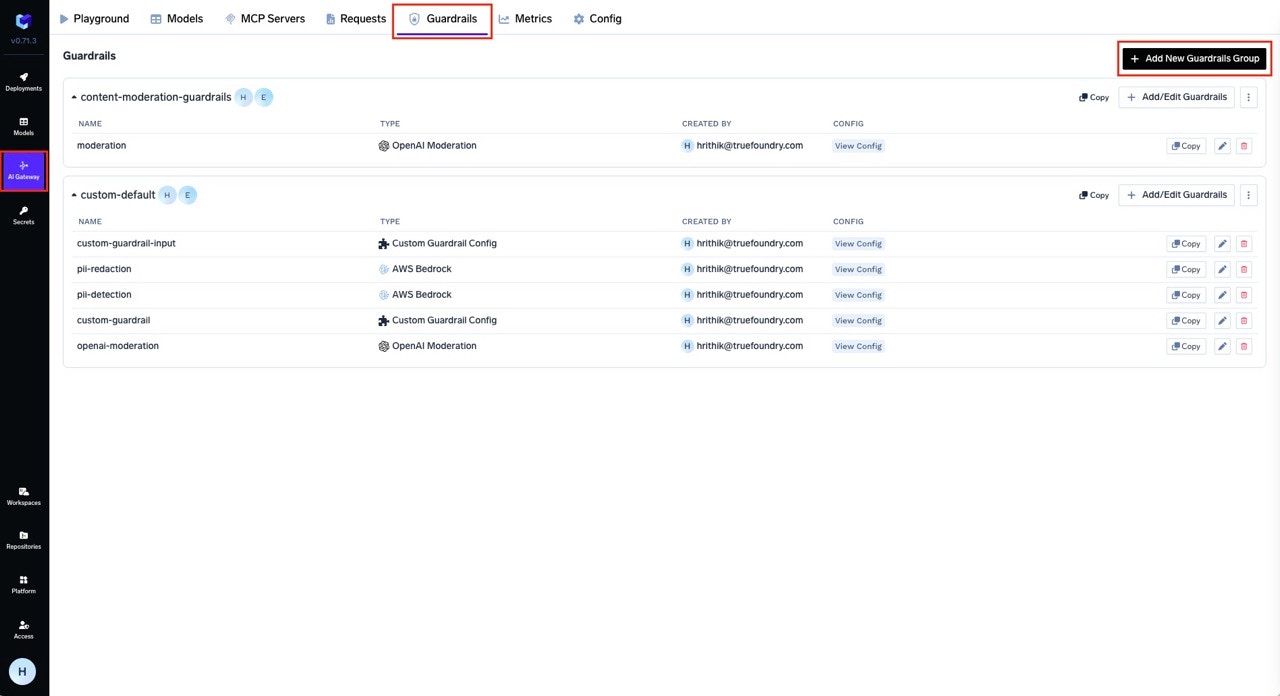
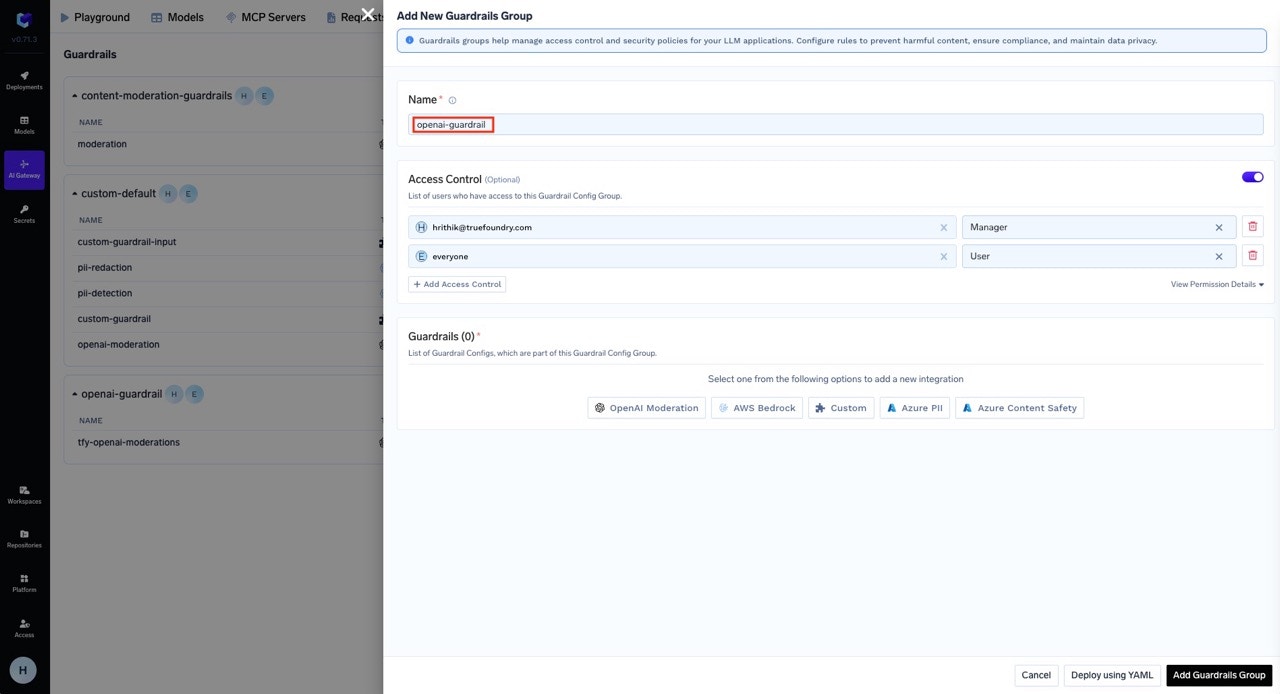
- Manager: Can create, edit, delete and use the guardrail integrations in the group.
- User: Can use the guardrail integrations in the group.
openai-guardrail.Add Guardrail Integration in Guardrails Group
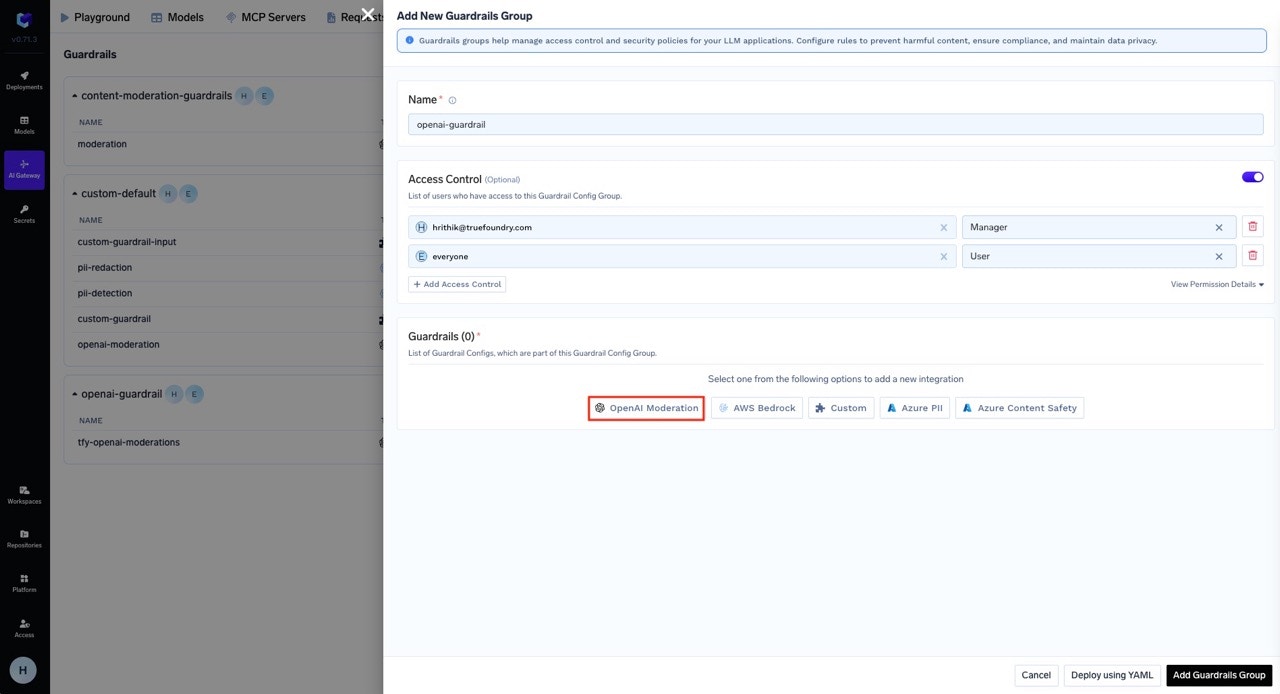
You can add integrations to your guardrails for content moderation and safety. Let’s create an OpenAI guardrail integration, which we will later use as an output guardrail in our configuration example. This will allow us to automatically moderate and filter responses from the LLM using OpenAI’s moderation capabilities.
-
Select the OpenAI Moderation from the list of integrations.
-
Fill in the OpenAI Moderation Guardrail Config form. For this tutorial, we’ve named it
tfy-openai-moderation.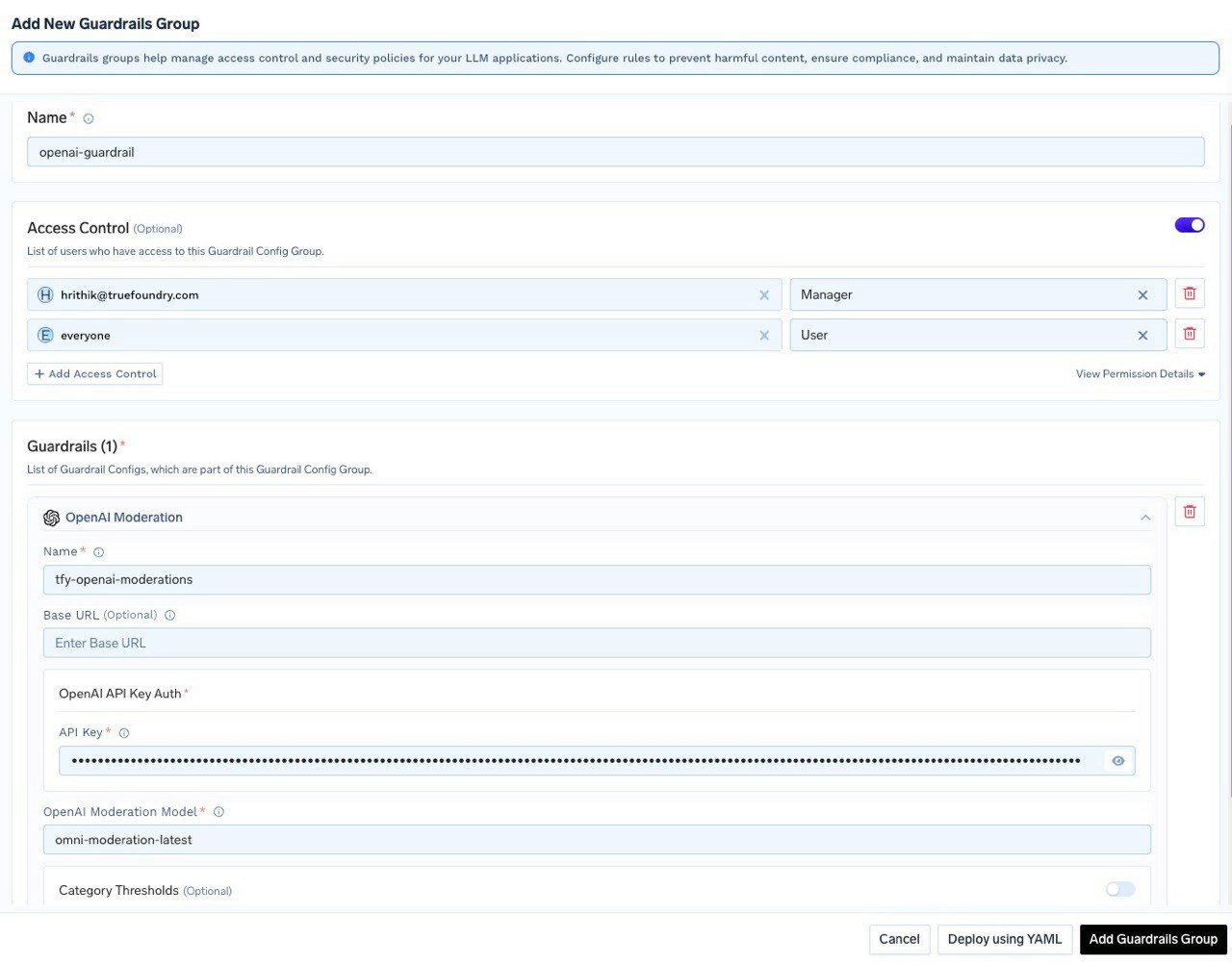
- Save the guardrail group.
To customize moderation sensitivity for specific categories such as 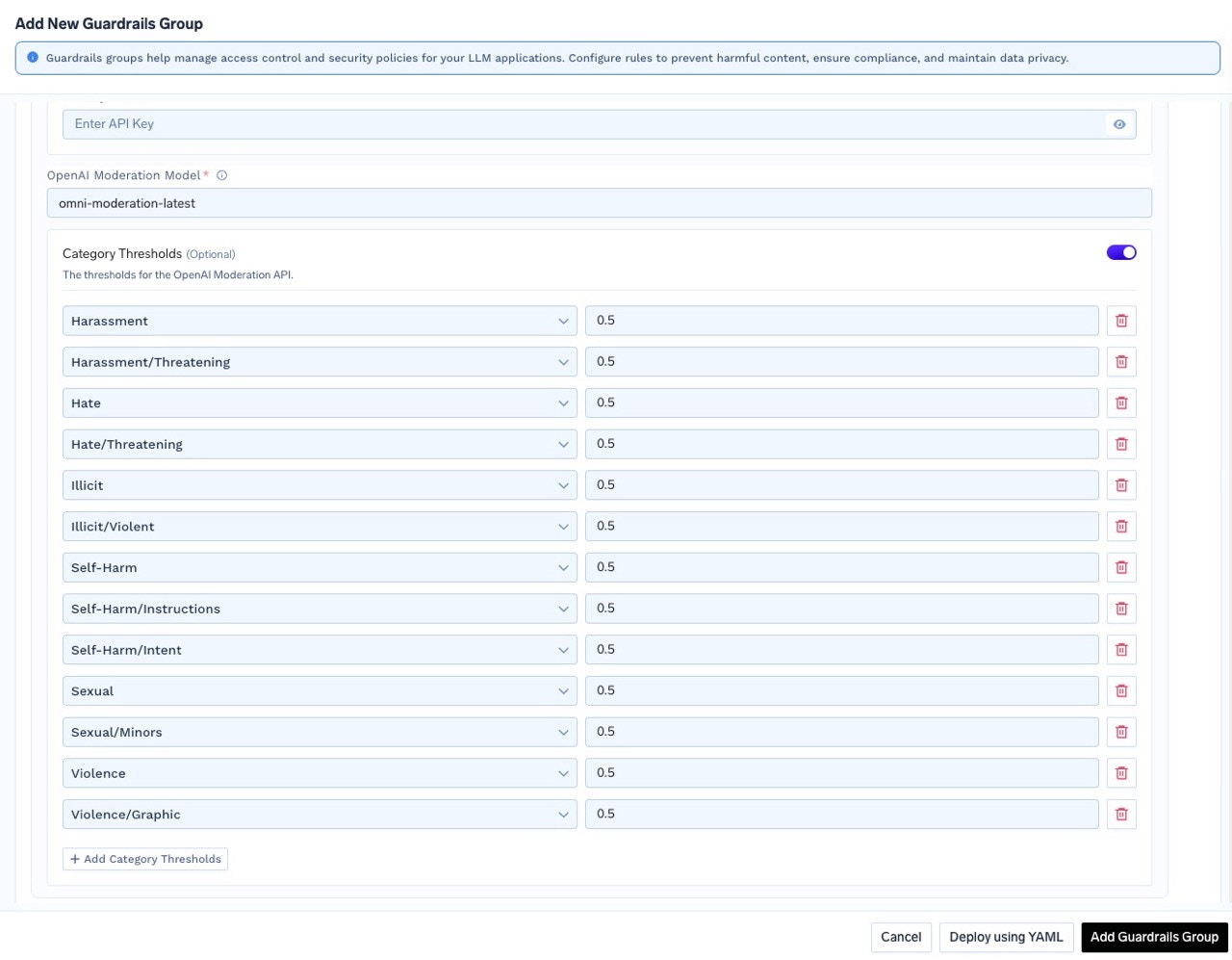
harassment, sexual, or hate, enable the Category Thresholds option. You can then adjust the threshold values for each category according to your requirements.Test Guardrails in Playground
The Playground allows you to test guardrails on all four hooks before deploying to production.
Testing LLM Input/Output Guardrails
-
Navigate to the Playground
Navigate to the AI Gateway → Playground Tab. -
Select Guardrails
On the left side, you’ll see options for LLM Input Guardrails and LLM Output Guardrails.- Click on either option depending on which hook you want to test.
- Add the guardrail you want to apply by selecting from the list.
tfy-openai-moderationin the previous steps, select this guardrail under LLM Input Guardrails.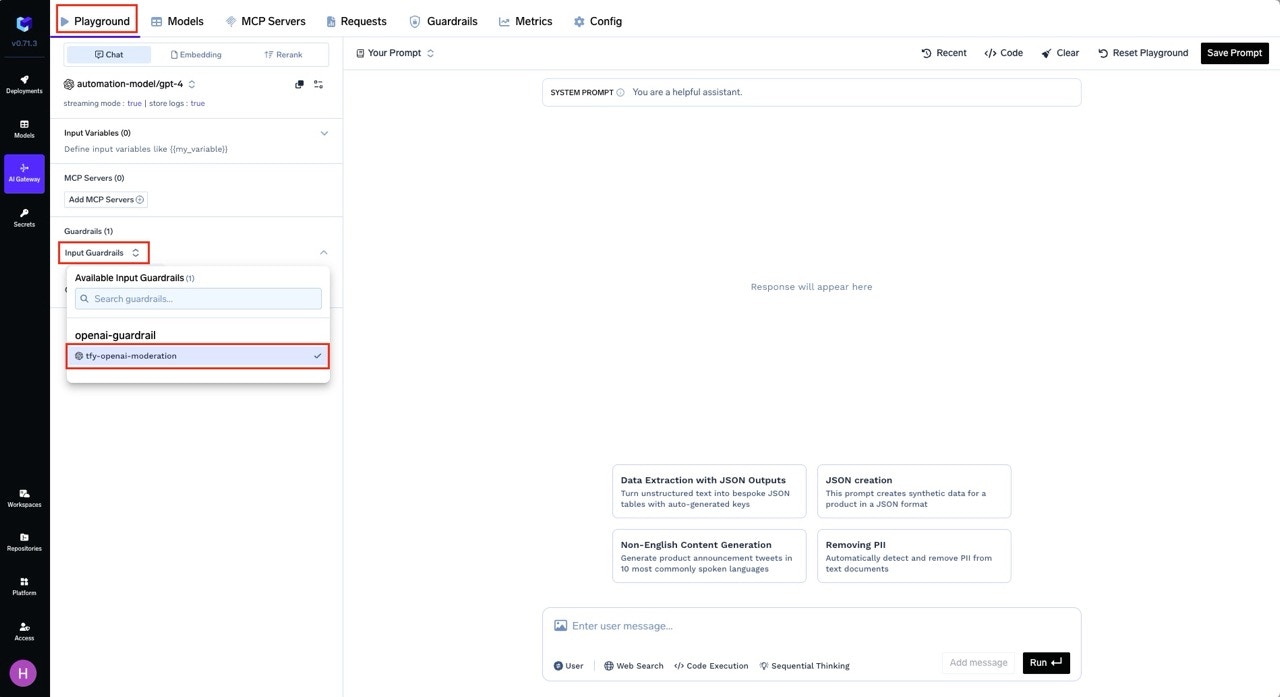
-
Test the Guardrail
- Enter a prompt that would typically be flagged as unsafe or offensive.
- Send the request to the model.
Testing MCP Tool Guardrails
Once you have configured guardrail rules in AI Gateway → Controls → Guardrails, you can test MCP Pre Tool and Post Tool guardrails from the Playground:-
Configure Guardrail Rules First
Navigate to AI Gateway → Controls → Guardrails and create rules that target your MCP servers/tools withmcp_tool_pre_invoke_guardrailsormcp_tool_post_invoke_guardrails. -
Use the Playground with MCP Tools
In the Playground, when you invoke MCP tools (via agents or tool calls), the configured guardrails will automatically execute on the Pre Tool and Post Tool hooks. -
View Results in Traces
After execution, navigate to Monitor → Request Traces to see detailed information about which guardrails were triggered on each MCP tool invocation, including:- Pre Tool guardrail validation results
- Post Tool guardrail findings and mutations
- Pass/fail status for each guardrail
Trigger Guardrails in LLM requests from code
You can pass guardrails as headers at a per-request level by providing the
X-TFY-GUARDRAILS header. You can copy the relevant code snippet from the Playground section.-
Select the Guardrail to Apply
On the left side, choose the LLM Input Guardrails and LLM Output Guardrails sections, and select the guardrails you want to apply. For this tutorial, we’ve selected thetfy-openai-moderationguardrail for both input and output.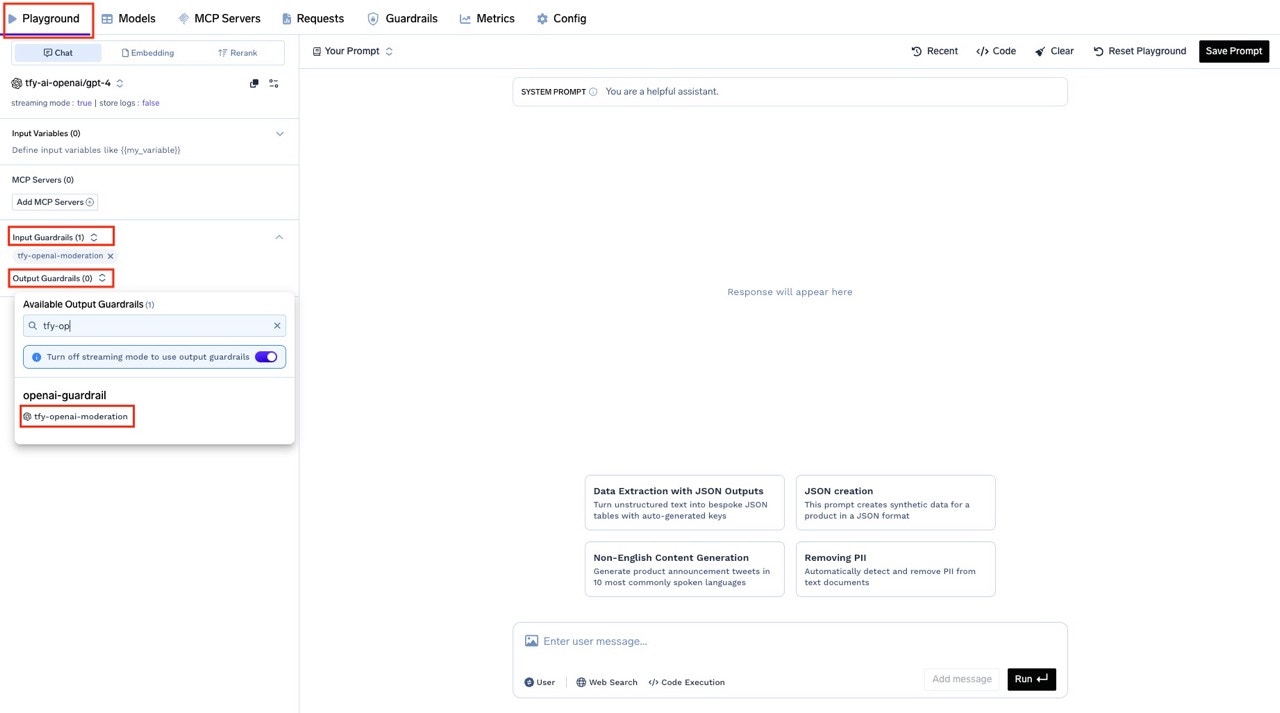
-
Get the Code Snippet
After configuring your request and selecting the desired guardrail(s), click the Code button at the top right of the Playground.
In the code snippet section, you will see ready-to-use examples for different SDKs andcurl.
Note: The generated code will automatically include the necessaryX-TFY-GUARDRAILSheader with your selected guardrails.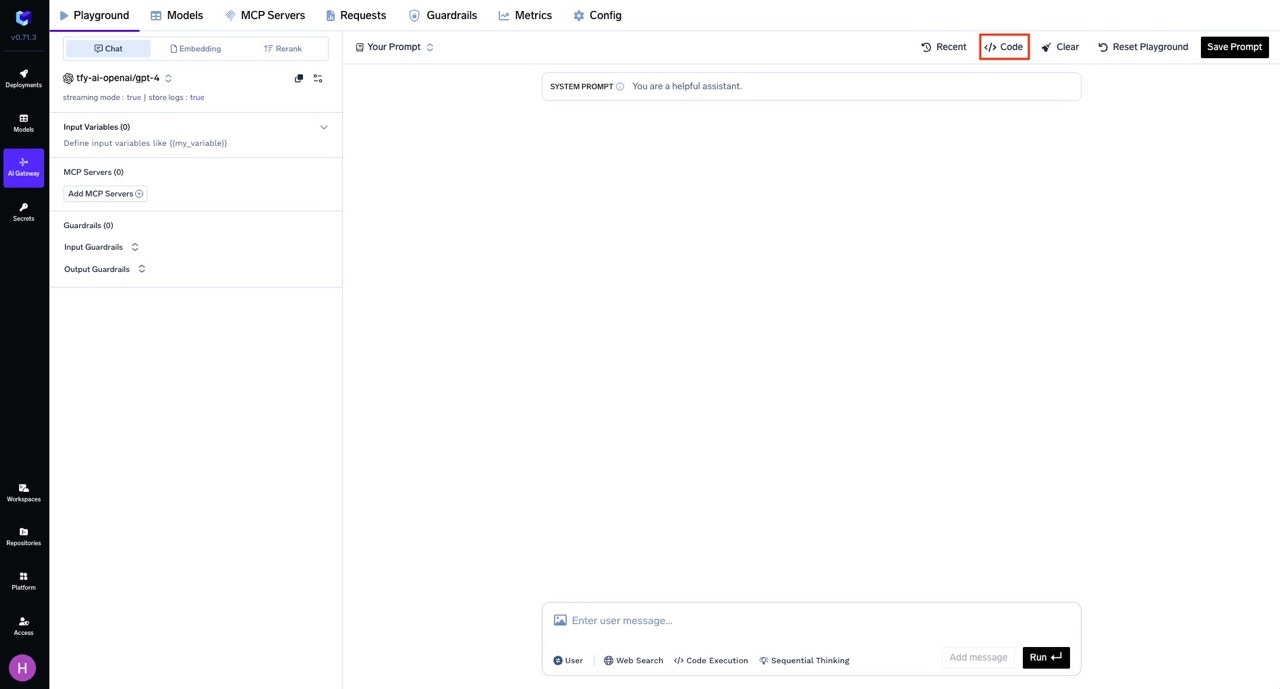
-
Copy and Run the Code
Copy the generatedcurlcommand (or code for your preferred SDK) and run it.
The guardrails you selected in the Playground will be applied automatically, as reflected in the request headers.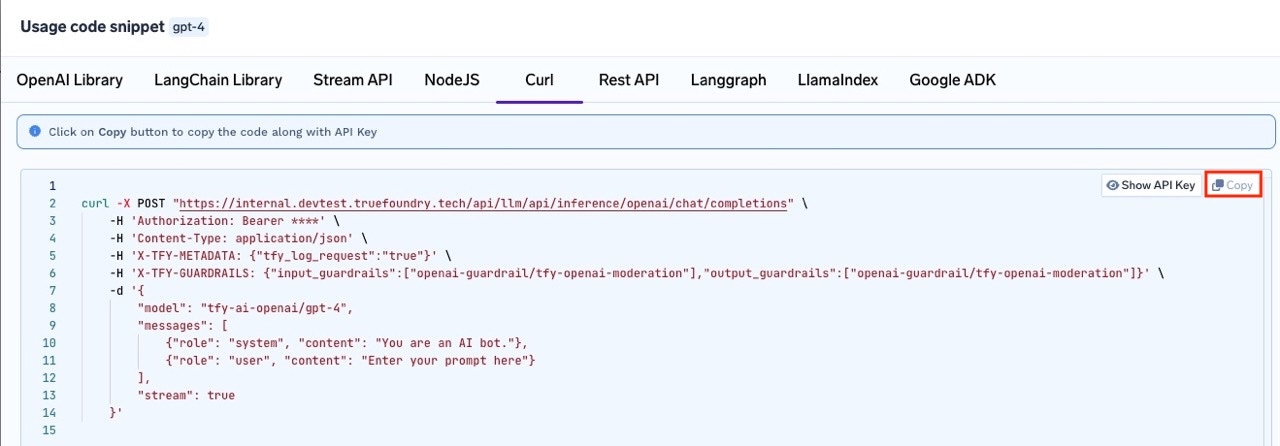
X-TFY-GUARDRAILS Header Format
The header accepts JSON with the following fields:| Field | Type | Description |
|---|---|---|
llm_input_guardrails | string[] | Guardrails to run on the LLM input (prompt) |
llm_output_guardrails | string[] | Guardrails to run on the LLM output (response) |
For backward compatibility,
input_guardrails maps to llm_input_guardrails and output_guardrails maps to llm_output_guardrails.Configure application of guardrails at gateway layer
-
Navigate to Guardrail Rules
Go to AI Gateway → Controls → Guardrails to access the Guardrail Rules page. -
Create a Guardrail Configuration
Click on Create/Edit Guardrail Config. Fill in the required details for your guardrail configuration:- Define
whenconditions to target specific users, models, metadata, or MCP servers - Configure guardrails for any of the four hooks:
llm_input_guardrails- Before LLM requestllm_output_guardrails- After LLM responsemcp_tool_pre_invoke_guardrails- Before MCP tool invocationmcp_tool_post_invoke_guardrails- After MCP tool returns
- Define
-
Save the Configuration
After filling out the form, click Save to apply your guardrail configuration.
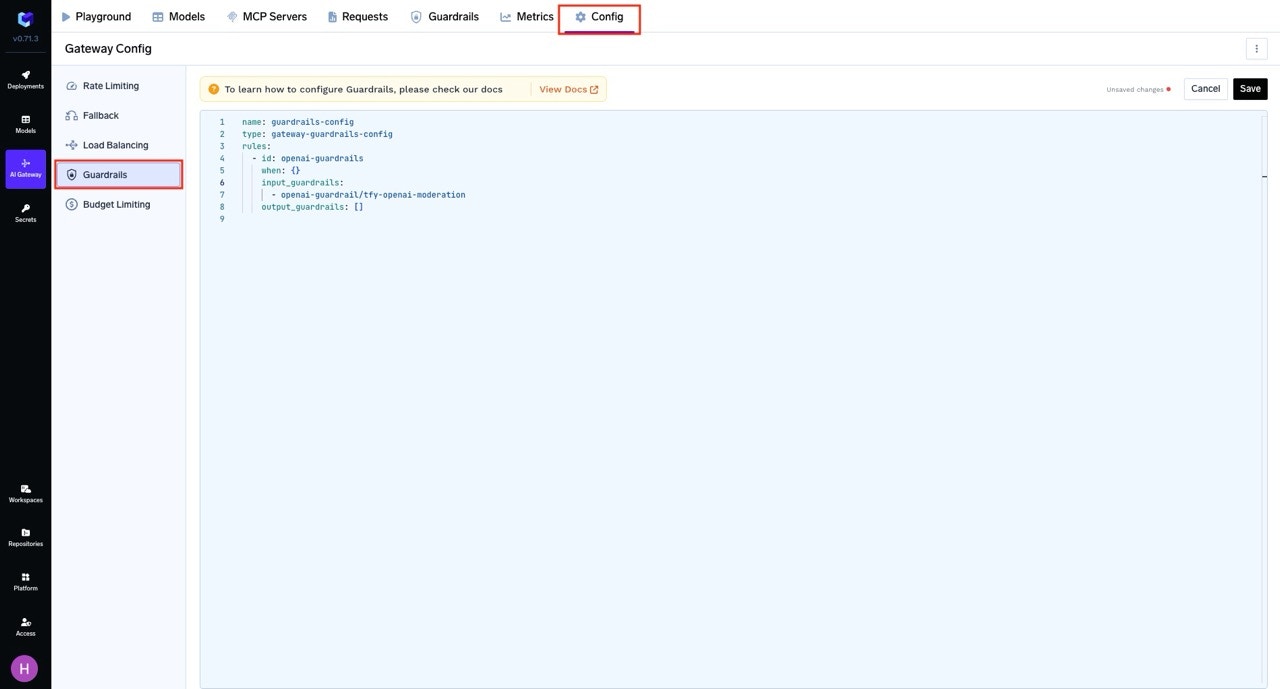
Monitor Guardrail Execution
After configuring guardrails, you can verify they are being applied correctly by monitoring execution in real-time through the AI Gateway dashboard: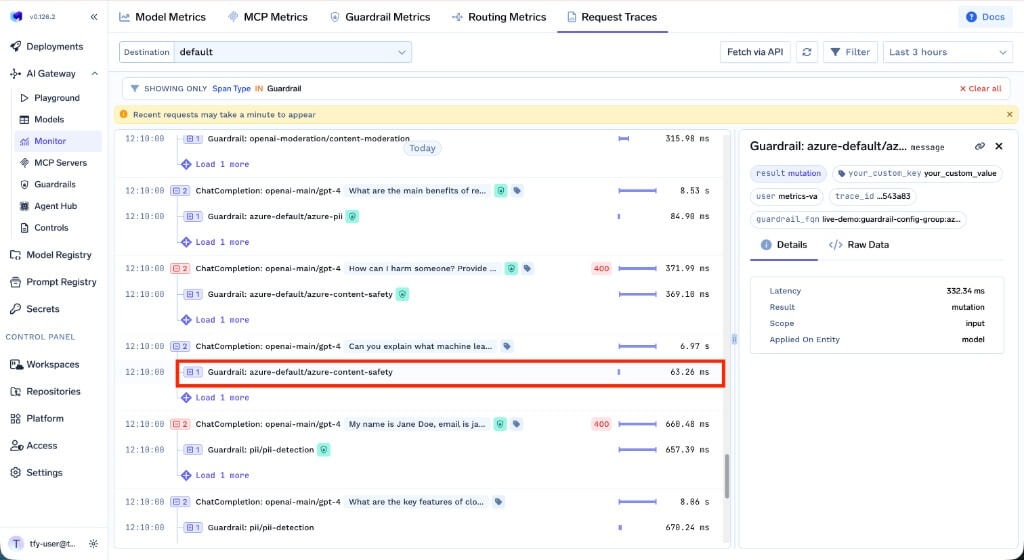
- Navigate to AI Gateway → Monitor → Request Traces
- View detailed traces showing which guardrails were triggered on each hook
- See findings, mutations, and execution timing for each guardrail
- Filter by guardrail status to quickly find blocked or flagged requests
Detect Guardrail Violations Programmatically
When a guardrail blocks a request, the Gateway returns a
400 status code with error.type set to guardrail_checks_failed. You can use this to handle violations in your application.The
guardrail_checks object in the error response only contains the hooks that were evaluated for the request.