

Add an MCP Server
Navigate to MCP Gateway in the left sidebar and click the Add MCP Server button. You will see the following options: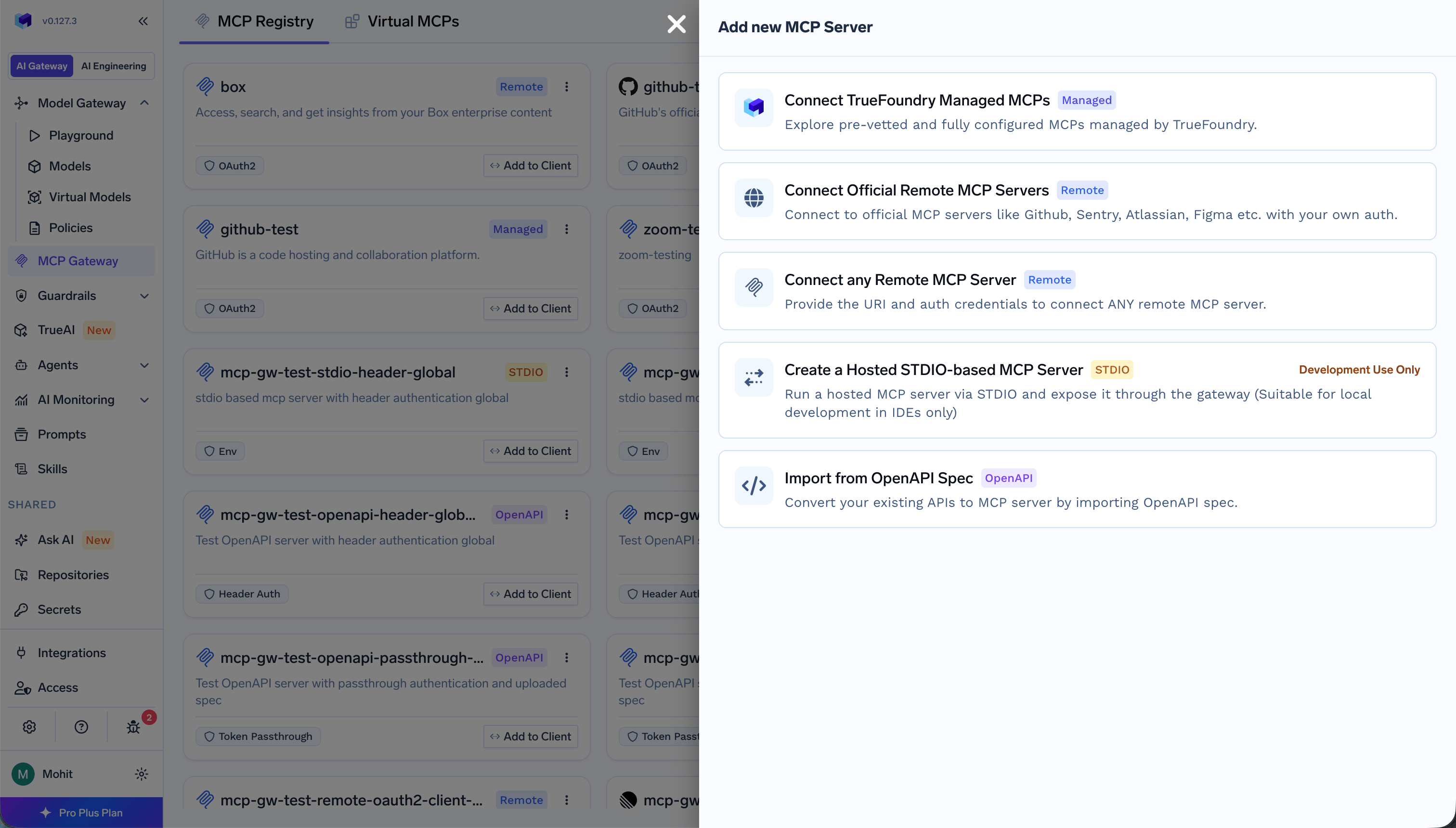
If you want to build an MCP server from scratch, you can follow the Create Calculator MCP Server tutorial.To add a custom Remote MCP server, click Connect any Remote MCP Server and provide the following details:
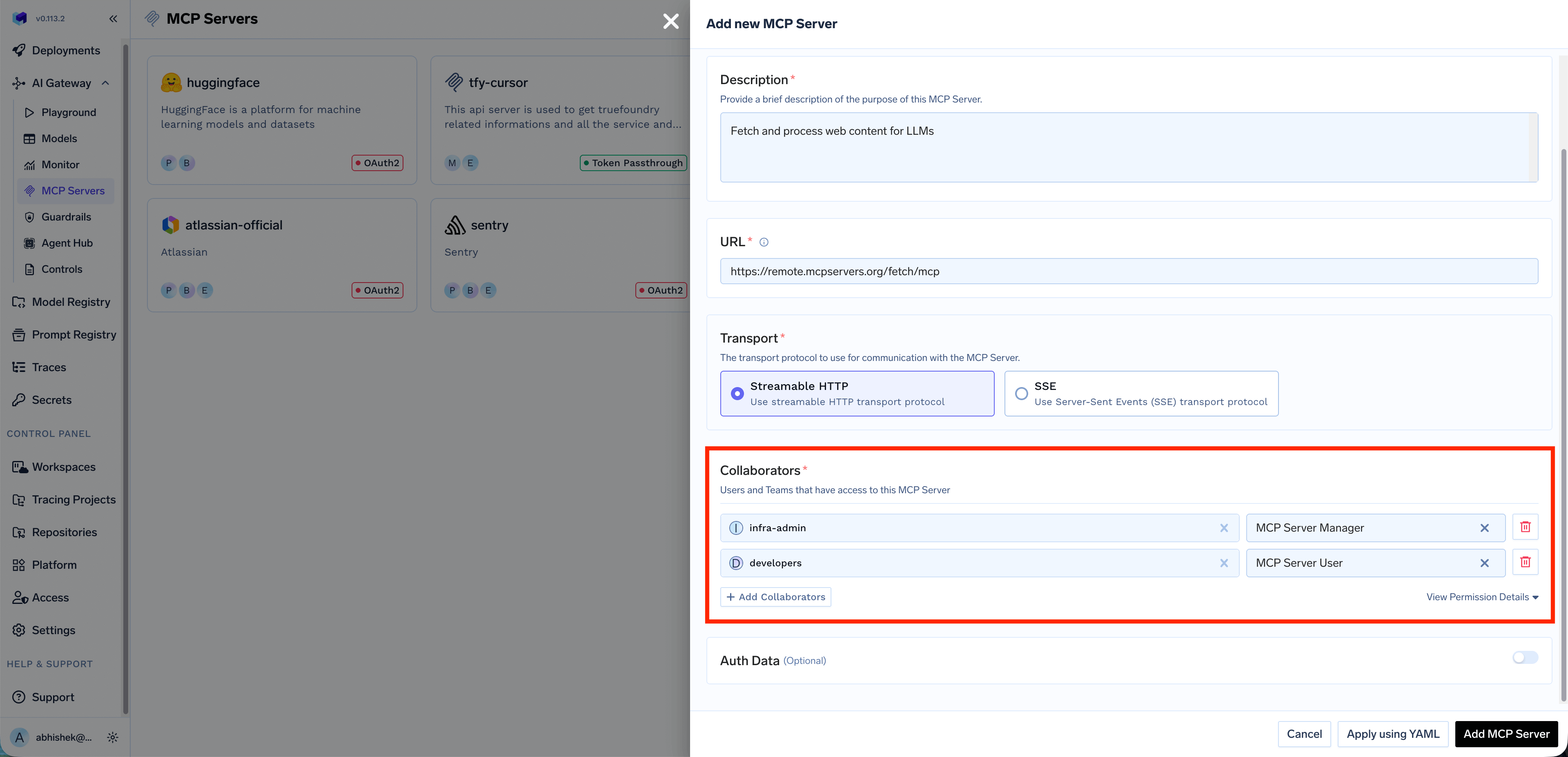
Click + Add Collaborators to add more users or teams. You can also click View Permission Details to see the complete list of permissions for each role.
| Option | Description |
|---|---|
| Connect TrueFoundry Managed MCPs | Provision a pre-vetted MCP server from the TrueFoundry catalogue with just a name; URLs, auth, and credentials are managed by the platform. See TrueFoundry Managed MCPs. |
| Connect Official Remote MCP Servers | Connect to official MCP servers like GitHub, Sentry, Atlassian, Figma, etc. with your own auth |
| Connect any Remote MCP Server | Provide the URI and auth credentials to connect any remote MCP server |
| Create a Virtual MCP Server | Combine multiple MCPs into a bundle so each user or team gets access to exactly the tools they need |
| Import from OpenAPI Spec | Convert your existing APIs to MCP server by importing OpenAPI spec |
| Hosted Stdio-based MCP Server | Register a CLI-style MCP server by command and arguments; see Hosted Stdio-based MCP Server |
| Field | Description |
|---|---|
| URL | The URL of the MCP server |
| Collaborators | Users and teams that have access to this MCP server |
Collaborators
The Collaborators section allows you to control who can access and manage this MCP server. You can add individual users or entire teams and assign them specific roles:| Role | Description |
|---|---|
| MCP Server Manager | Full access to manage the MCP server, including editing configuration, managing collaborators, and deleting the server |
| MCP Server User | Can use the MCP server’s tools in the playground and IDEs, but cannot modify server settings |
Auth Data
When registering an MCP server, choose the authentication type that determines how requests are authenticated with the upstream MCP server. You can select from:API Key, OAuth2, or Token Passthrough.API Key
API Key
Authenticate using a static API key or token sent as a request header. When you select API Key, you need to choose between two credential modes: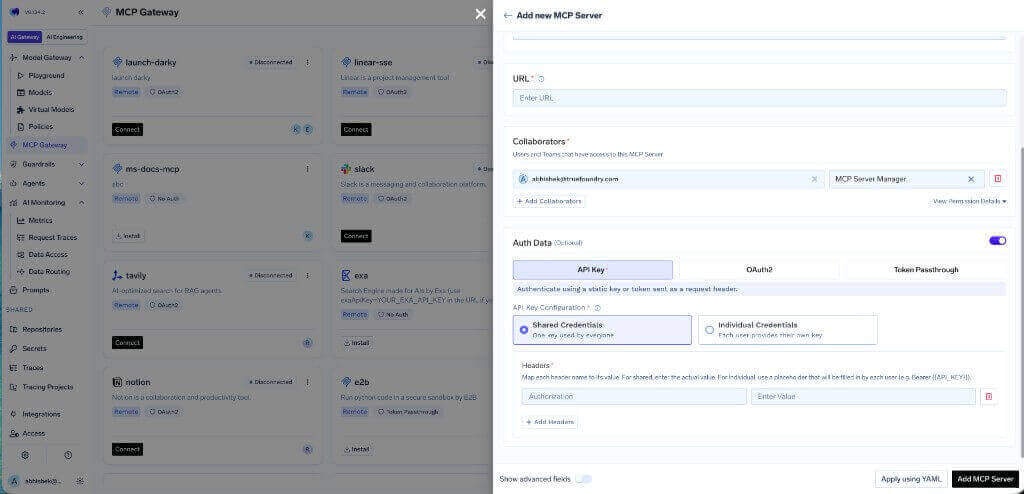
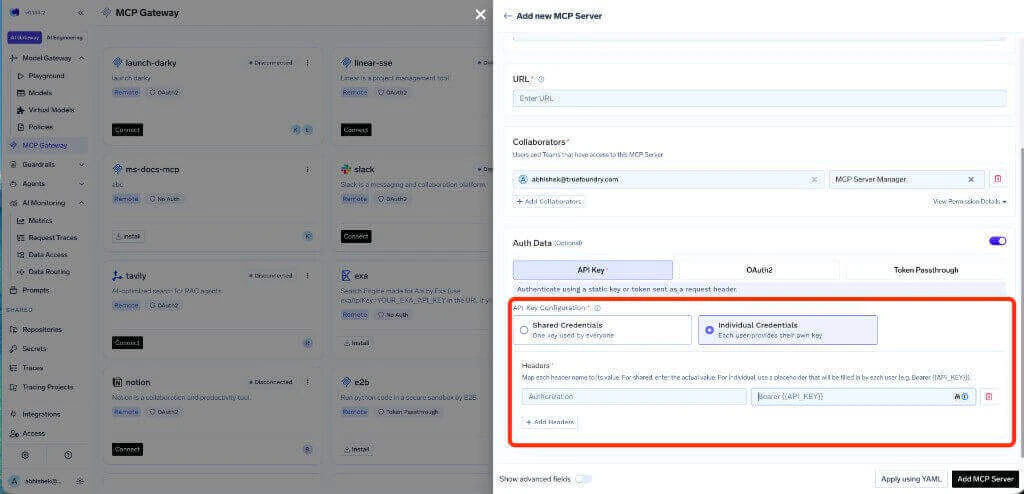
Shared Credentials
One key is used by everyone. All users share the same downstream API key. Configure the header name (e.g.,Authorization) and the corresponding value.Use shared credentials for MCP servers where all users should have the same level of access, such as shared knowledge bases or read-only APIs.
Individual Credentials
Each user provides their own key. When Individual Credentials is selected, configure the header name and use a placeholder likeBearer {{API_KEY}} in the value field. Each user will need to provide their own API key before they can use the MCP server.Use individual credentials when the upstream MCP server requires user-specific API keys, for example, when each user has their own API key for a third-party service.
OAuth2
OAuth2
Users sign in through a third-party login flow to get temporary access tokens. OAuth2 is supported by popular services like Slack, GitHub, Atlassian, Google, and more.When you select OAuth2, you need to choose a Grant Type: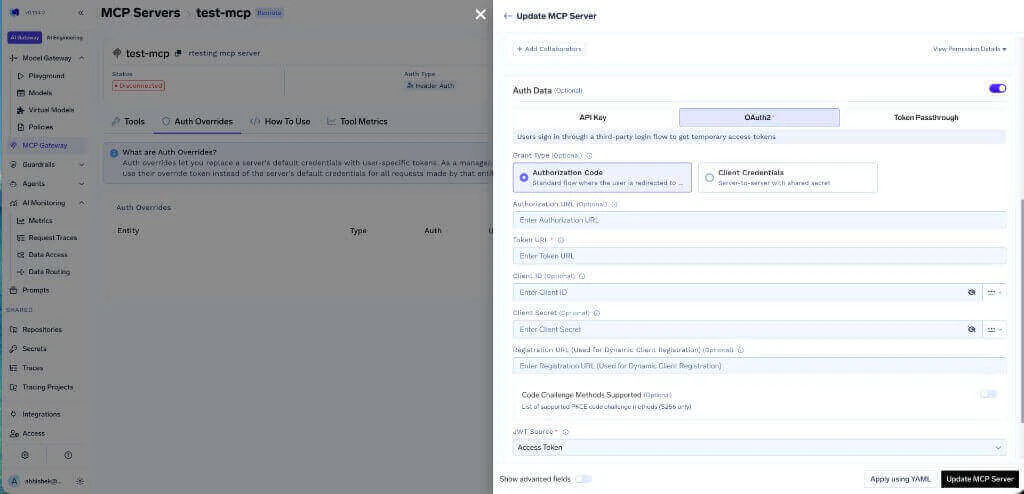
Authorization Code
Standard flow where the user is redirected to the provider to authorize. This is the most common OAuth2 flow for user-facing applications.| Field | Description |
|---|---|
| Authorization URL | The URL where users are redirected to authorize (optional) |
| Token URL | The URL used to exchange the authorization code for an access token |
| Client ID | The client ID from your OAuth2 app (optional) |
| Client Secret | The client secret from your OAuth2 app (optional) |
| Registration URL | Used for Dynamic Client Registration (optional) |
| Code Challenge Methods Supported | List of supported PKCE code challenge methods, S256 only (optional) |
| JWT Source | Where to extract the JWT from — Access Token or ID Token |
Client Credentials
Server-to-server flow with shared secret. No user interaction is required. This is suitable for backend services that need to authenticate without user involvement.| Field | Description |
|---|---|
| Token URL | The URL used to obtain the access token |
| Client ID | The client ID for the service |
| Client Secret | The client secret for the service |
Create an OAuth2 app in your provider's developer portal
Set the redirect URI to:Replace
<tfy-control-plane-base-url> with your TrueFoundry control plane URL. Note your OAuth2 App ID, Secret, and required scopes.Register the MCP Server in the AI Gateway
- Navigate to MCP Gateway in the left sidebar and click Add MCP Server
- Select Connect any Remote MCP Server
- Provide the MCP server URL and select OAuth2 as the authentication type
- Choose the appropriate grant type (Authorization Code or Client Credentials)
- Fill in the required OAuth2 fields
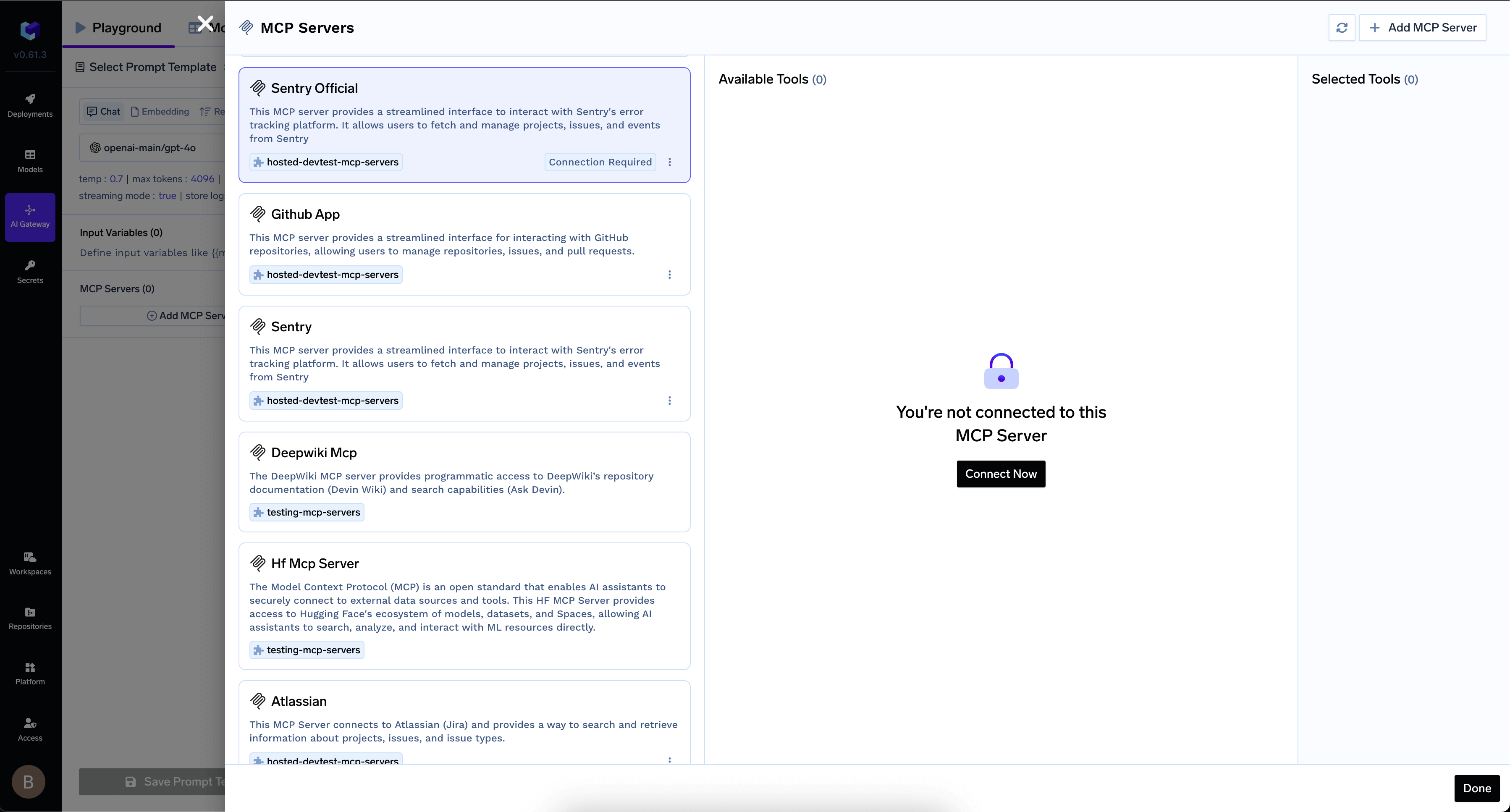
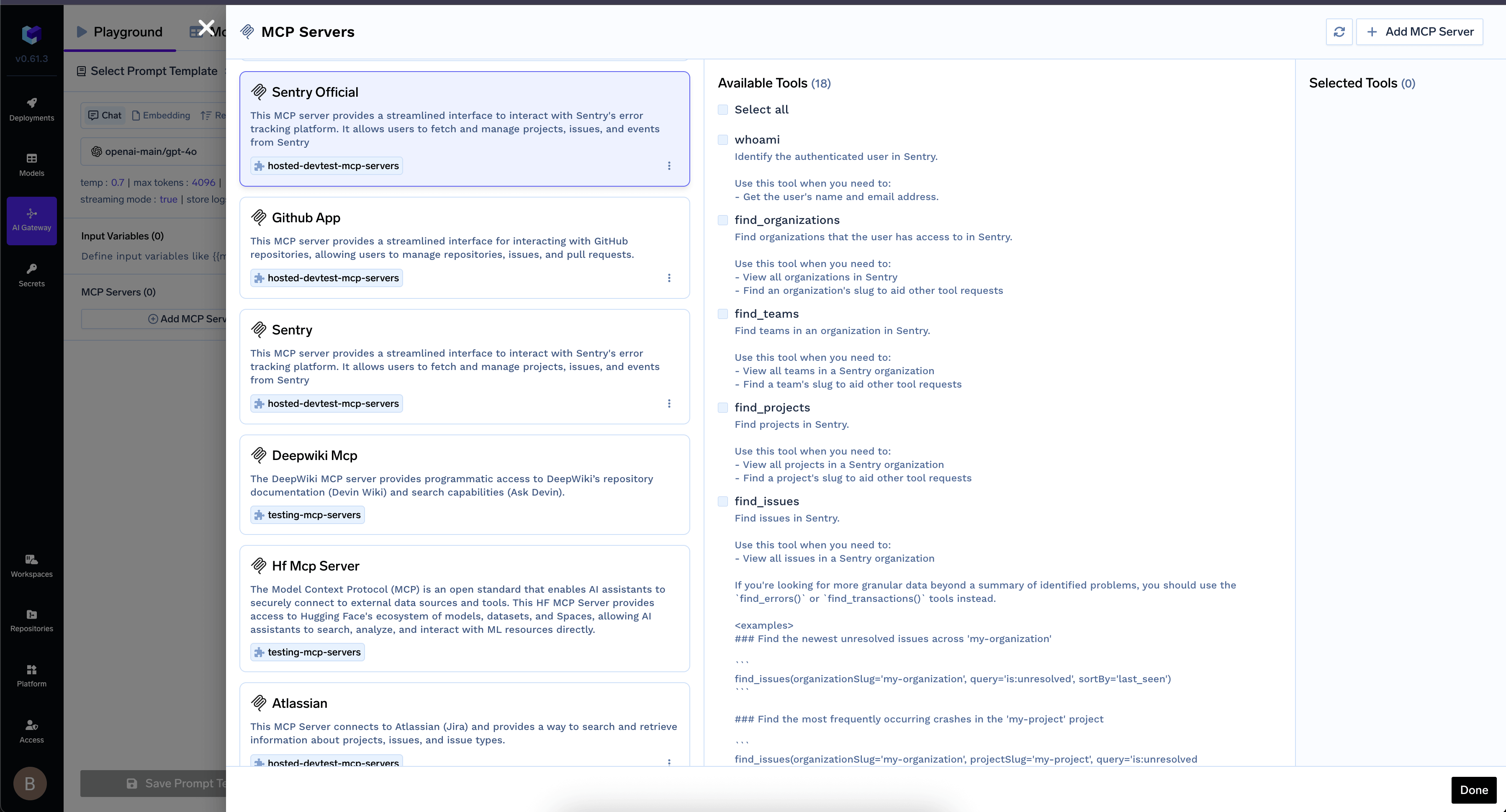
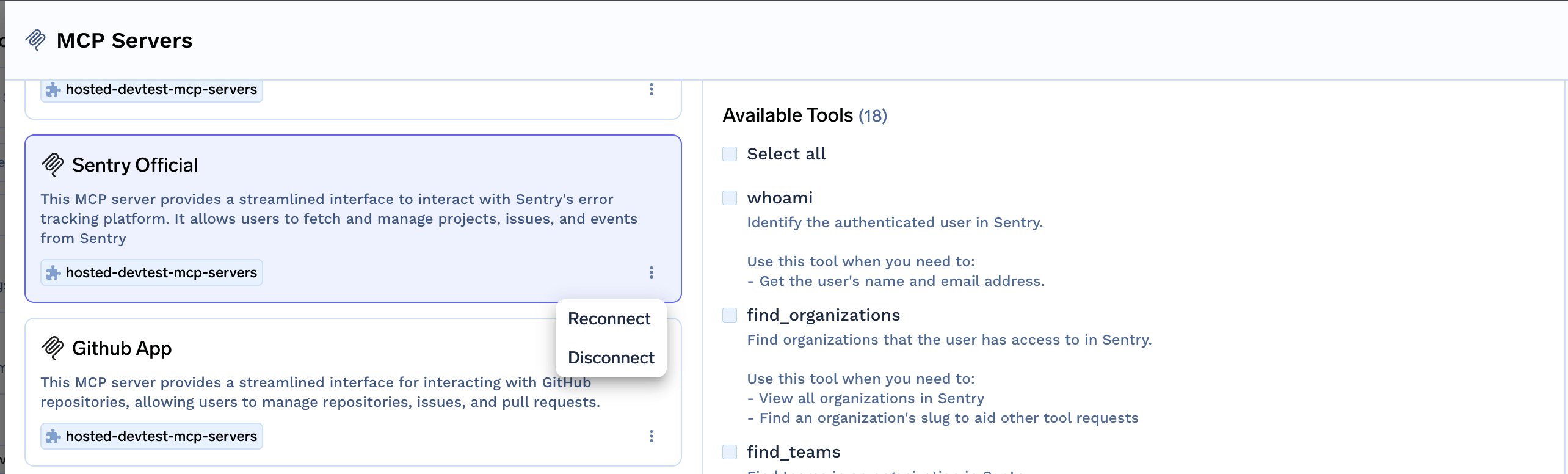
Token Passthrough
Token Passthrough
The Gateway passes the user’s JWT directly to the MCP server without transformation. The MCP server validates the token itself.Configuration:
- Register the MCP server with Token Passthrough authentication type
- Configure an Identity Provider to allow your IdP tokens
- The user’s JWT is automatically forwarded to the MCP server
With Token Passthrough, the MCP server is responsible for validating the token. Make sure the MCP server is configured to trust your IdP.
Use MCP Server in Your IDE
Once you’ve added an MCP server, you can easily integrate it with your favorite IDE or AI coding assistant. Navigate to the MCP server details page and click on the How To Use tab.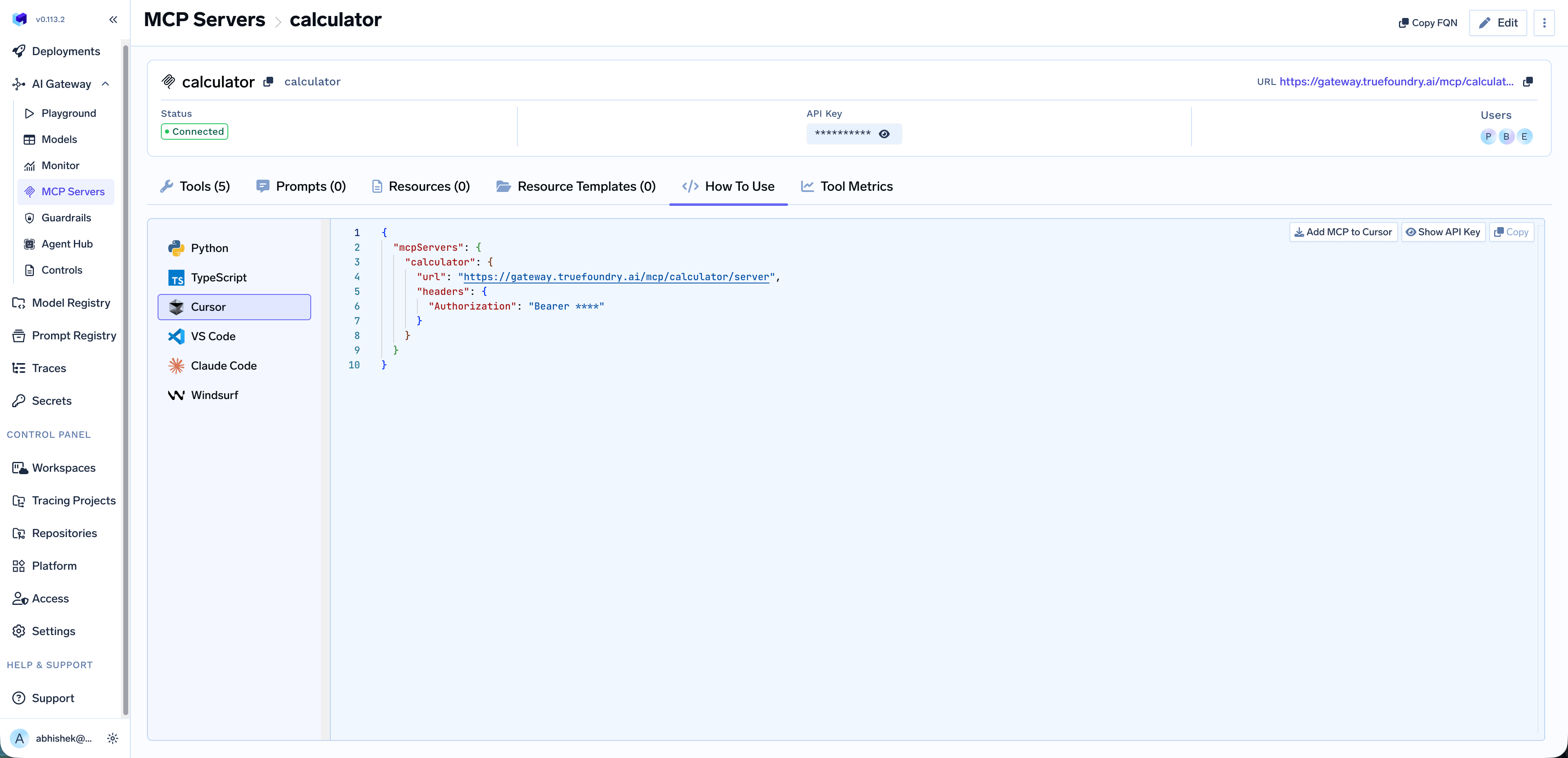
Debug MCP servers with MCP Inspector
MCP Inspector is an interactive tool for testing and debugging MCP servers over different transports. For a full feature overview, see the MCP Inspector documentation.Install and run
Run the Inspector withnpx (nothing to install globally):
Debug MCP OAuth issues
When an MCP server uses OAuth2, use the Inspector to verify that OAuth-based connectivity works before you troubleshoot clients or the playground.Open the Inspector from the terminal link
After you start the Inspector with
npx @modelcontextprotocol/inspector, click the link printed in the terminal (usually a local URL) to open the Inspector UI in your browser.Select transport and URL
In the connection UI, choose the transport type and enter the MCP server URL.
Open Auth Settings
Open Auth Settings in the Inspector so you can configure how this client authenticates to the MCP server.
If OAuth works in the Inspector but fails in an IDE or agent, compare redirect URIs and allowed origins in your OAuth provider with the values documented for your MCP server. For gateway-side behavior, see Authentication and Security.