

- User Authentication: Authenticate specific users through the AI Gateway using the Authorization Code flow with refresh tokens
- Machine-to-Machine Authentication: Enable programmatic access without user interaction using the Client Credentials grant flow
Guide to creating the MCP server and adding OAuth
Write a basic MCP Server and test it locally
get_me tool.http://localhost:8000/mcp. Test the server using this Python script:Create an App Registration for the MCP Server (Resource/API)
Instructions to create the App Registration
Instructions to create the App Registration
- Navigate to Azure Portal > Microsoft Entra ID > App registrations
- Click New registration
- Configure:
- Name:
CalculatorMCPServer - Supported account types: Choose based on your needs (typically “Accounts in this organizational directory only”)
- Redirect URI: Leave empty for now (this is the API, not the client)
- Name:
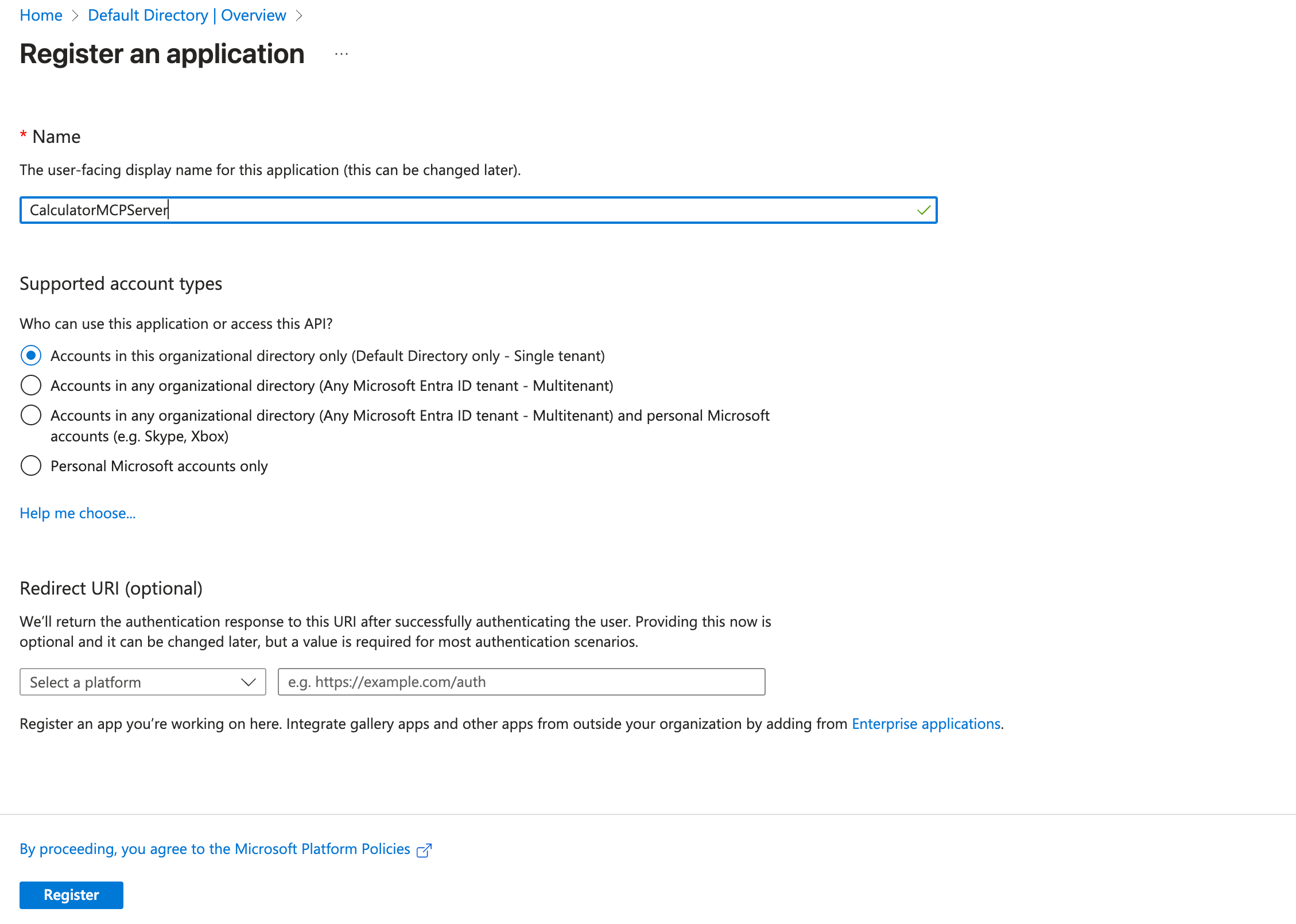
- Click Register
- Note down the following from the Overview page:
- Application (client) ID - This will be used as part of your audience
- Directory (tenant) ID - Your Azure AD tenant ID
Expose an API and Define Scopes
Instructions to expose API and create scopes
Instructions to expose API and create scopes
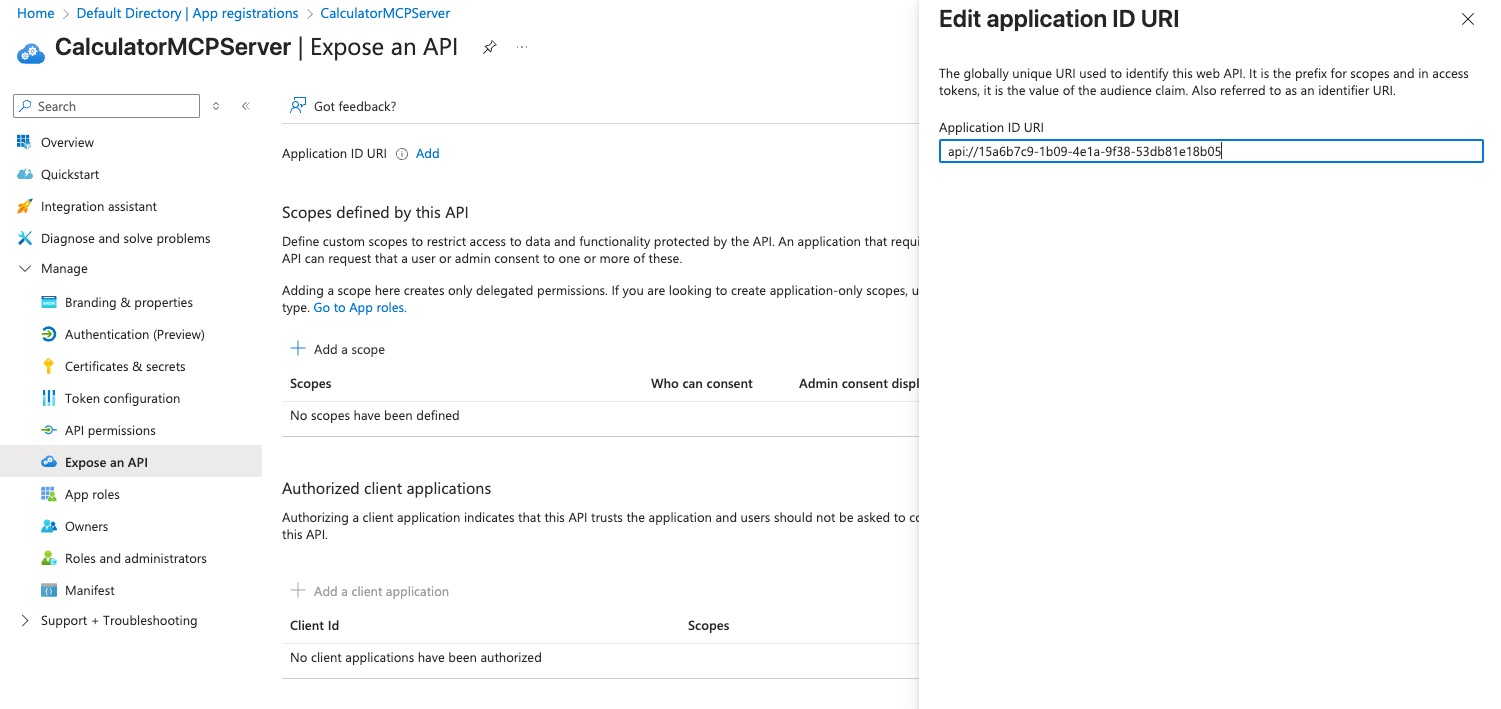
- In your CalculatorMCPServer app registration, go to Expose an API
- Click Add next to Application ID URI
- Azure will suggest
api://{client-id}- accept this or customize it - This URI becomes your audience value
- Azure will suggest
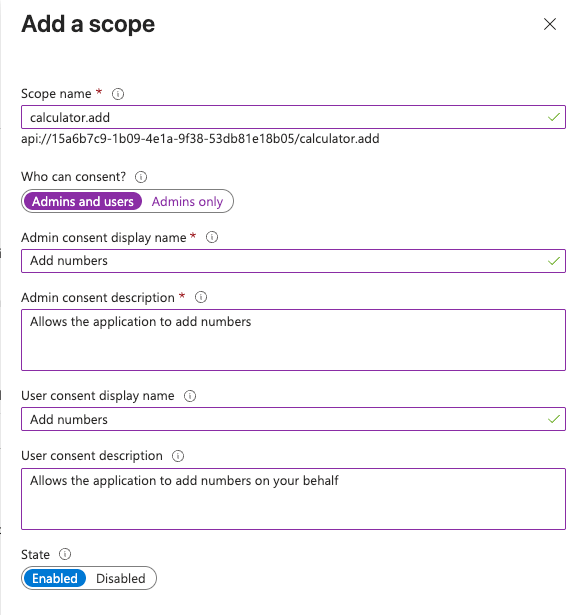
- Click Add a scope to create custom scopes:
- Scope name:
calculator.add - Who can consent: Admins and users
- Admin consent display name: Add numbers
- Admin consent description: Allows the application to add numbers
- User consent display name: Add numbers
- User consent description: Allows the application to add numbers on your behalf
- State: Enabled
- Scope name:
- Click Add scope
- Repeat to add another scope:
- Scope name:
calculator.subtract - Configure similar display names and descriptions
- Scope name:
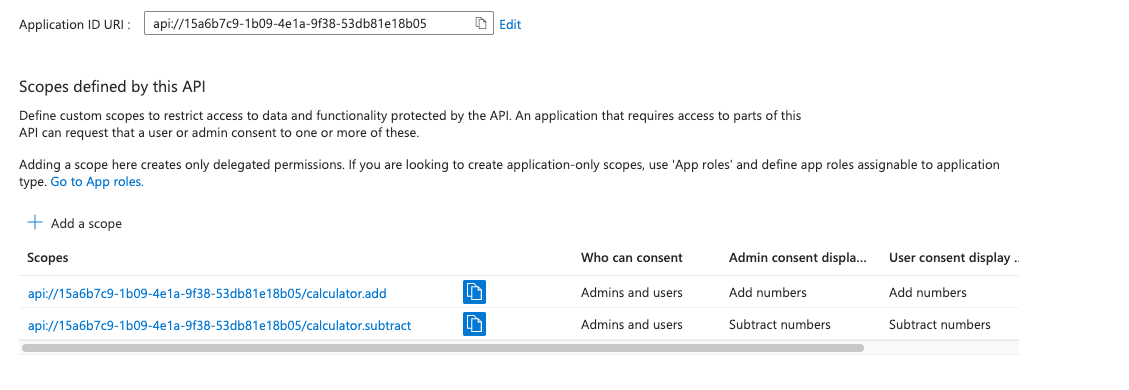
api://{client-id}/calculator.add and api://{client-id}/calculator.subtractCreate a Client App Registration
Instructions to create the client app
Instructions to create the client app
- Navigate to App registrations > New registration
-
Configure:
- Name:
CalculatorMCPClient - Supported account types: Same as your API app
- Redirect URI:
- Platform: Web
- URI:
https://<your-tfy-control-plane-url>/api/svc/v1/llm-gateway/mcp-servers/oauth2/callback
- Name:
- Click Register
- Note the Application (client) ID - this is your OAuth Client ID
- Go to Certificates & secrets
-
Click New client secret
- Description:
MCP Client Secret - Expires: Choose based on your security requirements
- Description:
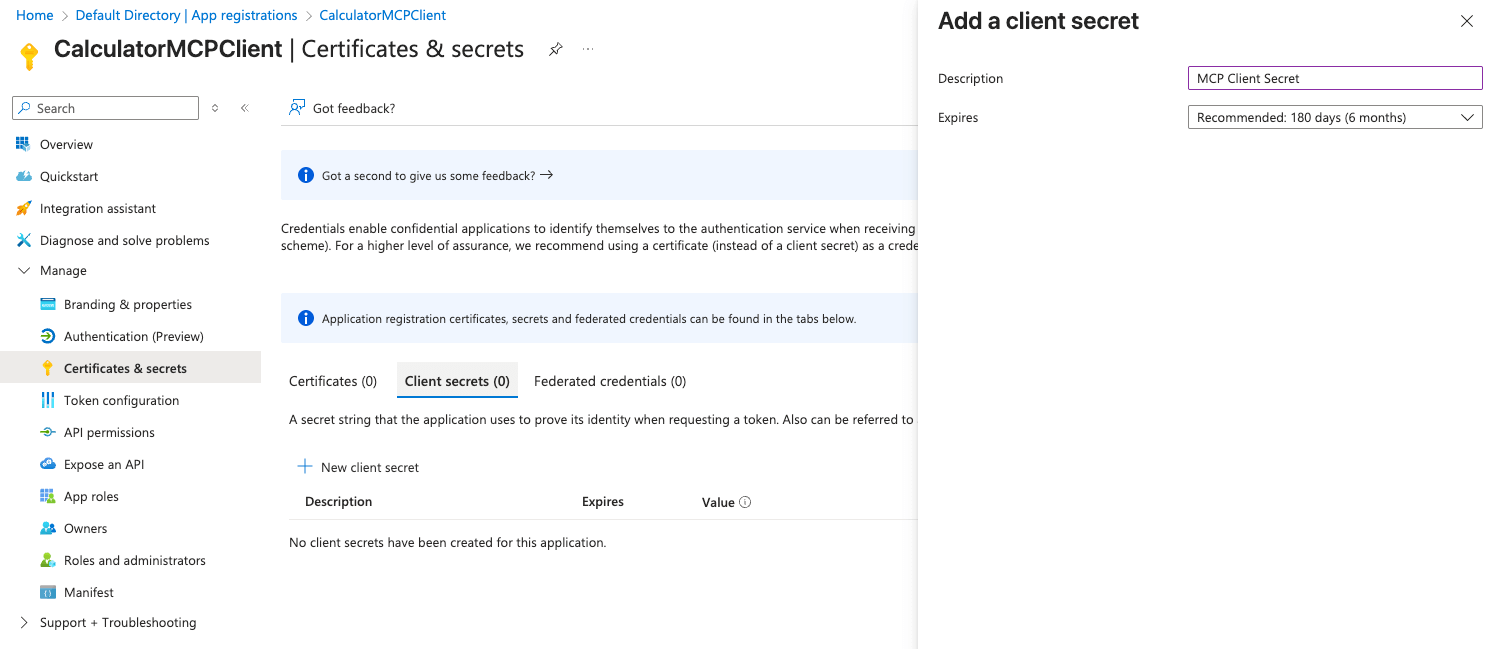
- Click Add
- Important: Copy the Value immediately - this is your Client Secret (it won’t be shown again)
- Go to Authentication
-
Under Implicit grant and hybrid flows, ensure:
- Access tokens is checked (for user auth)
- ID tokens is checked (for user auth)
- Under Advanced settings > Allow public client flows: Set to No
Grant API Permissions to the Client App
Instructions to grant API permissions
Instructions to grant API permissions
- In your CalculatorMCPClient app registration, go to API permissions
- Click Add a permission
- Go to My APIs tab
- Select CalculatorMCPServer
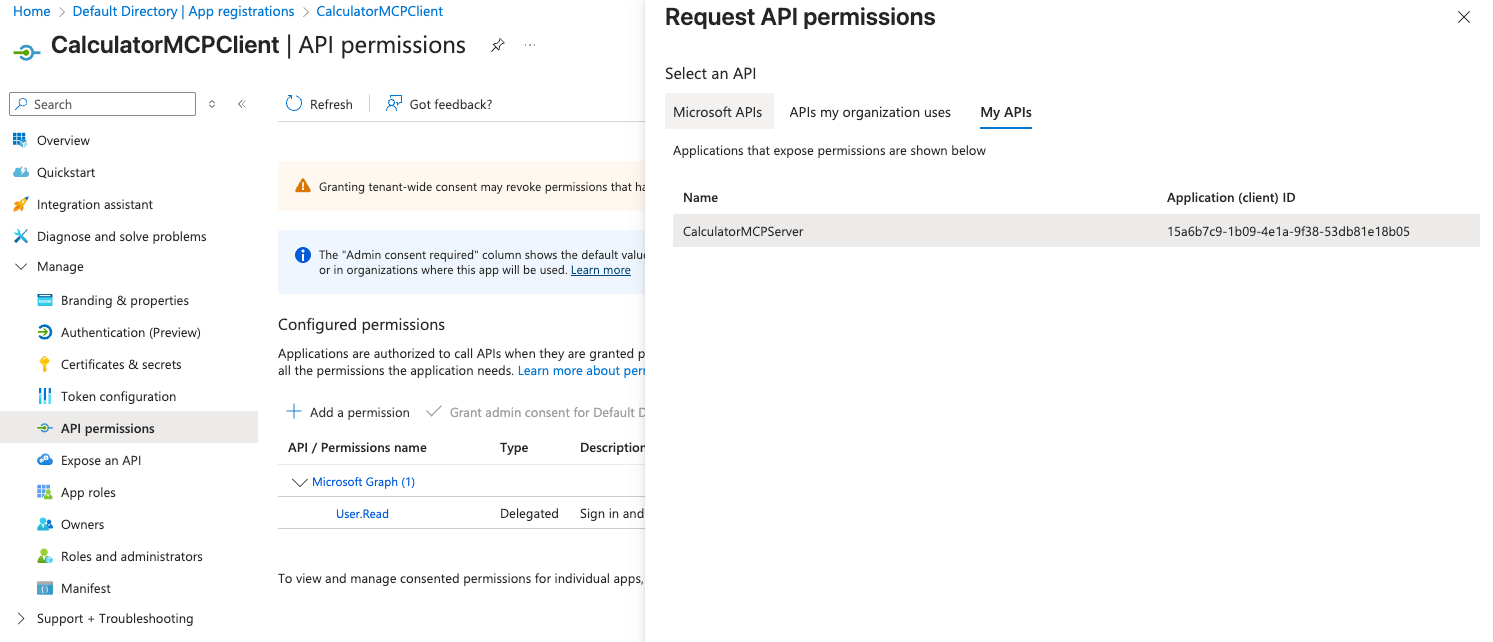
- Select Delegated permissions (for user authentication)
- Check:
calculator.addcalculator.subtract
- Click Add permissions
- For machine-to-machine authentication, click Add a permission again
- Select CalculatorMCPServer from My APIs
- Select Application permissions
-
Check the same scopes:
calculator.addcalculator.subtract
- Click Add permissions
- Confirm by clicking Yes
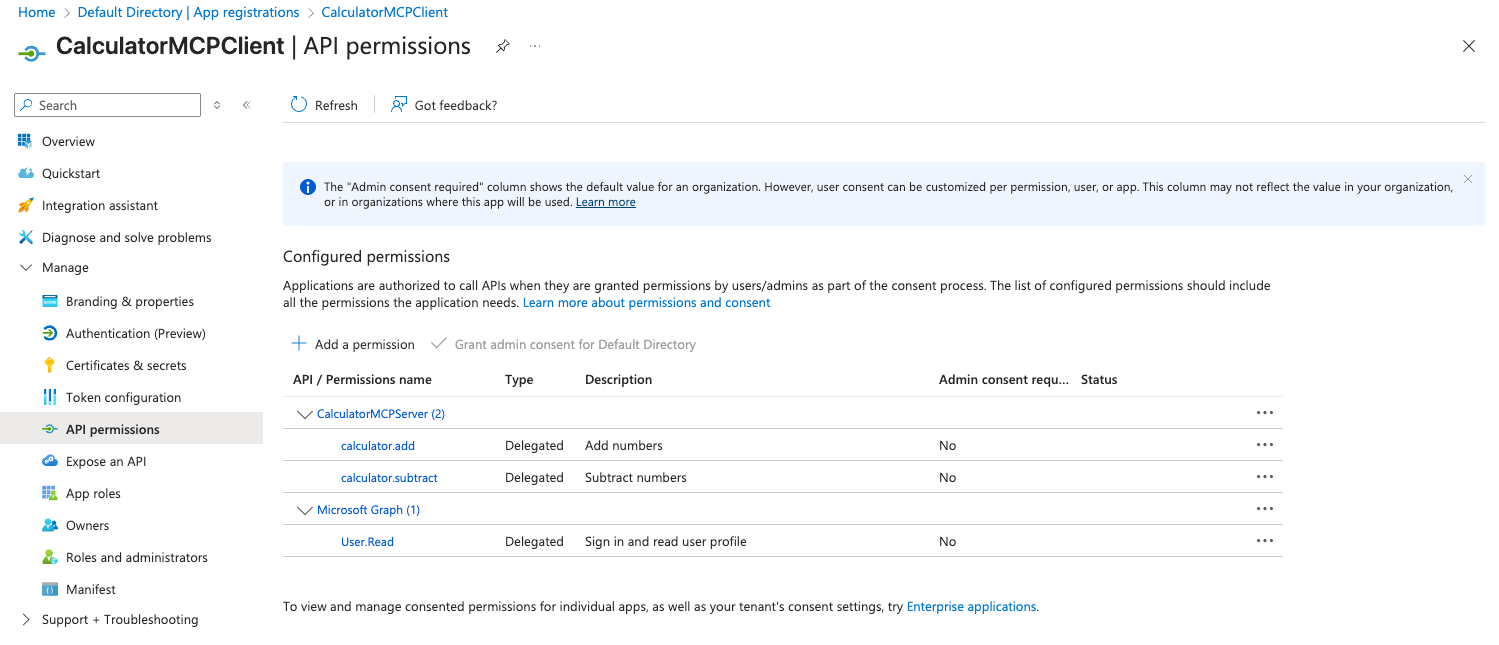
Collect Necessary Information
| Variable | Example Value | Where to Find |
|---|---|---|
| TENANT_ID | 12345678-1234-1234-1234-123456789abc | App Registration > Overview |
| OAUTH_AUDIENCE | 9876543-5678-5678-5678-987654321def | CalculatorMCPServer > Overview > Application (client) ID |
| CLIENT_ID | abcdef12-3456-7890-abcd-ef1234567890 | CalculatorMCPClient > Overview > Application (client) ID |
| CLIENT_SECRET | secret_value_here | CalculatorMCPClient > Certificates & secrets |
https://login.microsoftonline.com/{TENANT_ID}/v2.0OAUTH_WELL_KNOWN_URL: https://login.microsoftonline.com/{TENANT_ID}/v2.0/.well-known/openid-configurationOAUTH_JWKS_URI: Access the well-known URL and find the jwks_uri value (typically: https://login.microsoftonline.com/{TENANT_ID}/discovery/v2.0/keys)TOKEN_ENDPOINT: https://login.microsoftonline.com/{TENANT_ID}/oauth2/v2.0/tokenCUSTOM_SCOPES (for Gateway configuration):api://{API_CLIENT_ID}/calculator.addapi://{API_CLIENT_ID}/calculator.subtractoffline_access
Modify MCP server code to add OAuth Token verification
{TENANT_ID} with your Azure tenant ID and {API_CLIENT_ID} with the Application ID of your CalculatorMCPServer app registration.Important: The audience should be just the client ID (e.g., 15a6b7c9-1b09-4e1a-9f38-53db81e18b05), not the full api:// URI. Azure tokens contain only the client ID in the aud claim.Get the token and call the MCP server in test.py (Machine-to-Machine authentication)
api://{client-id}/.default to request all application permissions. The token will contain the short scope names (e.g., calculator.add calculator.subtract) in the scp claim, but you request them using the .default suffix.- Using cURL
- Using Python
- Using Python with MSAL
scope parameter (not audience) and requires the .default suffix for client credentials flow.Host the MCP server and get the endpoint URL
| Variable | Value | Description |
|---|---|---|
OAUTH_JWKS_URI | https://login.microsoftonline.com/{TENANT_ID}/discovery/v2.0/keys | JSON Web Key Set URI for token verification |
OAUTH_ISSUER | https://login.microsoftonline.com/{TENANT_ID}/v2.0 | Azure Entra ID issuer URI |
OAUTH_AUDIENCE | {API_CLIENT_ID} | Application (client) ID of your CalculatorMCPServer (API) |
https://calculator-oauth-mcp-server.example.com for the rest of the steps.
After deploying, check once using the test.py script above by changing the MCP server URL to the deployed URL. You should be able to fetch the tools from the MCP server.Add the MCP server to the Truefoundry AI Gateway
- In your MCP Server Group, click Add MCP Server
- Select Remote MCP
-
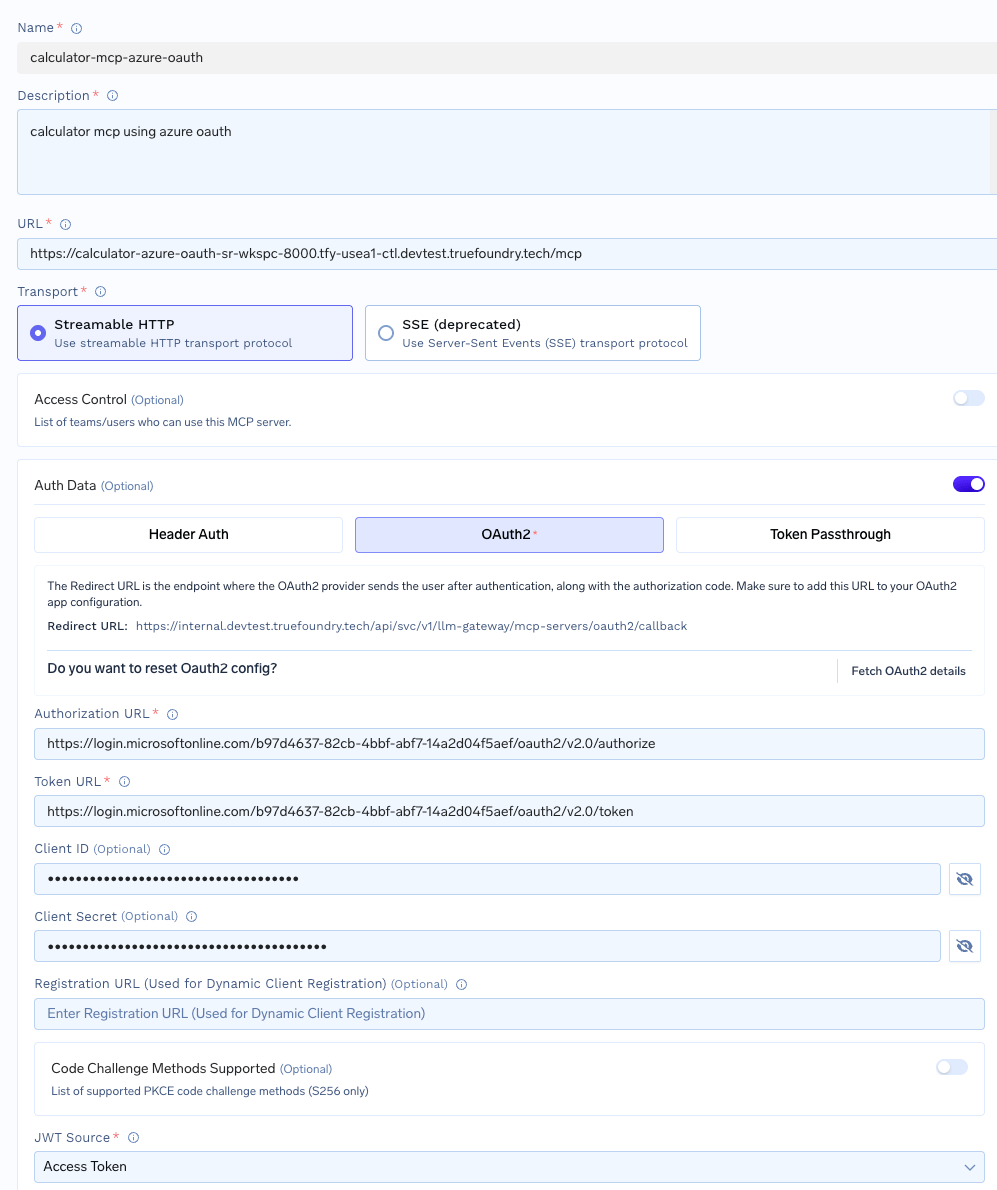
Configure the server:
- Name:
calculator-mcp-azure-oauth - Description: OAuth-authenticated MCP server with Azure Entra ID
- URL: Your deployed service endpoint (e.g.,
https://calculator-oauth-mcp-server.example.com/mcp) - Transport:
streamable-http - Authentication Type: Select OAuth2
- Name:
-
In the OAuth2 configuration section, provide the Azure credentials:
- OAuth2 Client ID: Your CalculatorMCPClient application client ID
- OAuth2 Client Secret: Your CalculatorMCPClient client secret
/.well-known/oauth-authorization-server endpoint once you provide the MCP server URL.Important - Azure Custom Scopes:
Azure’s well-known endpoint only includes generic OpenID scopes (openid, profile, email, offline_access). You must manually add your custom API scopes in the OAuth2 configuration:- OAuth2 Scopes: Manually enter your scopes in the format:
api://{API_CLIENT_ID}/calculator.addapi://{API_CLIENT_ID}/calculator.subtractoffline_access(to enable automatic token refresh)
{API_CLIENT_ID} with your CalculatorMCPServer Application (client) ID (e.g., api://15a6b7c9-1b09-4e1a-9f38-53db81e18b05/calculator.add).You can also store the client id and secrets in truefoundry secrets and reference them by FQN in the configuration.- Set access control: Select teams or users who should have access to this MCP server
- Click Save to add the MCP server
- The server will appear in your MCP Server Group
- Users can now connect and use the server through the AI Gateway
Test the MCP server in the Playground
- Navigate to the Playground in the AI Gateway
- Click Add Tool/MCP Servers
- Find your
calculator-mcp-azure-oauthin the list - Click Connect Now to initiate OAuth authorization
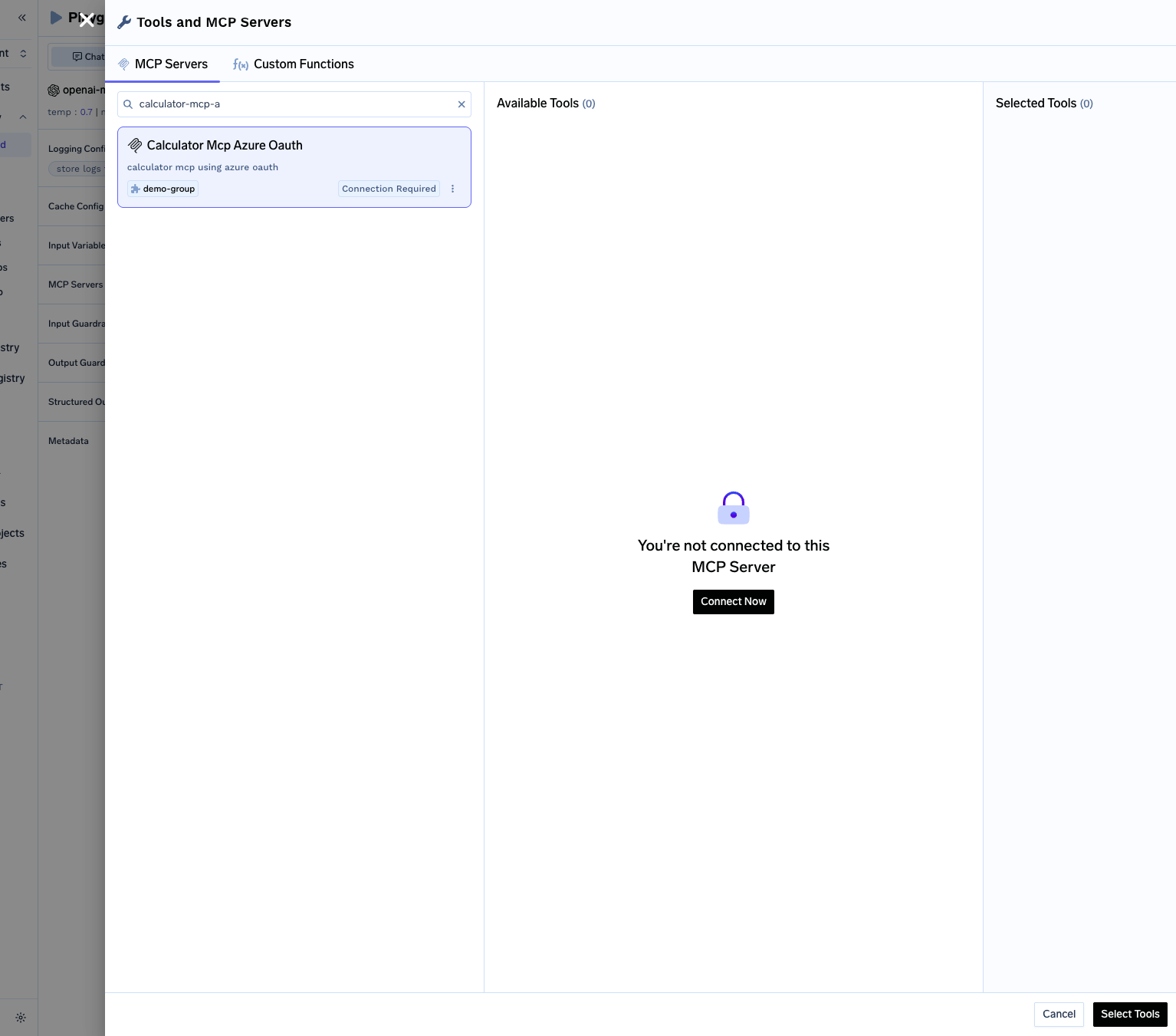
- You’ll be redirected to Azure to authorize access
- Sign in with your Azure account and consent to the requested permissions
- You’ll be redirected back to the Gateway
- The AI Gateway will store your OAuth tokens securely and refresh them automatically when they expire
- You’ll see the
addandsubtracttools from your MCP server - Select the tools and click Done
- Try sending a prompt like
Add 1 and 2. Use the tools provided - The tool will return the result from your MCP server
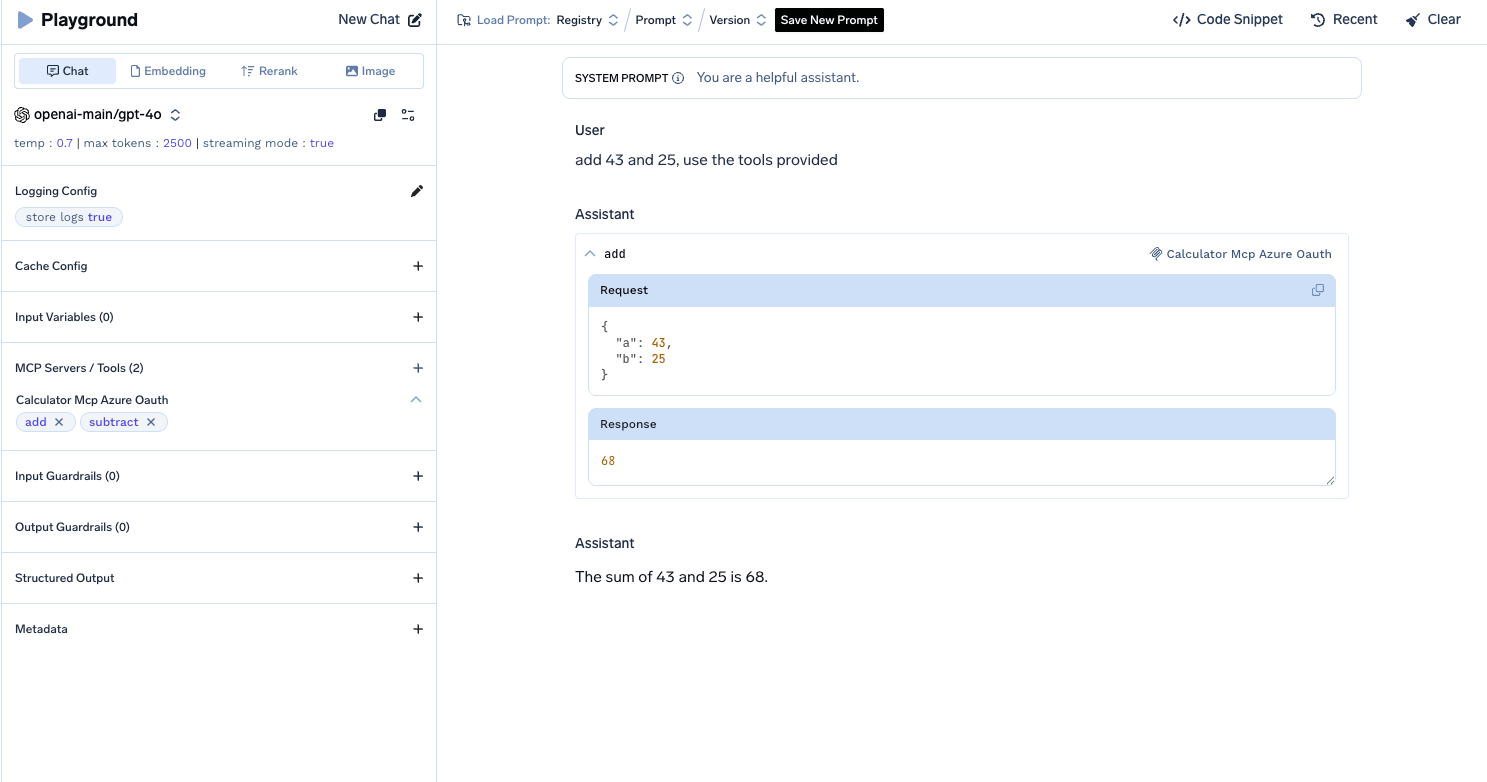
FAQ
What is Machine to Machine Authentication?
What is Machine to Machine Authentication?
What are Application Permissions vs Delegated Permissions?
What are Application Permissions vs Delegated Permissions?
- Delegated permissions: Used when a user is present. The app acts on behalf of the signed-in user. These require user consent (or admin consent).
- Application permissions: Used for machine-to-machine scenarios without a signed-in user. These always require admin consent.
Why use .default scope for client credentials?
Why use .default scope for client credentials?
.default scope format (api://{client-id}/.default). This requests all application permissions that have been pre-consented for your application. You cannot request individual scopes in client credentials flow.Why doesn't Azure include custom scopes in the well-known endpoint?
Why doesn't Azure include custom scopes in the well-known endpoint?
/.well-known/openid-configuration endpoint only returns generic OpenID Connect scopes:openidprofileemailoffline_access
api://{client-id}/calculator.add) are:- Defined per app registration in the “Expose an API” section
- Granted per client in the “API permissions” section
- Not discoverable via the well-known endpoint
What's the difference between Azure and Okta OAuth?
What's the difference between Azure and Okta OAuth?
| Aspect | Azure Entra ID | Okta |
|---|---|---|
| Scopes format | api://{client-id}/scope-name | Custom scopes |
| Audience in token | Just the client ID | Full audience URI |
| Custom scopes discovery | Manual configuration required | Auto-discoverable |
| Well-known URL | /.well-known/openid-configuration | /.well-known/oauth-authorization-server |