Documentation Index
Fetch the complete documentation index at: https://www.truefoundry.com/llms.txt
Use this file to discover all available pages before exploring further.
TrueFoundry Agents are available on SaaS only.
Bring Your Own Model
Connect any LLM available through TrueFoundry’s AI Gateway. Switch models without rewriting your agent.
MCP Server Integration
Plug in any MCP server to give your agent tools — file access, web search, APIs, databases, and more.
Sandbox Access
Agents run in a secure execution environment. Code execution, file operations, and external calls are sandboxed by default.
ReAct Agent Framework
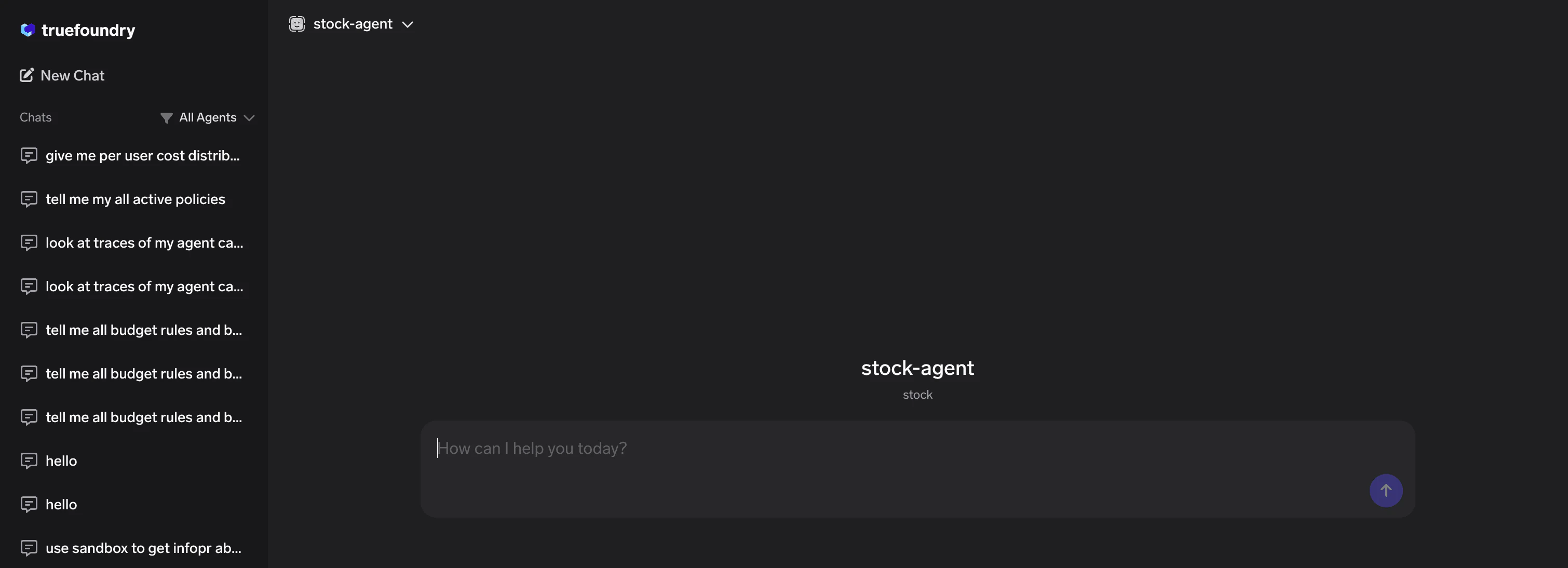
Agents follow a reason-then-act loop out of the box. A built-in chat interface lets you interact with them immediately.
Creating a New Agent
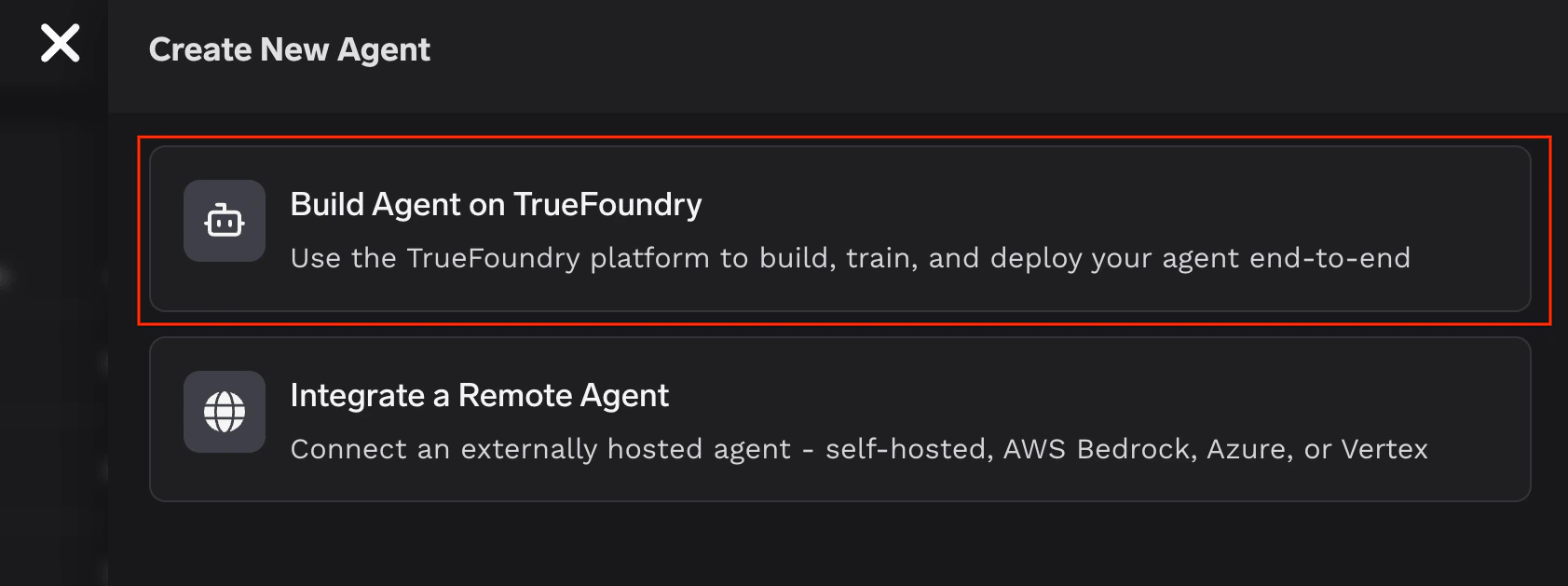
On the Agent Registry page, click Create New Agent and select Build Agent on TrueFoundry.
Write your instructions
Add a system prompt that defines the agent’s behavior, persona, and constraints.
Connect MCP Servers
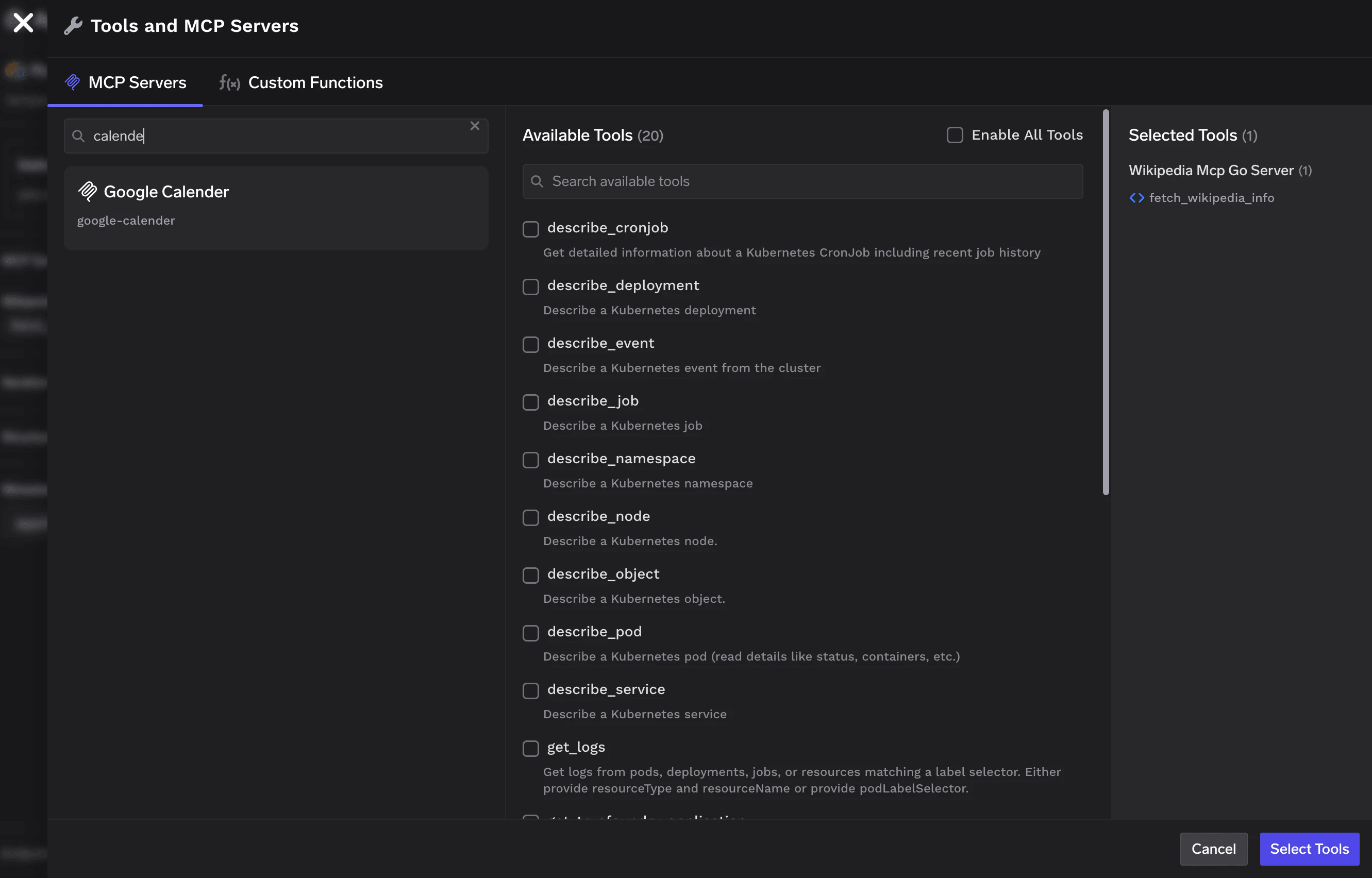
Click the + next to MCP Servers to open the tool selection dialog. Search for MCP servers, browse available tools, and select the ones your agent needs.
Add Skills (optional)
Click the + next to Skills to attach reusable
SKILL.md instructions from the Skills Registry. See Mounting Skills for the full flow.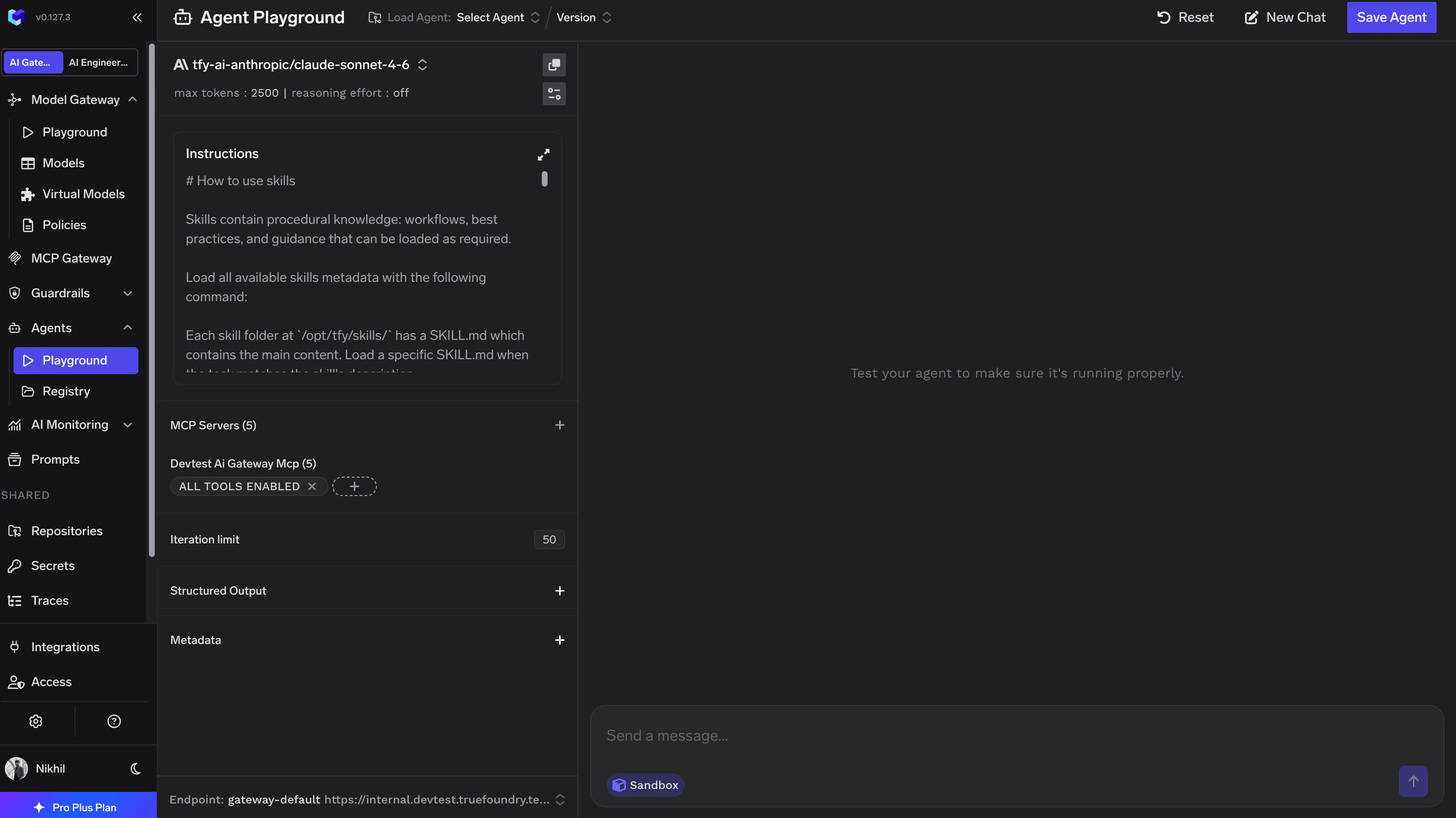
Saving the Agent
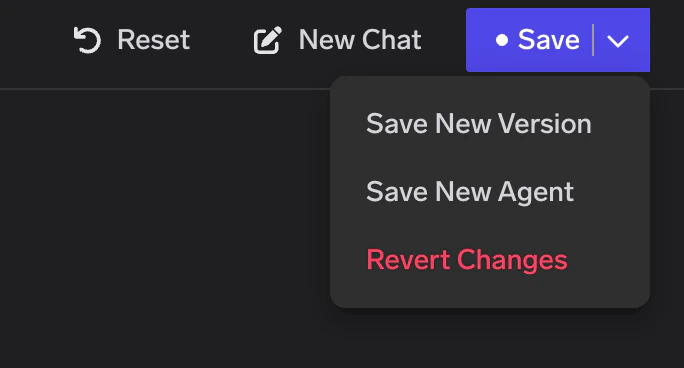
Once you’re satisfied with the agent’s behavior, click Save Agent in the top-right corner. The dropdown gives you two options:- Save New Version — Update an existing agent with your changes.
- Save New Agent — Create a brand-new agent from the current configuration.
Agent Configuration
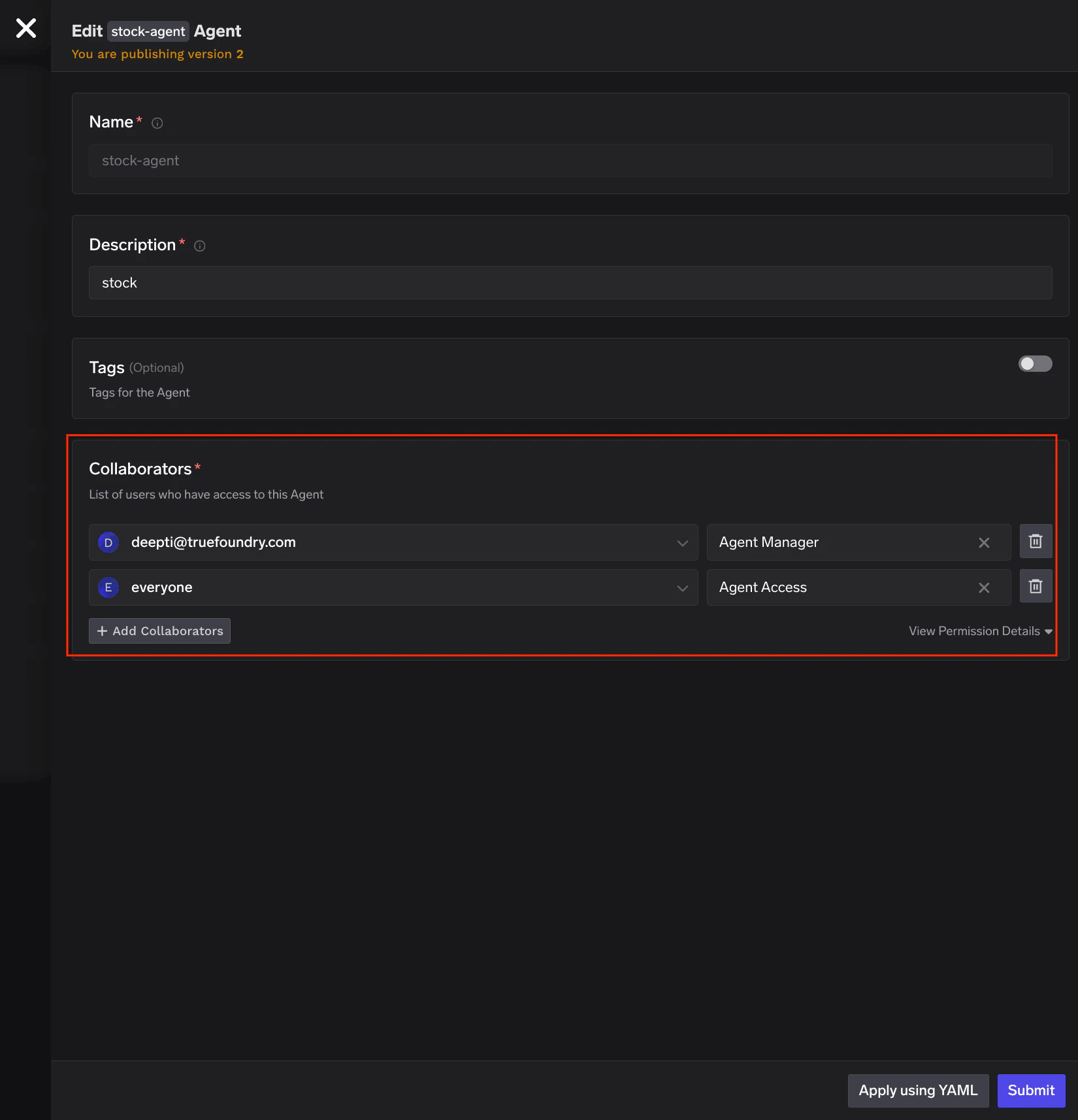
To edit an agent’s configuration after creation, click Manage on the Agent Registry page.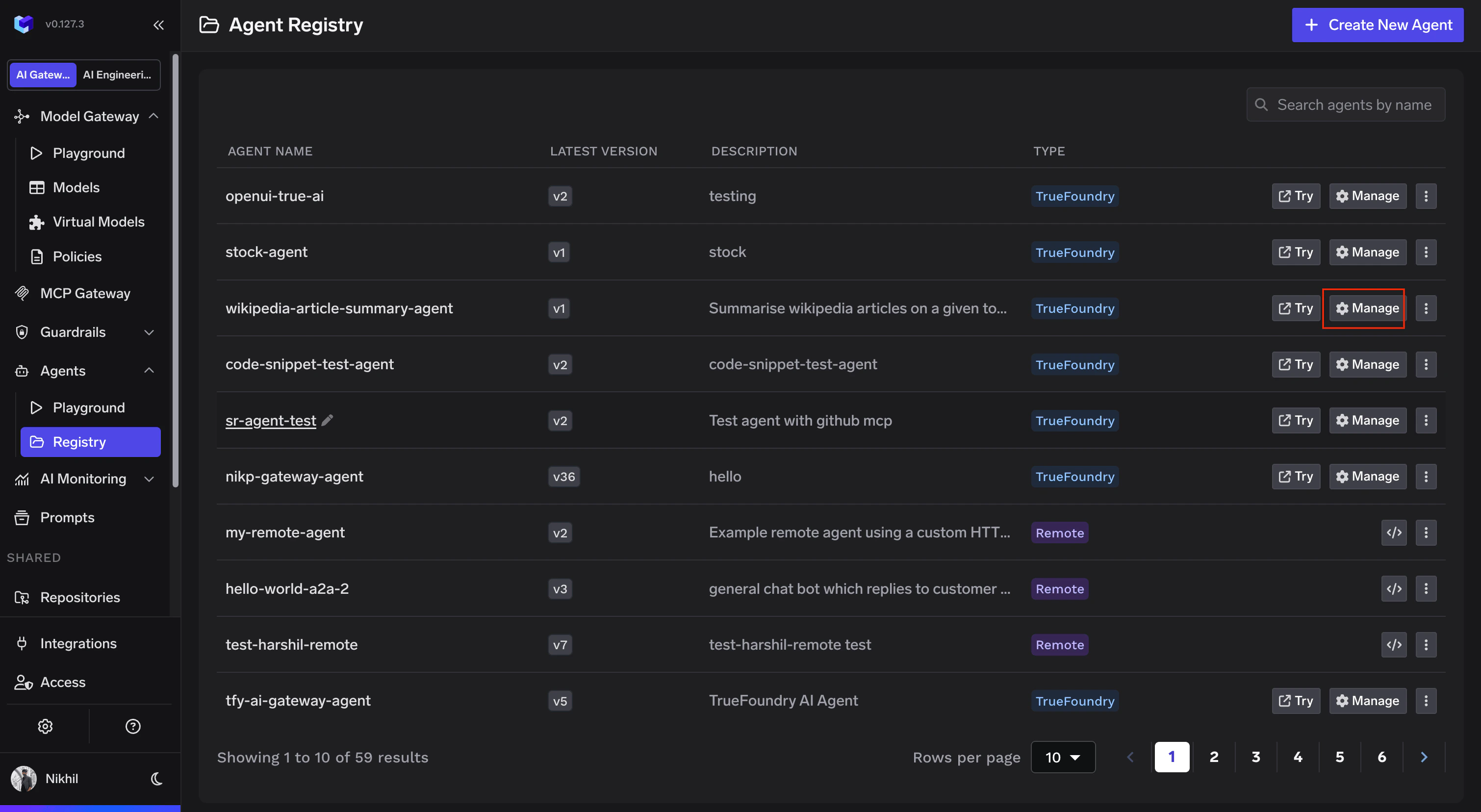
| Field | Description |
|---|---|
| Name | A unique name for the agent within your organization. |
| Description | A short description of what the agent does. |
| Tags | Optional tags for categorization and search. |
| Collaborators | Team members or groups with Agent Manager (edit) or Agent Access (use) permissions. |
Mounting Skills
Attach reusable Skills — versionedSKILL.md instructions and supporting files — to a TrueFoundry Agent so the model picks them up at runtime. Skills require the agent’s Sandbox to be enabled.
Open the Skills selector
Click the + button next to Skills in the Playground sidebar. The selector lists every skill you have access to, grouped by Repository. Each row has a version dropdown — defaults to the latest, but you can pin any older version.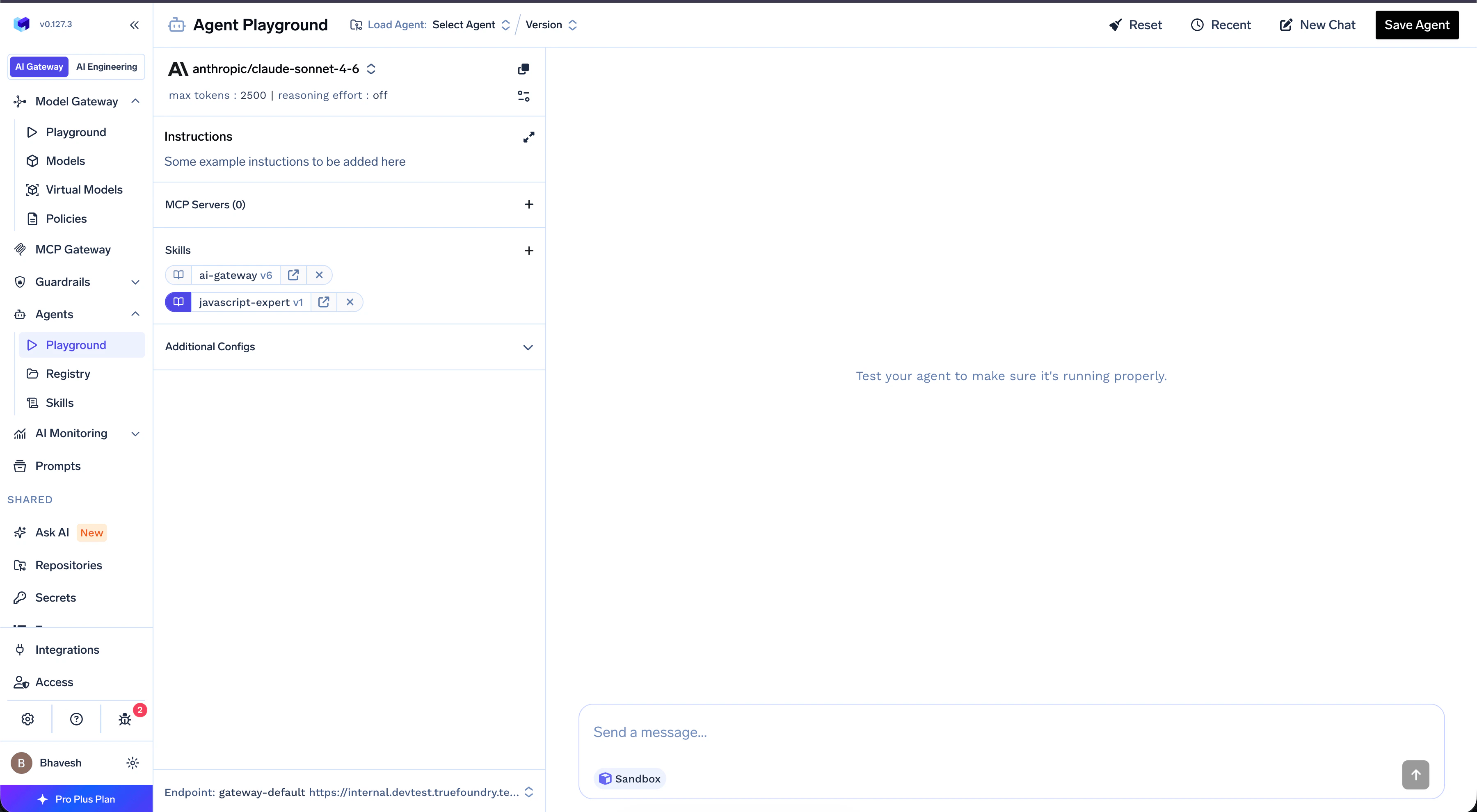
Pick the skills the agent needs
Check the skills you want. Each selected skill becomes a
skills[] entry on the agent.Within a single agent, two skills cannot share the same
name even if they live in different Repositories. The selector greys out the second skill and shows a tooltip explaining the conflict — pick one or use a differently named copy.(Optional) Toggle Preload SKILL.md per skill
Each selected skill has a small icon toggle that controls Preload SKILL.md:
| Mode | Behavior |
|---|---|
| Off (default) | Only the skill’s name and description are exposed upfront. The body is loaded on demand when the agent decides the skill is relevant. |
| On | The full SKILL.md body is loaded upfront. Higher upfront context cost, but no extra step at runtime. |
Access Control for Skills
Skills inherit access control from their parent Repository — the caller must have read access on each skill’s Repository to mount it. When end-users invoke a saved agent, the Gateway treatsREAD on the agent as implicit access to all skills attached at save time, so they don’t need direct permissions on the underlying skill Repositories.
Sharing and Using Agents
Once published, every agent appears on the Agent Registry page. Agents you have access to show Try and Manage actions.Try an Agent
Click Try on any agent in the registry to open a standalone chat page.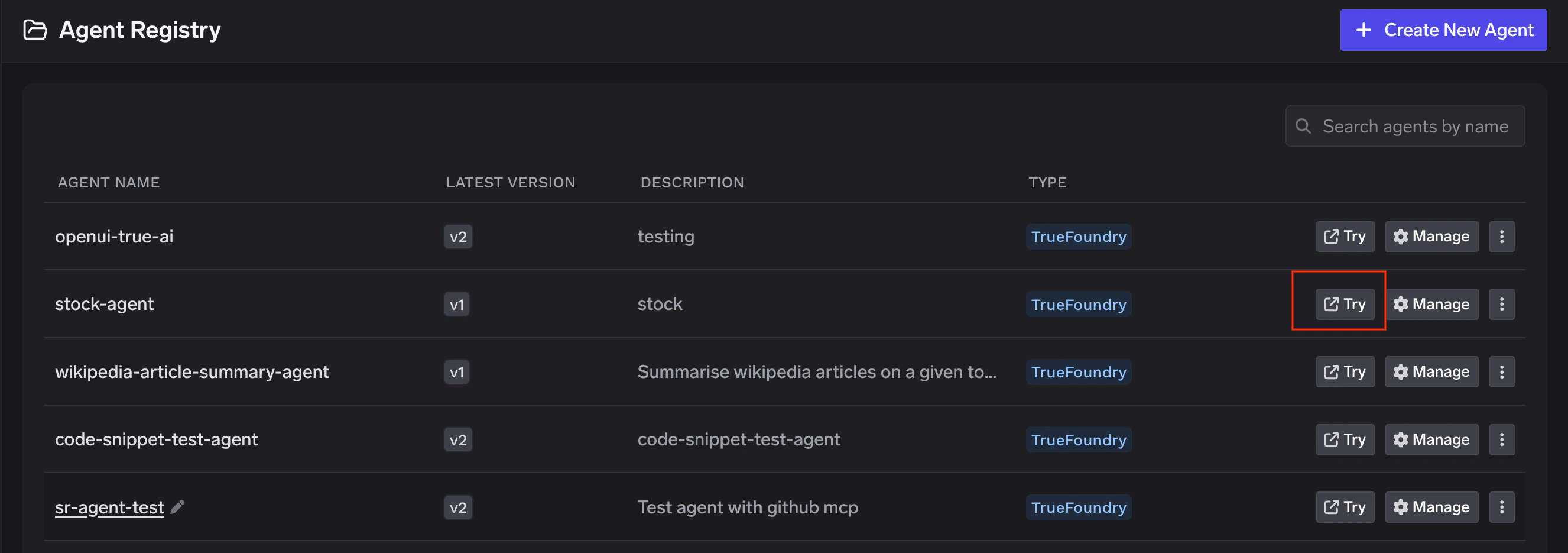
Integrate with Code
Every agent on TrueFoundry is API-accessible. The API contract is currently under active development and will be documented in the coming weeks.Monitoring
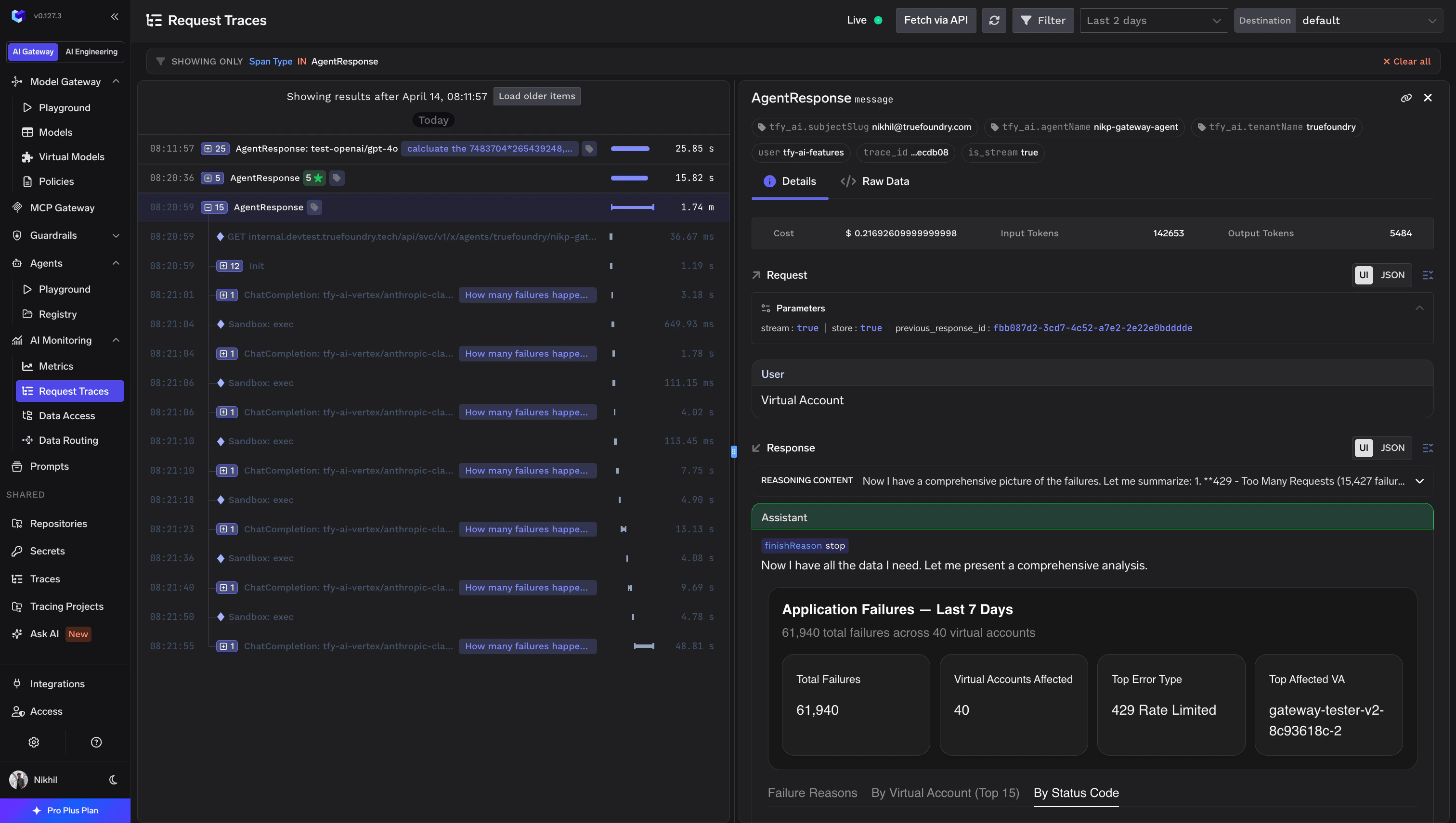
Every TrueFoundry agent execution is traced end-to-end. Traces capture each step of the agent’s reasoning loop — LLM calls, tool invocations, sandbox executions — along with cost, token usage, and latency. Navigate to AI Monitoring > Request Traces and filter by span type AgentResponse to inspect individual agent runs.