Adding Models
This section explains the steps to add Azure AI Foundry models and configure the required access controls.Navigate to Azure AI Foundry Models in AI Gateway
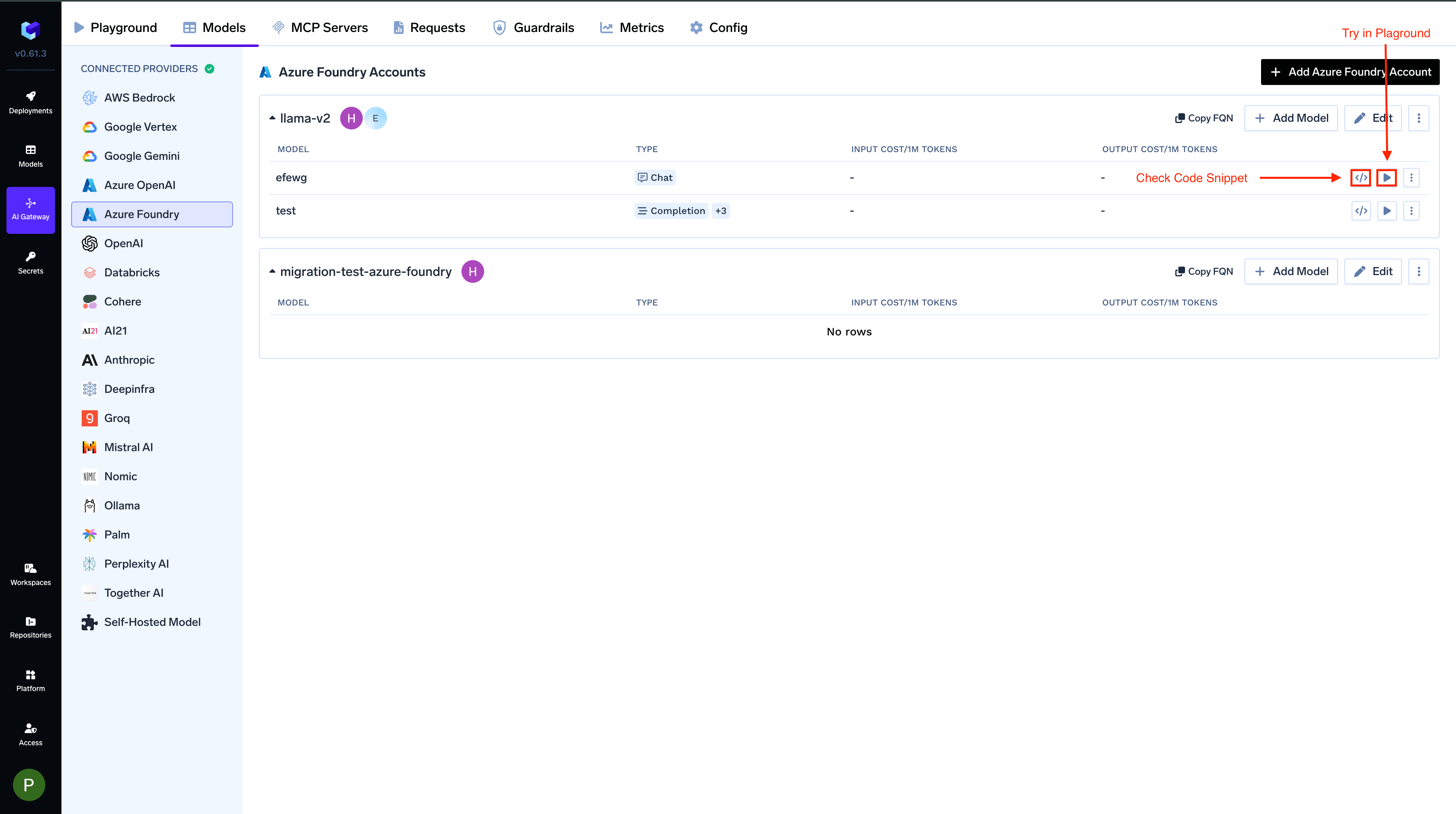
From the TrueFoundry dashboard, navigate to 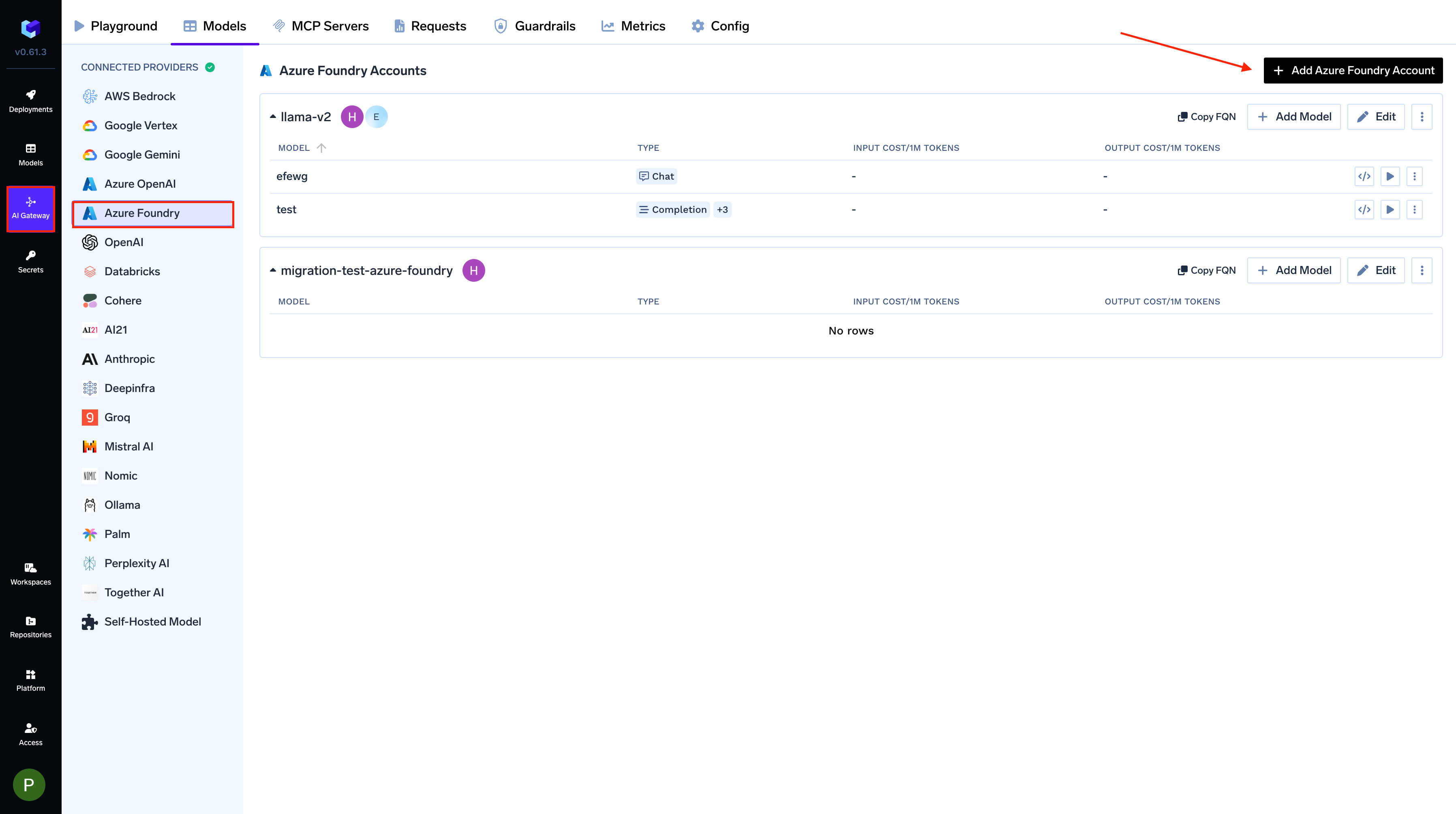
AI Gateway > Models and select Azure AI Foundry.Add Azure AI Foundry Account Details
Click 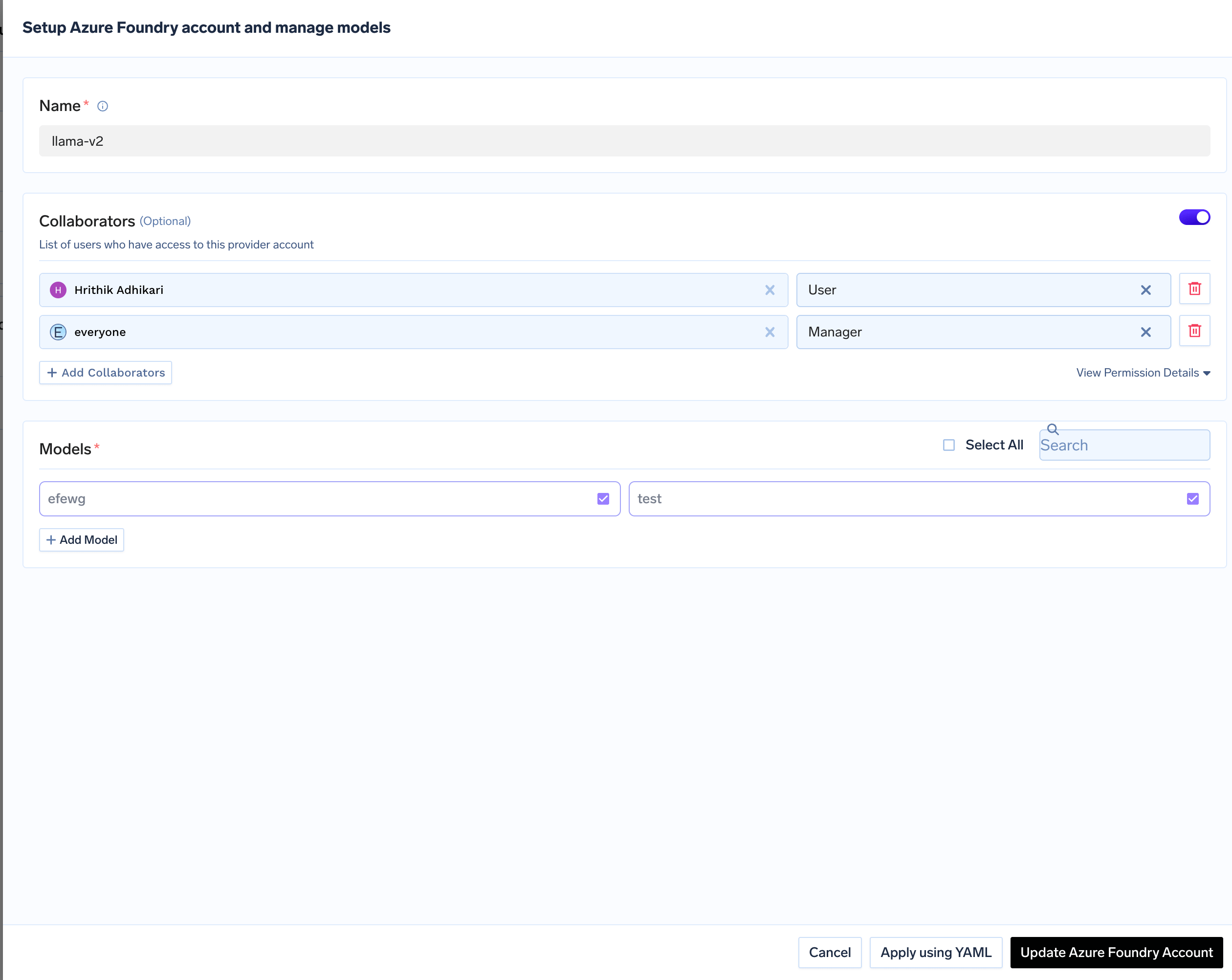
Add Azure AI Foundry Account. Give a unique name to your Azure AI Foundry account.
Add collaborators to your account. You can read more about access control here.Authentication (API Key or Certificate) is configured per-model in the next step, not at the account level.
Add Models from Azure AI Foundry
Click on 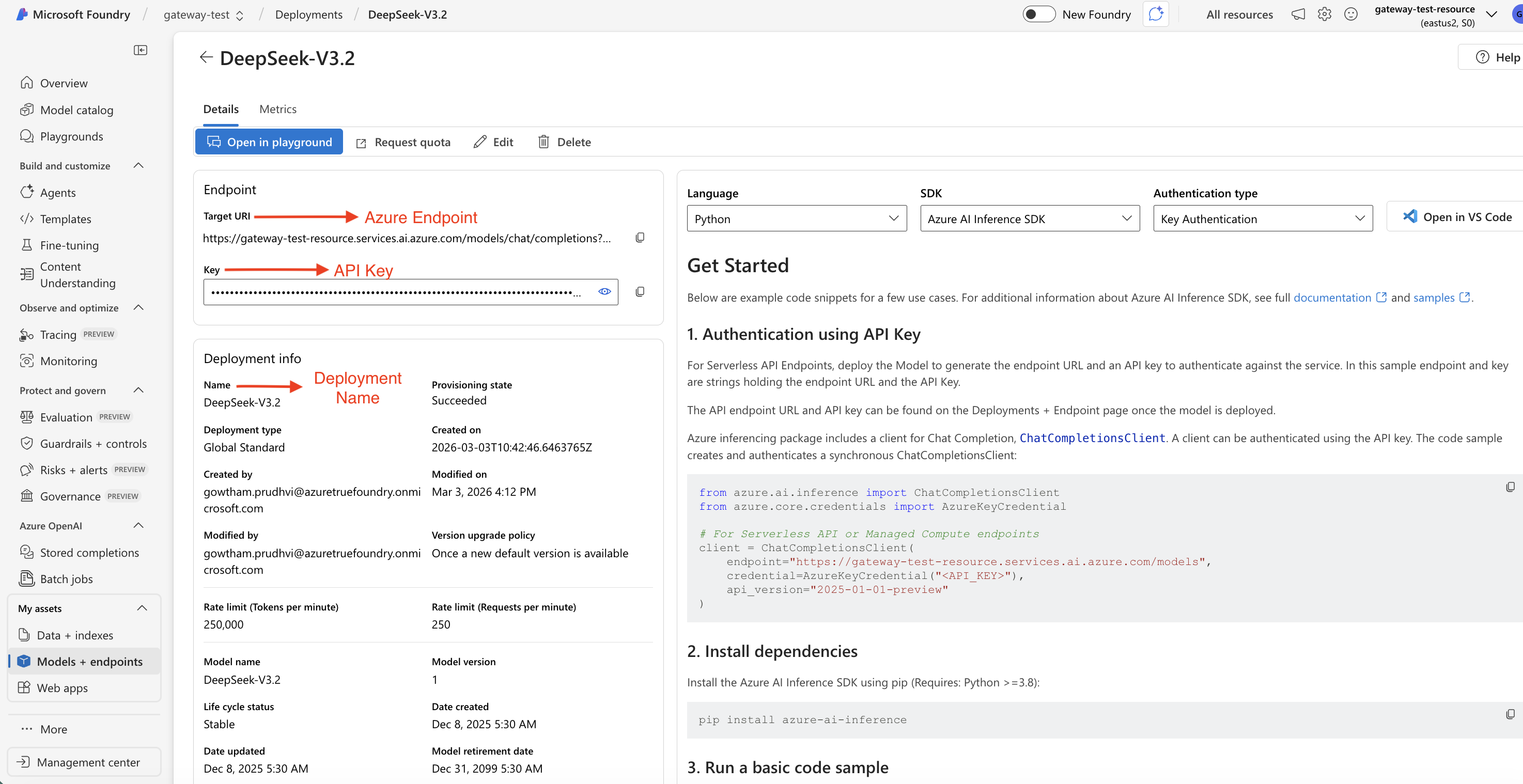
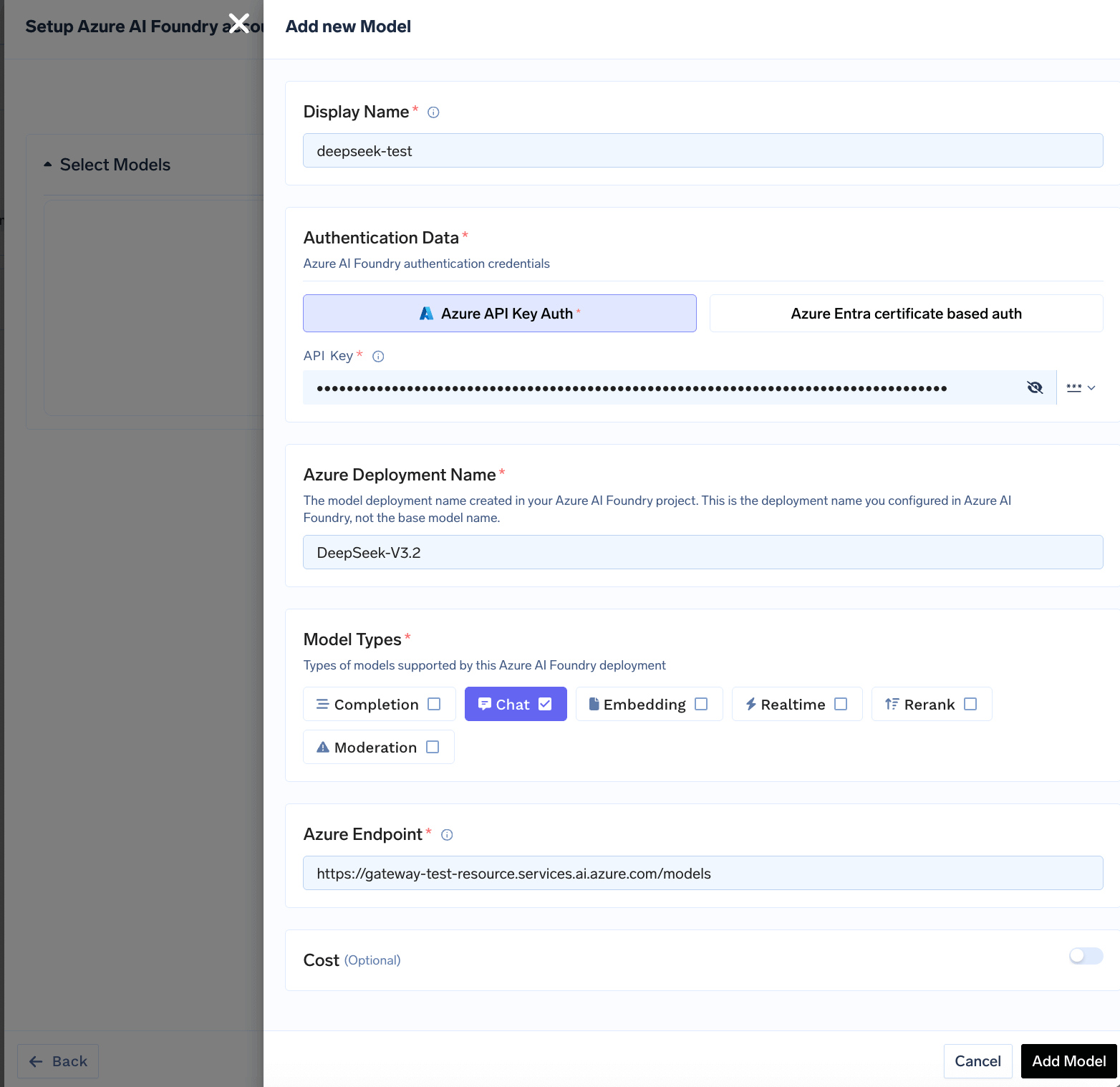
+ Add Model to open the model form. For Azure AI Foundry, you add models based on your deployments in Azure. First, ensure you have deployed a model in your Azure AI Foundry project. You can follow Microsoft’s instructions here.Once deployed, navigate to your deployment in the Azure AI Foundry portal to find the Target URI (endpoint URL), Deployment Name, and API Key.| Field | What to Enter | Where to Find in Azure |
|---|---|---|
| Display Name | name to identify this model in TrueFoundry | Your choice (e.g., gpt-4o-mini) |
| Azure Deployment Name | The deployment name from Azure AI Foundry (not the base model name) | Deployments → click deployment → Name field |
| Azure Endpoint | The full endpoint URL excluding the API path and query parameters (see below) | Deployments → click deployment → Target URI |
| Authentication | API Key or Certificate-based auth | Deployments → click deployment → Key |
| Model Types | Select the capabilities of this model (Chat, Embedding, etc.) | Based on the model you deployed |
Setting the Azure Endpoint
Copy the Target URI from your deployment in the Azure AI Foundry portal, but remove the API path and query parameters, gateway appends those automatically.| Model type | Azure gives you | Enter in TrueFoundry |
|---|---|---|
| Most models (OpenAI, Mistral, DeepSeek, Meta, Cohere, etc.) | https://<resource>.services.ai.azure.com/models/chat/completions?api-version=... | https://<resource>.services.ai.azure.com/models |
| Anthropic (Claude) | https://<resource>.services.ai.azure.com/anthropic/v1/messages?api-version=... | https://<resource>.services.ai.azure.com/anthropic |
| Realtime models | https://<resource>.services.ai.azure.com/openai/realtime?api-version=... | https://<resource>.services.ai.azure.com |
Azure AI Foundry integration supports various AI models including OpenAI, Meta Llama, Mistral, DeepSeek, Cohere, and Anthropic Claude models deployed in your Azure account.
Inference
After adding the models, you can perform inference using an OpenAI-compatible API via the Playground or by integrating with your own application.