

This guide explains how to use TrueFoundry’s built-in PII/PHI Detection guardrail to detect and redact personally identifiable information or protected health information in LLM interactions and MCP tool invocations.Documentation Index
Fetch the complete documentation index at: https://www.truefoundry.com/llms.txt
Use this file to discover all available pages before exploring further.
Implementation: This guardrail is powered by Azure AI Language PII Detection and runs on TrueFoundry-managed infrastructure — no third-party API keys or setup required. For vendor-hosted PII services using your own credentials (Azure PII, Google Model Armor, and others) or self-hosted redaction (for example via Custom Guardrails), see Supported Guardrails and Guardrails Overview.PII/PHI Detection can be applied to all four guardrail hooks: LLM Input, LLM Output, MCP Pre Tool, and MCP Post Tool—providing comprehensive PII/PHI protection across your entire AI workflow.
What is PII Detection?
PII Detection is a built-in TrueFoundry guardrail that identifies and redacts personally identifiable information or protected health information from text content. It is powered by Azure AI Language PII Detection under the hood and understands context to detect PII/PHI with high accuracy even when the data doesn’t follow a strict format. The guardrail is fully managed by TrueFoundry — no external credentials or setup required.Key Features
- Context-Aware Detection: Detects PII/PHI with contextual understanding, providing higher accuracy and fewer false positives than simple pattern matching.
- Configurable Entity Categories: Select which types of PII/PHI to detect from a comprehensive set of entity categories from basic identifiers like names and emails to financial and identity document numbers.
- Automatic Redaction: Operates in mutate mode, detected PII/PHI is automatically redacted in the content, allowing the request to continue with sensitive data removed.
Adding PII/PHI Detection Guardrail
Create or Select a Guardrails Group
Create a new guardrails group or select an existing one where you want to add the PII/PHI Detection guardrail.
Add PII Detection Integration
Click on Add Guardrail and select PII/PHI Detection from the TrueFoundry Guardrails section.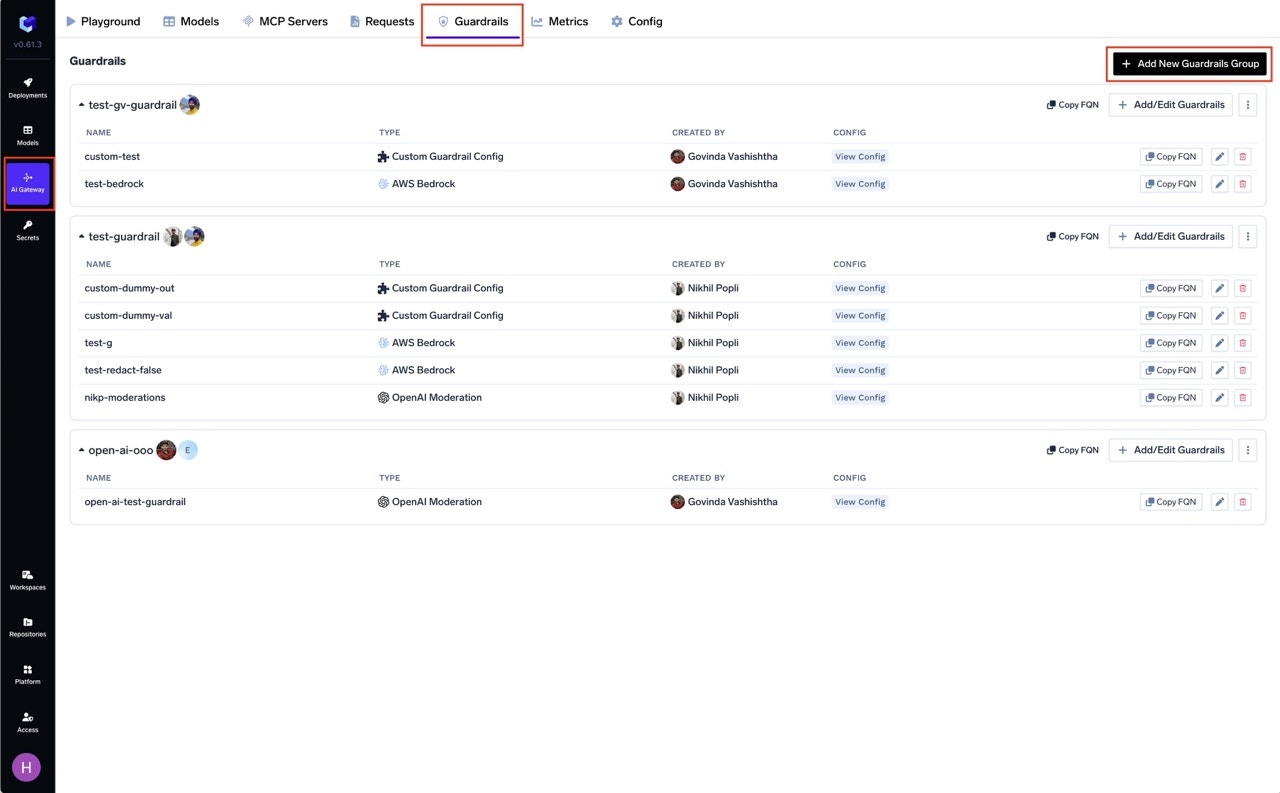
Configure the Guardrail
Fill in the configuration form: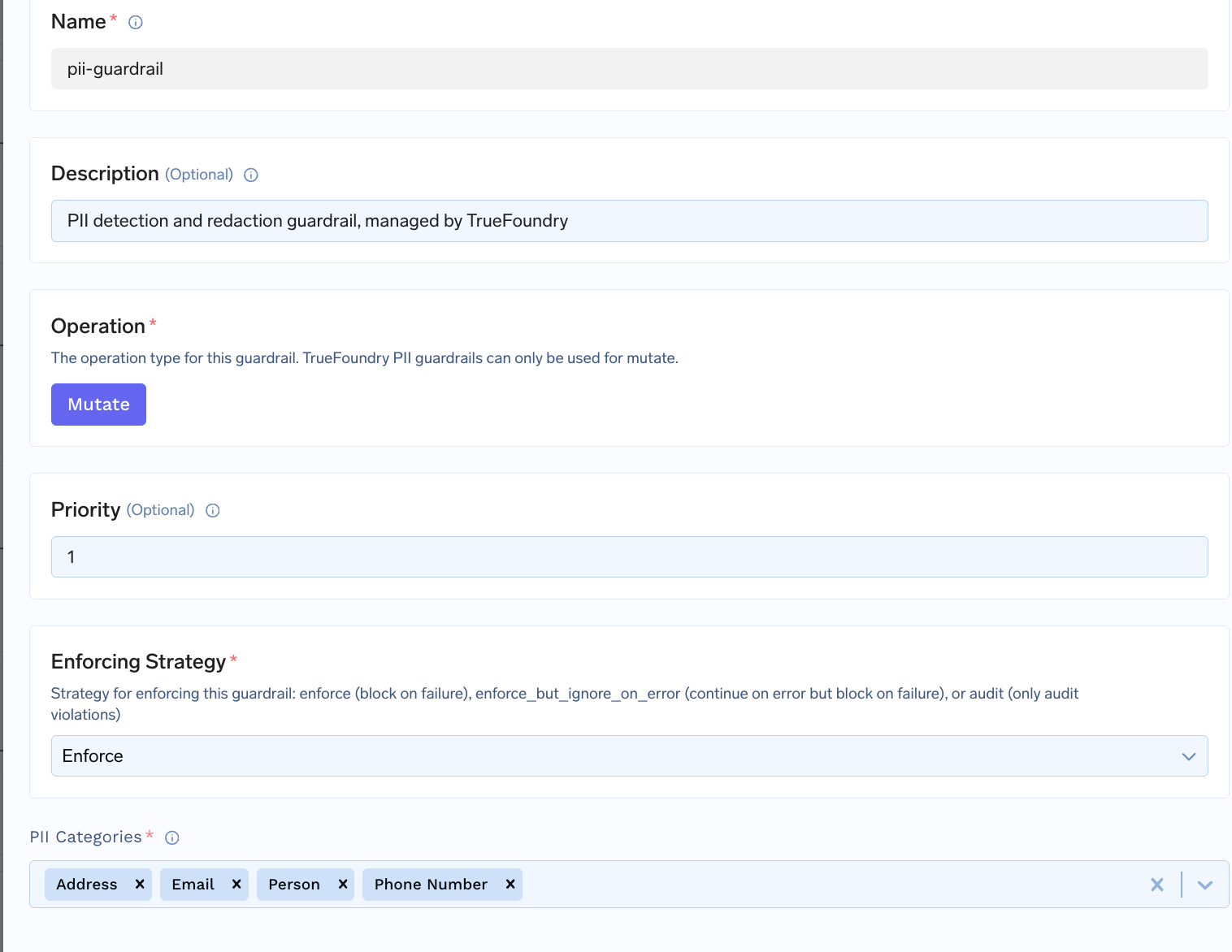
- Name: Enter a unique name for this guardrail configuration (e.g.,
pii-detection) - PII Categories: Select the entity categories you want to detect or select all categories(Default).
- Enforcing Strategy: Choose how violations are handled
Configuration Options
| Parameter | Description | Default |
|---|---|---|
| Name | Unique identifier for this guardrail | Required |
| Operation | mutate only (detects and redacts PII) | mutate |
| Priority | Execution order for mutate guardrails (lower runs first) | 1 |
| Enforcing Strategy | enforce, enforce_but_ignore_on_error | enforce |
| PII Categories | Array of entity categories to detect | Required |
PII Detection only supports mutate mode — it always redacts detected entities. See Guardrails Overview for details on Operation Modes and Enforcing Strategy.
How It Works
When content passes through the guardrail, detected PII entities are replaced with asterisks in the output, preserving the rest of the text. Example:Use Cases
Recommended Hook Usage
| Hook | Use Case |
|---|---|
| LLM Input | Redact PII from user messages before they reach the LLM |
| LLM Output | Redact PII from LLM-generated responses |
| MCP Pre Tool | Remove PII from tool parameters before invocation |
| MCP Post Tool | Redact PII from tool outputs (database results, file contents) |